Skip to content
English
  • There are no suggestions because the search field is empty.

How do I manage daily tasks in Check-in?

How can I, as administrator/supervisor, view and manage the tasks that employees start and end using the app?

As an administrator, you can see and manage all daily tasks for all customers.

As a supervisor, you can see and manage daily tasks for customers in the customer areas you have been assigned.  For more information regarding this, go to Company Structure.

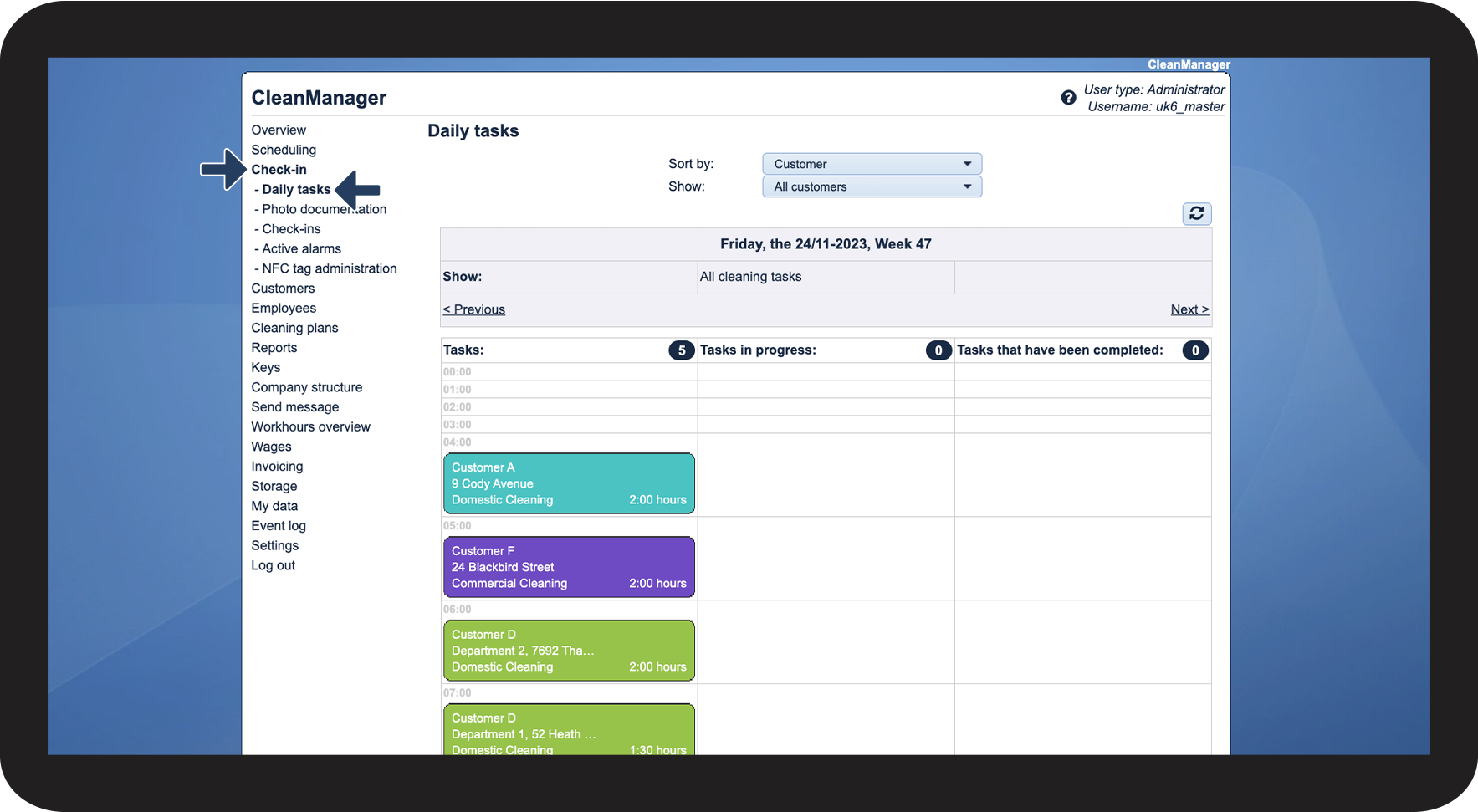
In Daily tasks, you can see an overview of all tasks for the day and whether or not your employees have started and ended them yet. You can also manage the tasks if you need to approve hours, edit or delete a task, for example.


In this article, you will learn what you can see about the daily tasks and how you can manage them:


This is how you can see the status of a task

number_1.png
In the menu, go to Check-in > Daily tasks

1.png


number_2.png

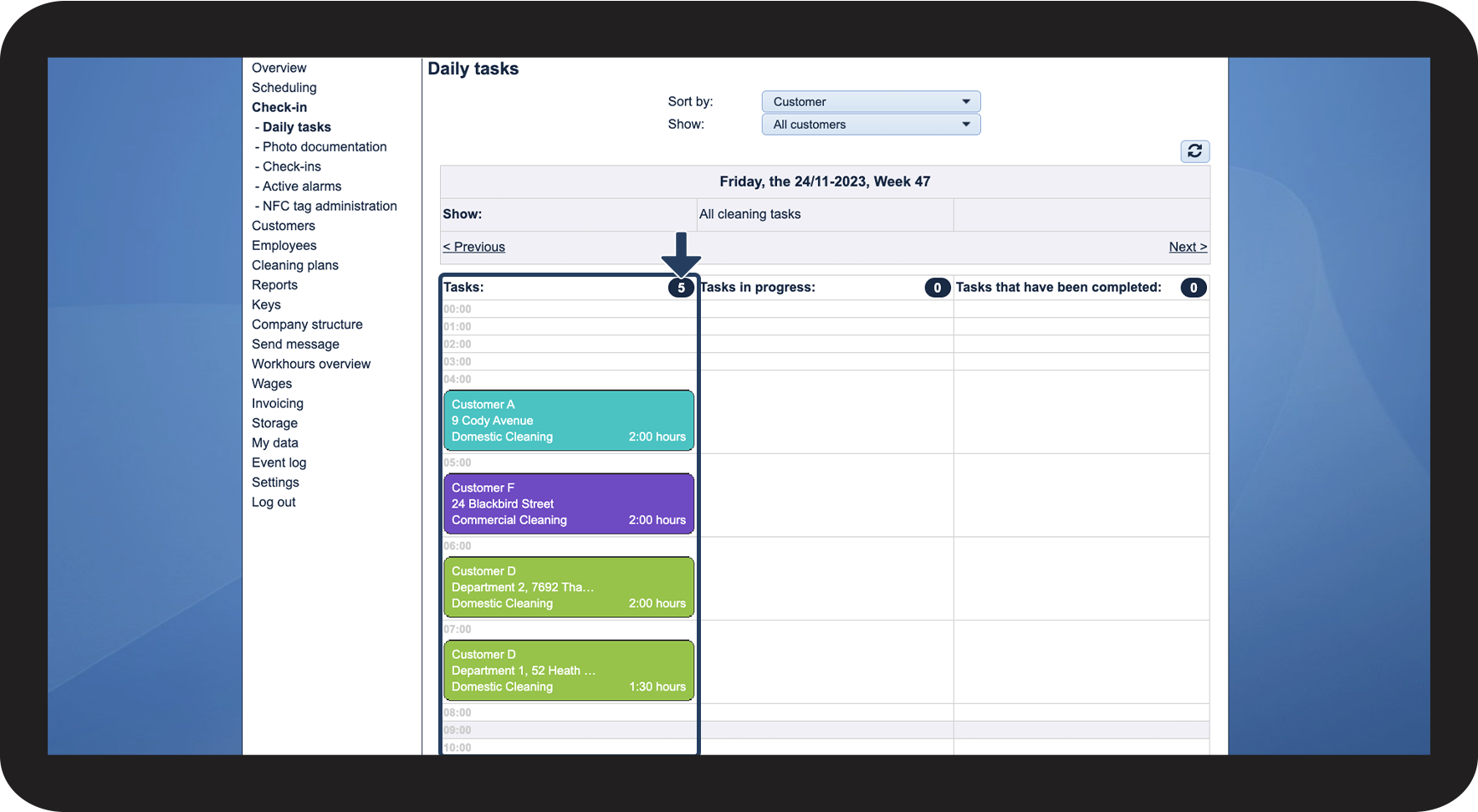
In the Tasks column, you can see all the daily tasks that the employees have not yet started as well as the total number of tasks with this status

2.png


number_3.png

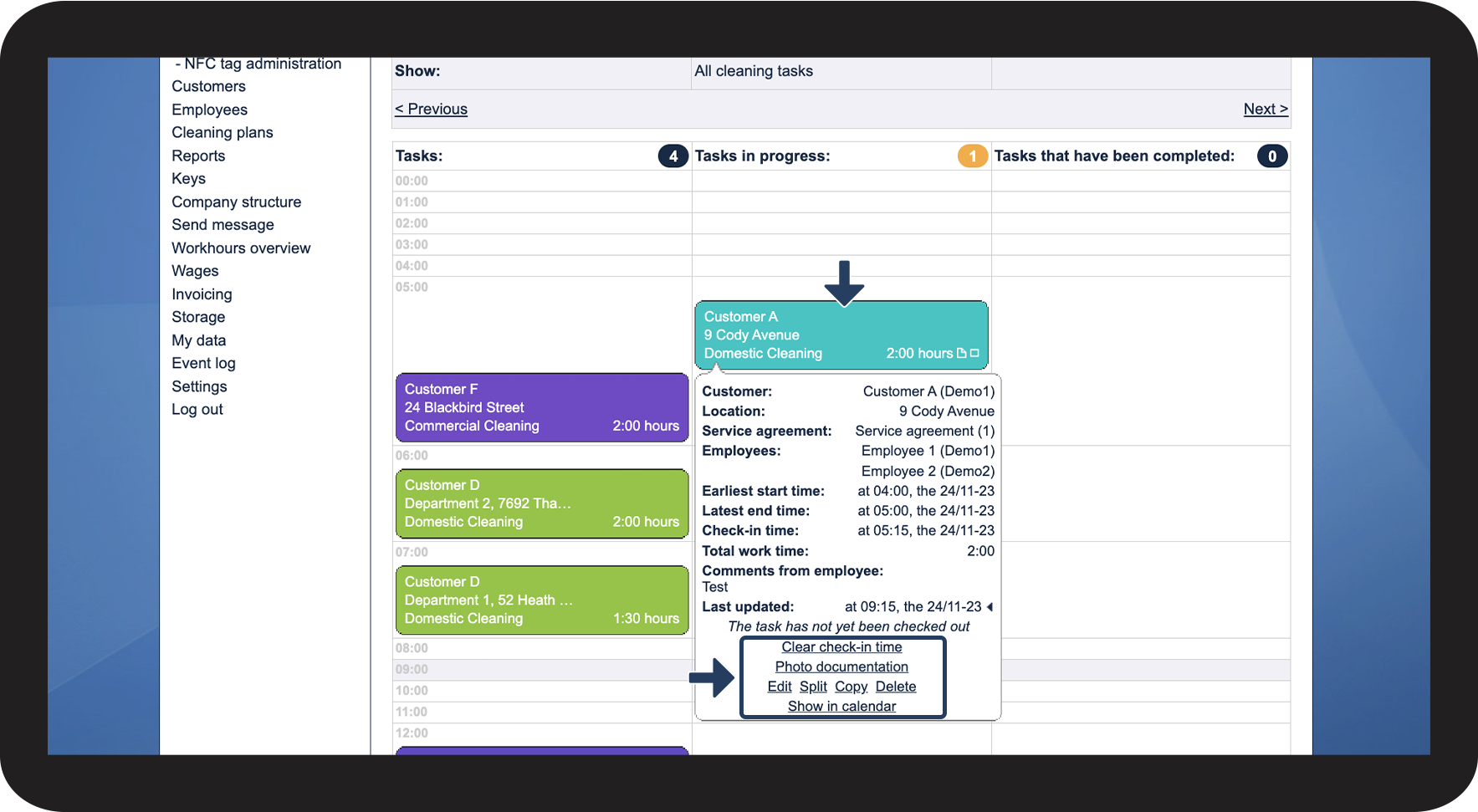
In the Tasks in progress column, you can see all the daily tasks that the employees have started via the app as well as the total number of tasks with this status


INFO:

Learn more about how the employees can start a task using the app in the following articles: Start a task - with NFC tag and Start task - without NFC tag.


NOTE:

If you see a left-pointed arrow in front of the total number of tasks, this indicates that there is a task from a previous day that the employee has not ended via the app.

Click on Previous until you find the task. You can clear the check-in time and then the employee can delete the task in their app to clear the time registration. When this is done, you can enter their used time manually on the task in the calendar.
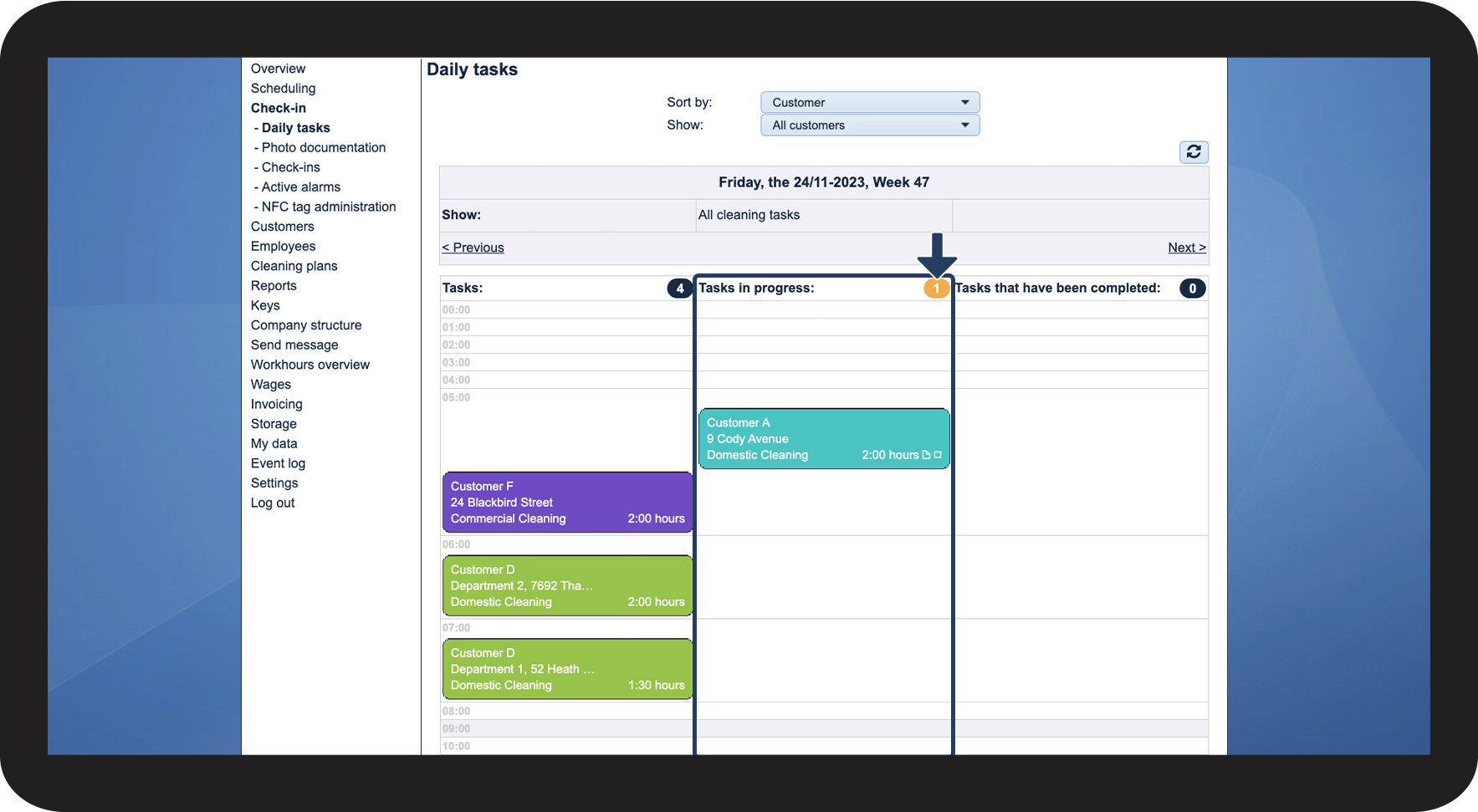
3.png


number_4.png

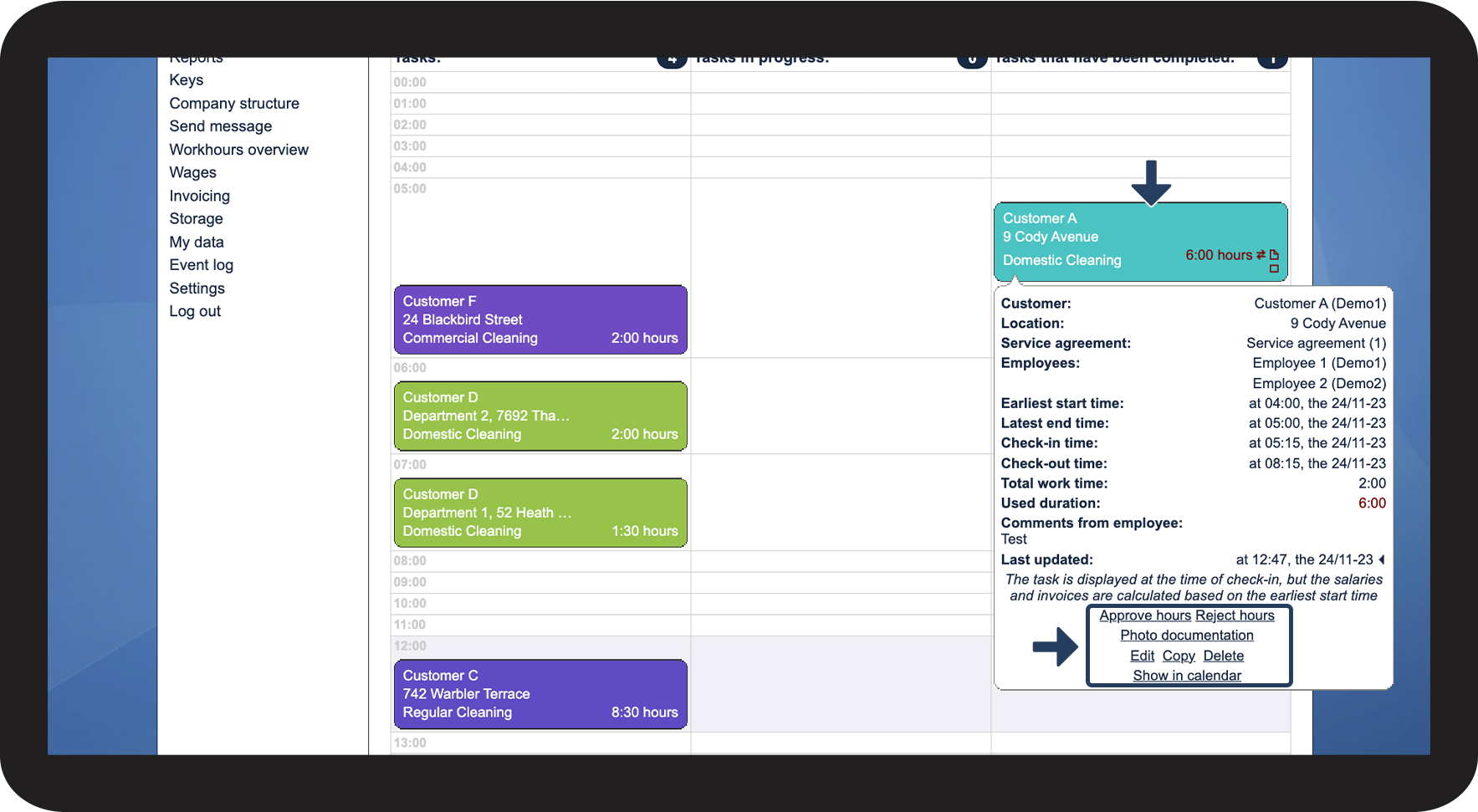
In the Tasks that have been completed column, you can see all the daily tasks that the employees have ended via the app as well as the total number of tasks with this status


INFO:

Learn more about how the employees can end a task using the app in the following articles: End a task - with NFC tag and End task - without NFC tag


You can read more about the icons that can appear on tasks in this column here: Icons that can appear in Daily tasks
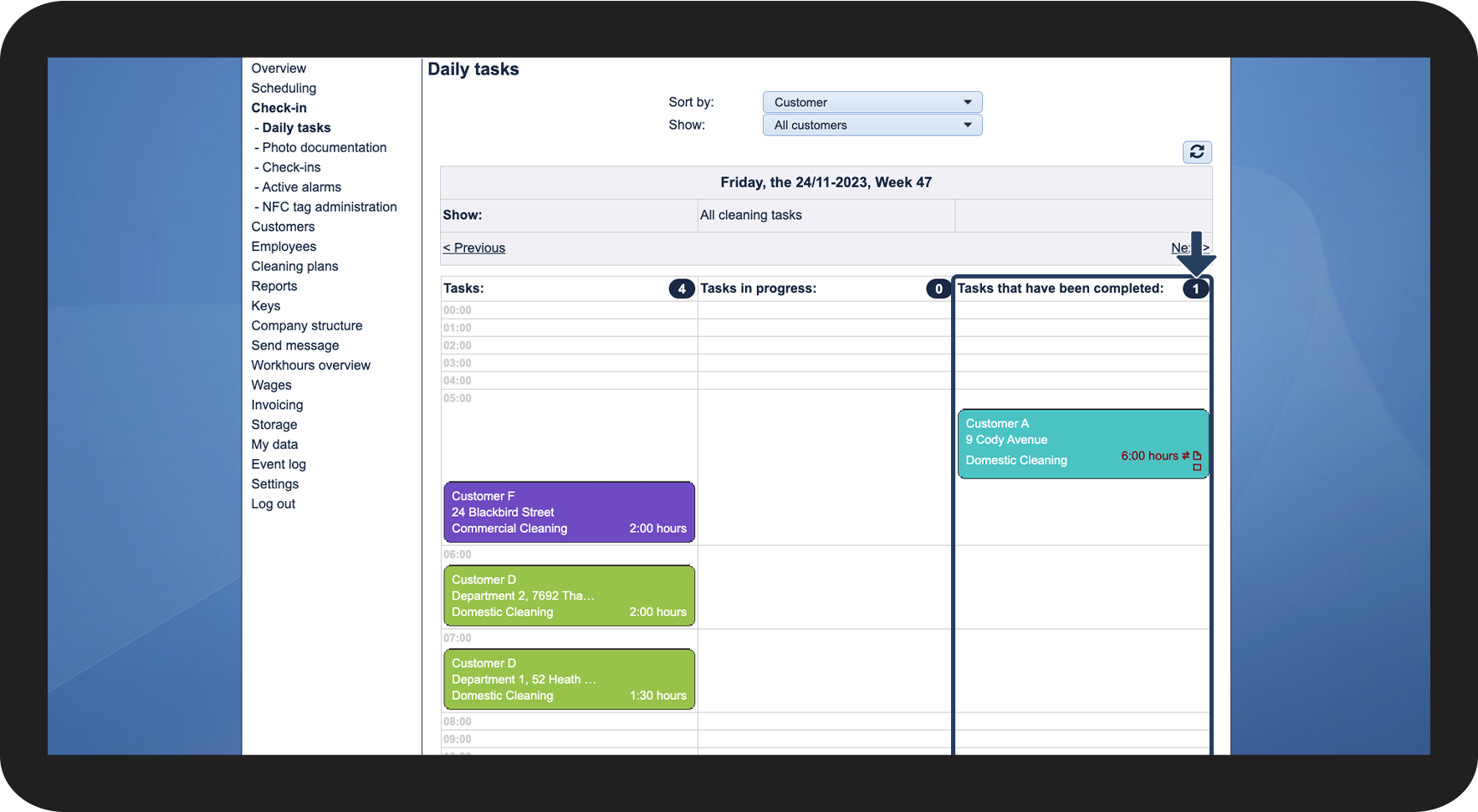
 

4.png


This is how you can see a comment from an employee
number_1.png
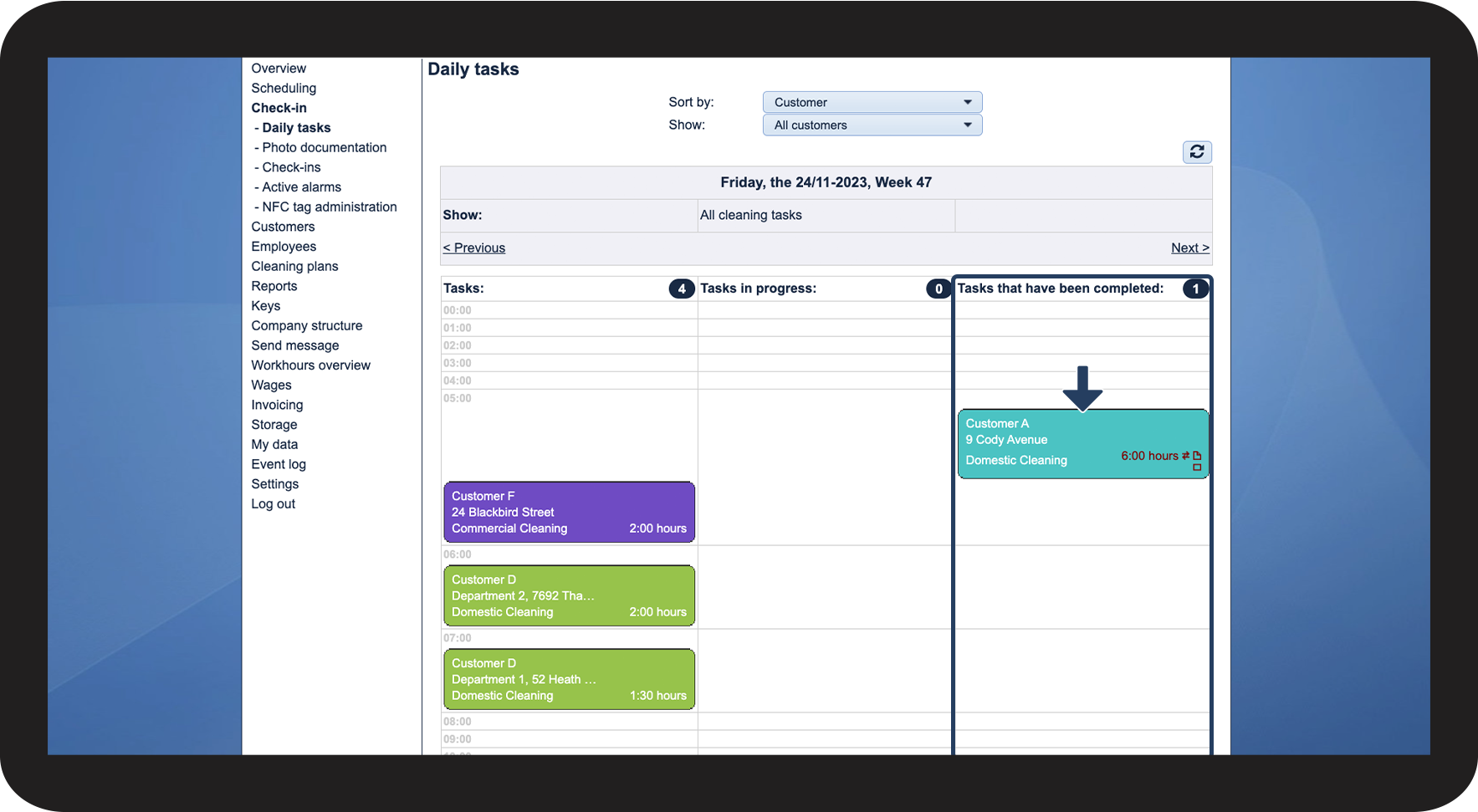
Click on a task in the Tasks that have been completed column

5.png


number_2.png
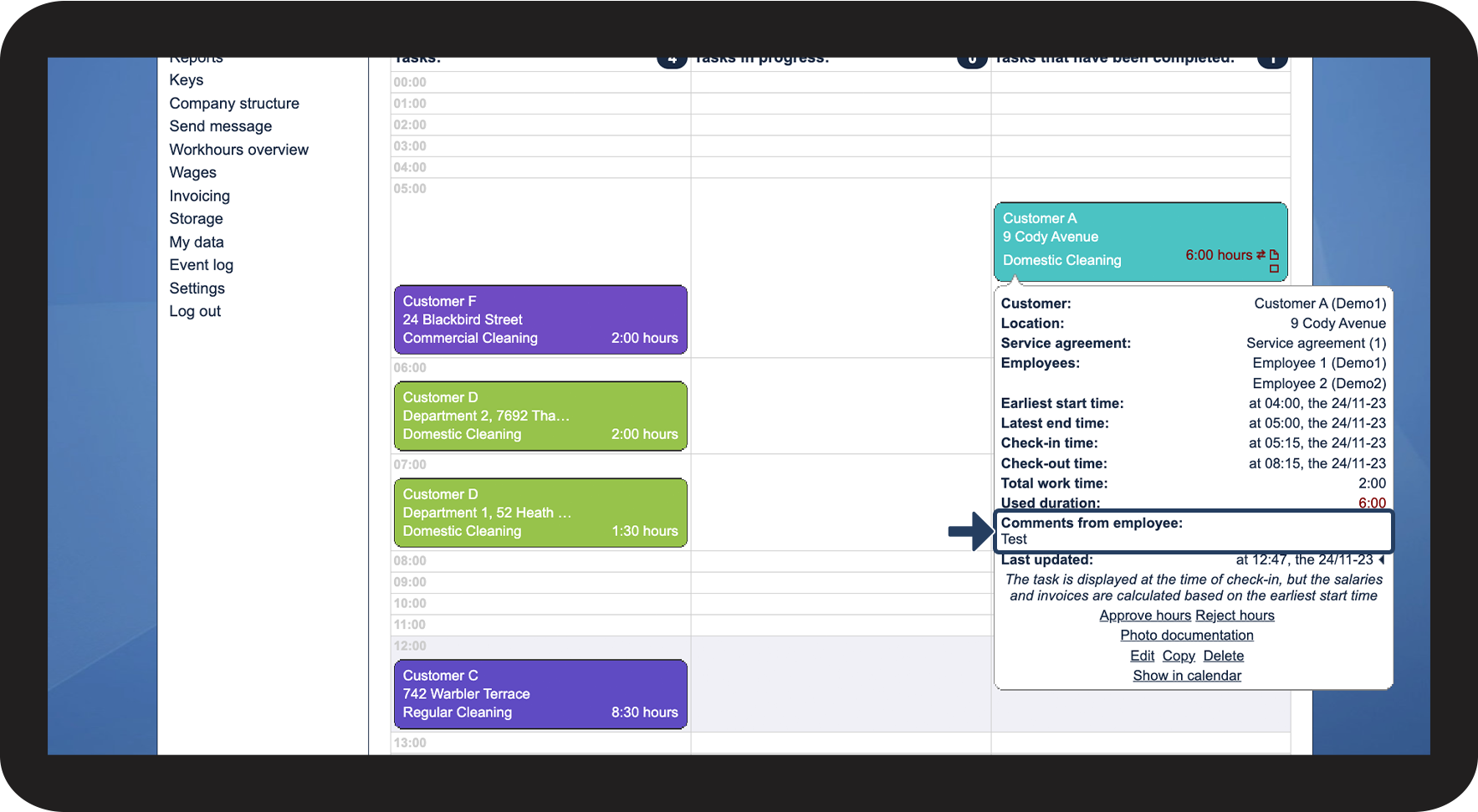
If the employee has entered a comment on the task in the app, it will be displayed here


INFO:

Employees can enter a comment on a task both when they start and end it via the app. If a comment is entered when starting a task, you will be able to see it in the Tasks in progress column. 

However, when ending the task, the comment can be altered or a new comment can be entered if the field was left blank when starting the task. Therefore, the definite comment will be displayed in the Tasks that have been completed column.

Read more about how to add a comment on a task here: Image documentation and comments on a task
6.png


This is how you can manage daily tasks
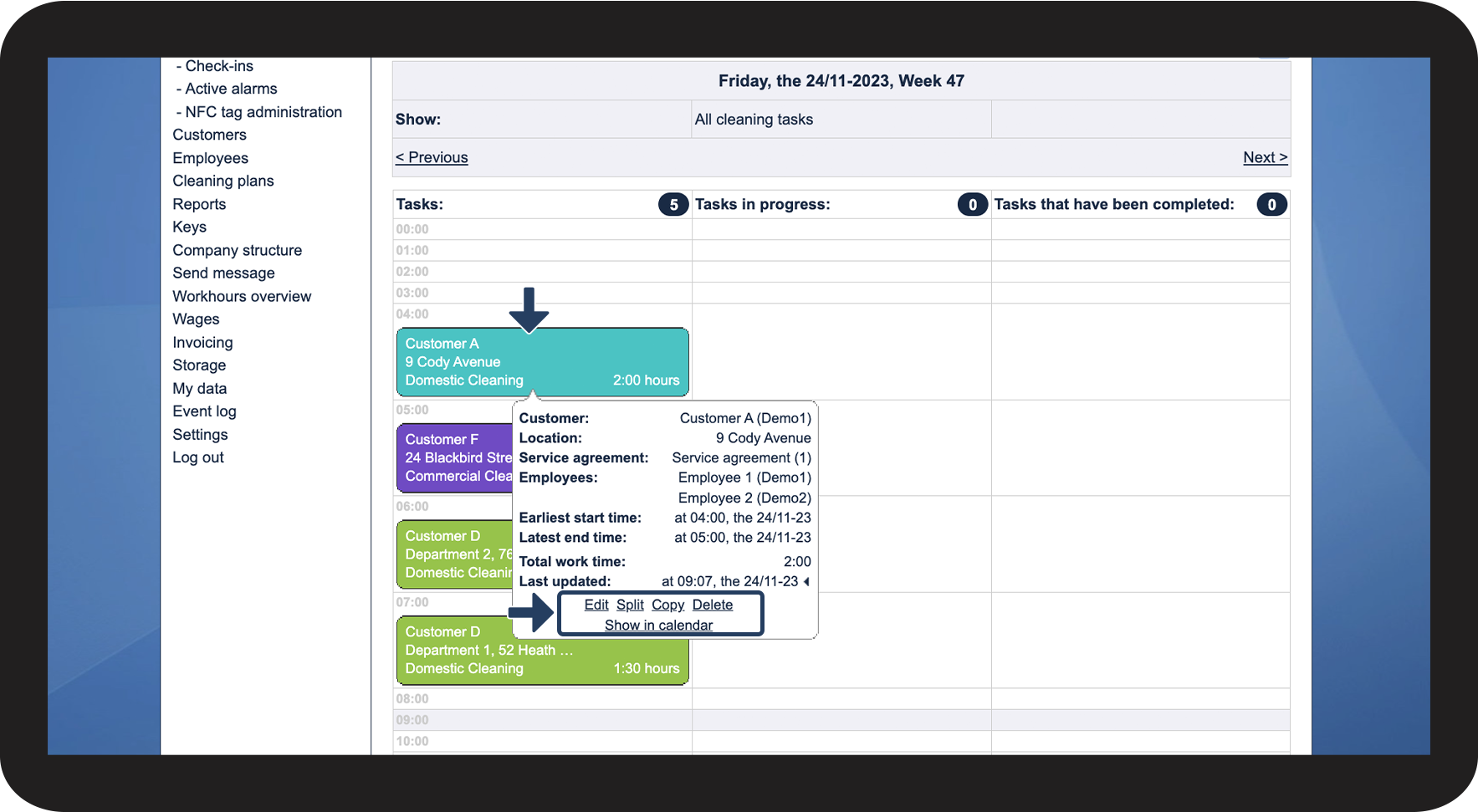
 

No matter the status of the tasks, you can click on them to see their information. However, depending on their status, you will have different options for managing the tasks available.

number_1.png

In the Tasks column, you can have the following options: 

  • Edit
  • Split
  • Copy
  • Delete
  • Show in calendar

7.png


number_2.png

In the Tasks in progress column, you can have the following options:

  • Clear check-in time
  • Photo documentation 
  • Edit
  • Split
  • Copy
  • Delete
  • Show in calendar

8.png


number_3.png

In the Tasks that have been completed column, you can have the following options:

  • Approve hours
  • Reject hours
  • Photo documentation
  • Edit
  • Copy
  • Delete
  • Show in calendar

9.png


number_4.png
See the table below for an explanation of the different options


Edit

This option allows you to edit the task. If the task is part of a repetition, you will be asked how many of the tasks you wish to edit.

Split
This option is only available if you have added two or more employees to a task. The selected task is divided into separate tasks per employee and the total working time is evenly distributed among the employees.
Copy
This option allows you to copy an existing task. When you make the copy, you can also edit the task.
Delete

This option allows you to delete a task. If the task is part of a repetition, you will be asked how many you wish to delete. The task will be permanently deleted from the system.

Show in calendar

This option leads you to where you can find the task in the calendar.
Clear check-in time

The check-in time will be removed from the task. However, if the employee ends the task, the time will be registered again. If you wish to clear the check-in time completely, you can ask the employee to delete the task in their app. Read more about that here: Deleting a task.

Photo documentation
By clicking on this option, you can see all attached images. This option is only available if images have been attached to the task.
Approve hours

This option allows you to approve the hours that the employee has registered via the app.

Reject hours

This option allows you to reject the hours that the employee has registered via the app.