How do I grant my employees access to CleanManager?
Do you want your employees to have access to their calendar in CleanManager so that they can see all their planned tasks as well as information about the work places?
The administrator and supervisors can grant employees access to CleanManager. The employee will have access to their data, allowing them to see what tasks are scheduled for them. They can also register time for their tasks in the system if permission is granted for this. Learn more about this setting in the following article: Time registration.
In this article, you will learn how you can grant already created employees access to CleanManager:
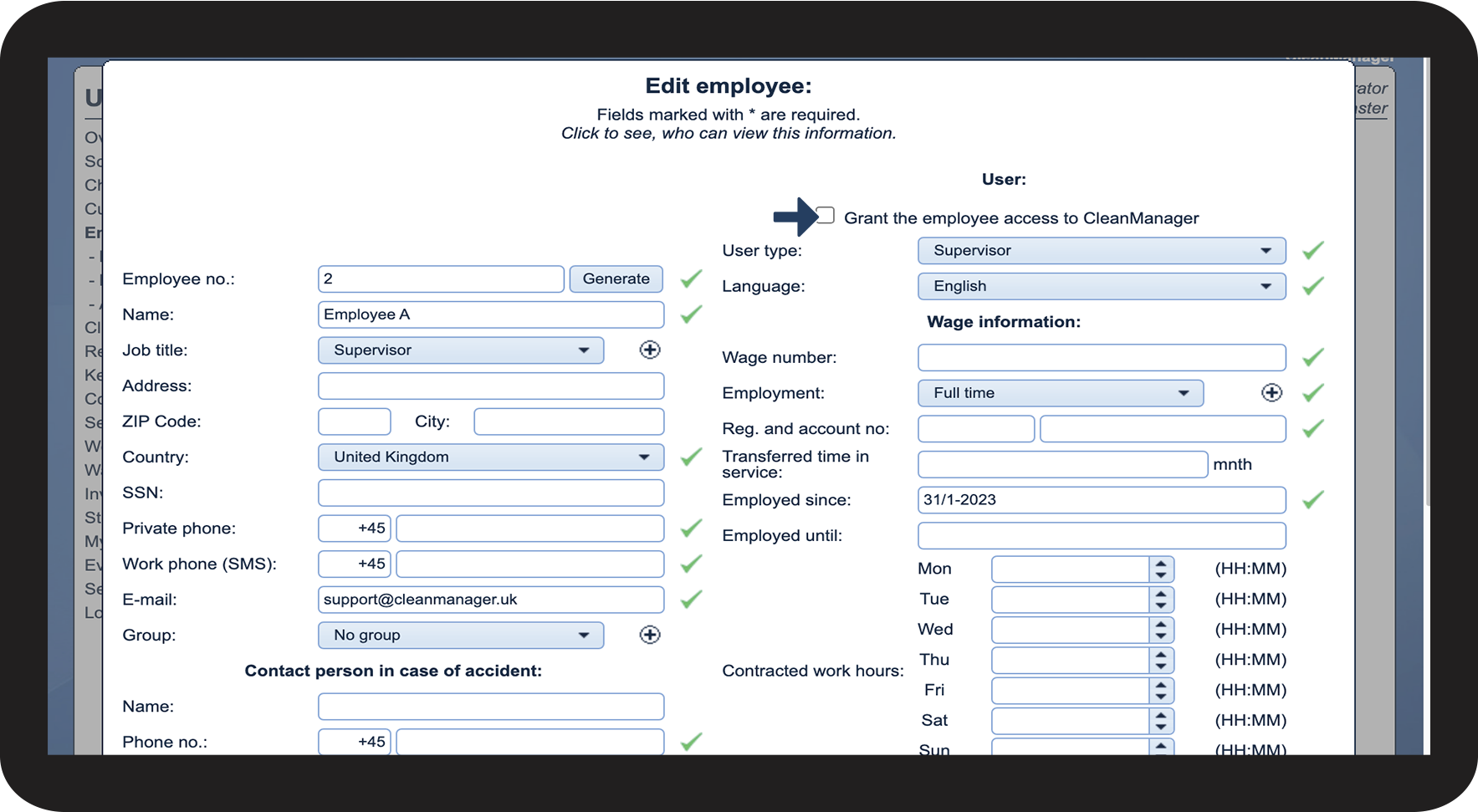
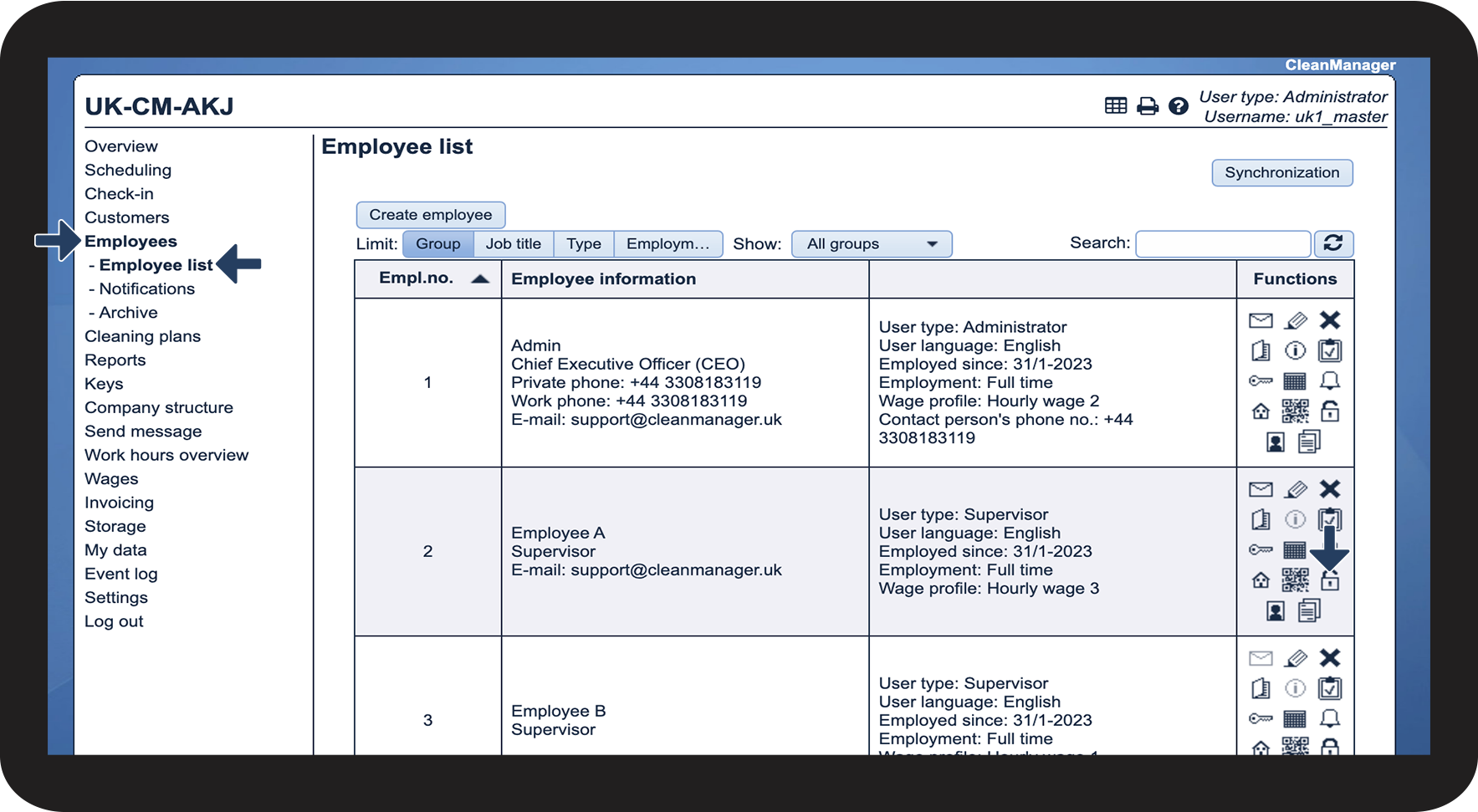
This is how you grant an employee access


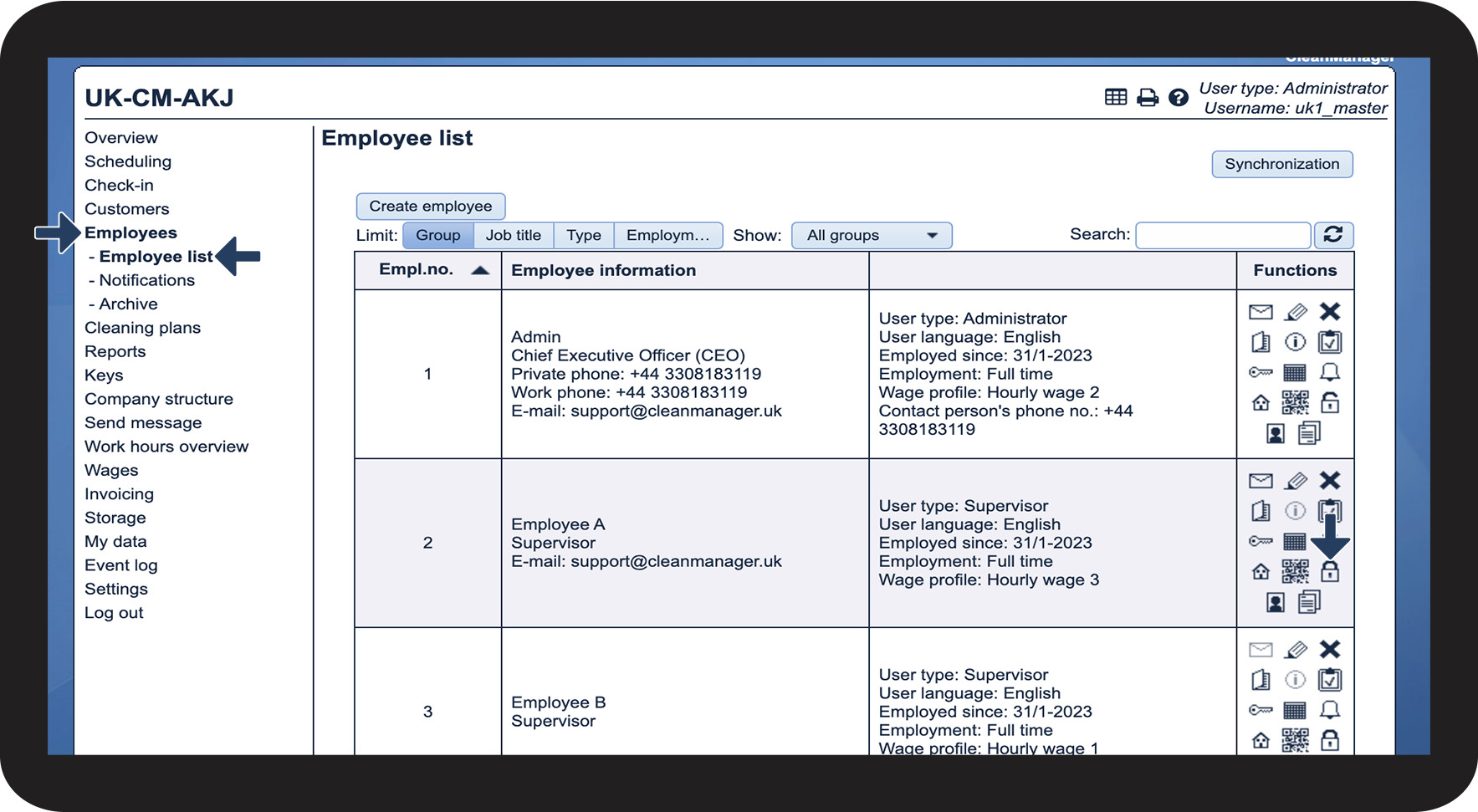

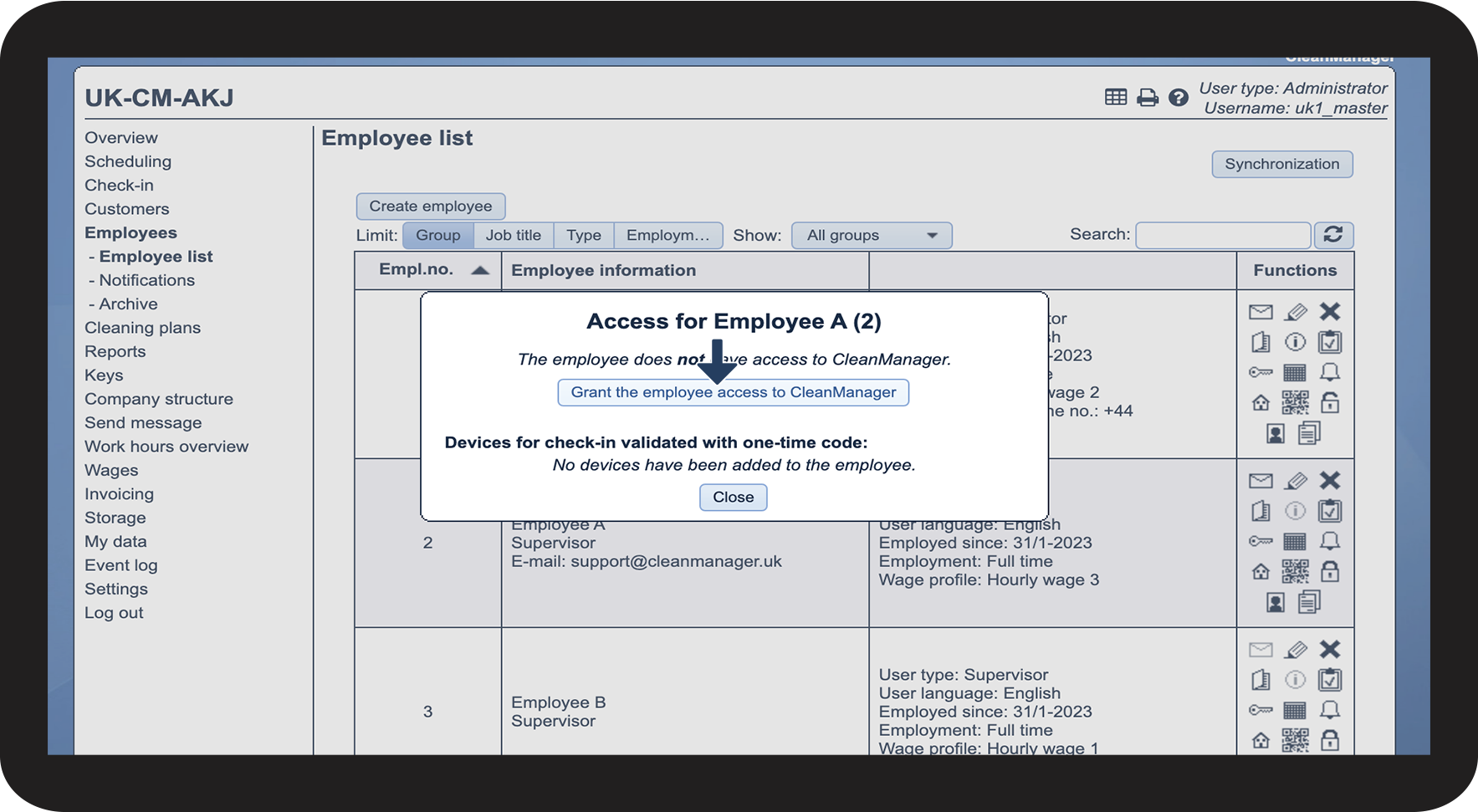

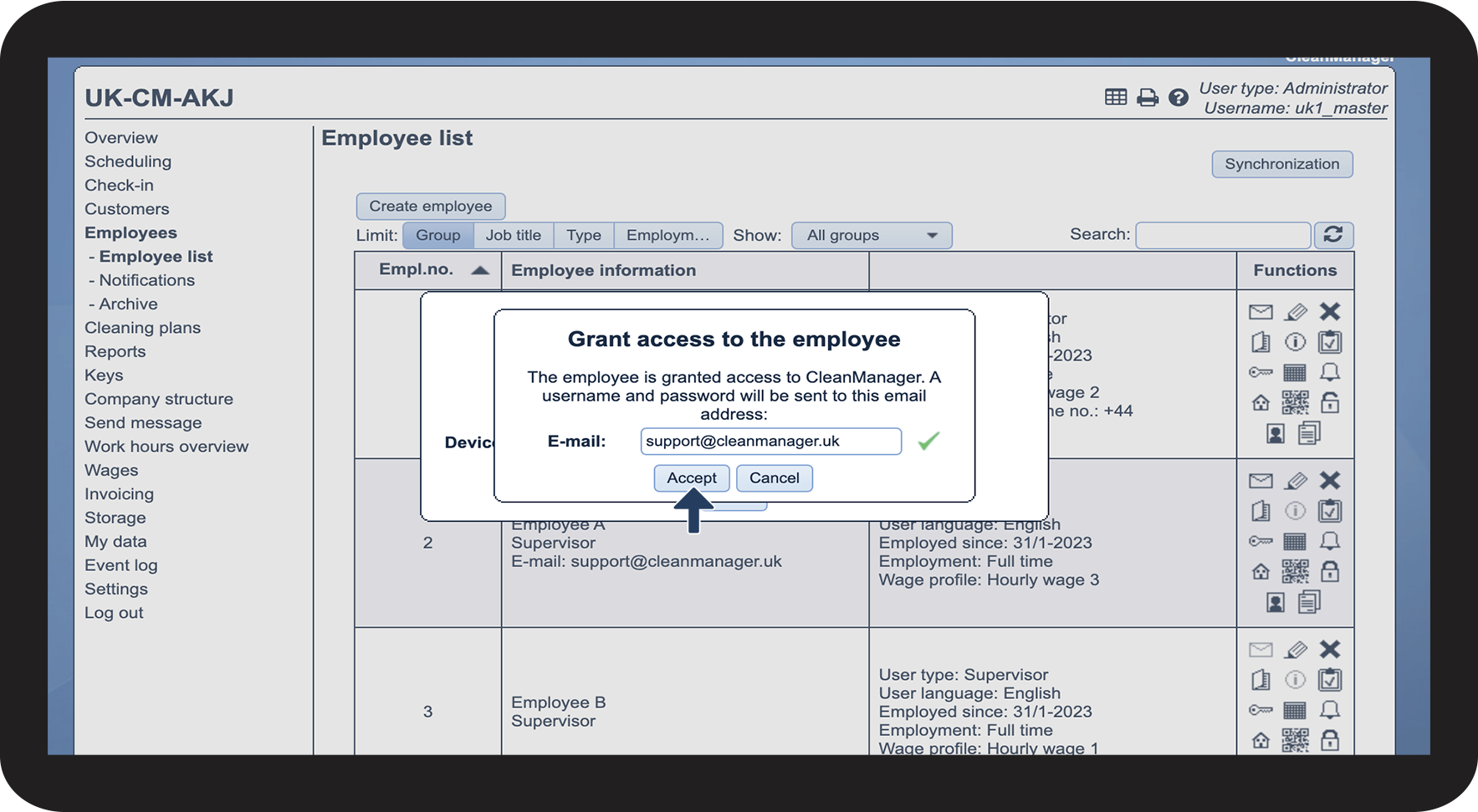
This is how you can grant an employee access while editing their data


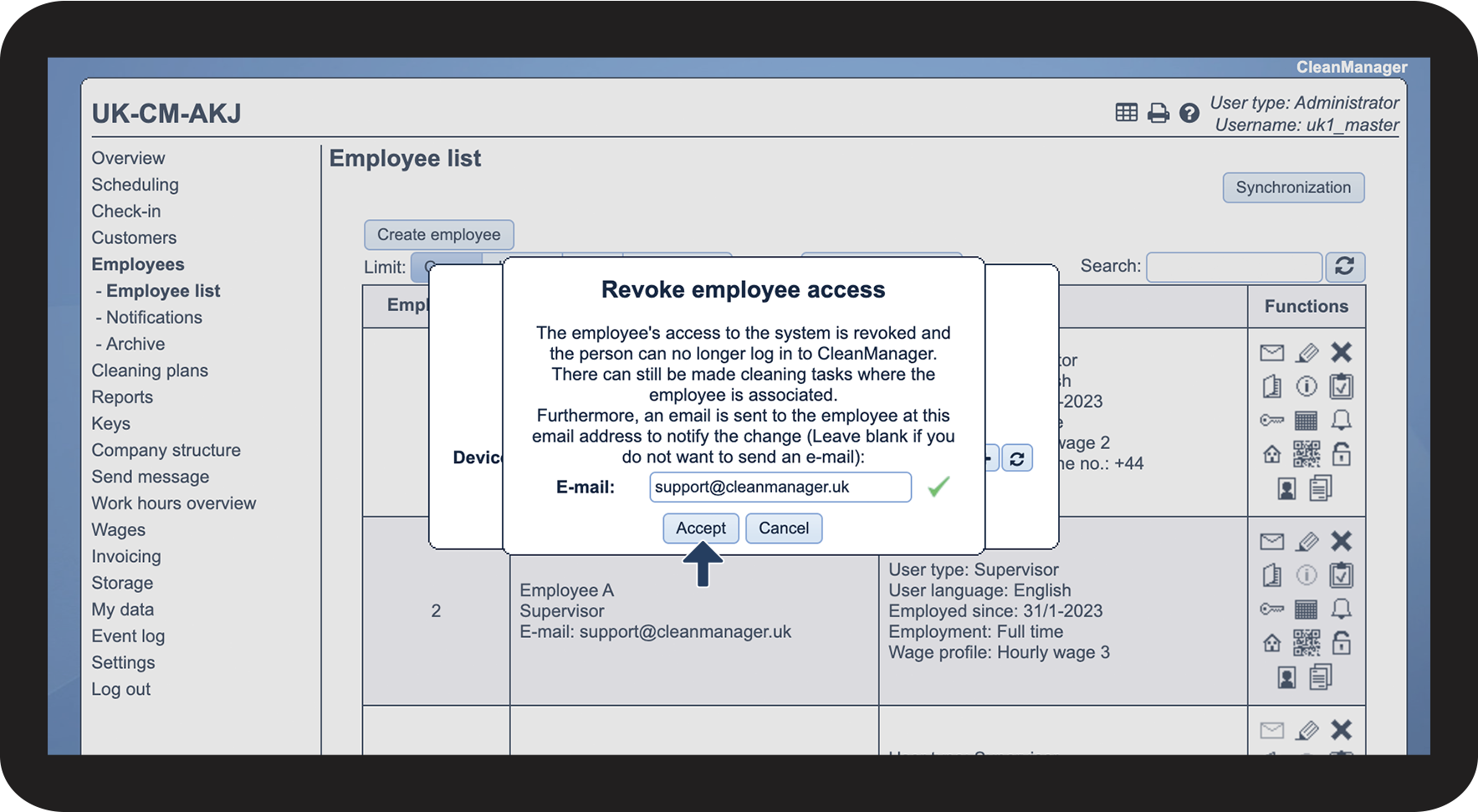
How to remove employee access

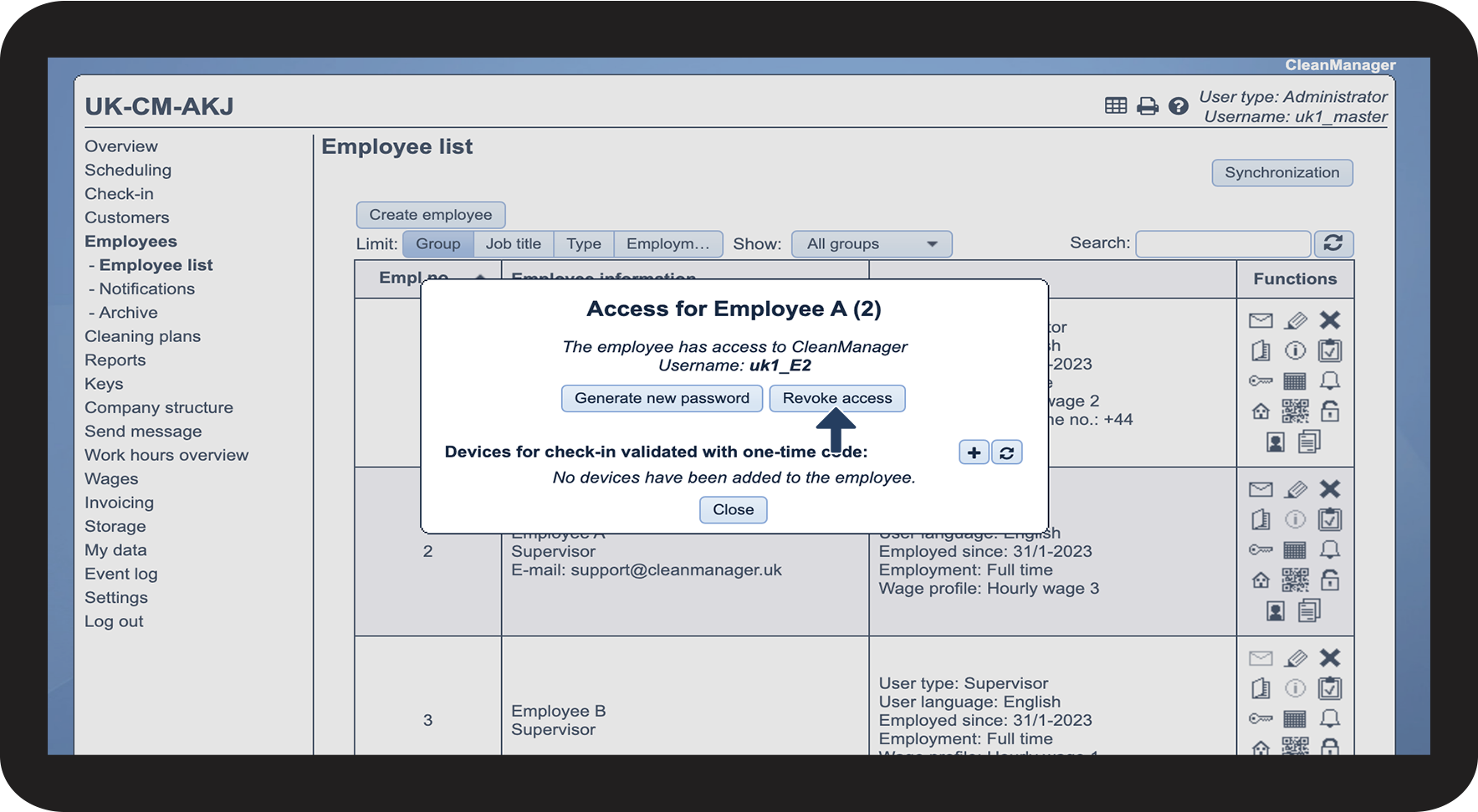
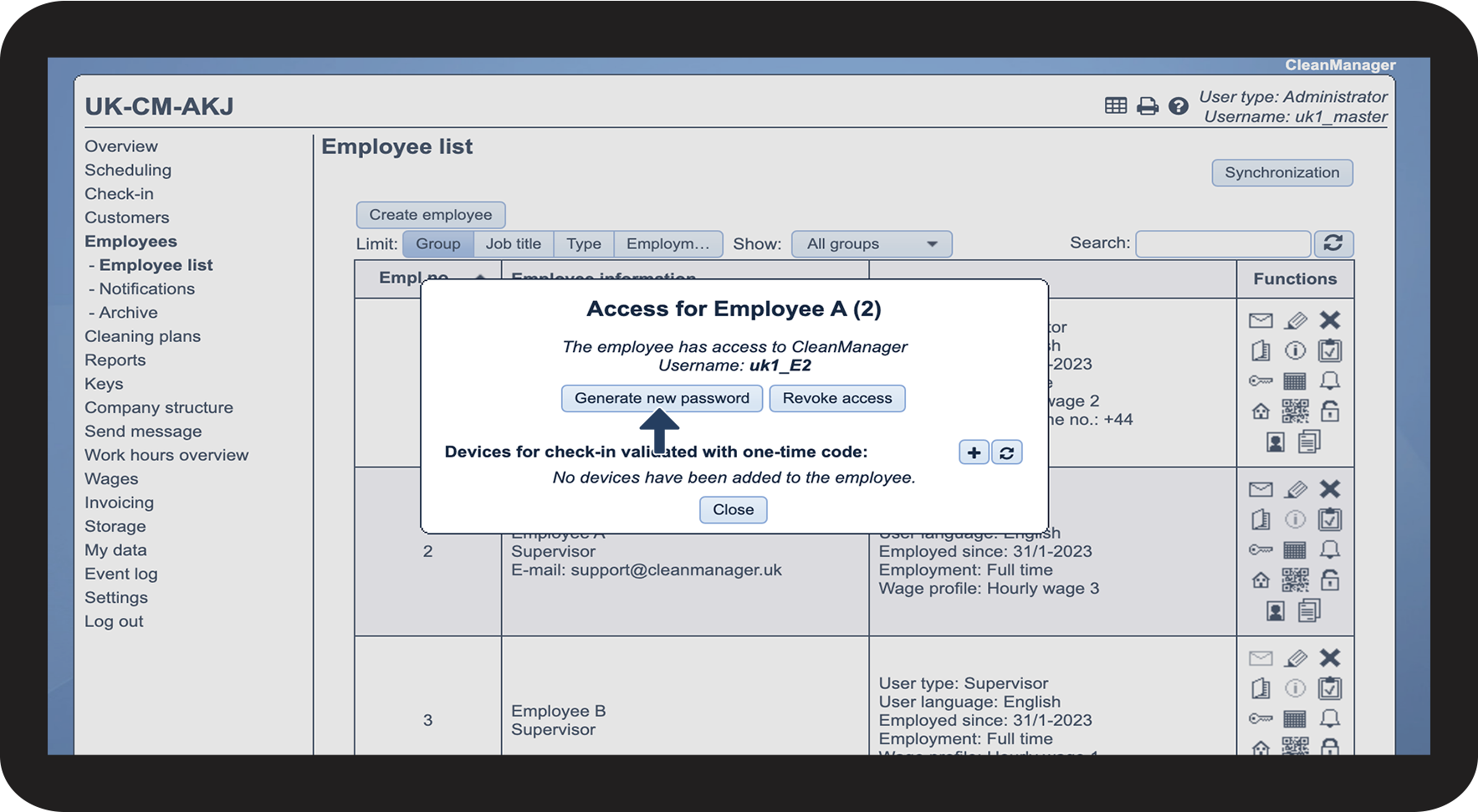
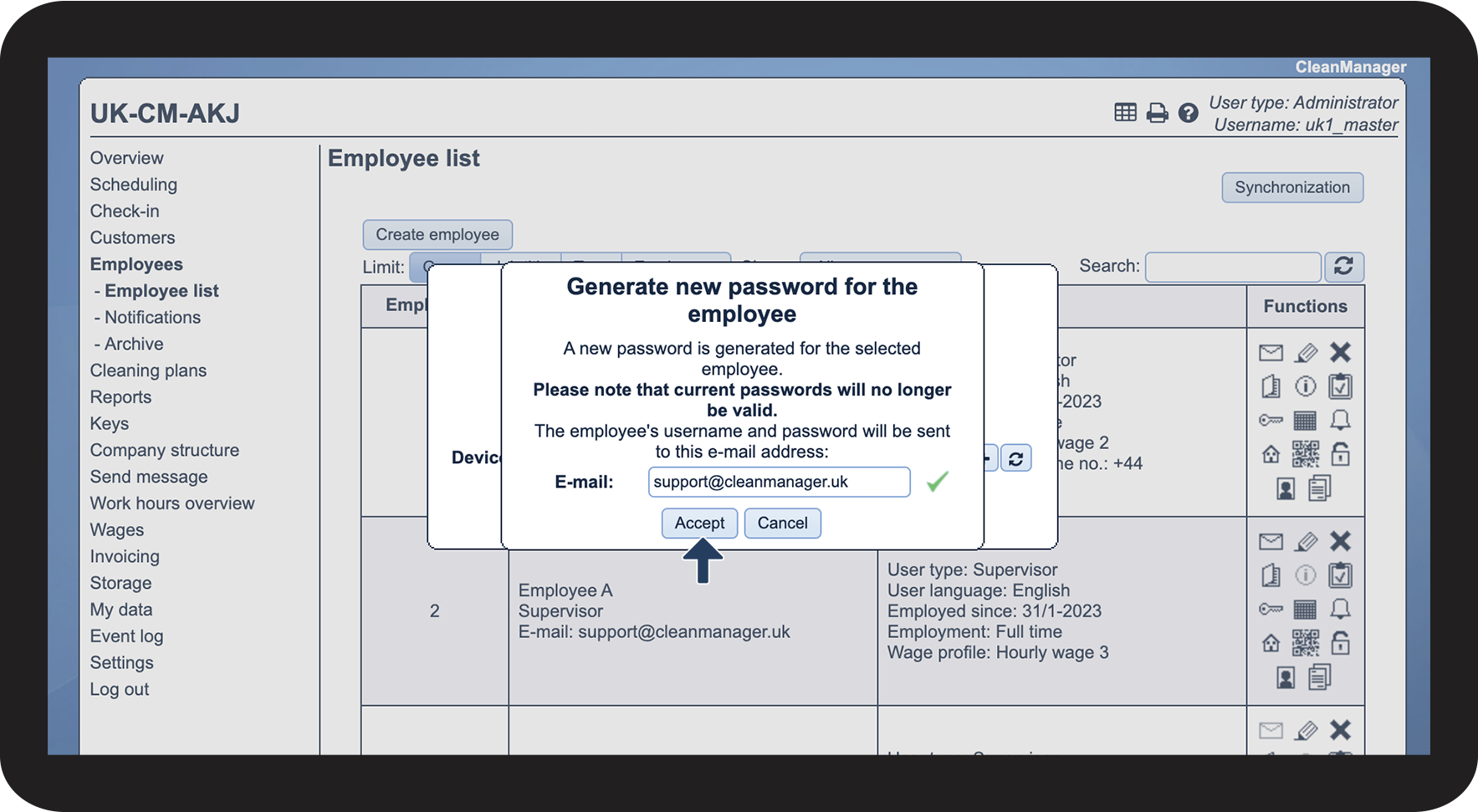
How to generate a new password for an employee
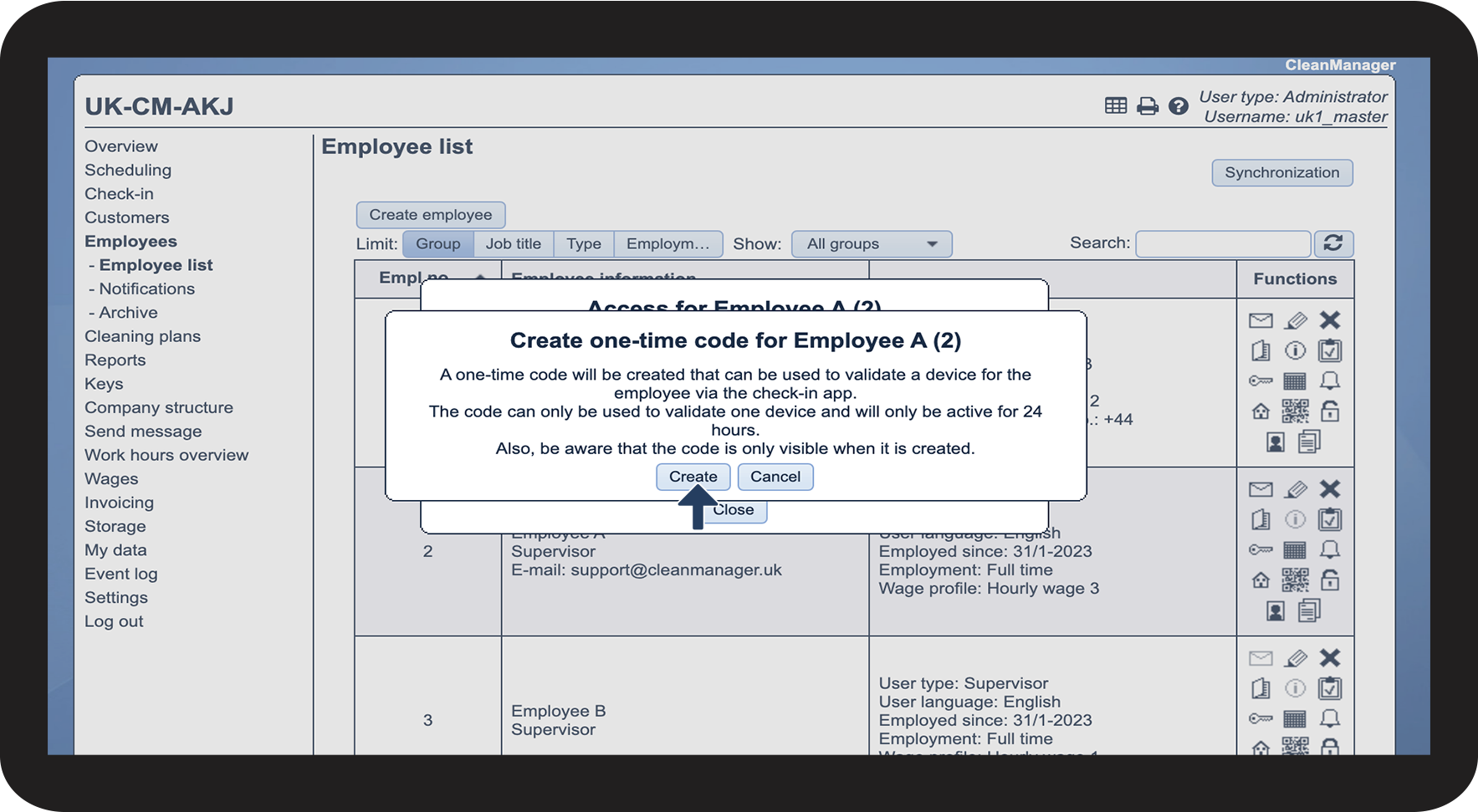
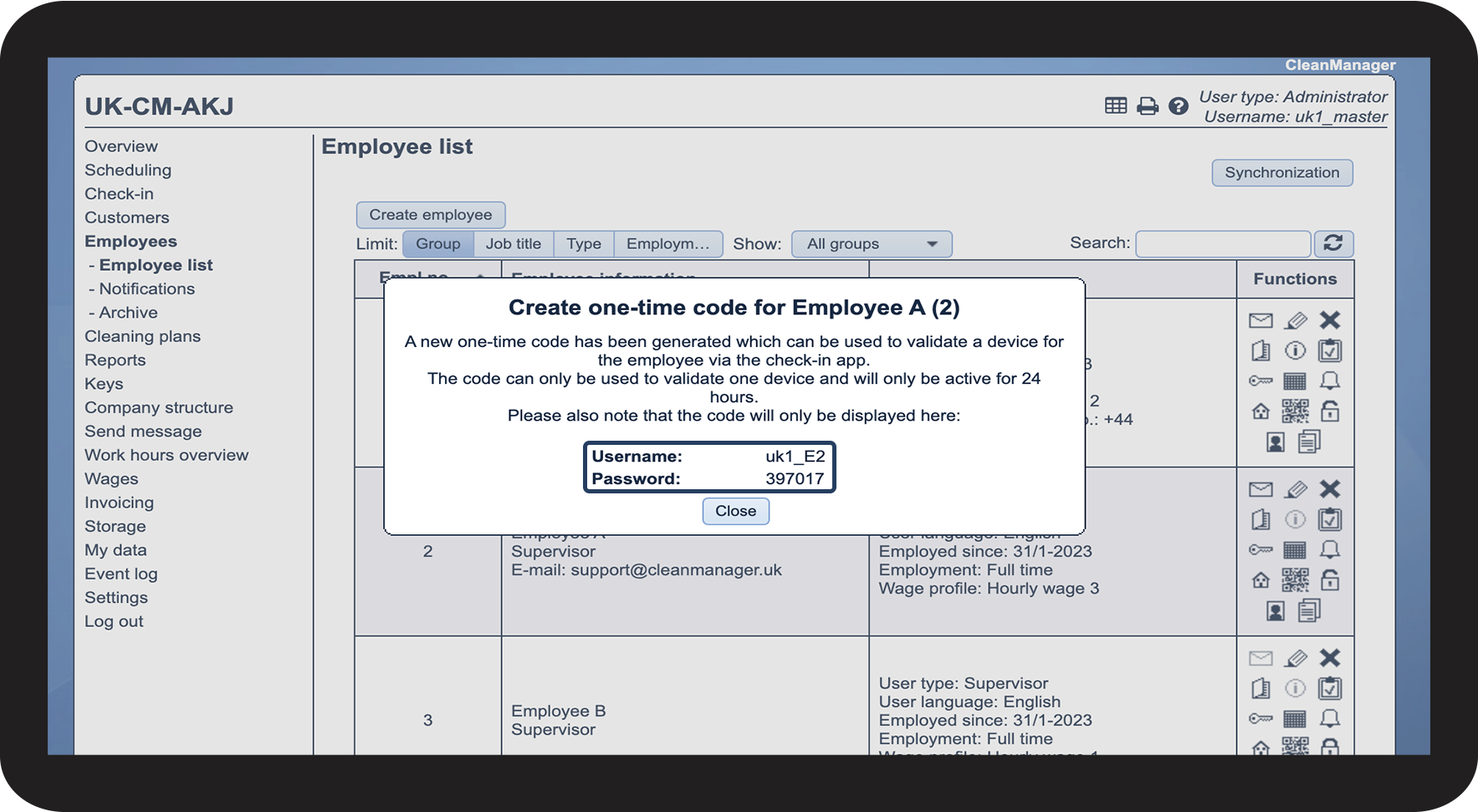
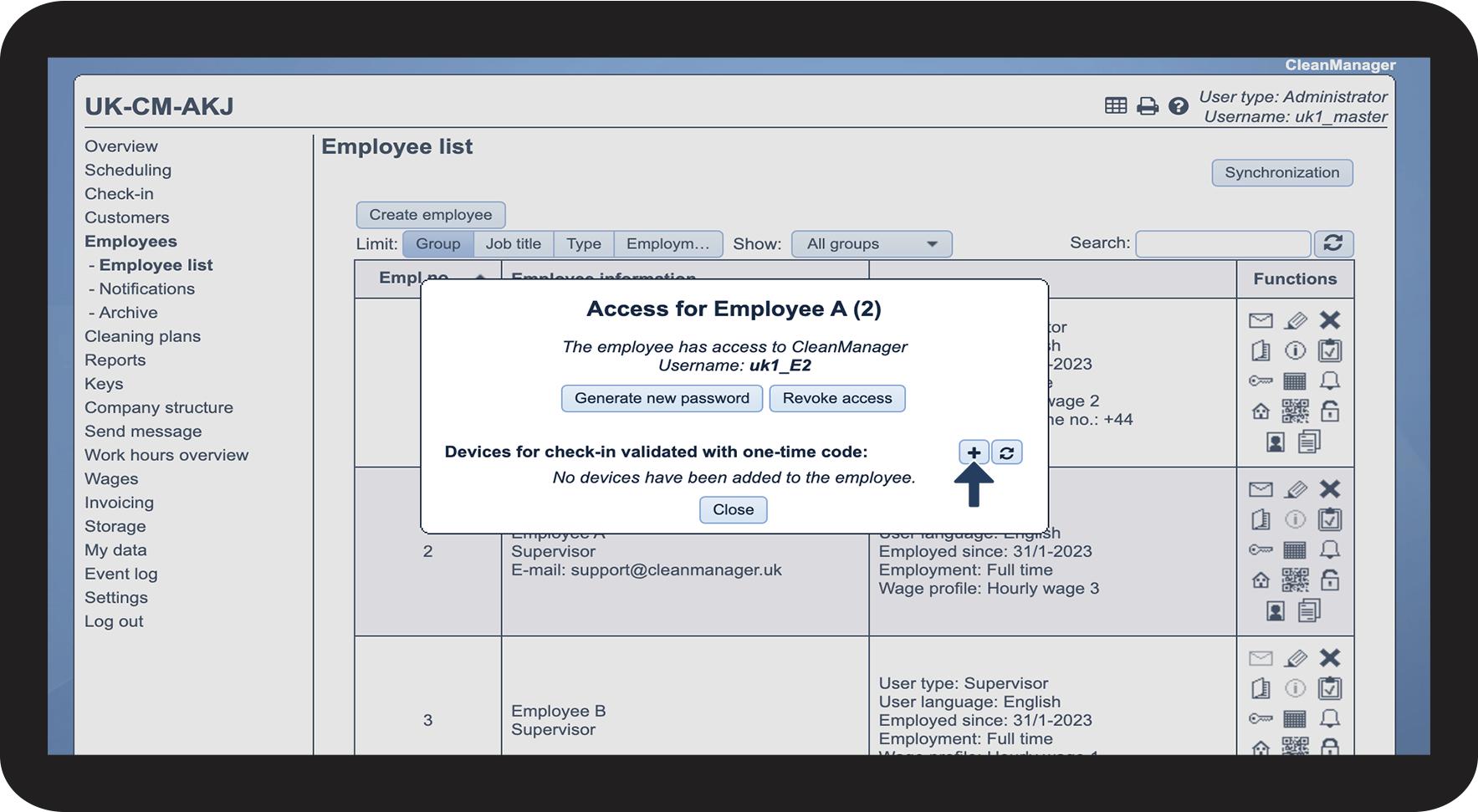
How to generate a one-time code for the employee that can be used for the app
NOTE:
The add-on module App with Time Tracking must be activated in your account in order to use the app. Learn more about activating add-on modules here: Add-on modules.

NOTE:
The code can only be used to validate one device and will only be active for 24 hours.
Please note that the code is only visible when it is created.
The one-time code will only work for the CleanManager app and not the web system. Employees do not have to worry about being logged out after logging in with the one-time code, as they will remain logged in.