Skip to content
English
  • There are no suggestions because the search field is empty.

How do I attach resources to an employee?

How can I manage resources attached to an employee?

Would you like to attach files or hyperlinks to a specific employee that can be shared with both the employee and/or the supervisors?

The administrator and supervisors can add, edit and delete resources attached to employees. The resources can be uploaded as either file attachments or hyperlinks, and they may contain information that is relevant for the employee, e.g. a contract of employment. 


In this article, you will learn how to add, edit and delete resources attached to an employee:


This is how you add a file to an employee

number_1.png

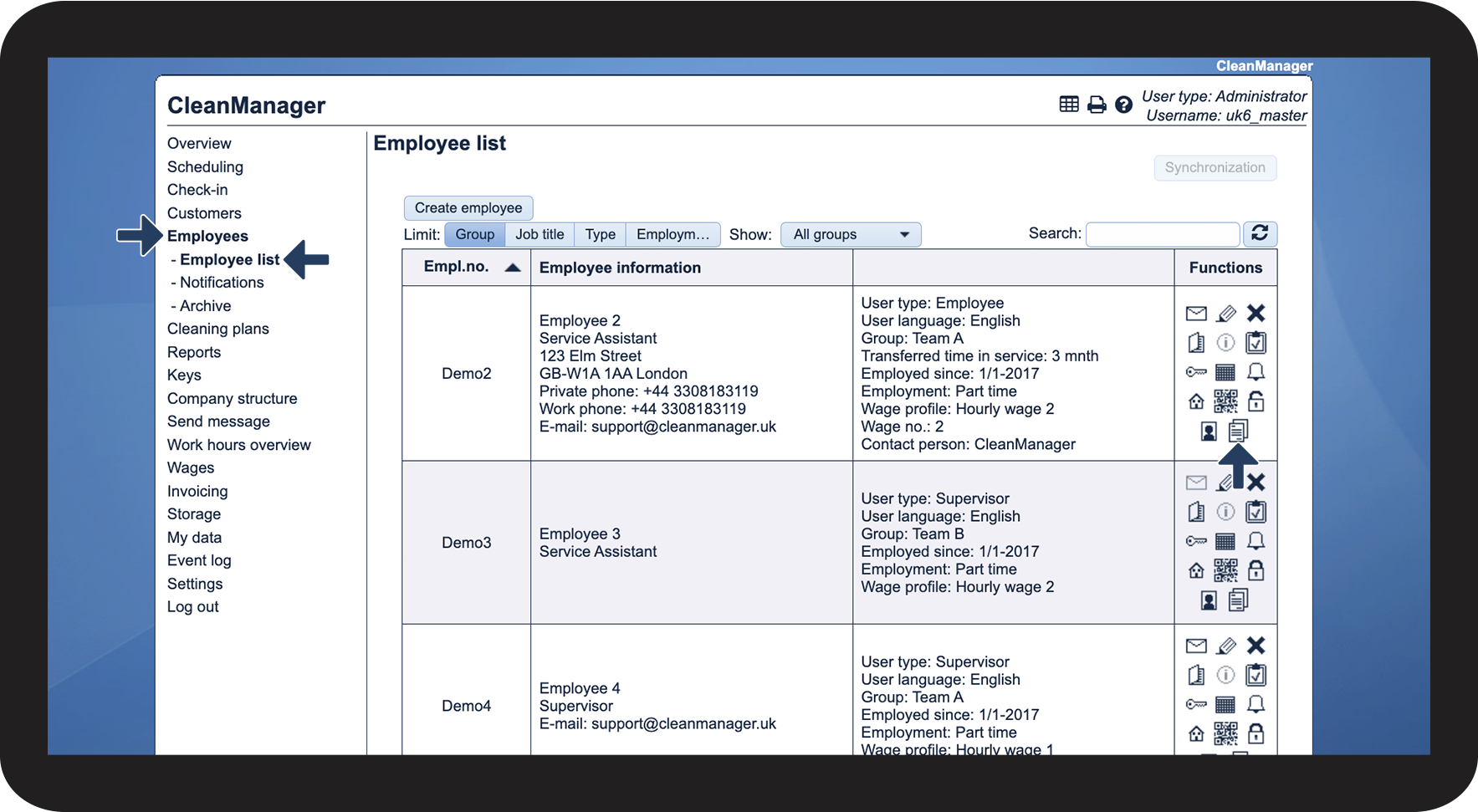
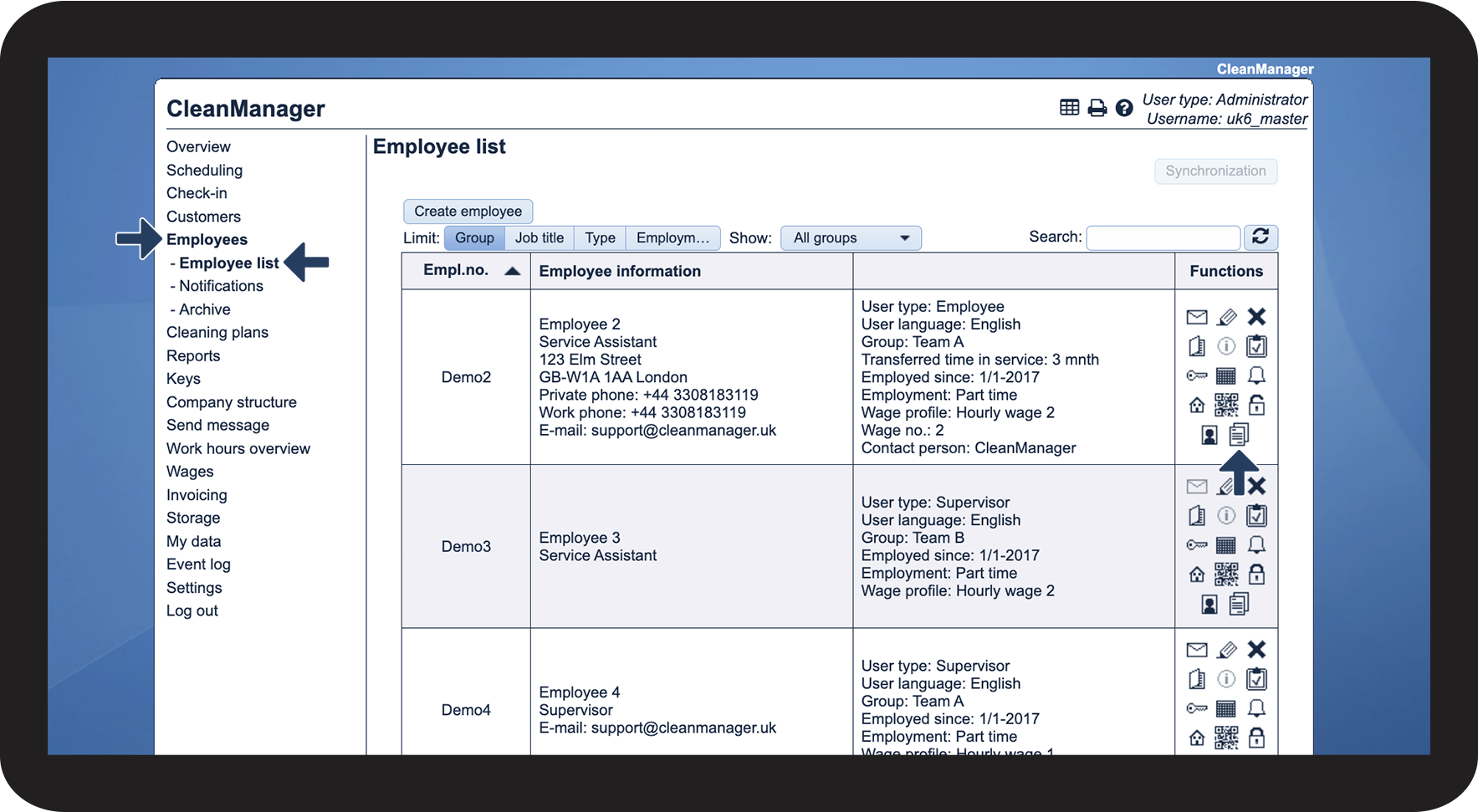
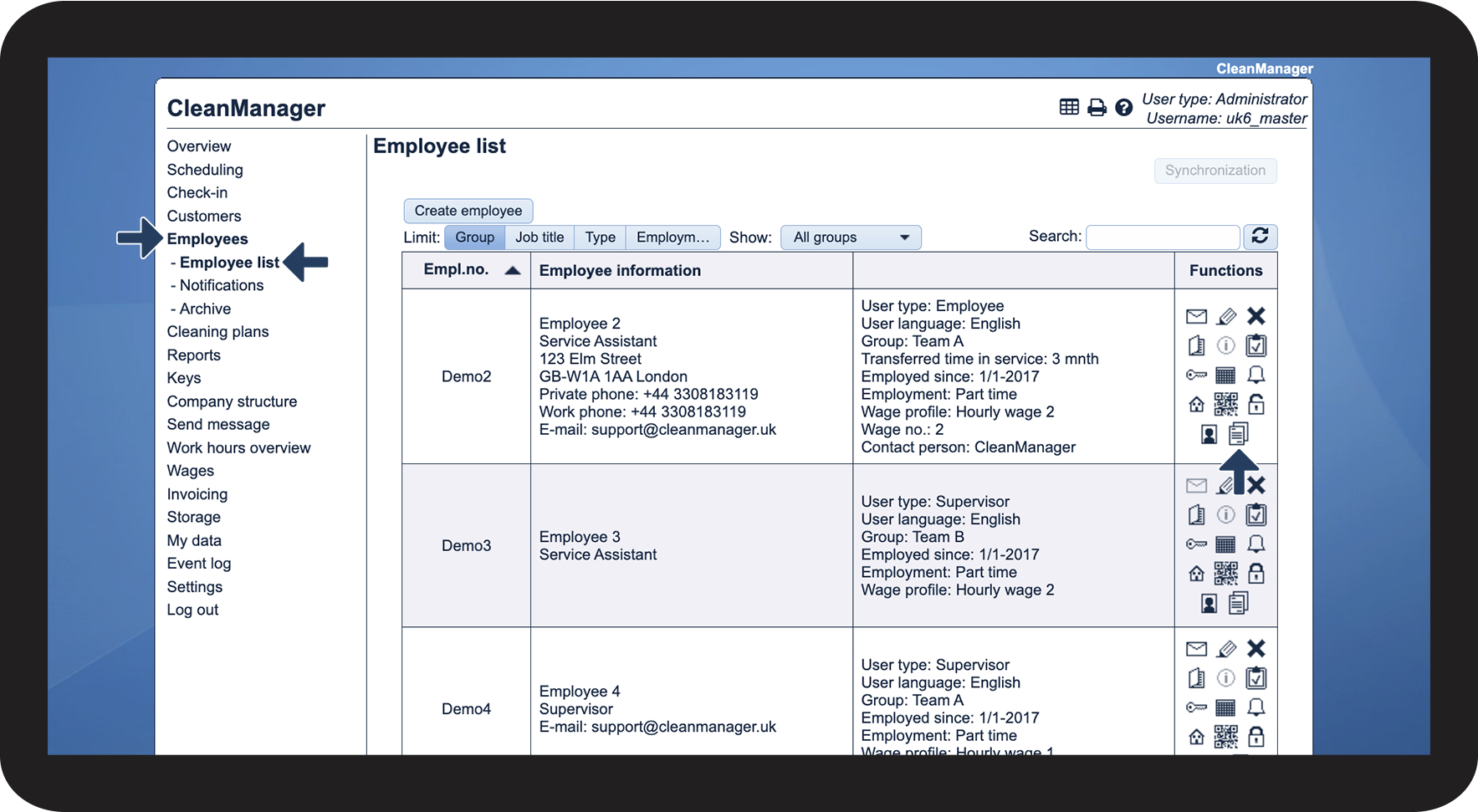
In the menu, go to Employees > Employee list

 
Then, click on View resources Ressourcer.png

1.1.png

number_2.png
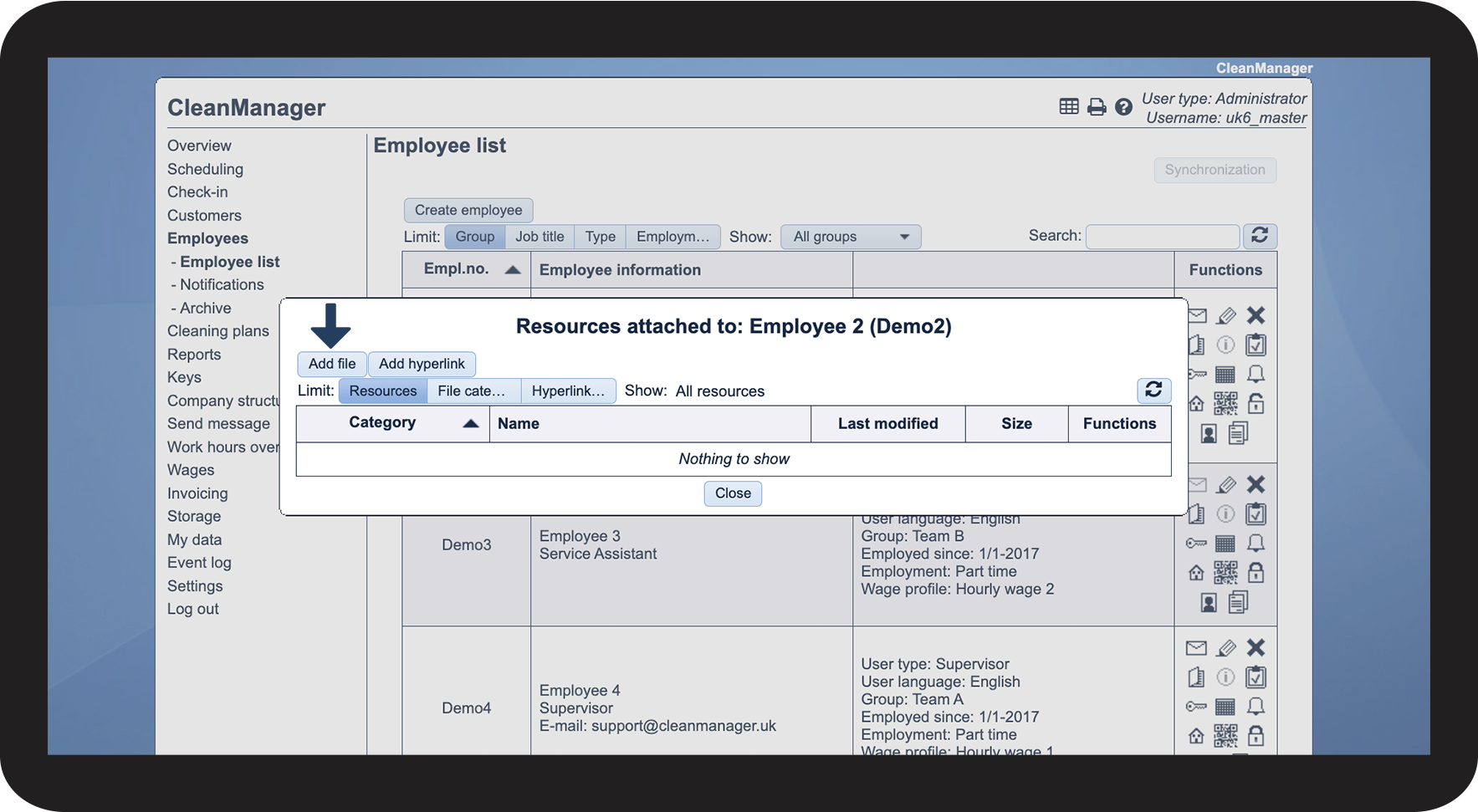
Select Add file

1.2.png

number_3.png
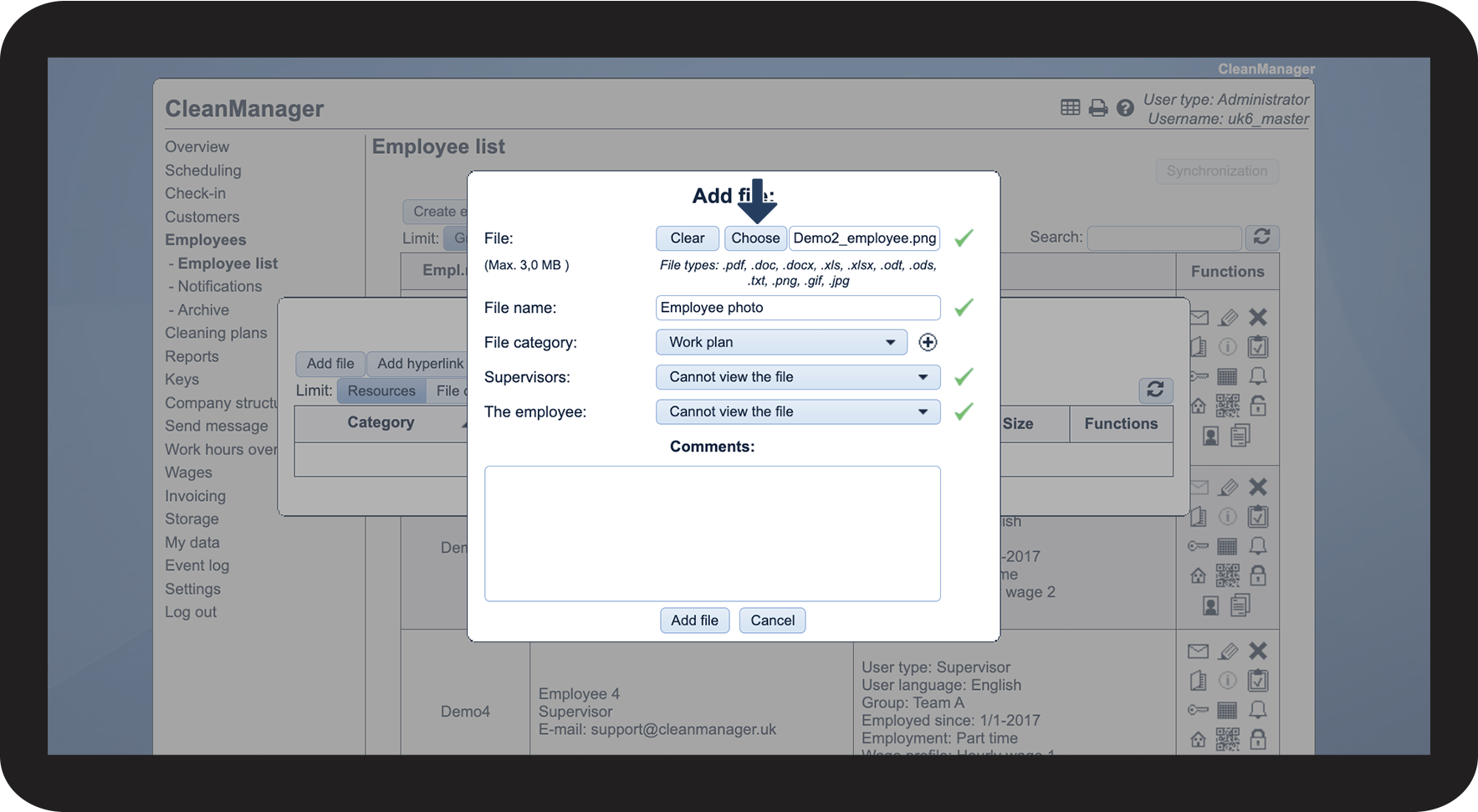
Click on Choose
 

Select which file you want to attach to the employee


Note:

Approved file types: .pdf, .doc, .docx, .xls, .xlsx, .odt, .ods, .txt, .png, .gif, .jpg
1.3.png

number_4.png

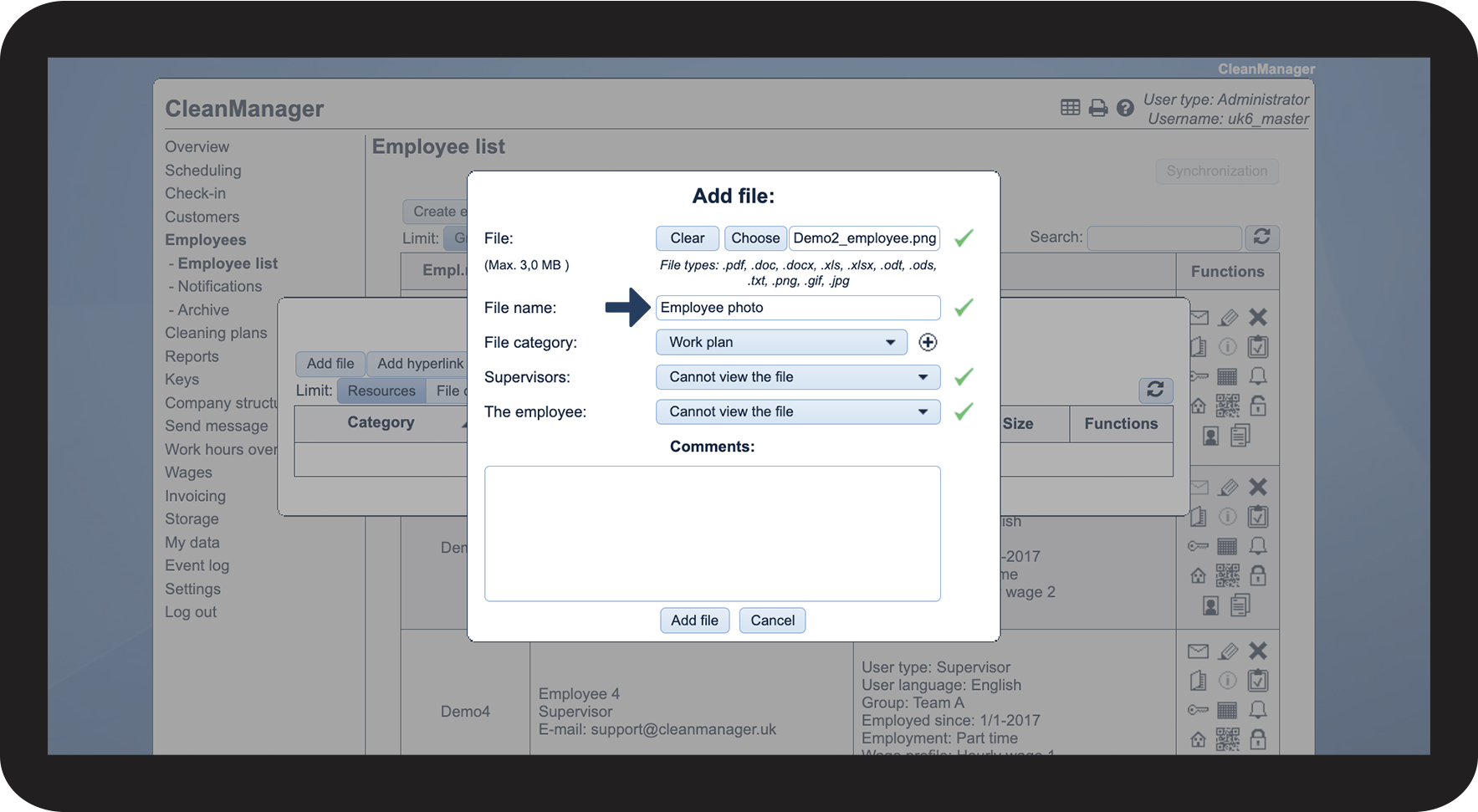
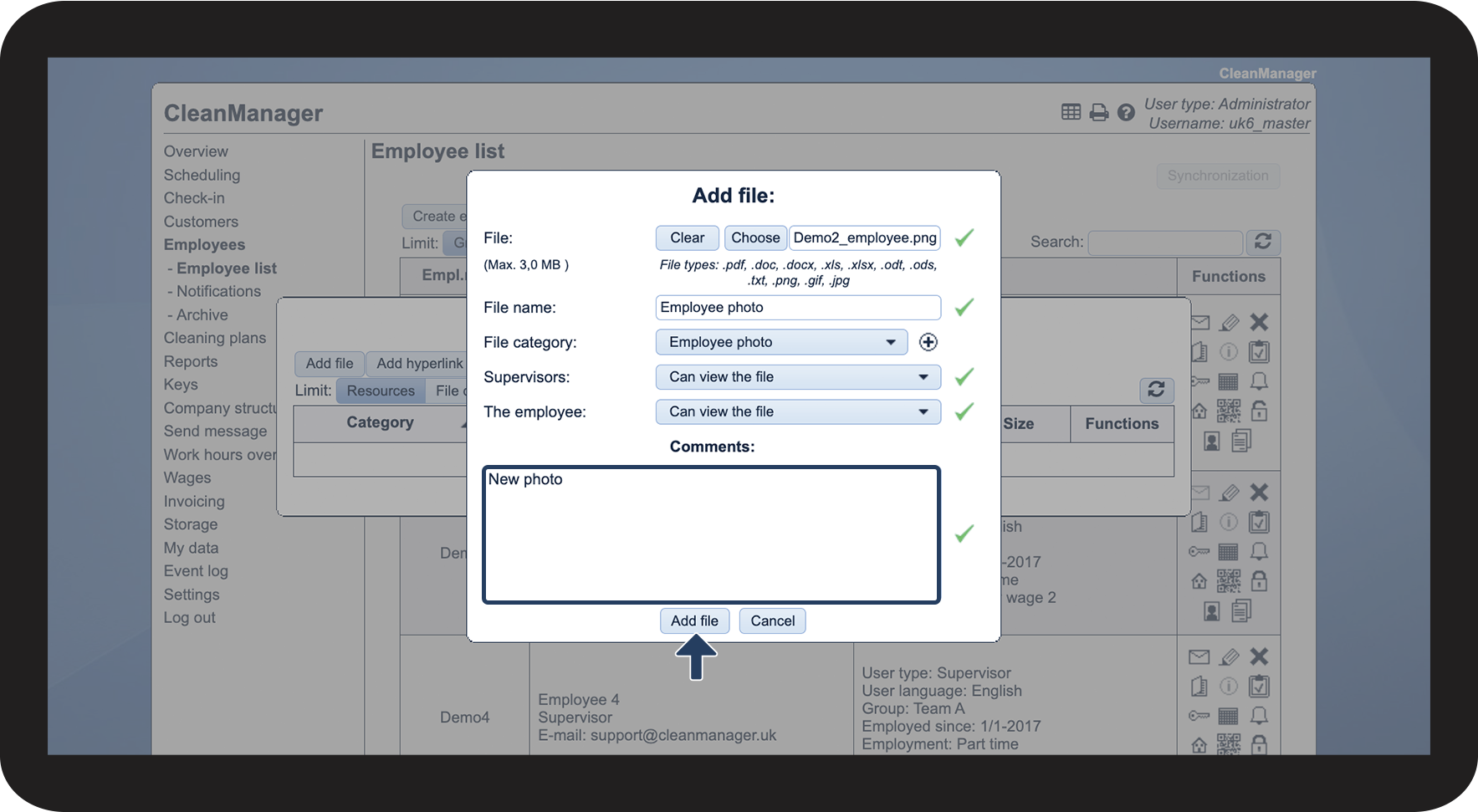
Enter a File name

 
The file name is filled out automatically based on the name of the uploaded file. However, you can change the name if you want to. The name you type in here, will be the one displayed to the employee and/or supervisor.

1.4.png

number_5.png

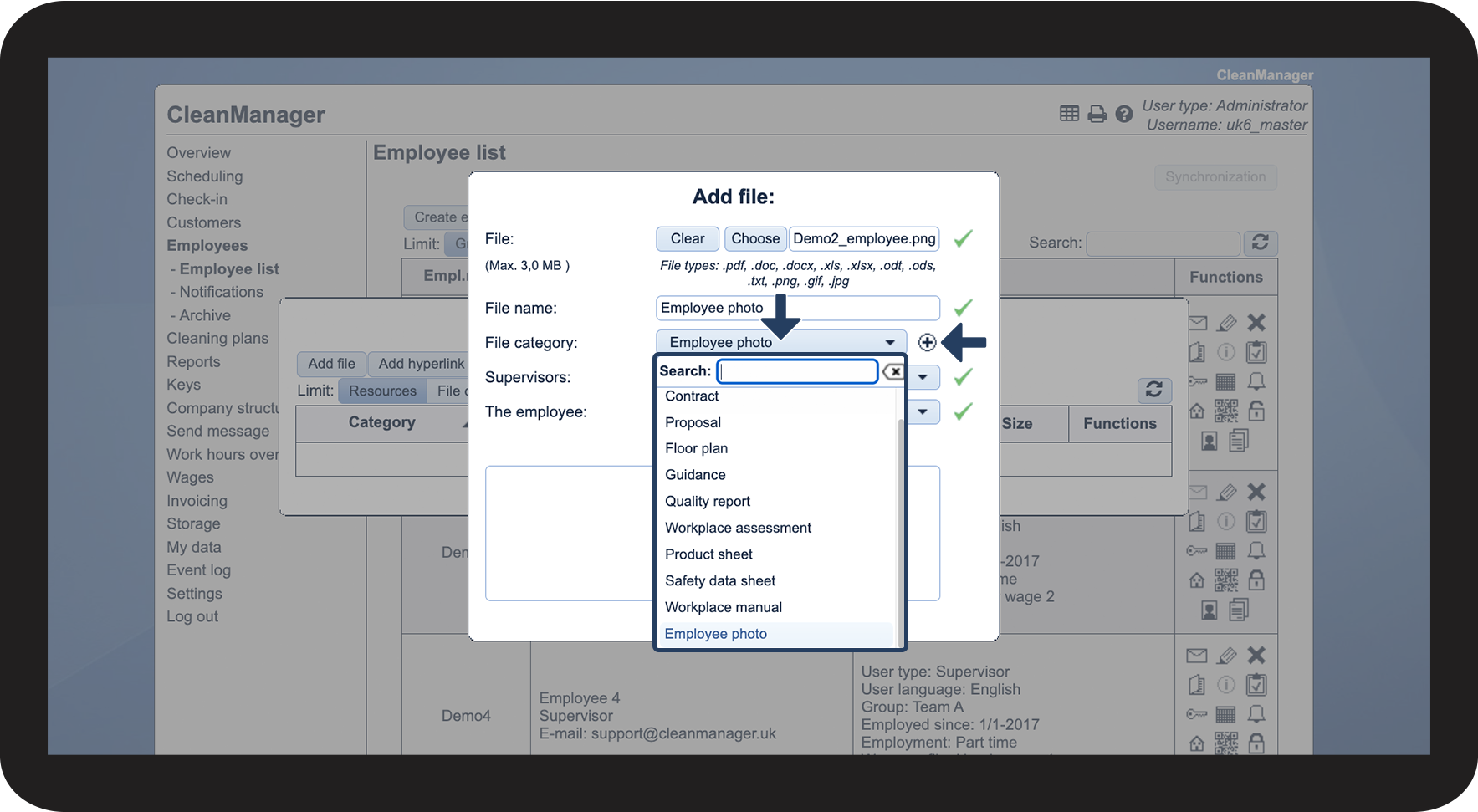
Select a File category


You can choose between existing file categories or create a new one

File categories can be created by clicking on Add tilføj.png next to the field, or by going to Settings > Resource categories. You can read more about the latter in the following article: Creating resource categories


NOTE:

Supervisors can create new file categories when they add or edit resources. However, only the administrator can create, edit and delete file categories by going to Settings > Resource categories
1.5.png

number 6 copy.png
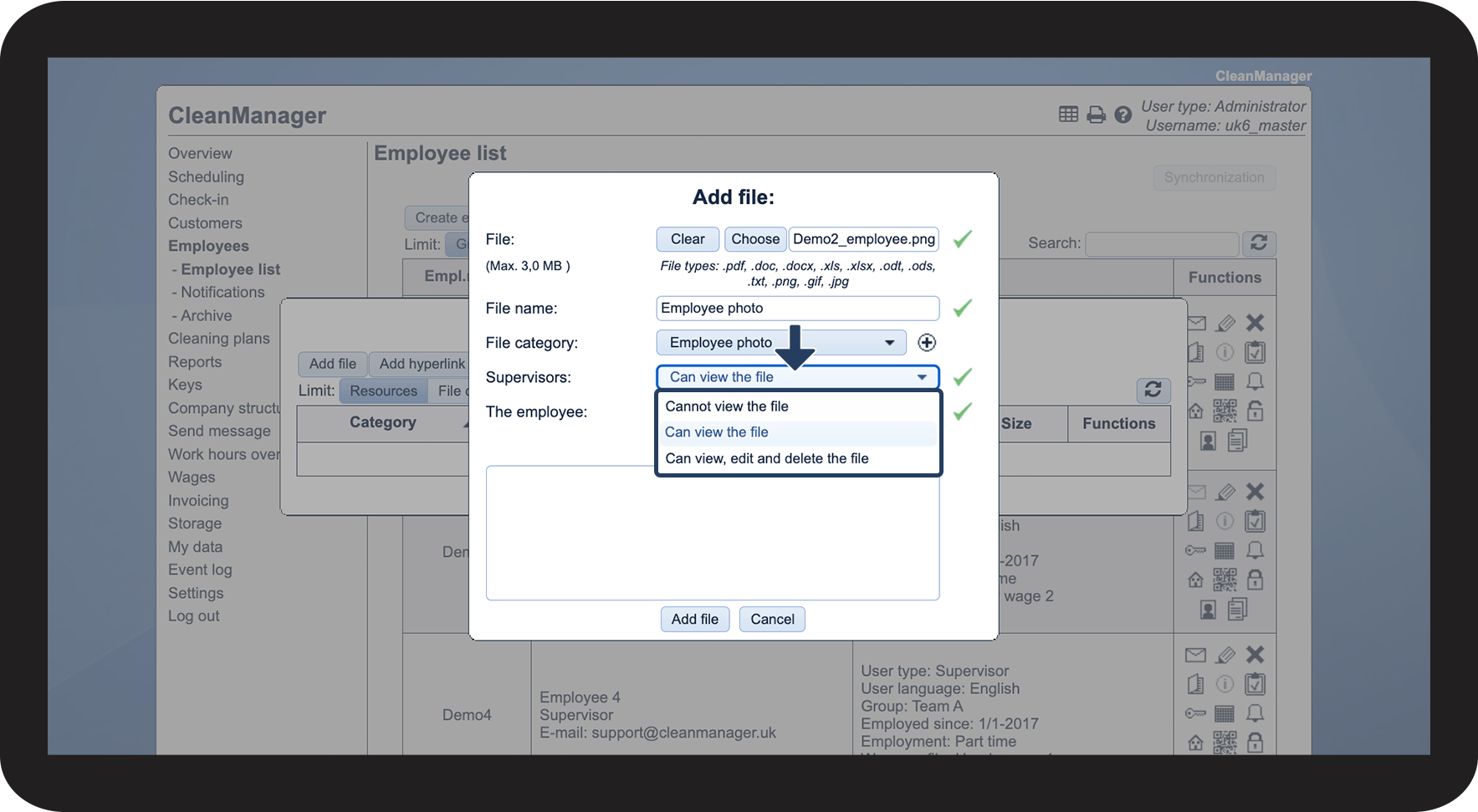
Set up permissions for the supervisors
 

You can choose between the following:

  • Cannot view the file
  • Can view the file
  • Can view, edit and delete the file


NOTE:

The administrator can set up permissions for both supervisors and employees. Supervisors can only set up permissions for employees.
1.6.png

number 7 copy.png
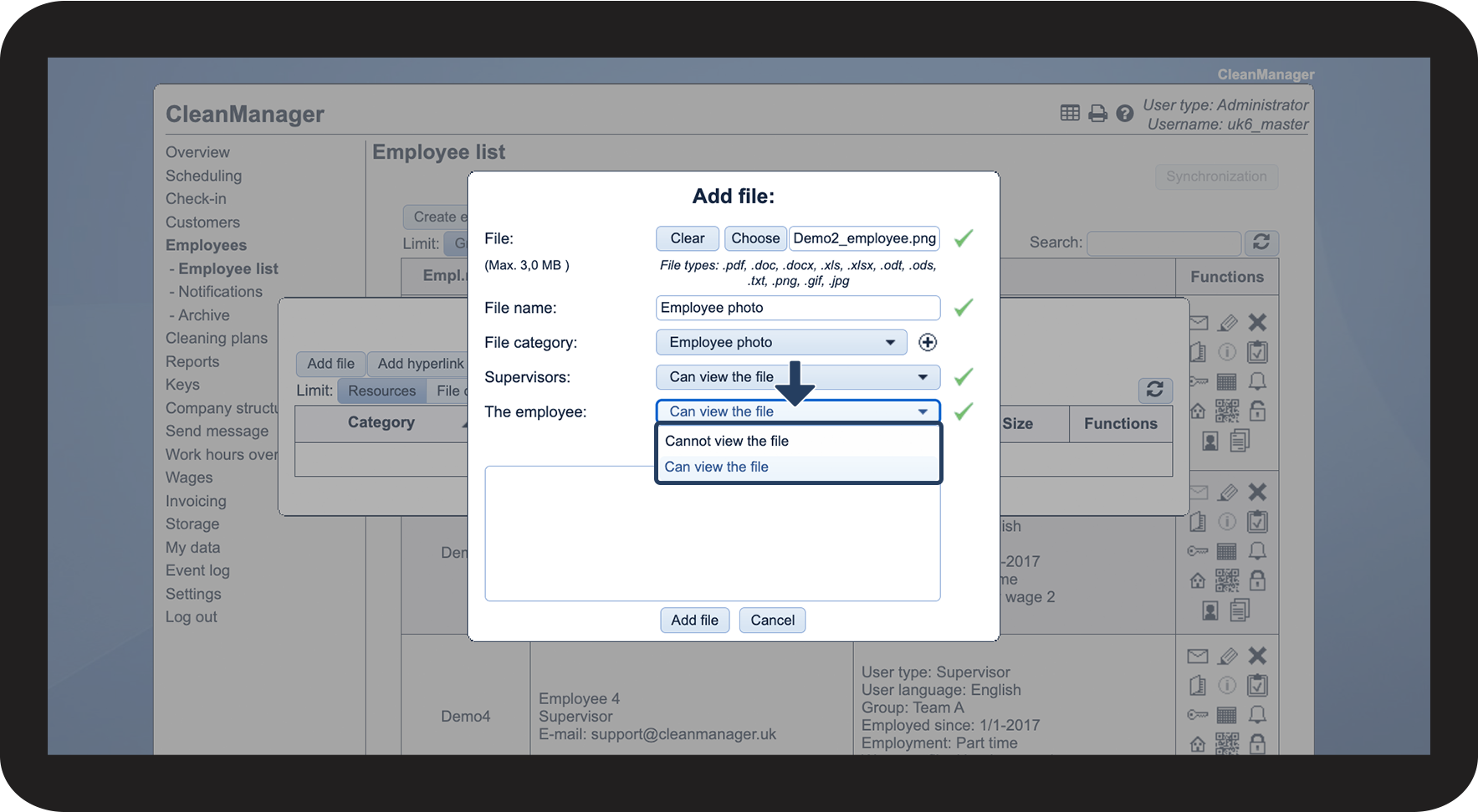
Set up permissions for the employee
 

You can choose between the following:

  • Cannot view the file
  • Can view the file

1.7.png

number 8 copy.png
Enter a comment to the file (optional)
 
Finally, click on Add file
1.8.png


This is how you add a hyperlink to an employee

number_1.png
In the menu, go to Employees > Employee list
 
Then, click on View resources Ressourcer.png

2.1.png

number_2.png
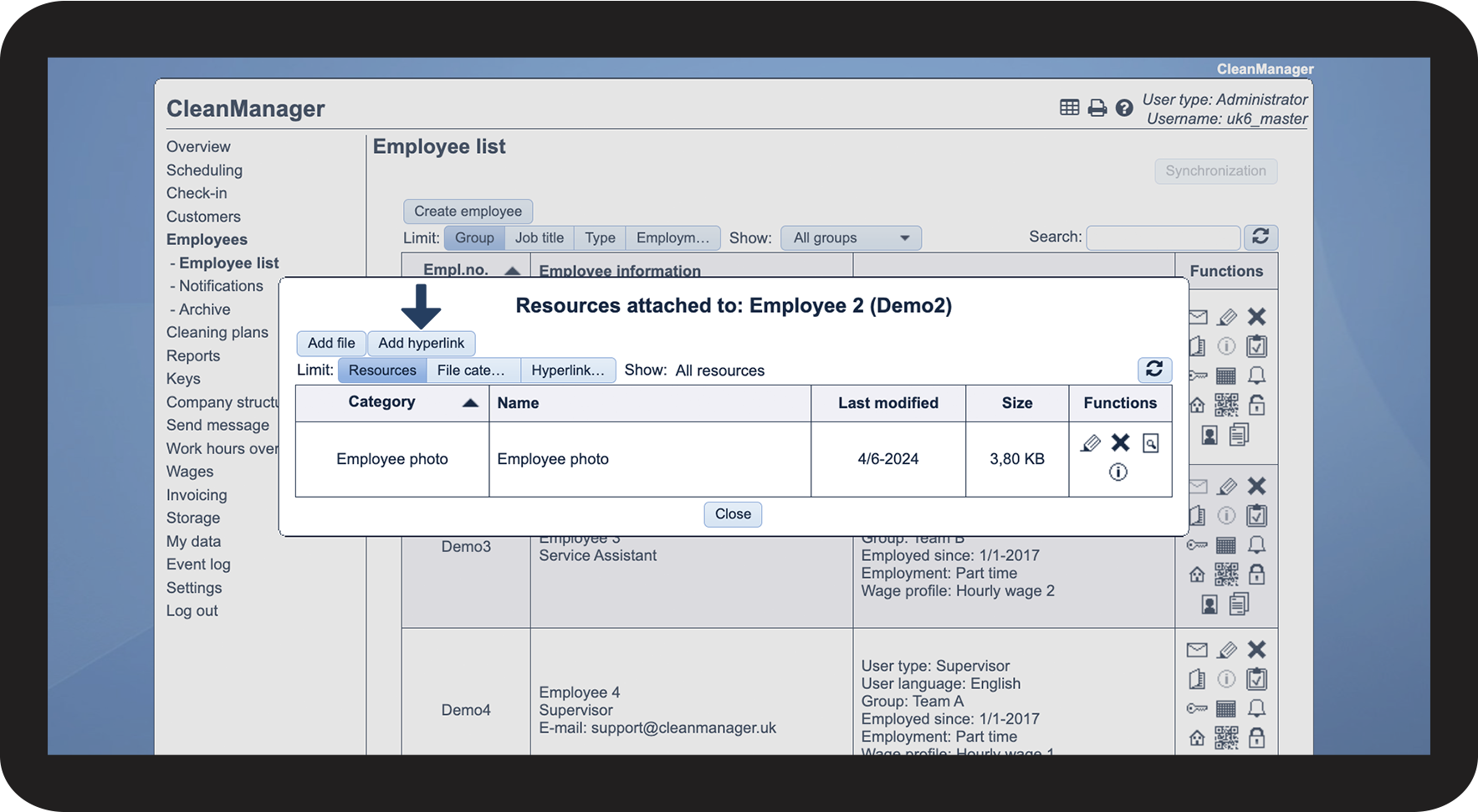
Select Add hyperlink

2.2.png

number_3.png
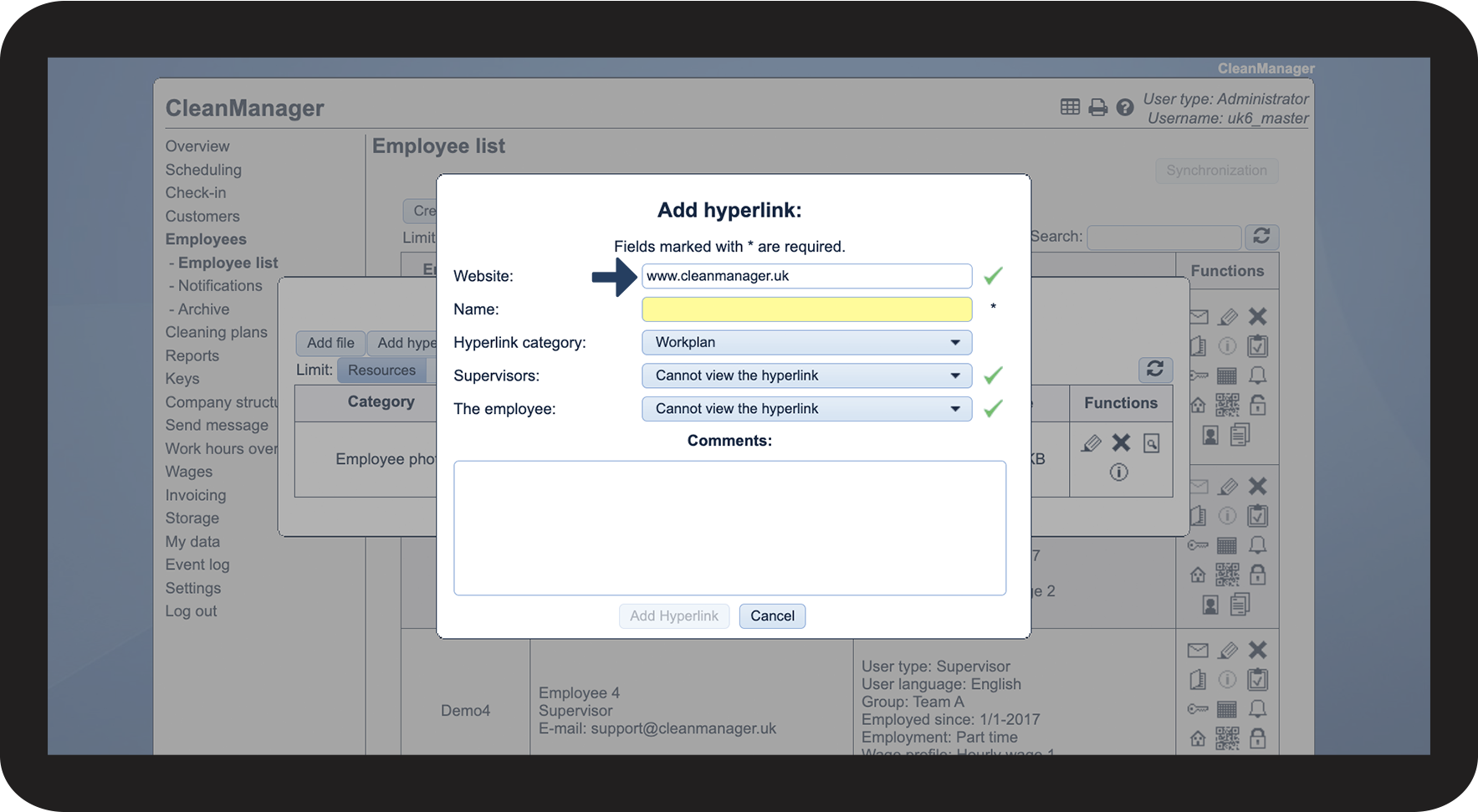
Enter a website
 

This is where you insert the link you want your employees to have access to

2.3.png

number_4.png

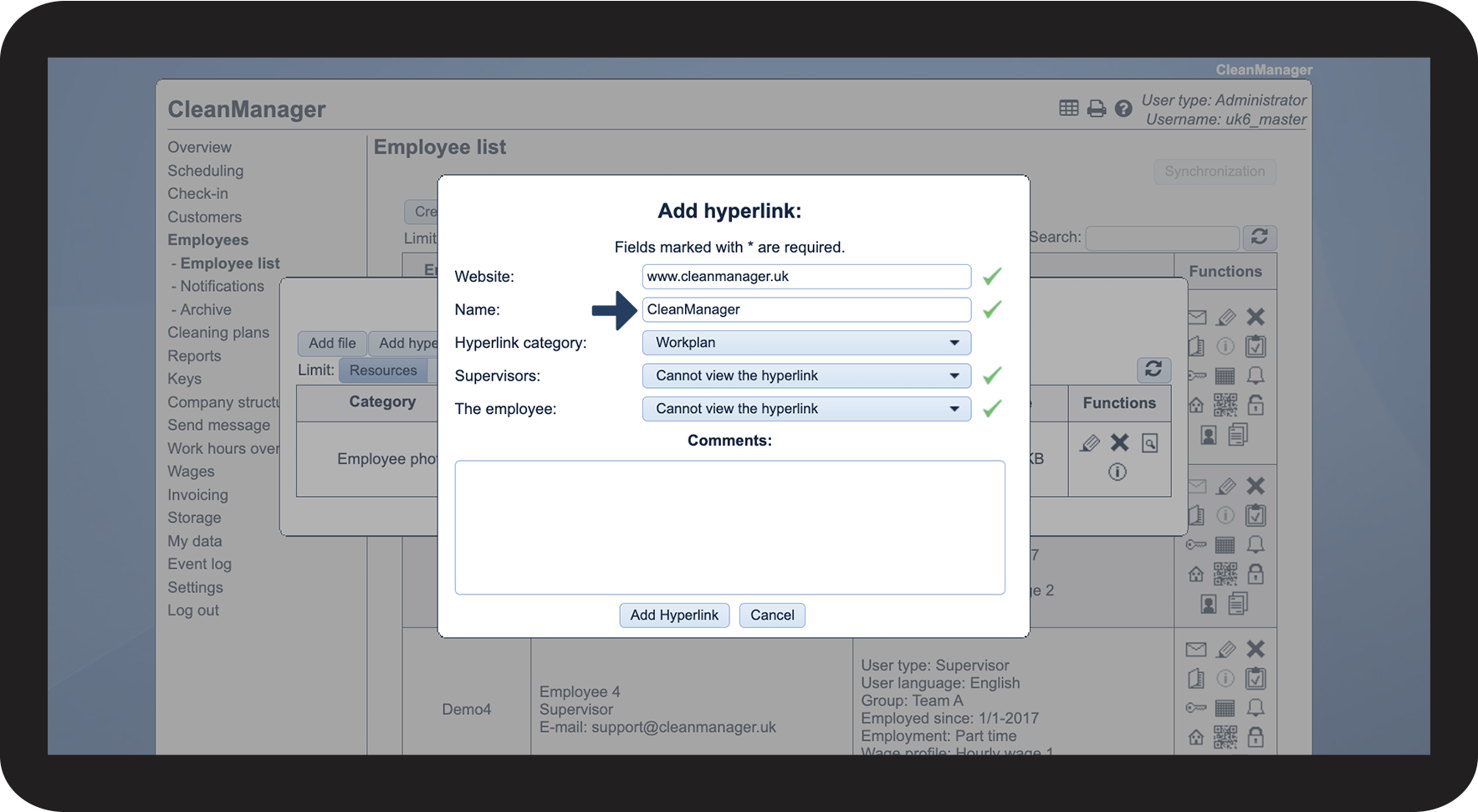
Enter a name

 
This is the name for the hyperlink that will be displayed to the employee and/or supervisors

2.4.png

number_5.png

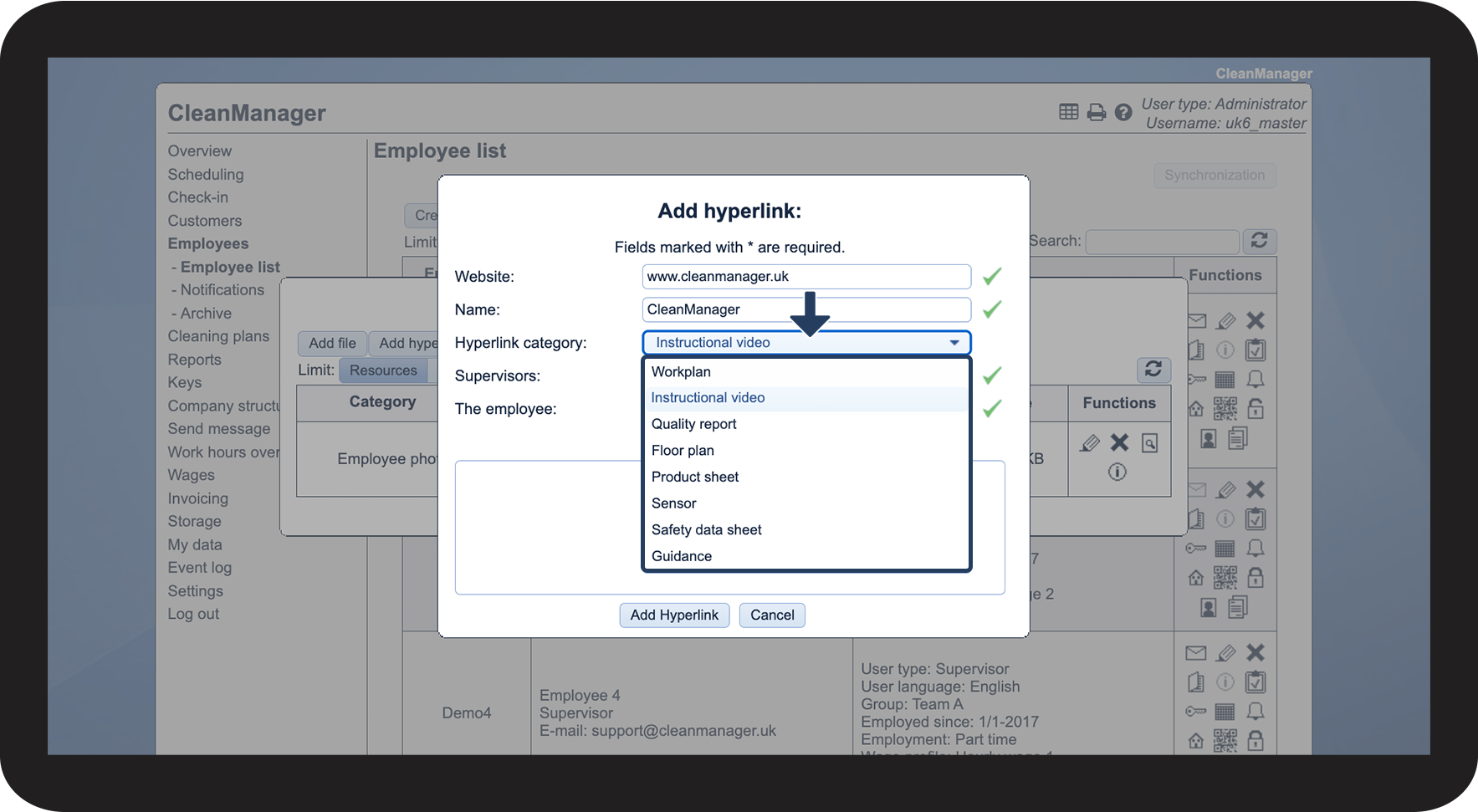
Select a Hyperlink category

2.5.png

number 6 copy.png
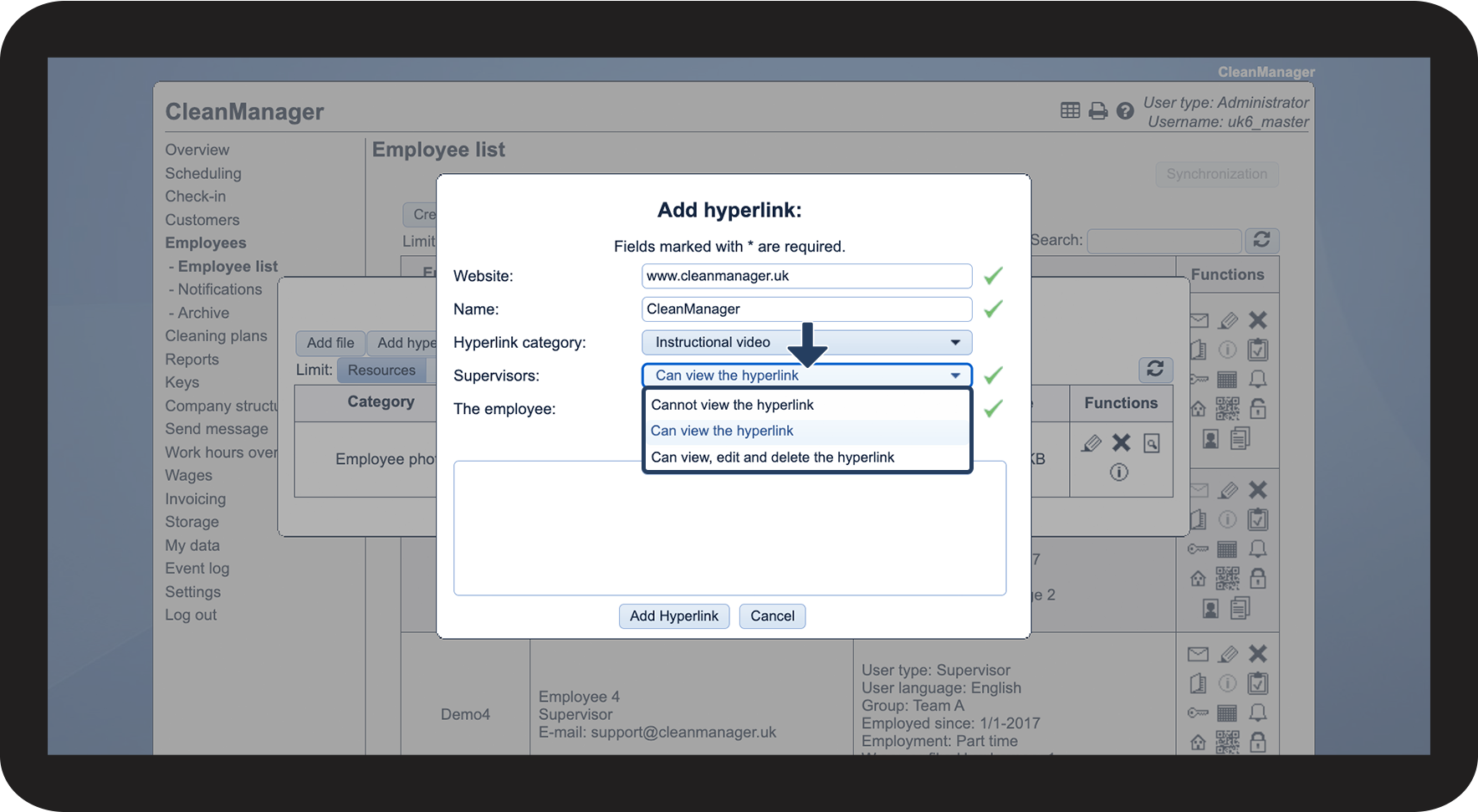
Set up permissions for supervisors
 

You can choose between the following:

  • Cannot view the hyperlink
  • Can view the hyperlink
  • Can view, edit and delete the hyperlink


NOTE:

The administrator can set up permissions for both supervisors and employees. Supervisors can only set up permissions for employees.

2.6.png

number 7 copy.png
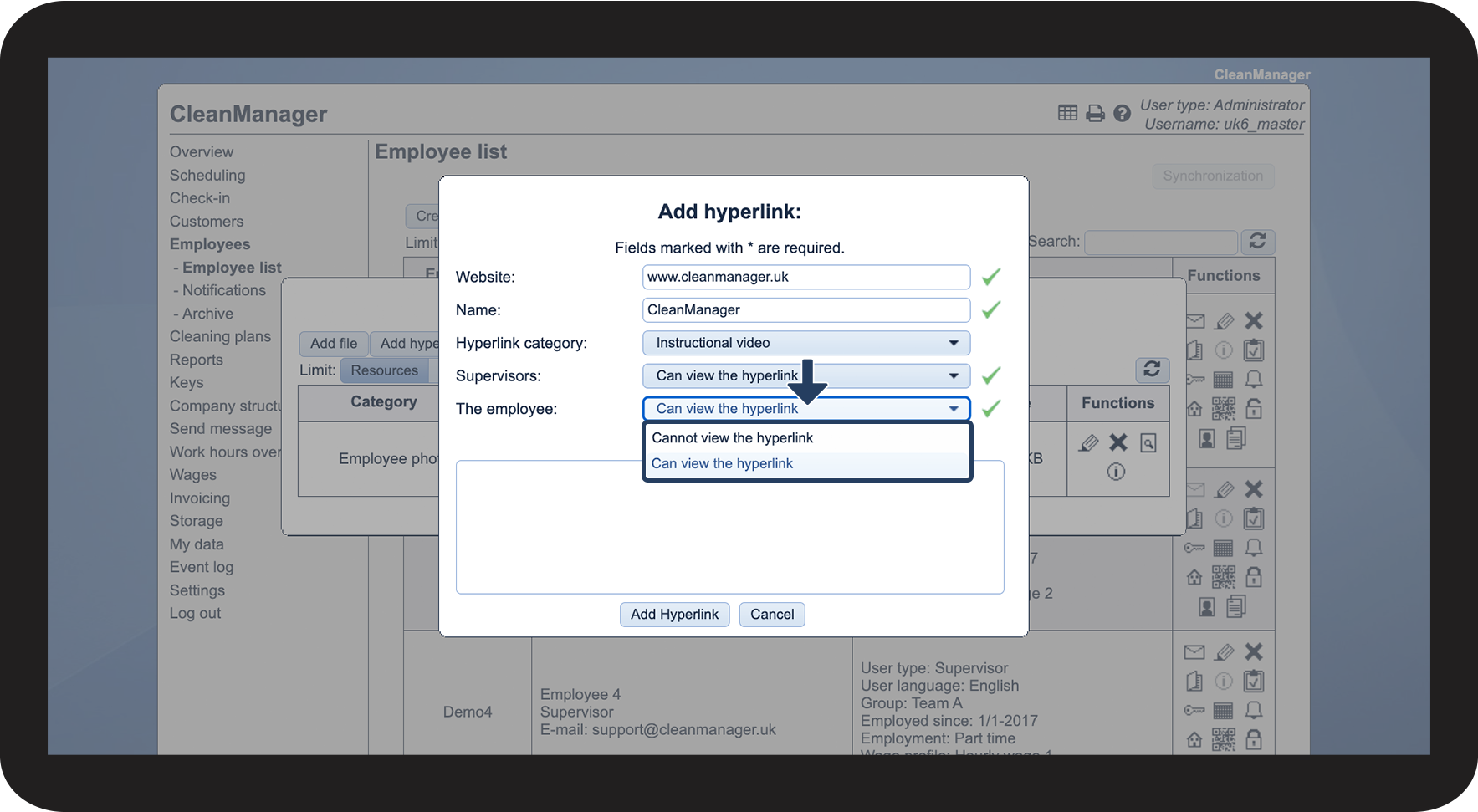
Set up permissions for the employee
 

You can choose between the following:

  • Cannot view the hyperlink
  • Can view the hyperlink

2.7.png

number 8 copy.png
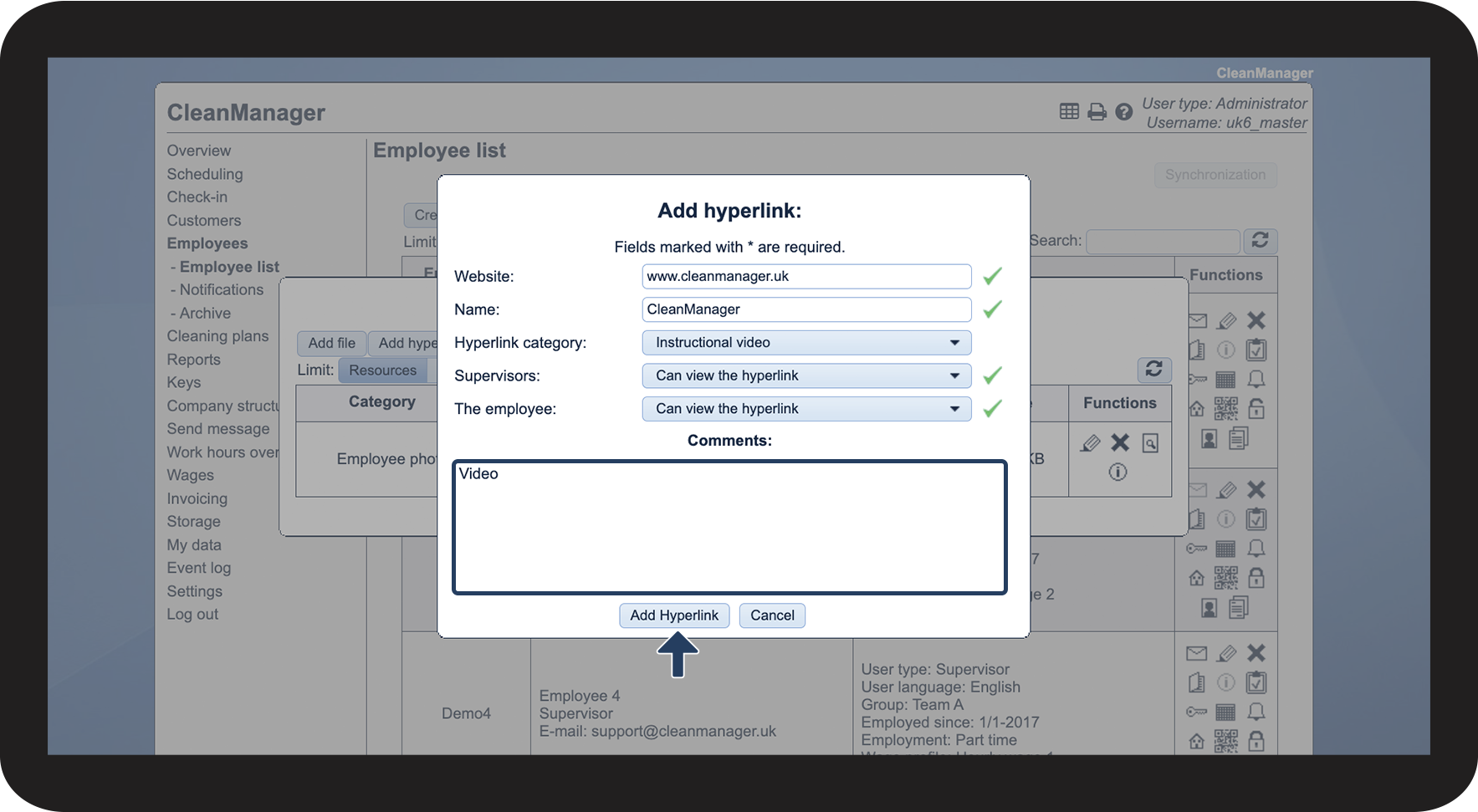
Enter a comment to the hyperlink (optional)
 
Finally, click on Add Hyperlink
2.8.png


This is how you can see which attachments have been added to the employee
number_1.png
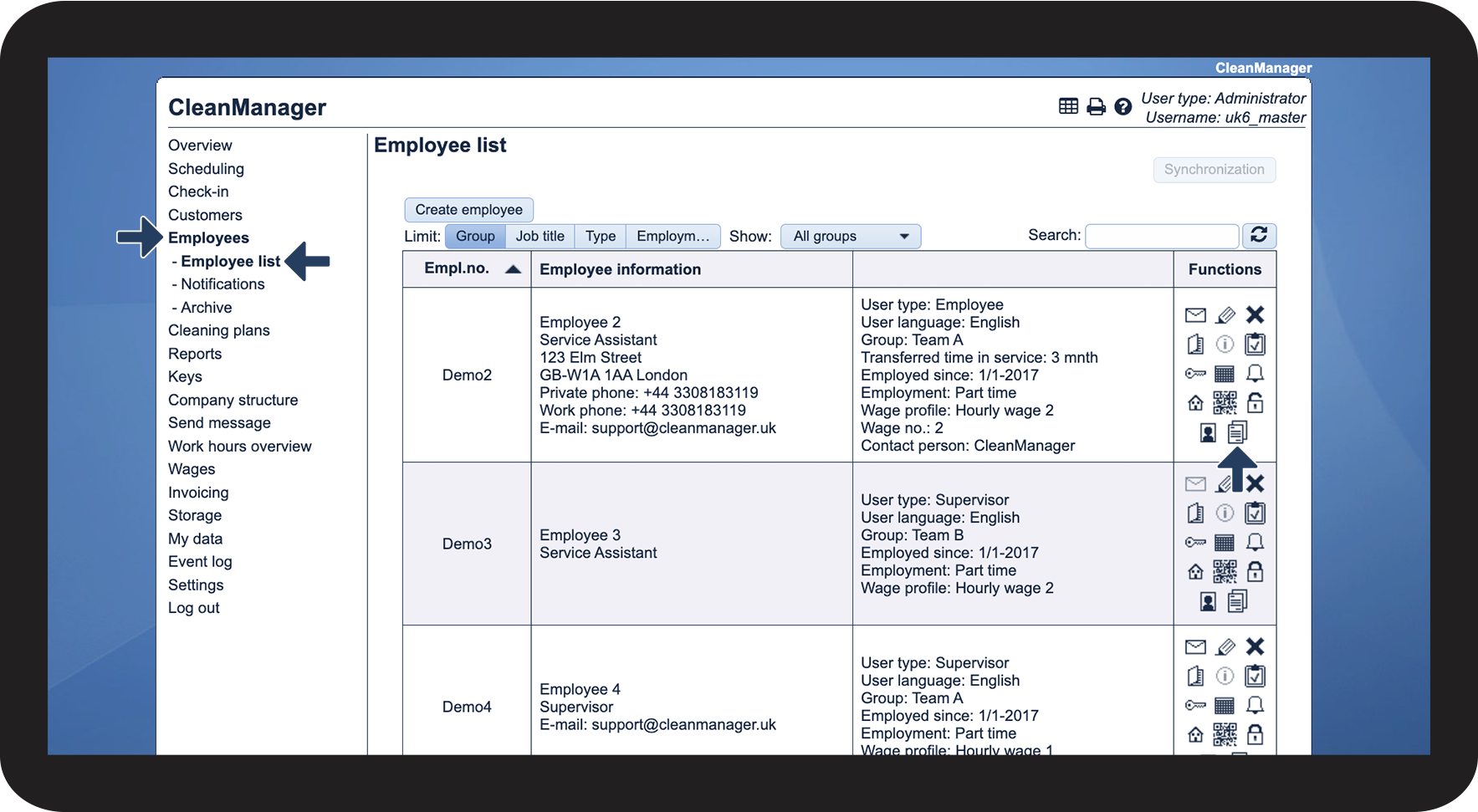
  In the menu, go to Employees > Employee list
 
Then, click on View resources Ressourcer.png

3.1.png

number_2.png
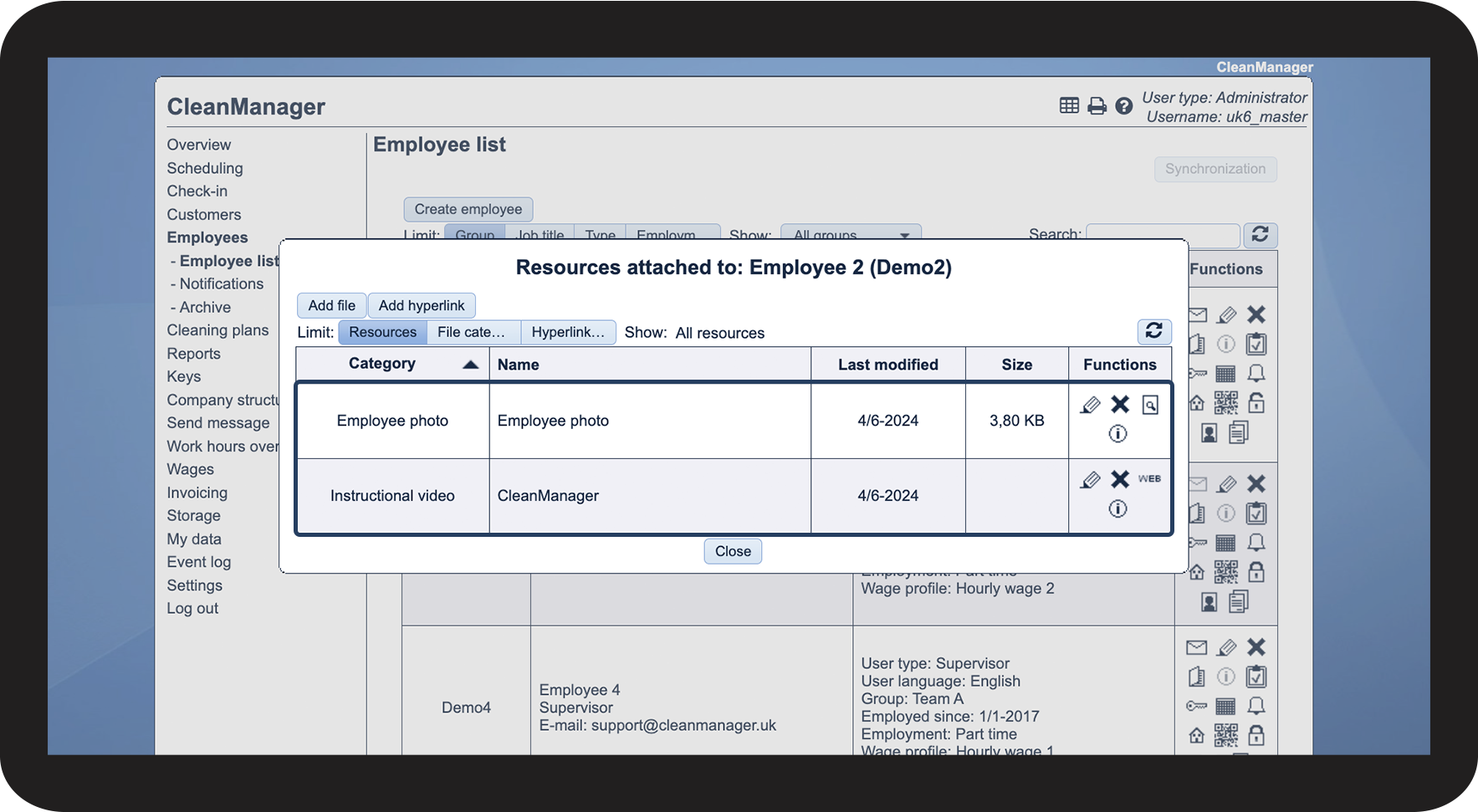
Here, you can see the attachments that have been added to the employee

3.2.png


This is how you can edit resources that have been attached to an employee
number_1.png
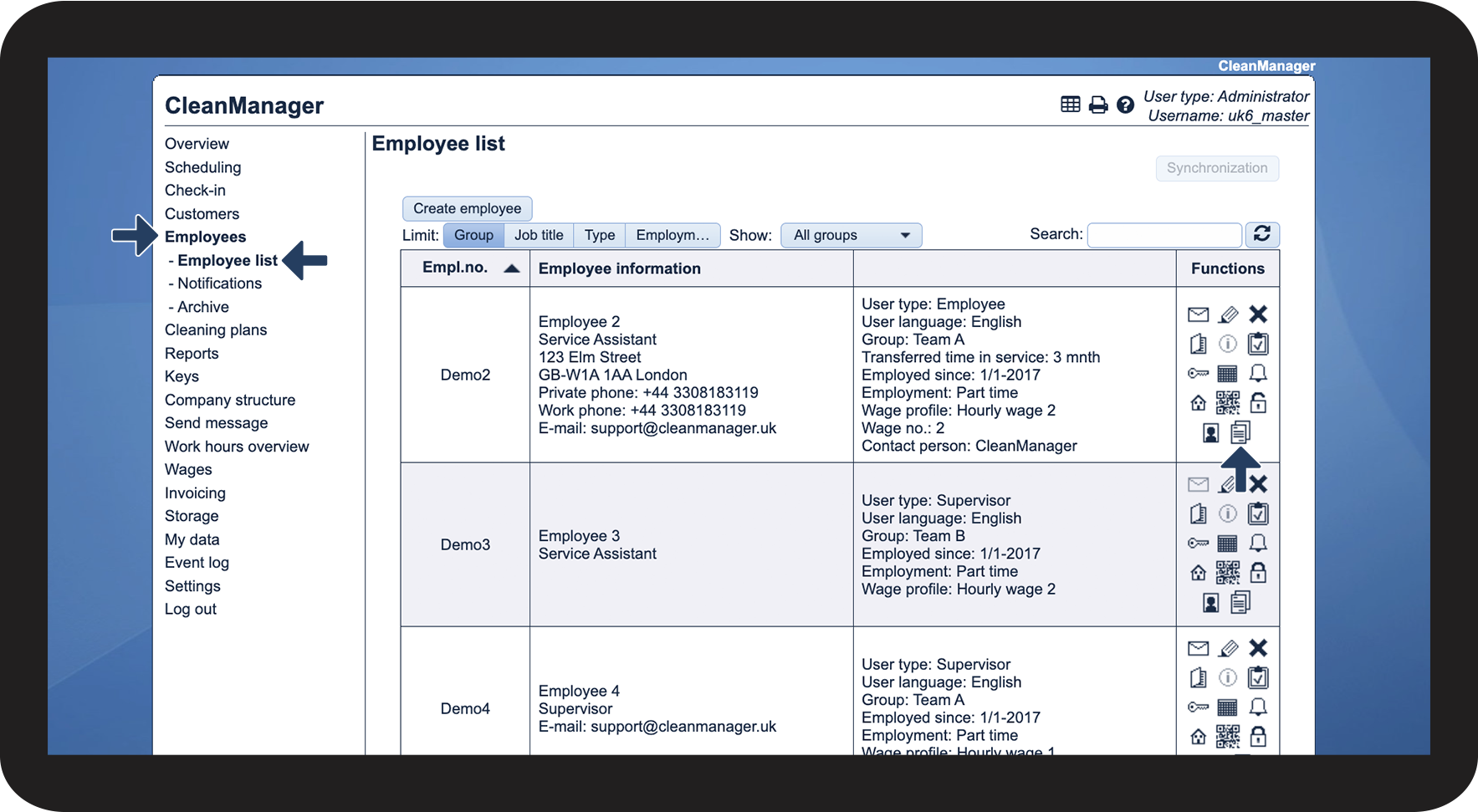
  In the menu, go to Employees > Employee list
 
Then, click on View resources Ressourcer.png

4.1.png

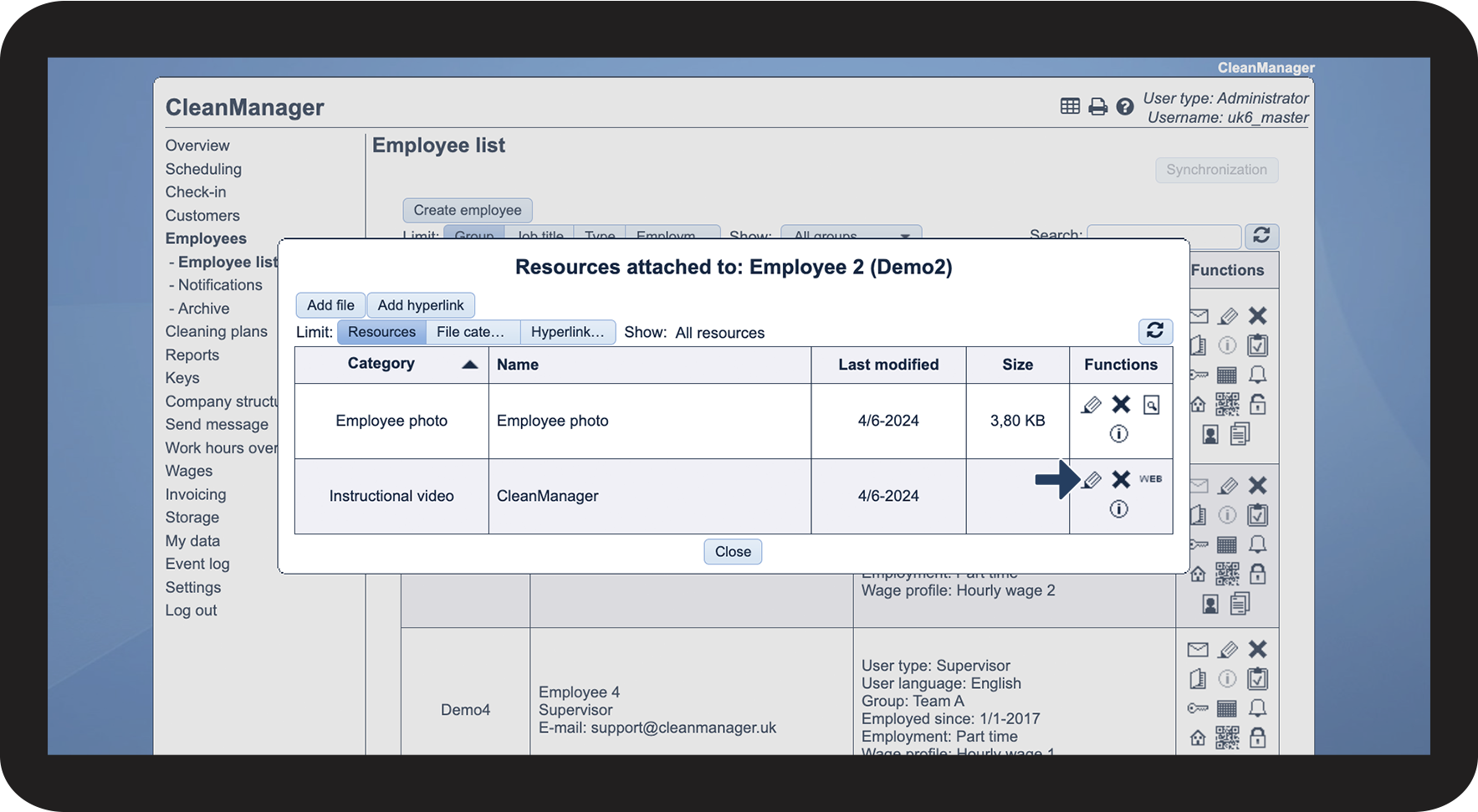
number_2.png
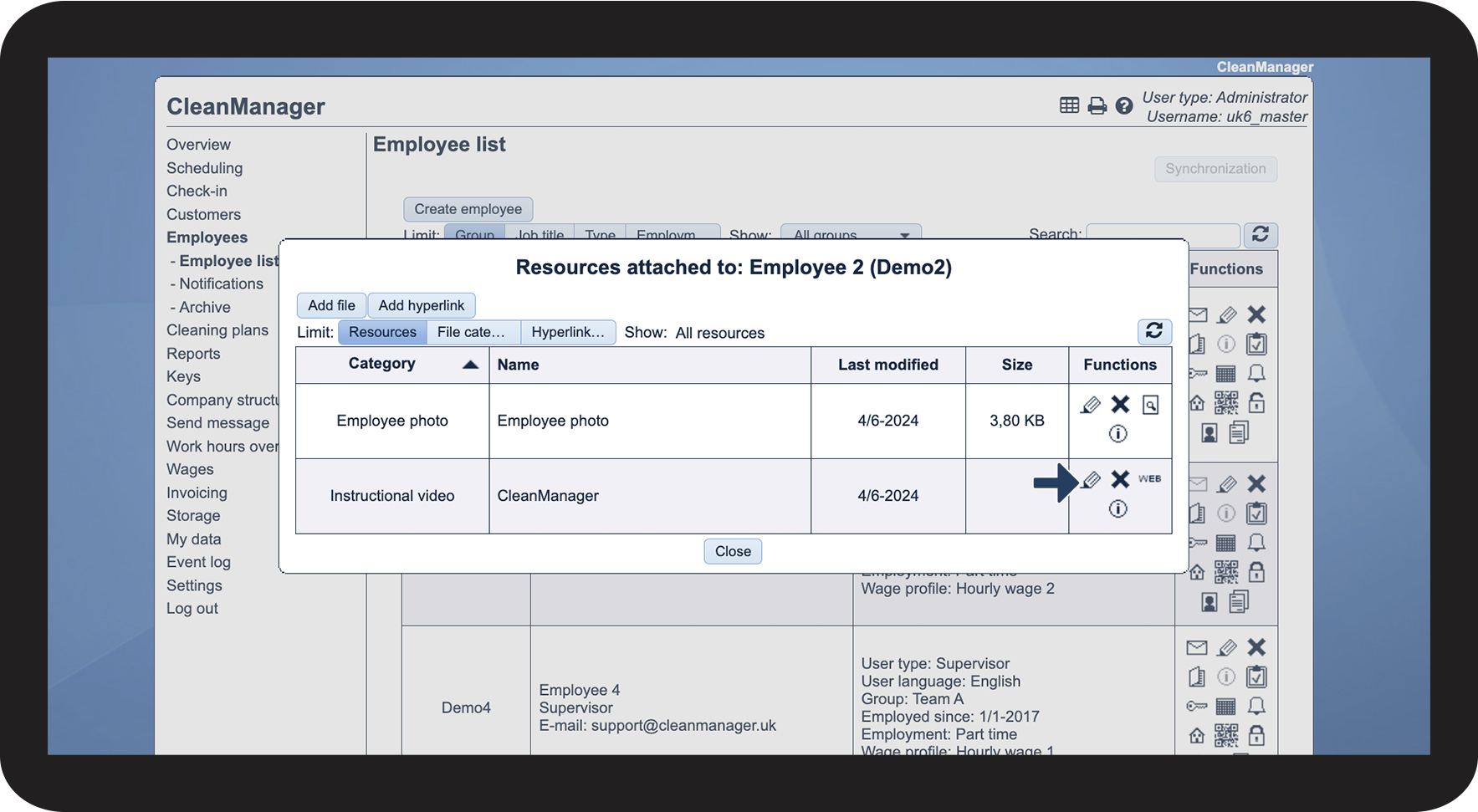
Click on Edit rediger.png

4.2.png

number_3.png
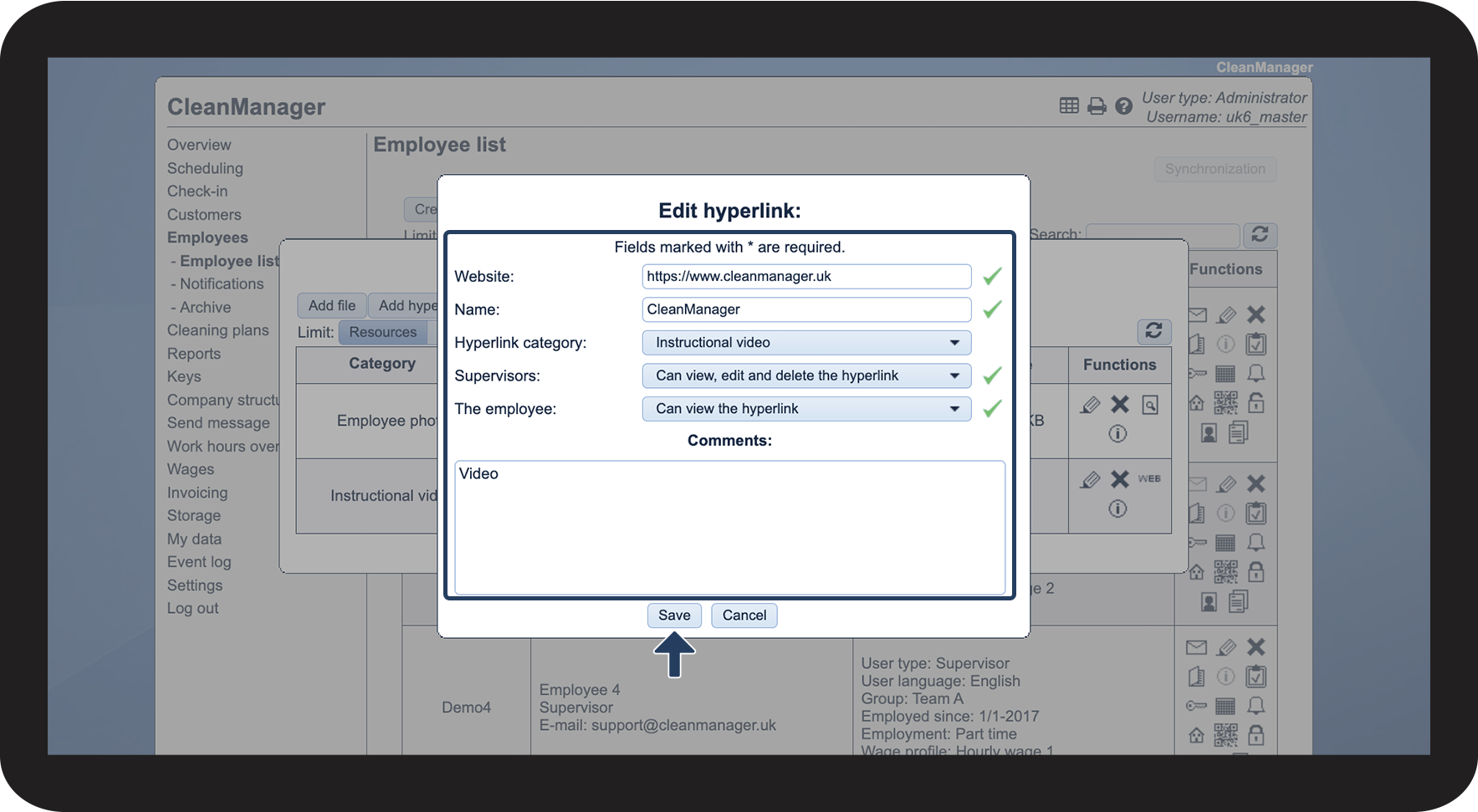
Edit the attachment and finish by clicking on Save

4.3.png


This is how you delete resources that have been attached to an employee

number_1.png
  In the menu, go to Employees > Employee list
 
Then, click on View resources Ressourcer.png

5.1.png

number_2.png
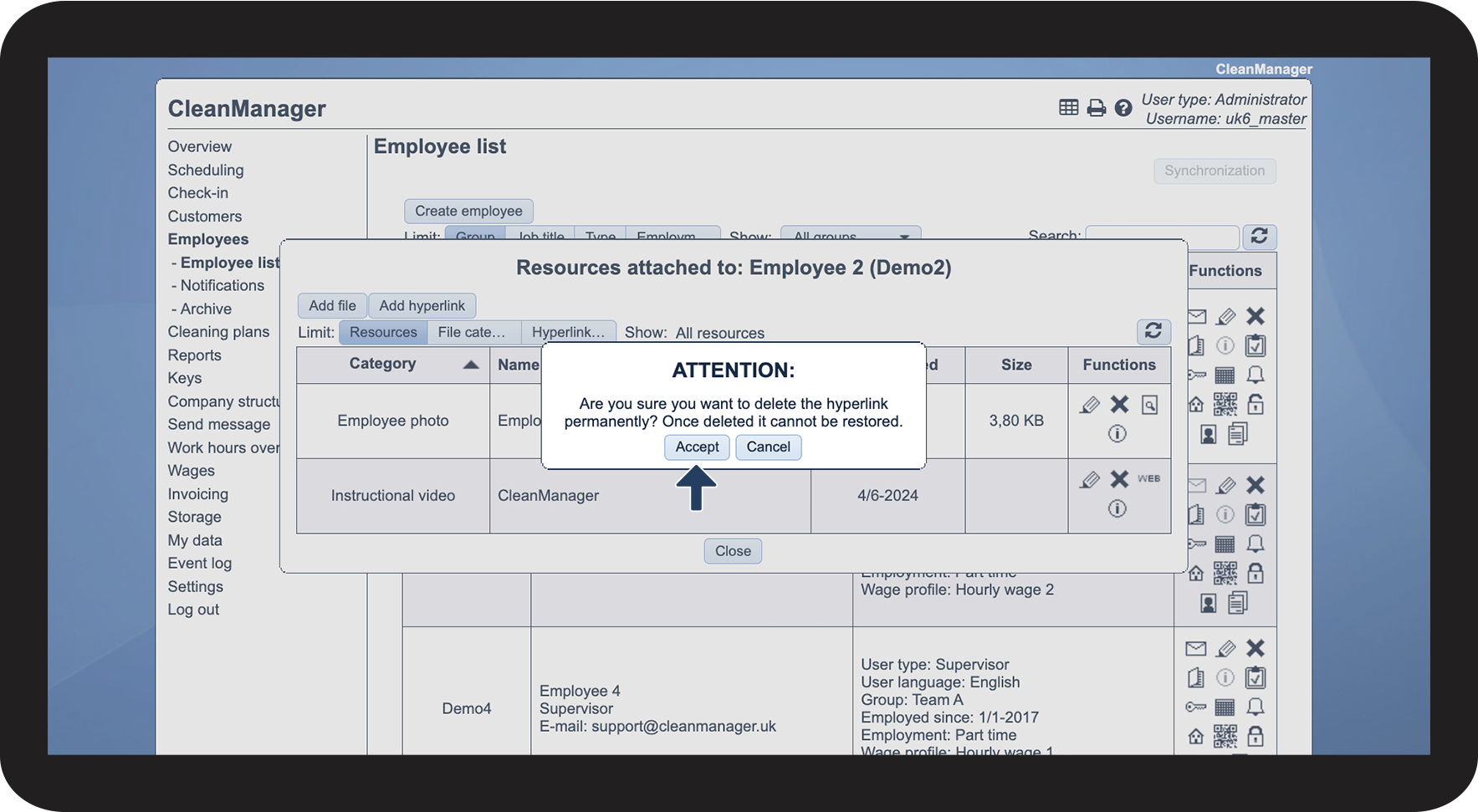
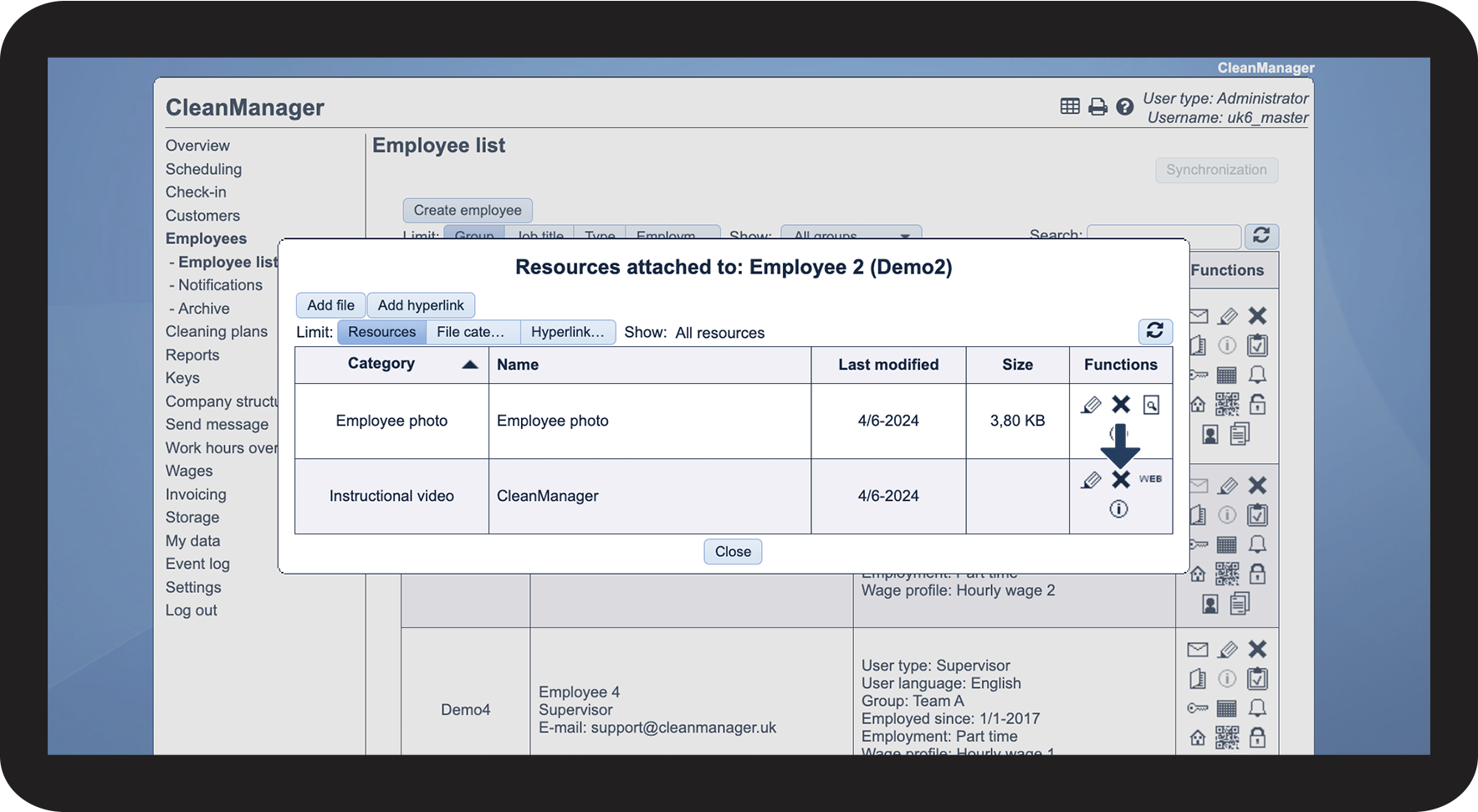
Click on Remove Slet.png


NOTE:

The file or hyperlink will be deleted permanently and cannot be restored.
5.2.png

number_3.png
Finish by clicking on Accept
5.3.png


This is how you specify which resources the employee can view
number_1.png

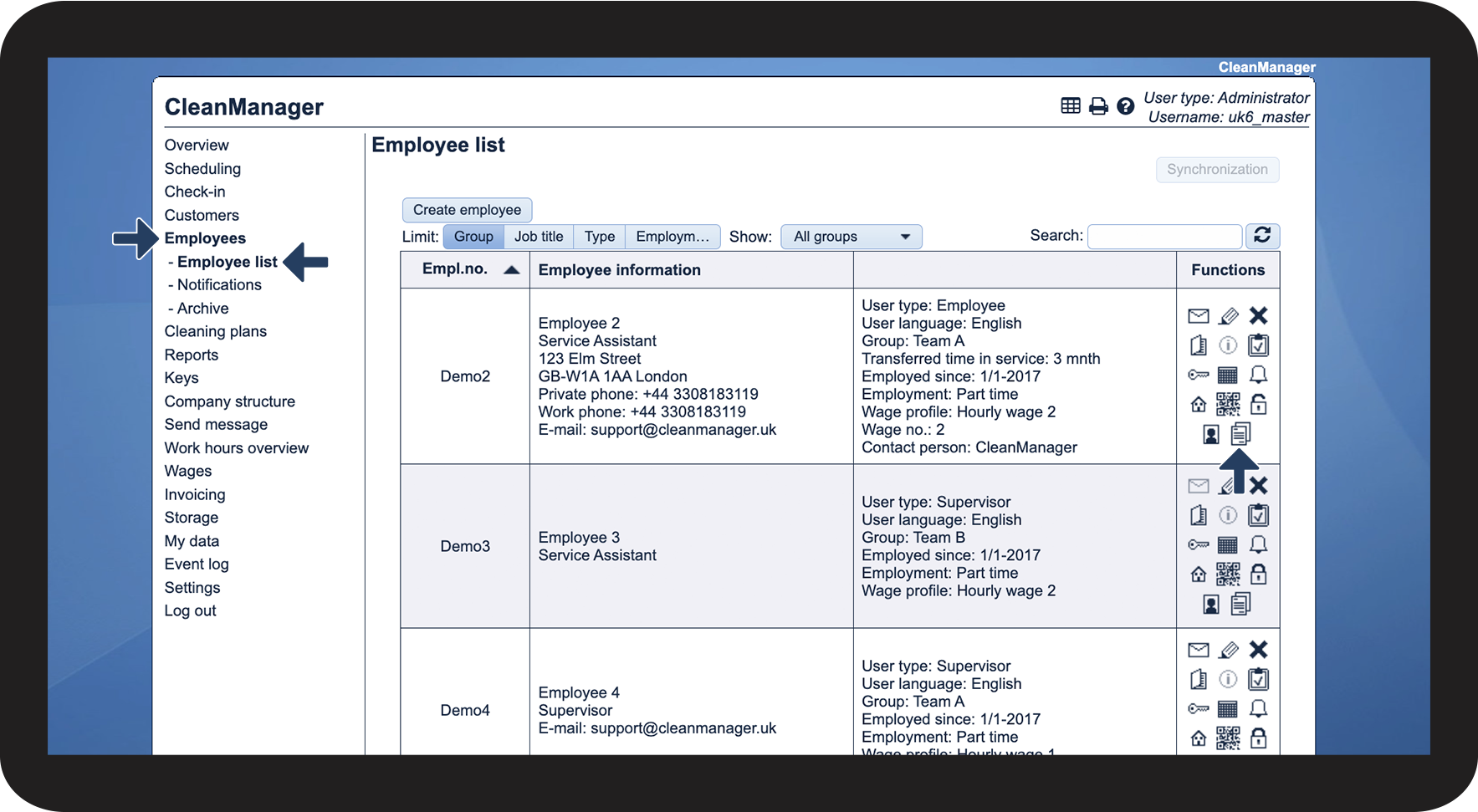
 In the menu, go to Employees > Employee list

 
Then, click on View resources Ressourcer.png

6.1.png

number_2.png
Find the relevant attachment
 
Then, click on Edit rediger.png

6.2.png

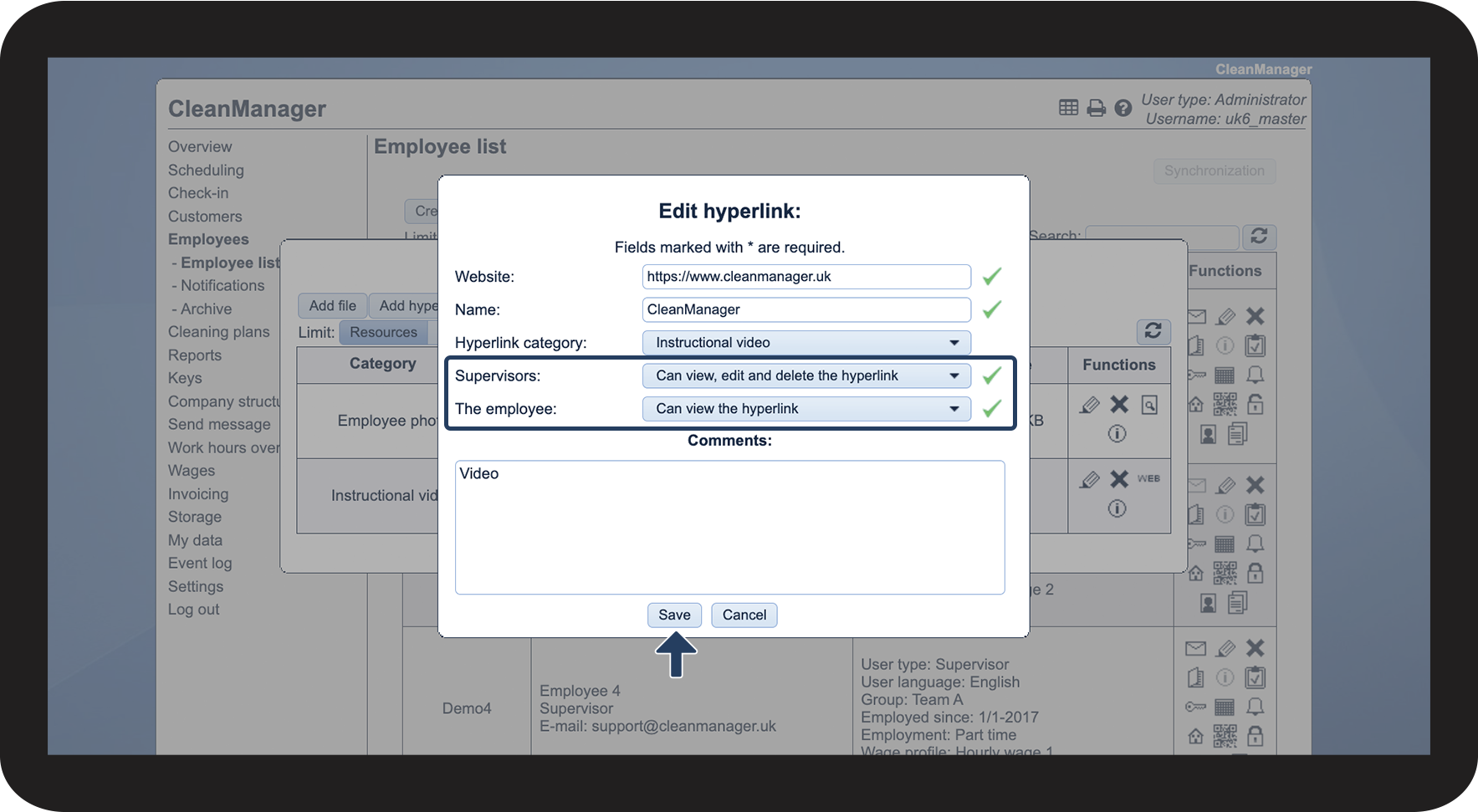
number_3.png
Here, you can determine permissions in regard to who can or cannot view the attachment
 

You can set up permissions for the following:

  • Supervisors
  • The employee
 

Finish by clicking on Save

6.3.png