
How can I sort the viewing of tasks with attached images as an administrator or a supervisor?
As the administrator, you can see all tasks with attached images on all customers.
As the supervisor, you can see tasks with attached images for customers in the customer areas you have been assigned to. For more information regarding this, go to Company Structure.
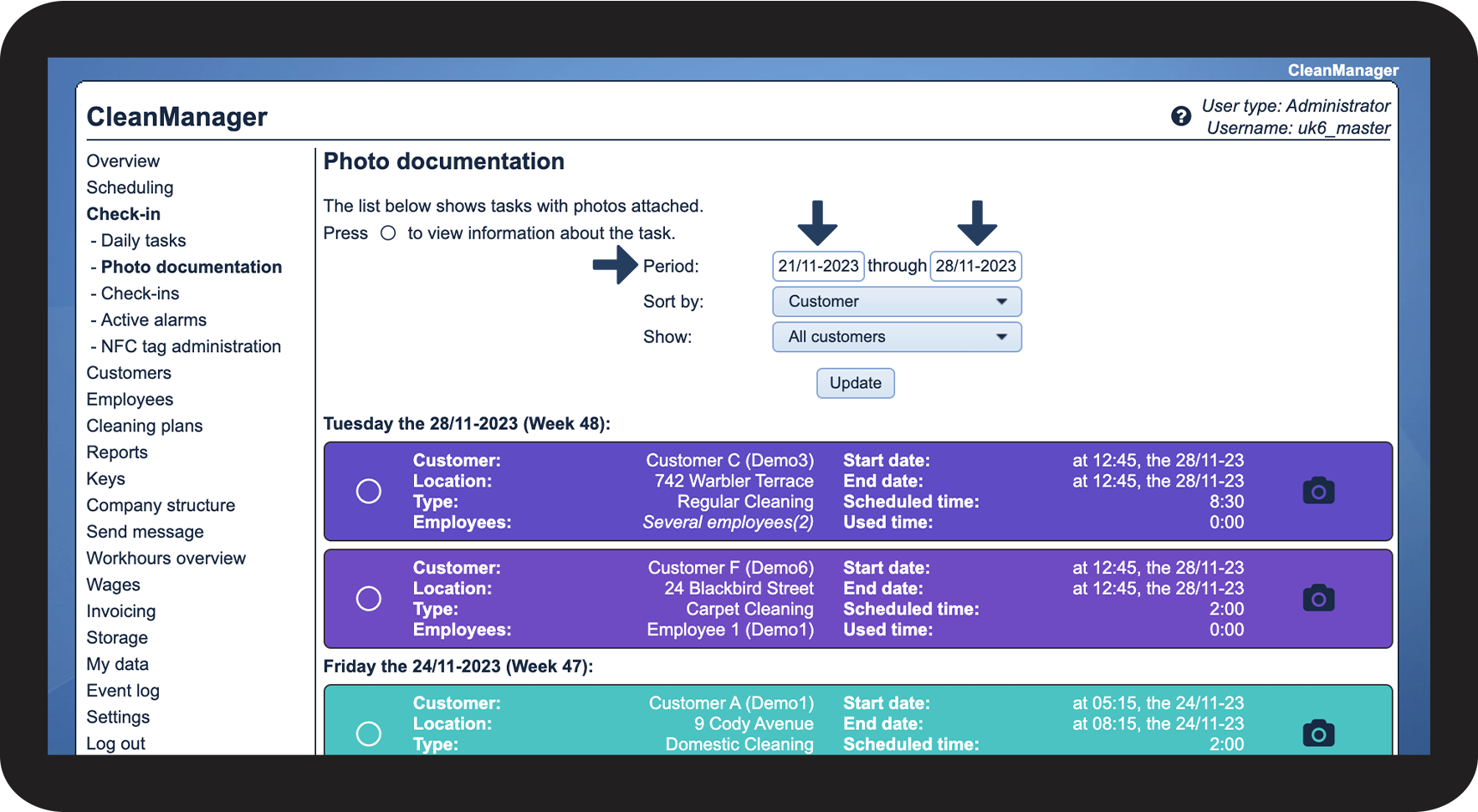
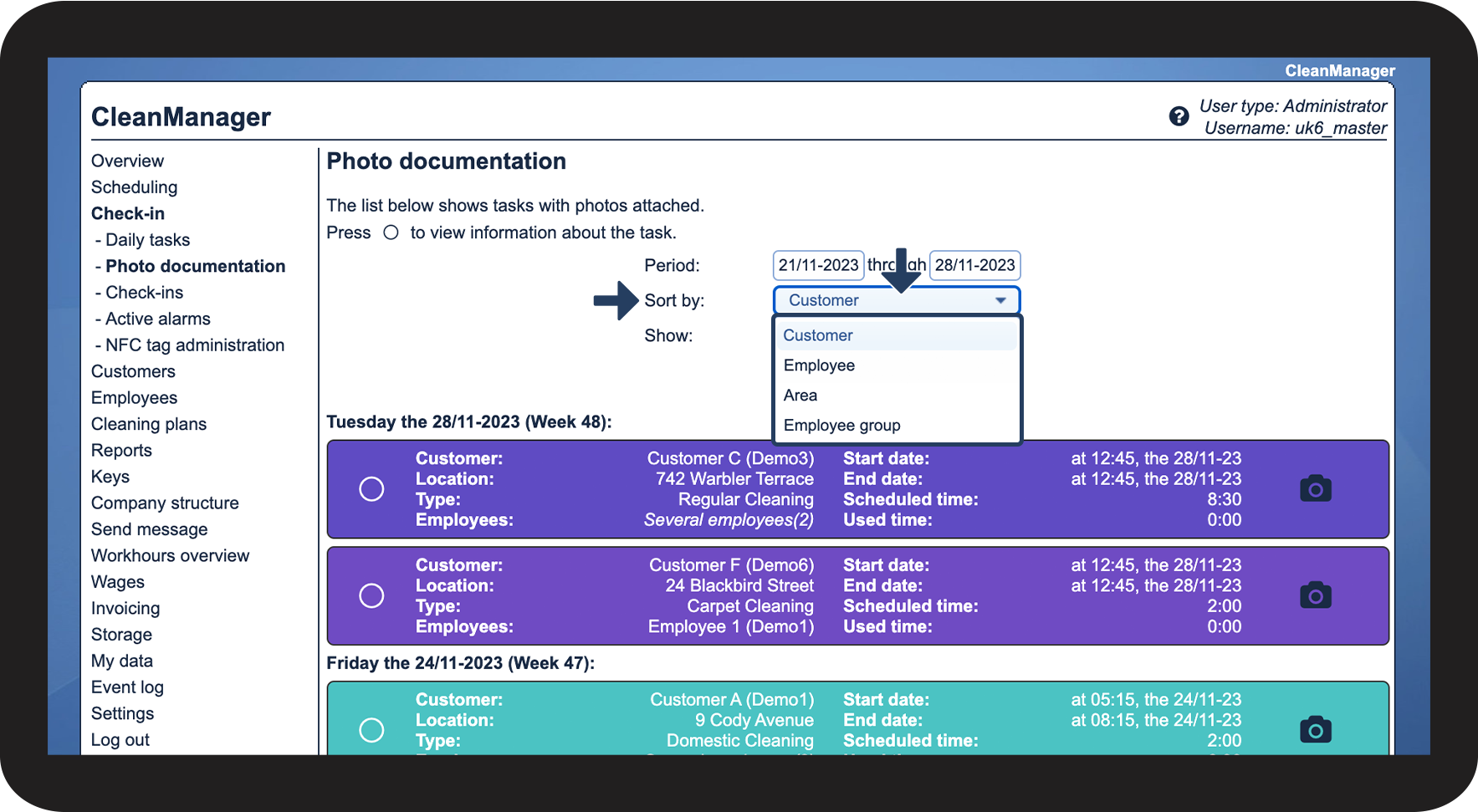
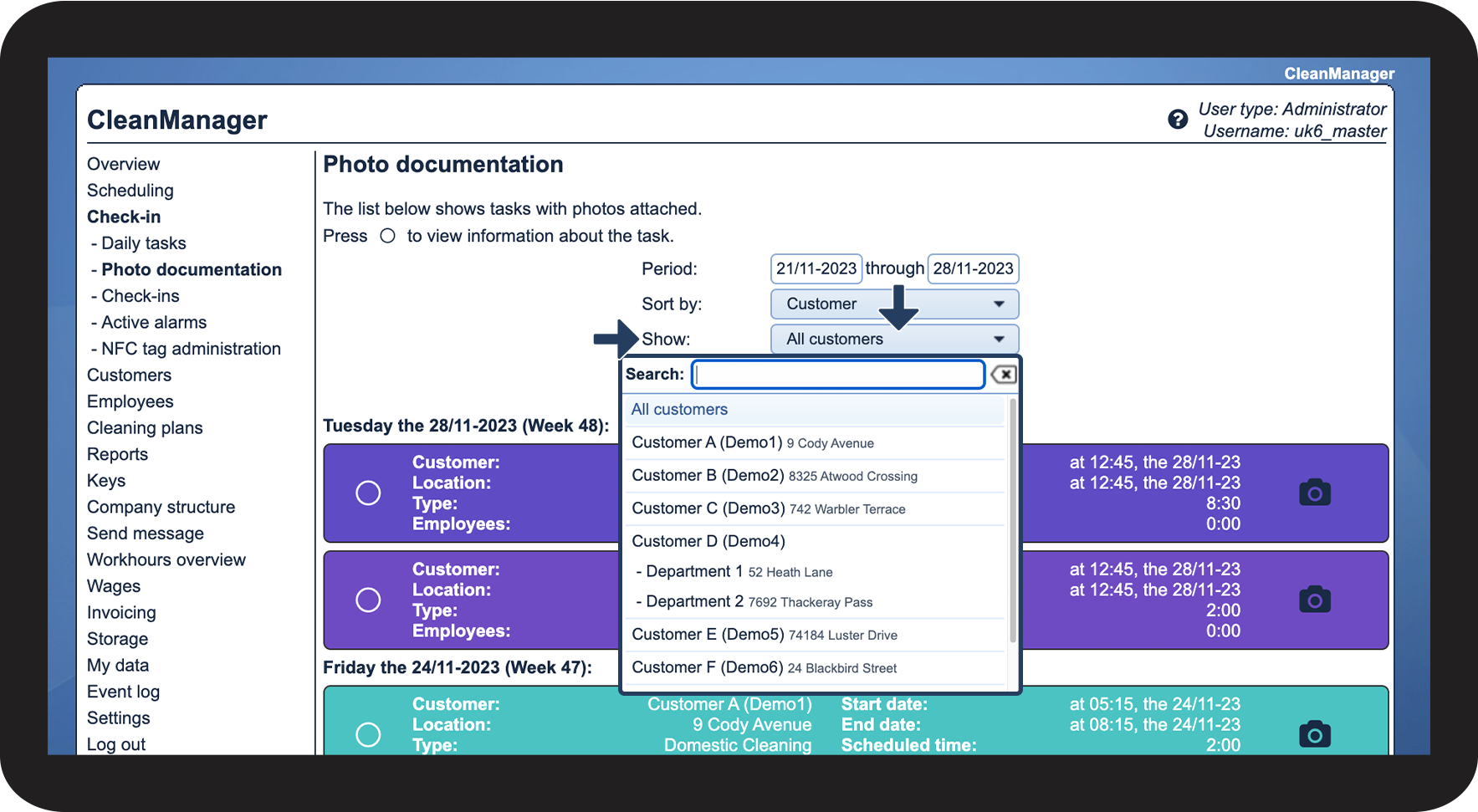
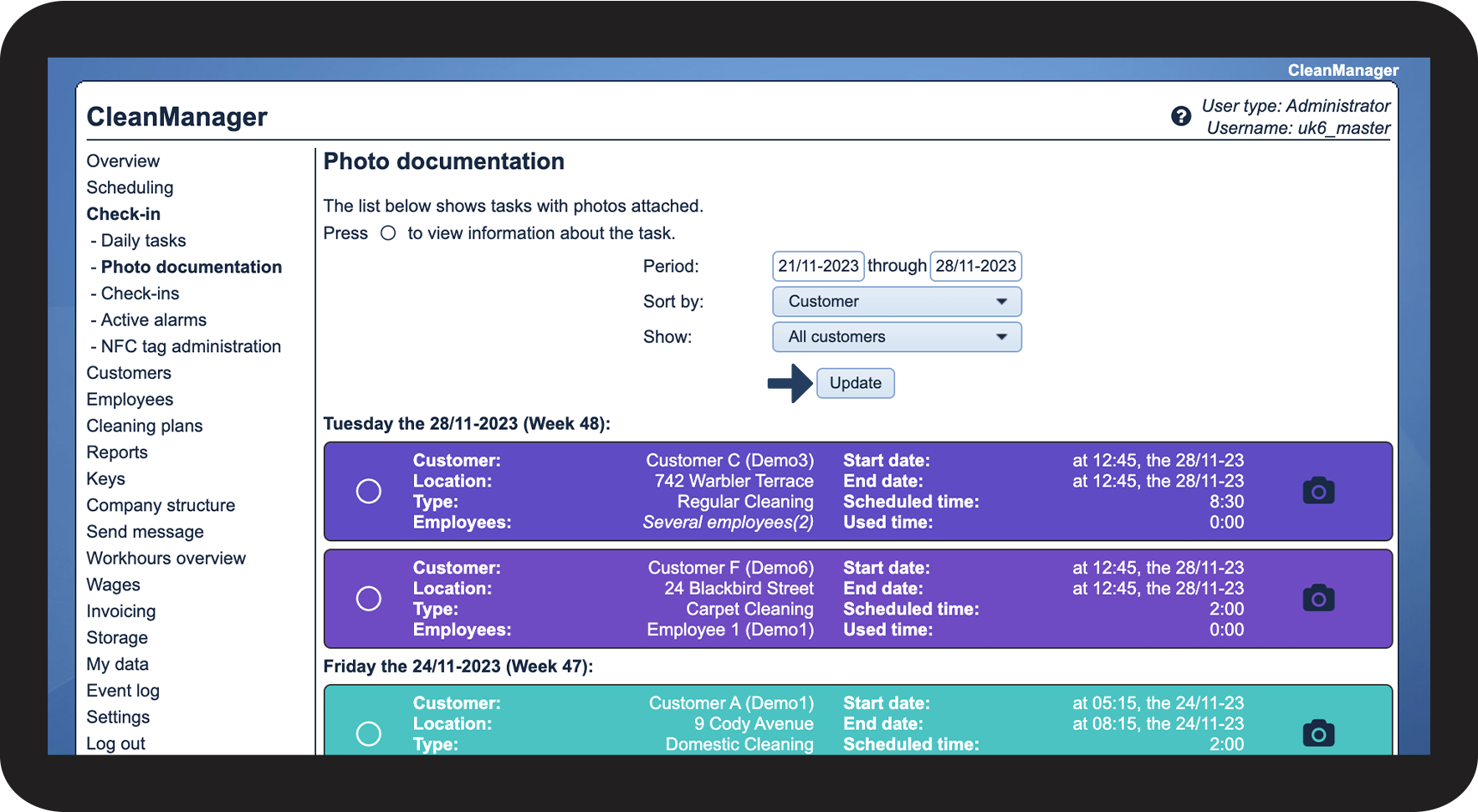
You can sort the viewing of tasks with attached images if you for example wish to narrow down the view to a specific customer, employee, or period of time.
In this article, you will learn how to find and sort the viewing of tasks with attached images:
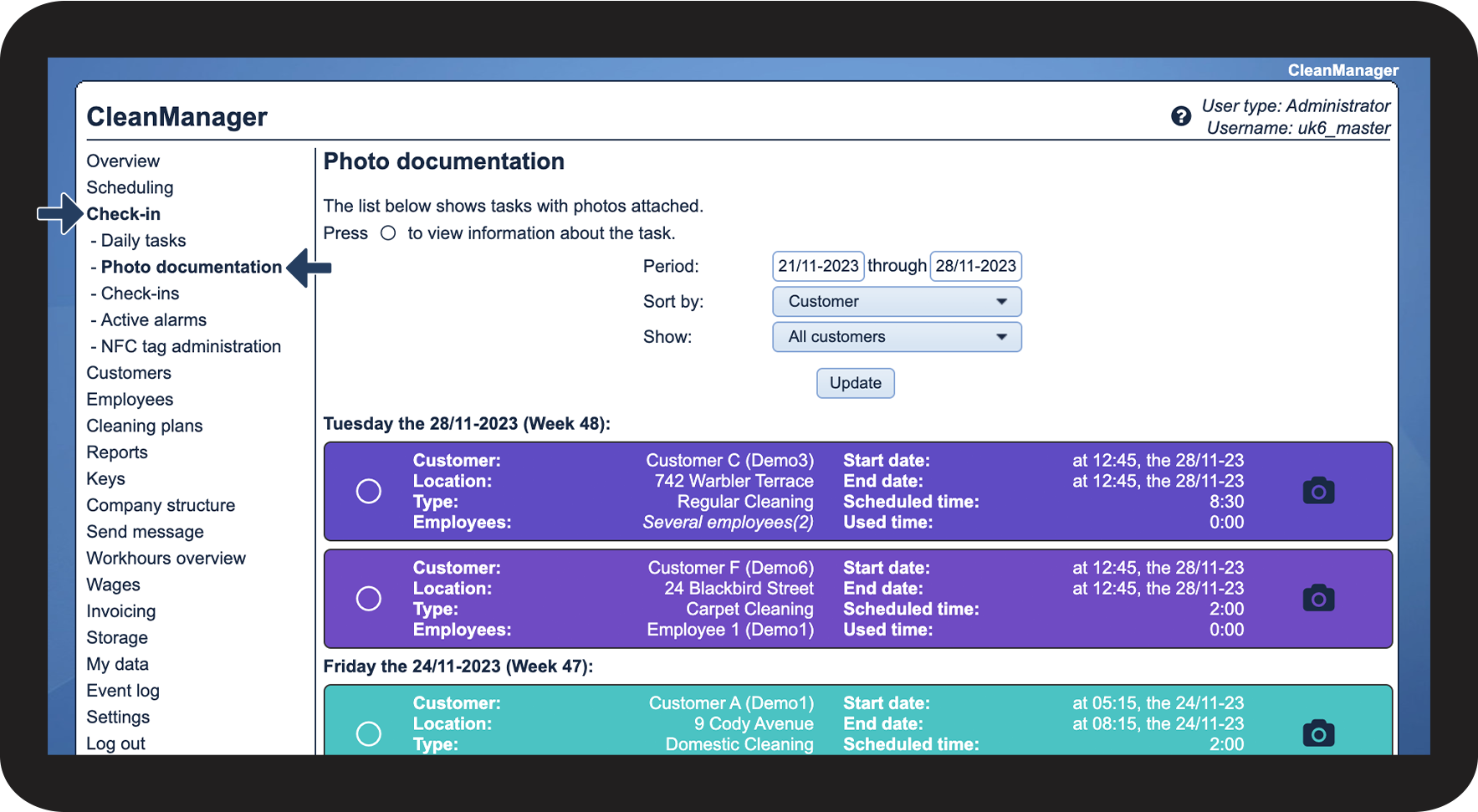
This is how you find the tasks with attached images

This is how you can sort the viewing



Continue to the article How do I view the images that have been attached to tasks via the app?
Here, you can read more about how to view and manage the images that your employees have attached to the tasks by using the app