How do I hide absence hour types?
An absence hour type that has previously been used to register absence in the calendar cannot be deleted. However, if it should no longer be applicable for new absence, you can hide it in the system.
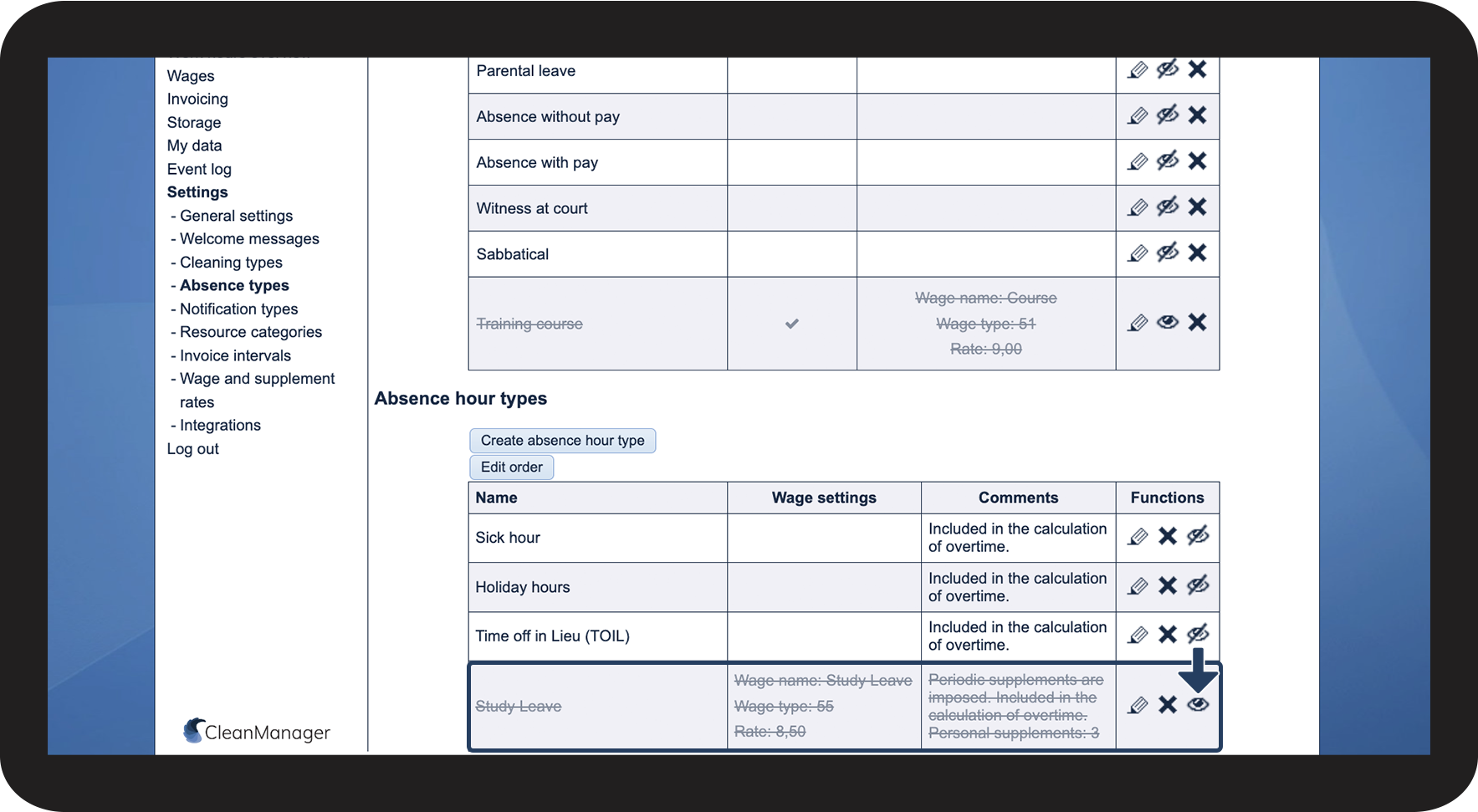
This way, the absence hour type will remain in the settings, but it can no longer be selected when registering absence.
In this article, you will learn how to hide absence hour types:
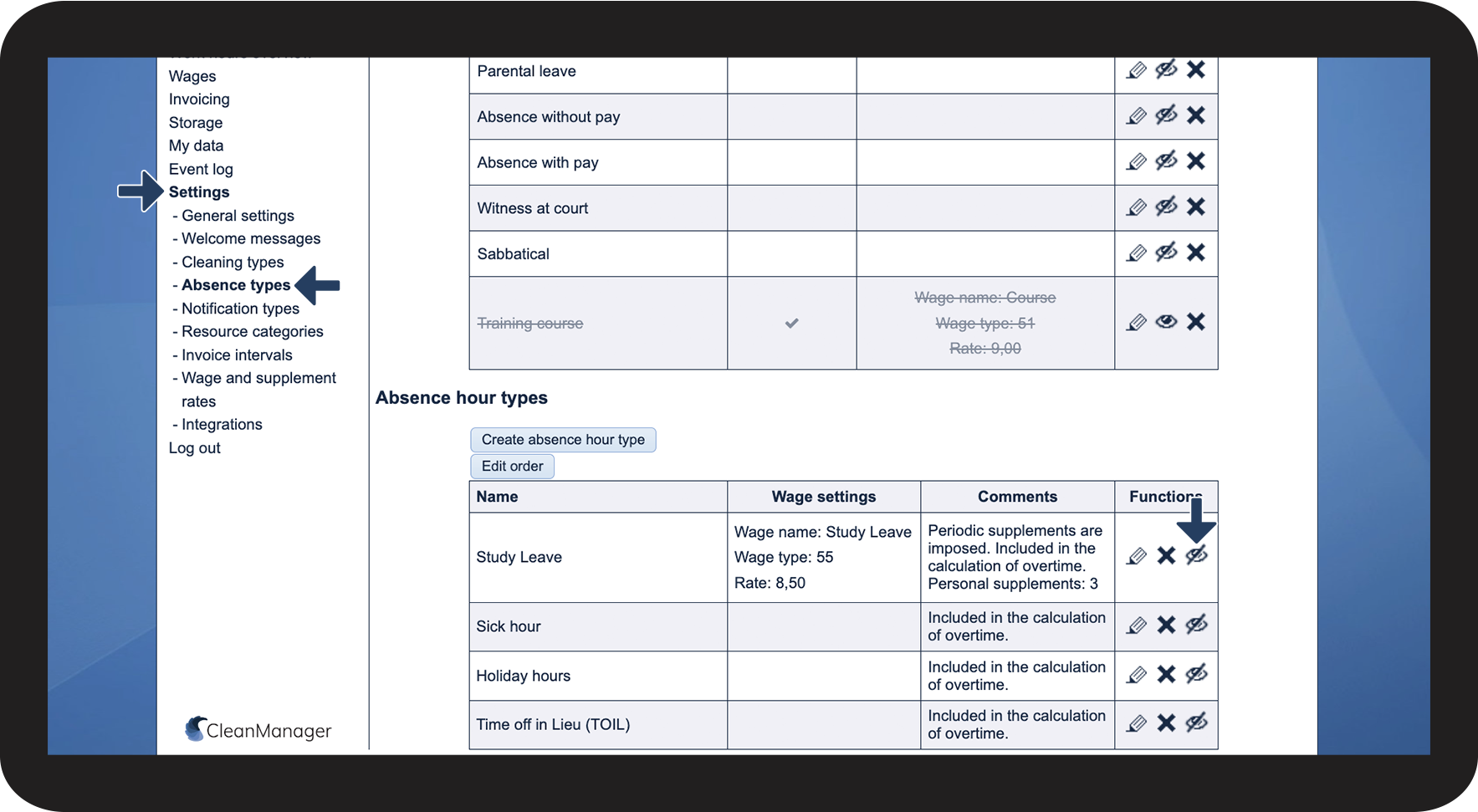
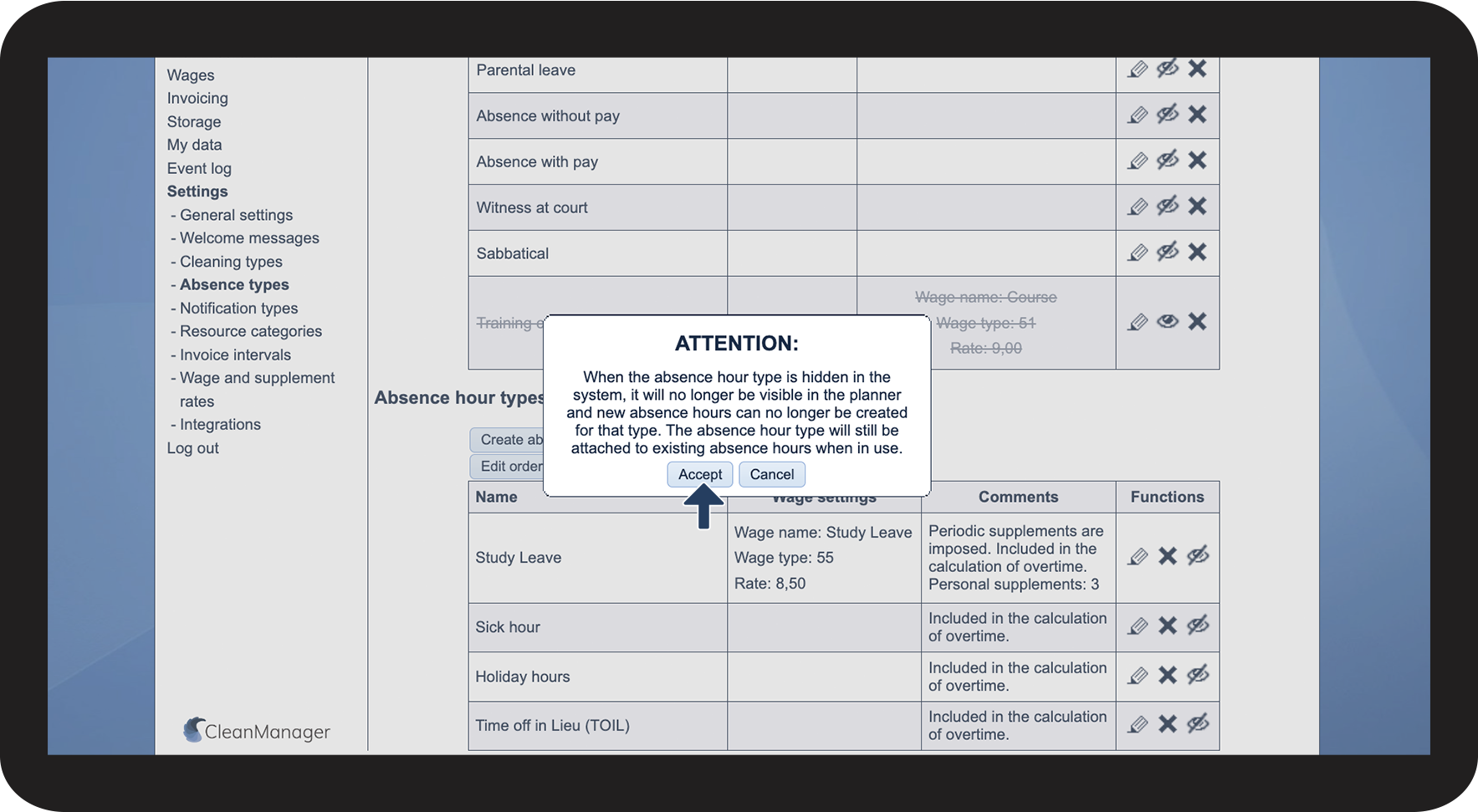
This is how you hide absence hour types

 next to the absence type you want to hide