Skip to content
English
  • There are no suggestions because the search field is empty.

Filters in the employee list

How can I filter the view of my employees?

Get started using filters in your employee list. As the administrator or a supervisor, you can filter the view in the employee list by either the employee groups, the job titles, the user types, or the employment types.

Using the filters can help you look for specific employees, and this way you can also easily see if some employees have not yet been assigned an employee group or type, or a job title.


In this article, you will learn how to use the filters in the employee list:


This is how you can filter by employee group

number_1_copy.png

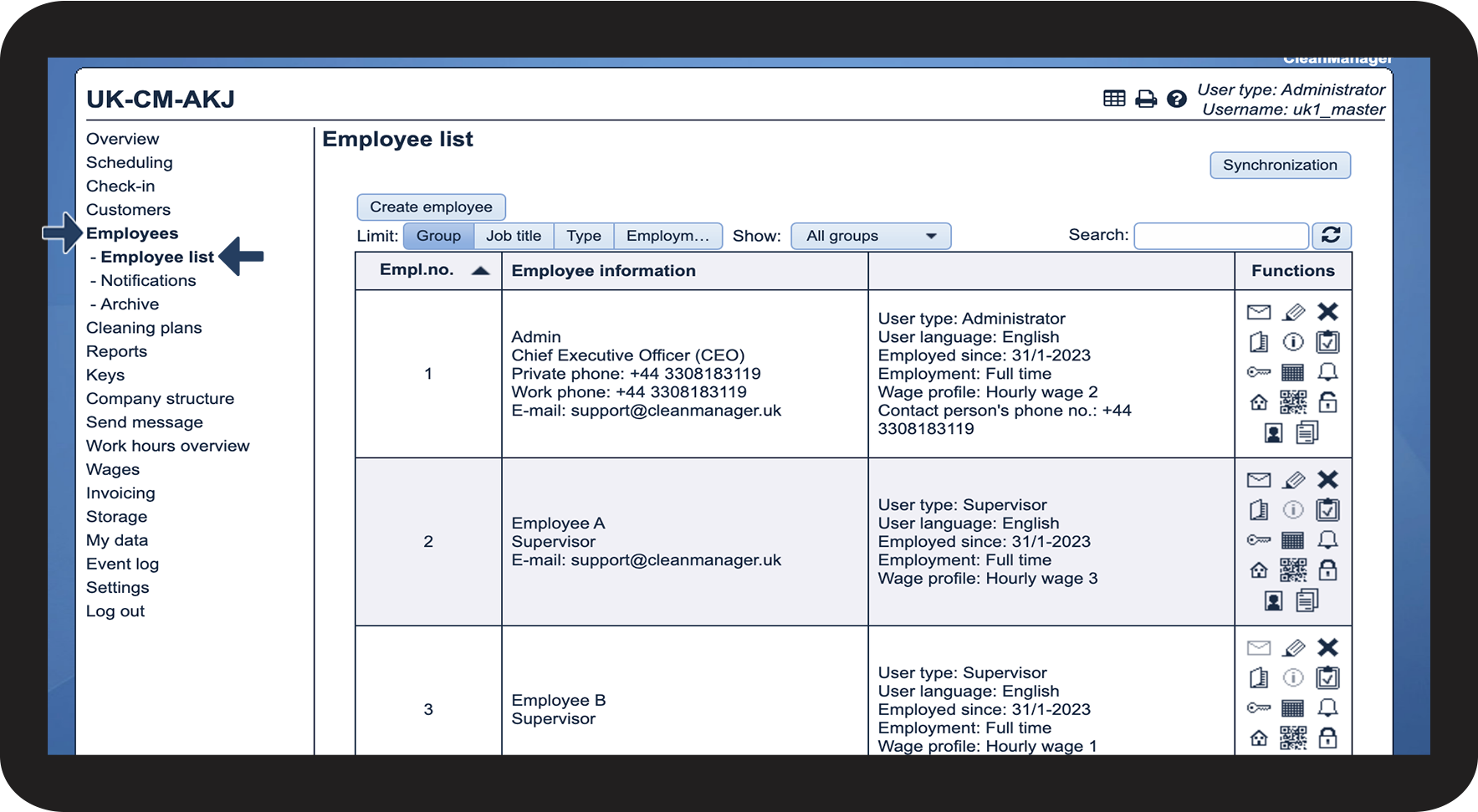
In the menu, go to Employees > Employee list

5.png

number 2 copy.png

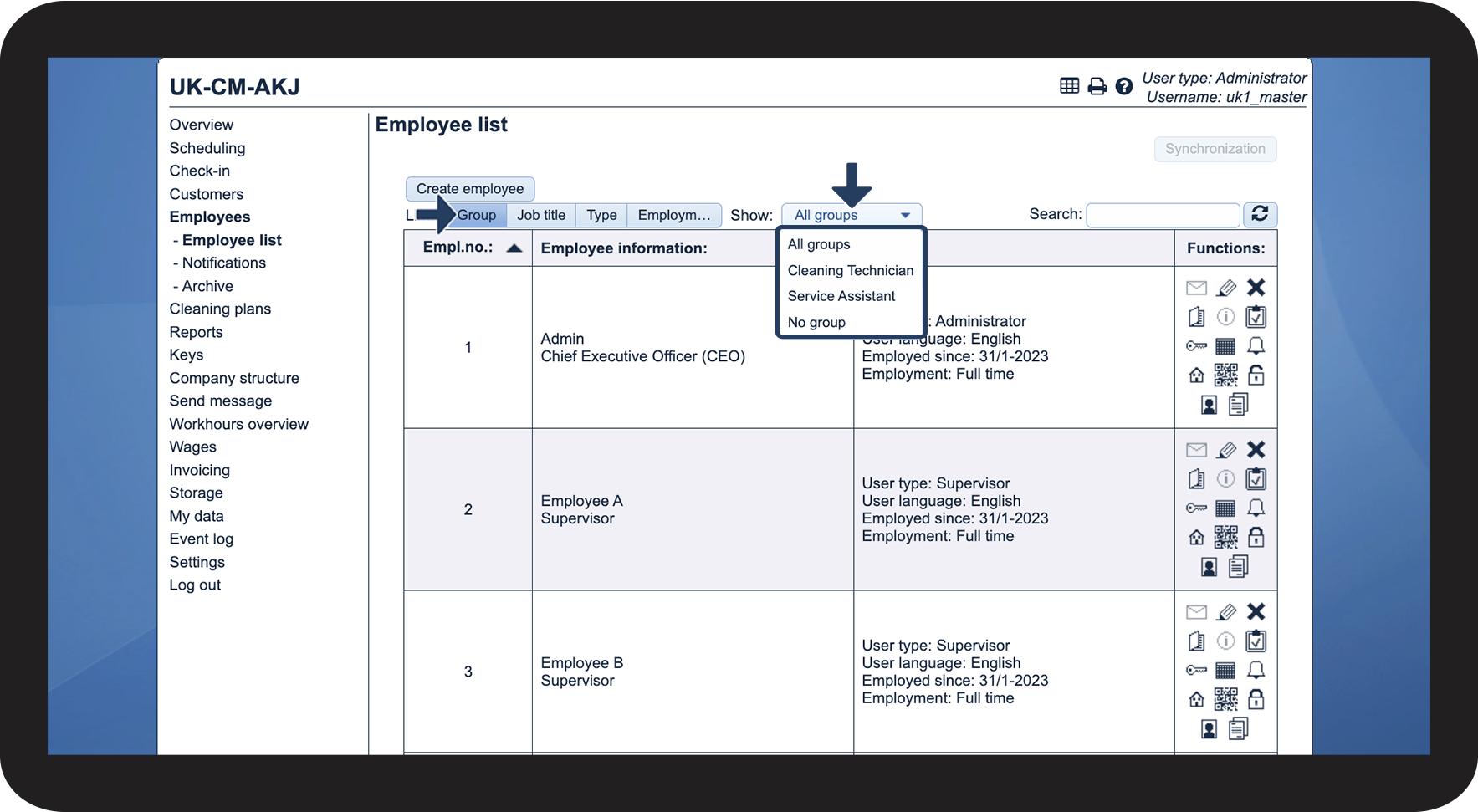
Click on Group 


Then click on the dropdown All groups and select the desired view


By using this filter, it will be possible to display all employee groups, a specific group of employees, or all employees who are not in a group. For more information on creating and assigning employee groups, go to Employee groups.


NOTE:

Supervisors will by default be shown the employee group they have been assigned to themselves when they go to the Employee list. However, they can change this to display all other groups as well.
 

1.png


This is how you can filter by job title
number_1_copy.png

In the menu, go to Employees > Employee list

5.png

number 2 copy.png

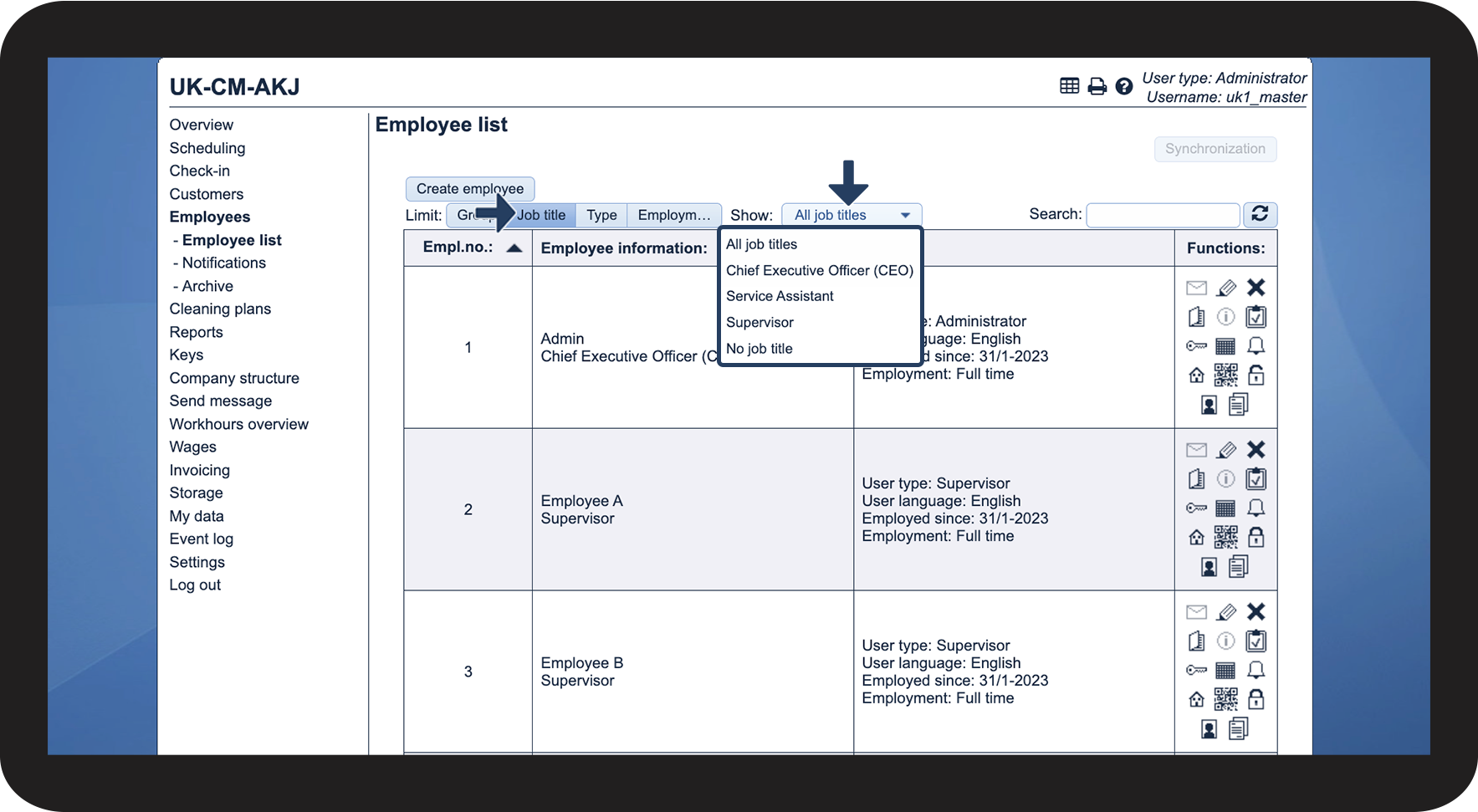
Click on Job title 


Then click on the dropdown menu All job titles and select the desired view


By using this filter, it will be possible to display all employees regardless of job title, employees with a specific job title, or employees who have not yet been assigned a job title. For more information on creating and assigning job titles, go to Employee job titles.

2.png


This is how you can filter by user type
number_1_copy.png

In the menu, go to Employees > Employee list

5.png

number 2 copy.png

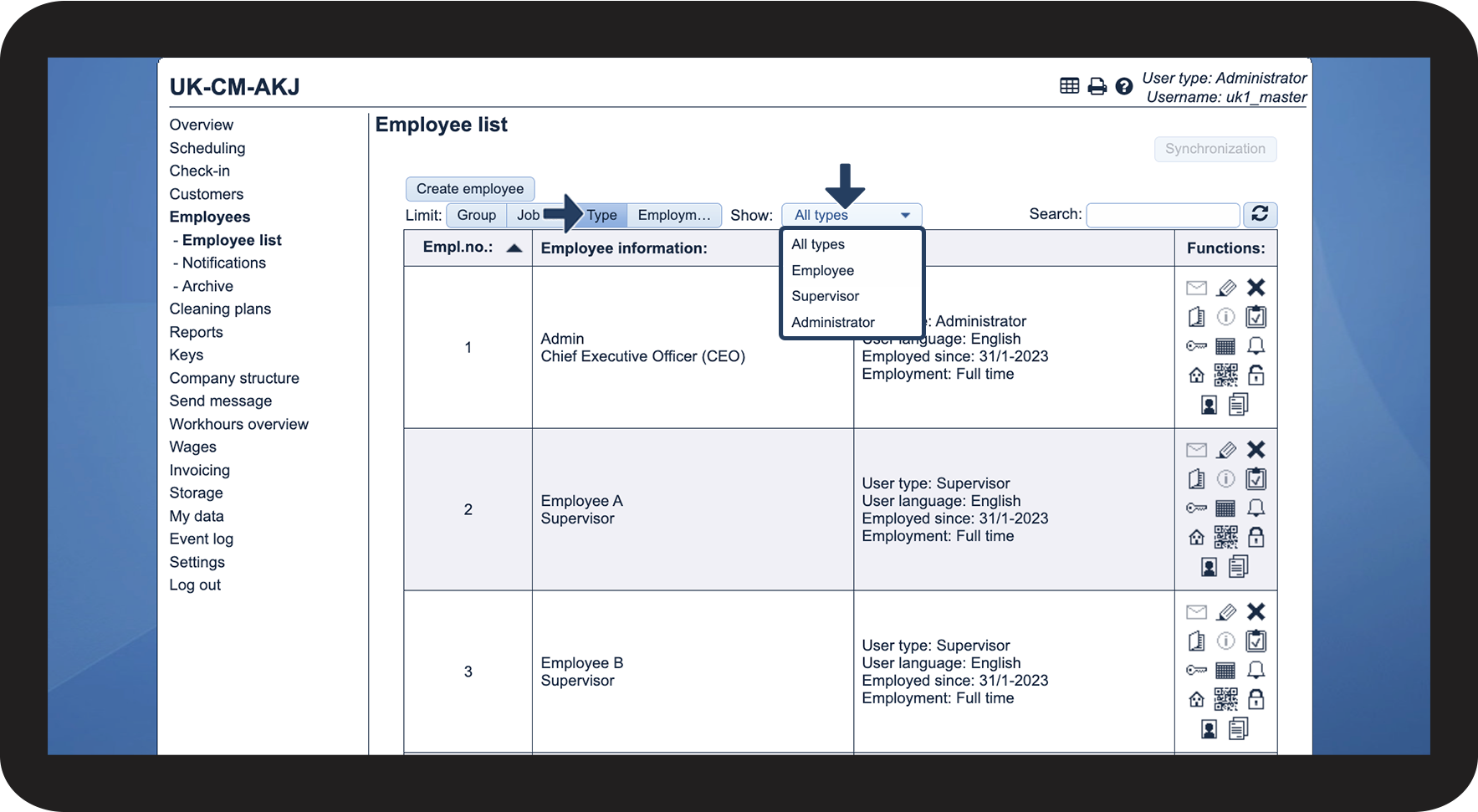
Click on Type


Then click on the dropdown menu All types and select the desired view


By using this filter, it will be possible to display all employees regardless of user type, or employees specifically with the user type employee, supervisor, or administrator. Read more about how to change user type in the following article: Creating an employee.

3.png


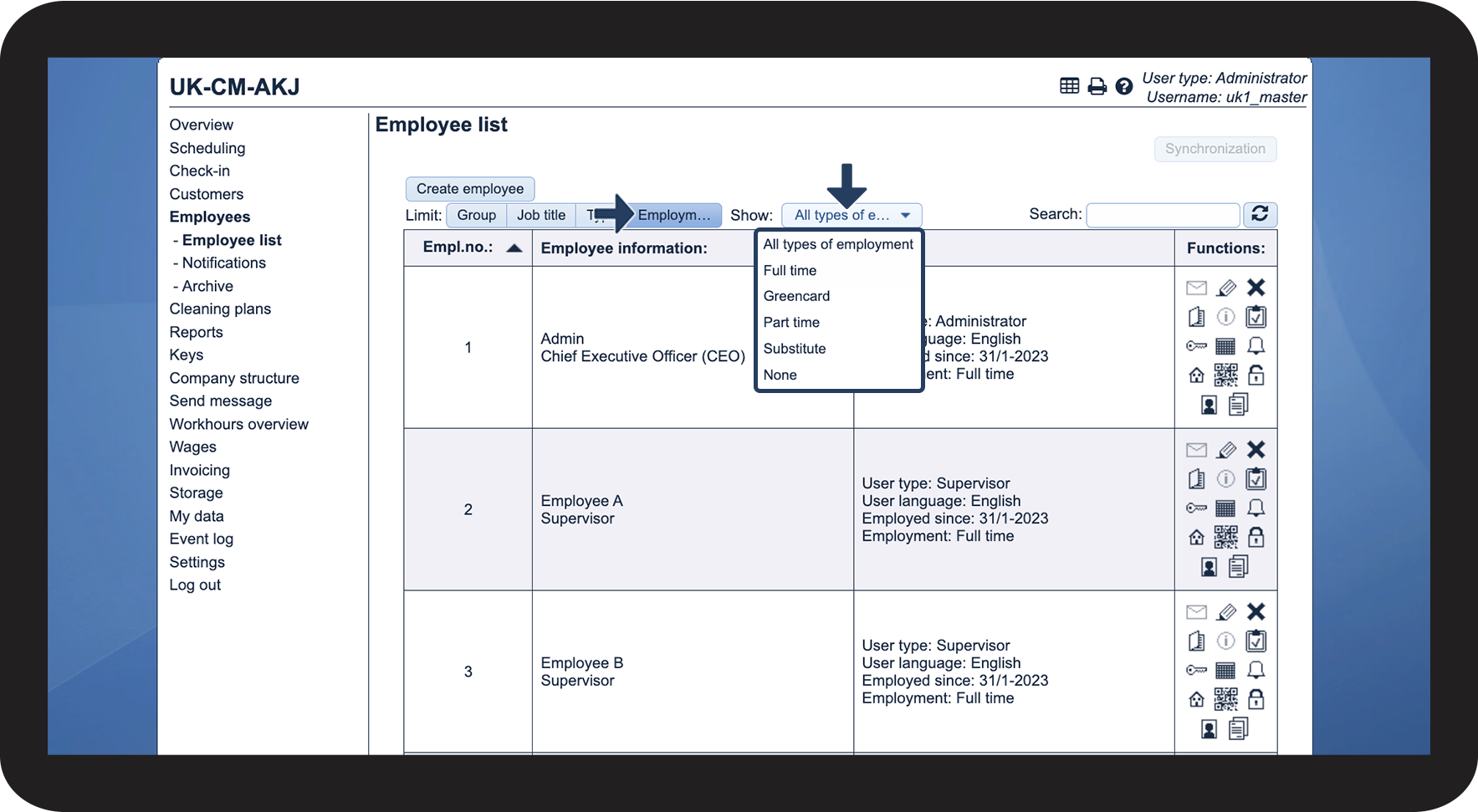
This is how you can filter by employment type
number_1_copy.png

In the menu, go to Employees > Employee list

5.png

number 2 copy.png

Click on Employment 


Then click on the dropdown menu All types of employment and select the desired view


By using this filter, it will be possible to display all employees regardless of employment type, employees with a specific employment type, or employees who have not yet been assigned an employment type. For more information on creating and assigning job types, go to Employment types.

4.png


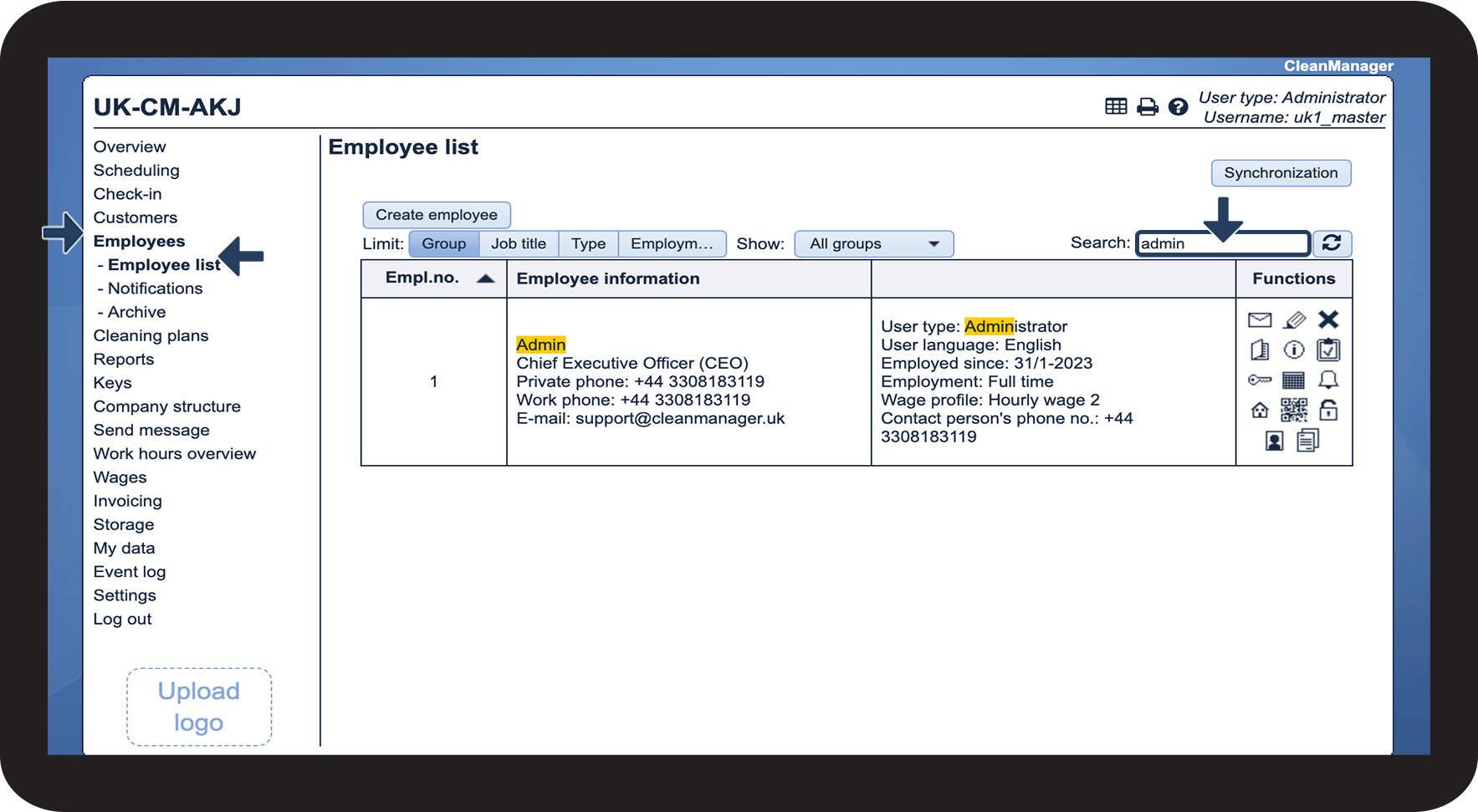
How to search the employee list

number_1_copy.png

In the menu, go to Employees > Employee list

5.png

number 2 copy.png

Click on the Search box

 
Enter the desired keyword
 

You can search for any information that's been entered in the employee data.

For example, this could be a comment written for an employee — if the same comment is entered for multiple employees, they will all appear in the search


NOTE:

The search field appears when you have more than five employees in the archive.
6.png