How can I filter the view of my customers?
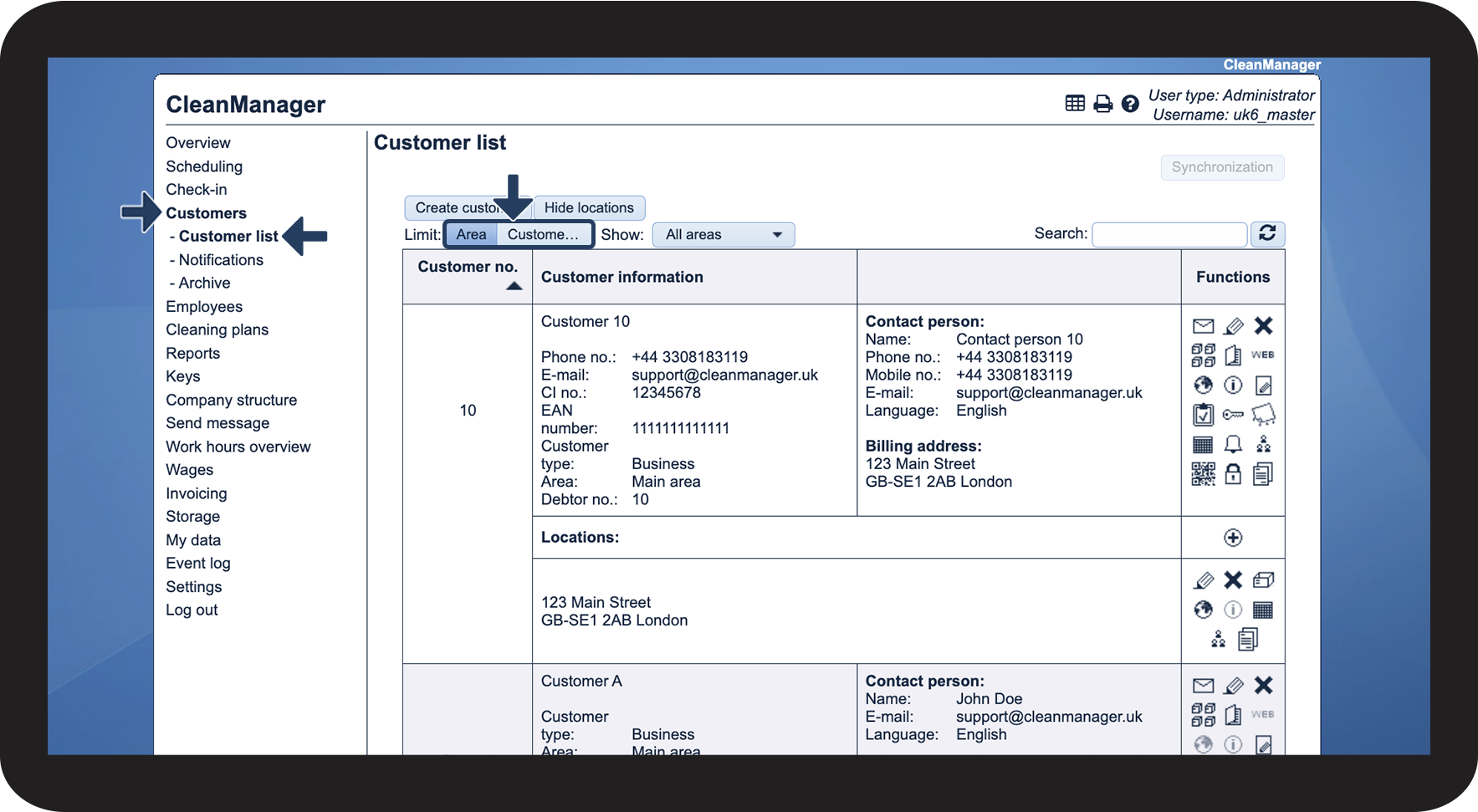
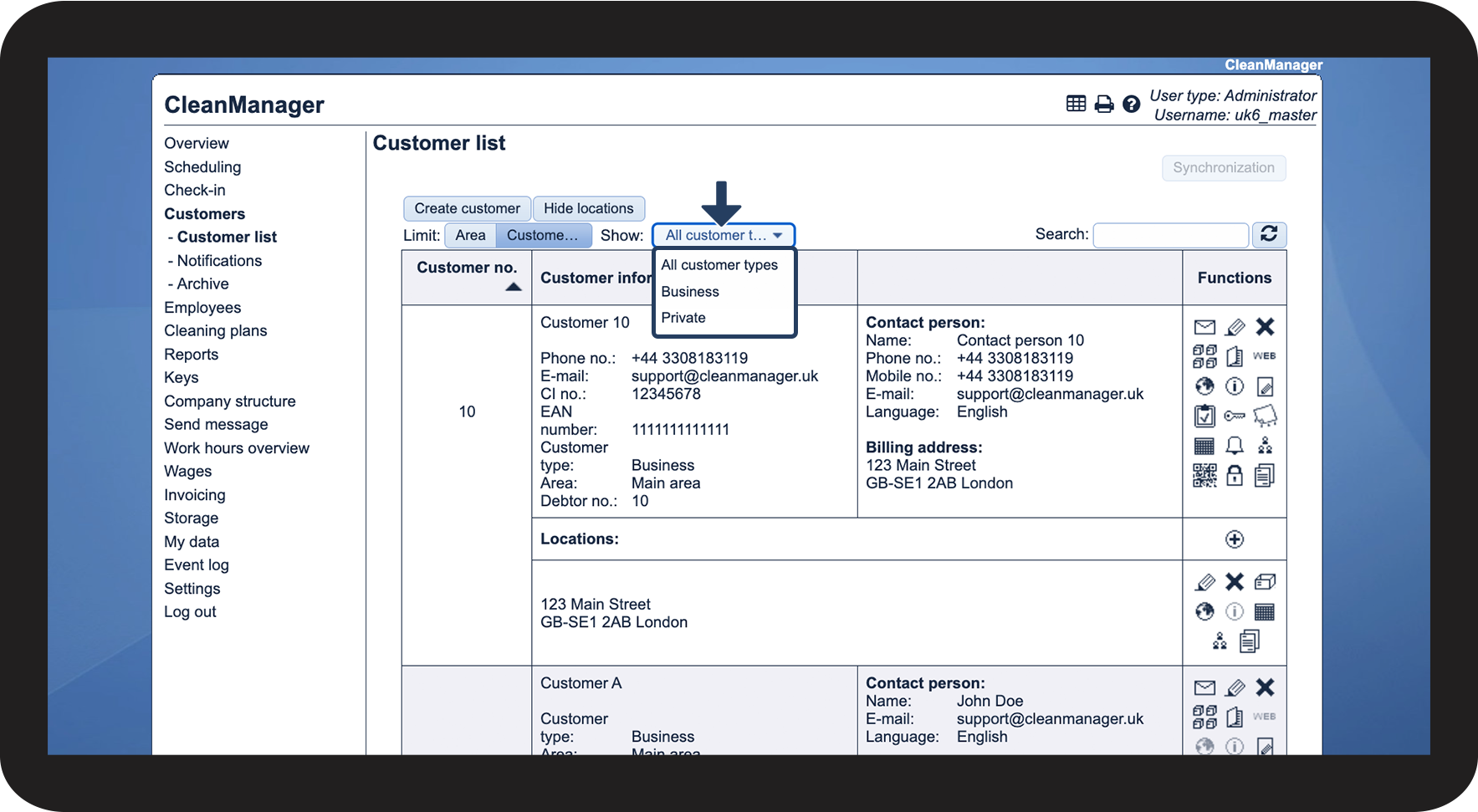
Get started using filters in your customer list. As the administrator or a supervisor, you can filter the view in the customer list by either customer area or customer type.
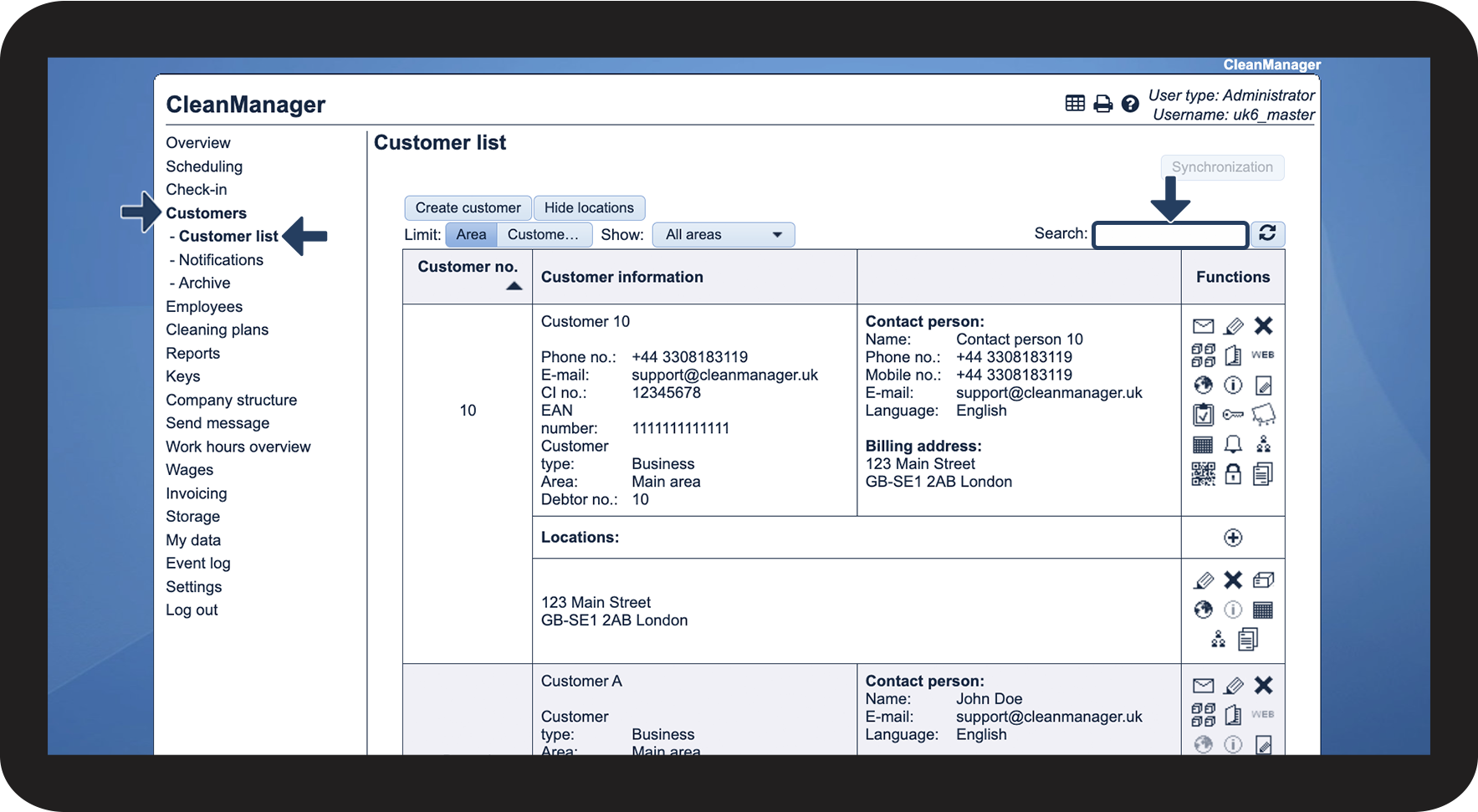
Using the filters can help you look for specific customers, and you can also use the search field to narrow down the results.
NOTE:
Supervisors can only see customers within the supervisor's assigned customer areas. For more information regarding this, go to: Company Structure.
In this article, you will learn how to limit the view in the customer list:
- How can I search for a specific customer in the customer list?
- How can I use the filters in the customer list?
This is how you can search for a specific customer

NOTE:
You can use the search field for everything written in the customer data. Use spaces if you enter more than one word, e.g. when it comes to names.
This is how you can use the filters