Filtering customer notifications
How do I sort my notifications for customers?
Would you like an overview of notifications that have been triggered for your customers? Or a list of notifications that have already been handled?
As the administrator or a supervisor, you can filter your view of notifications so that you only see the ones that are relevant for your search.
In this article, you will learn how to find and sort your active and/or handled customer notifications:
This is how you can sort your notifications
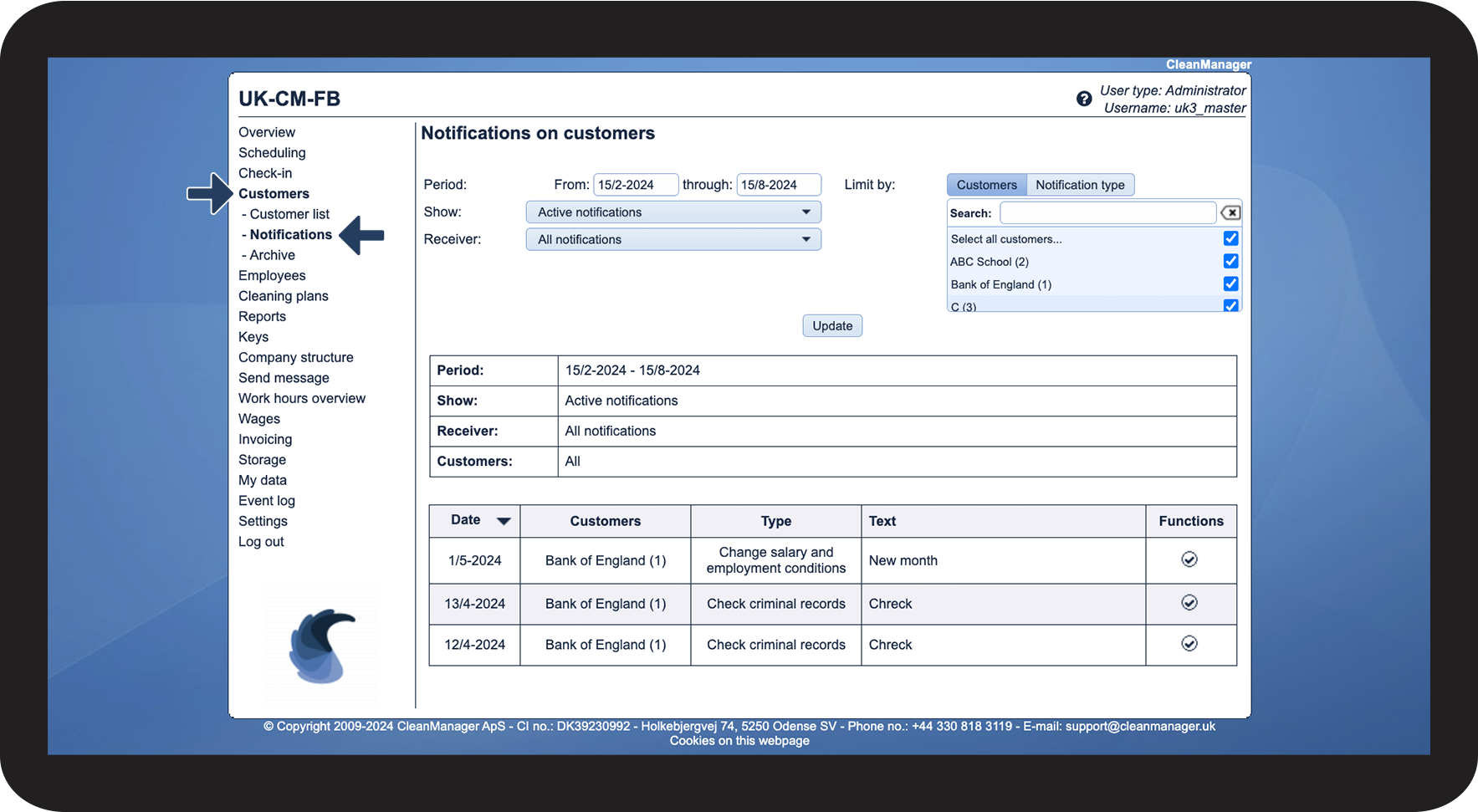
In the menu, go to Customers > Notifications

NOTE:
The end date cannot be after today's date.
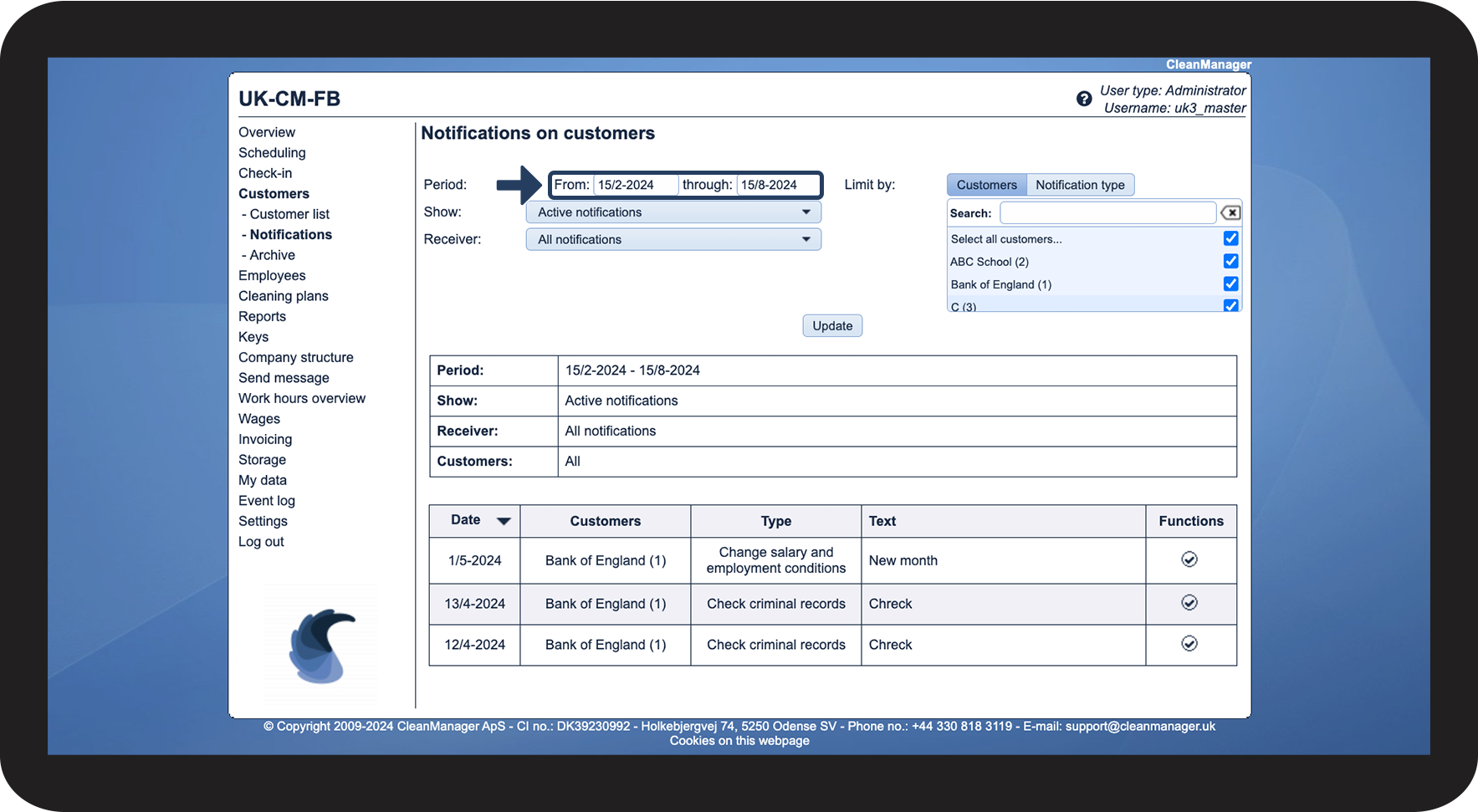
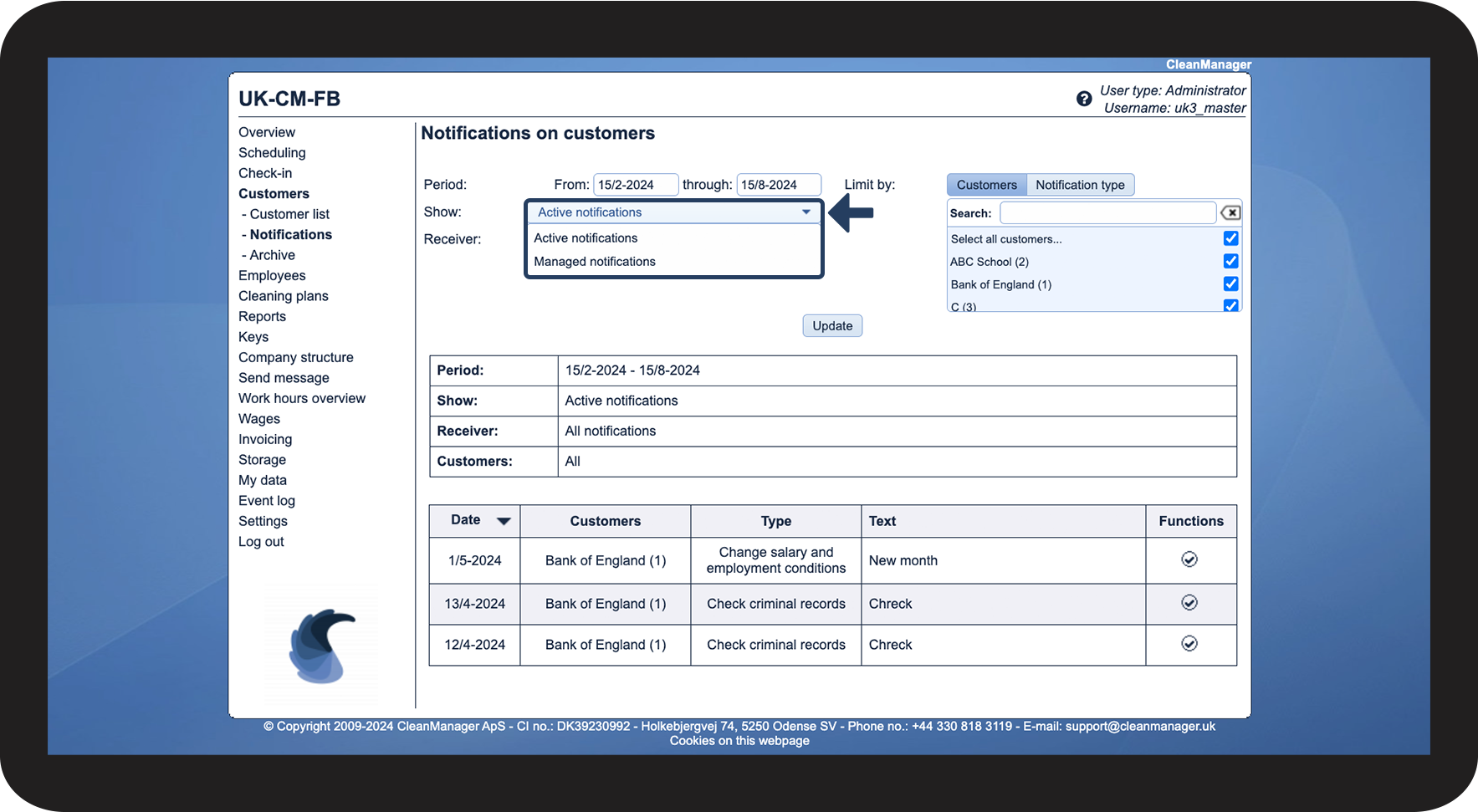
Click on the dropdown menu next to Show and select if you want to see active notifications or managed notifications.

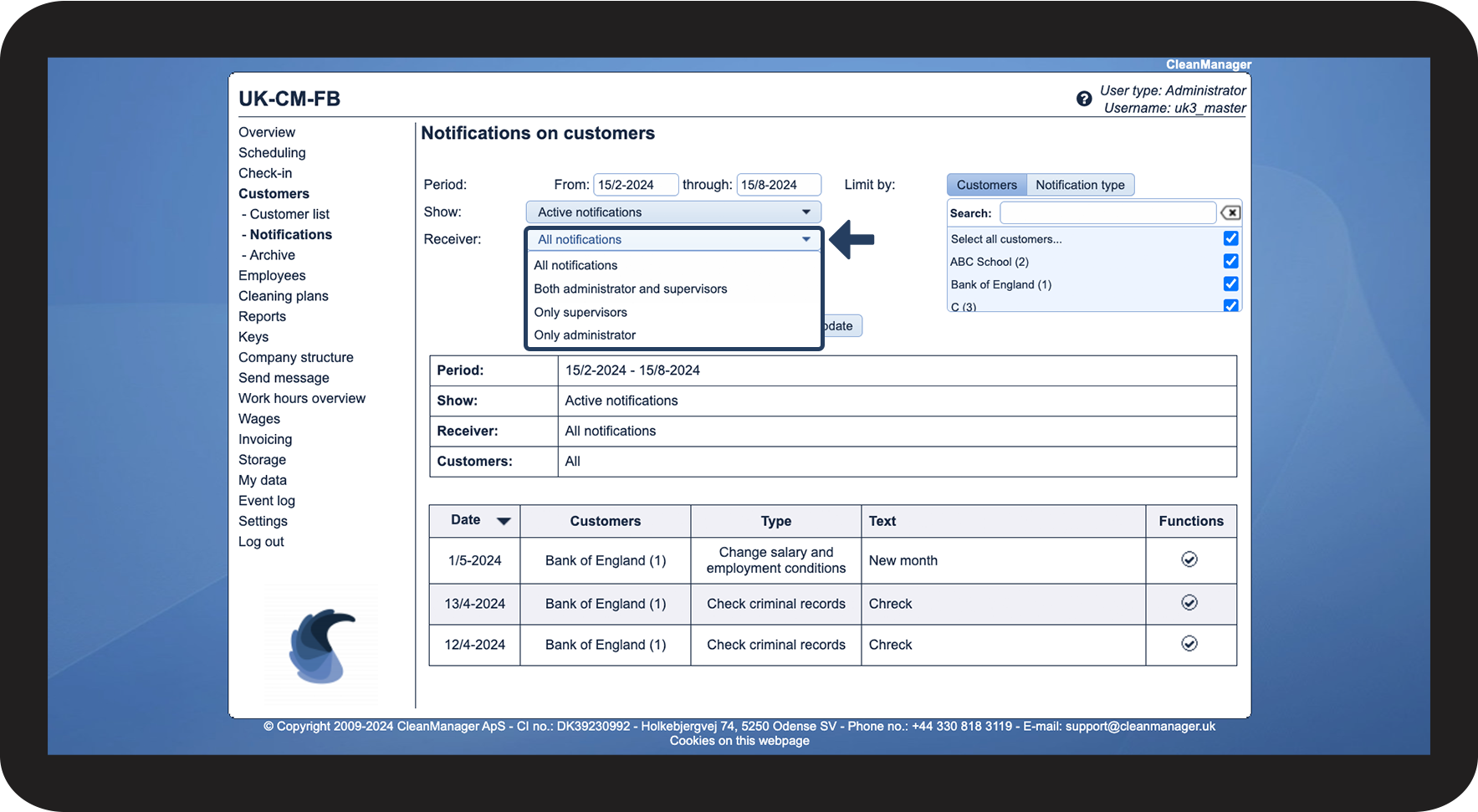
Click on the dropdown menu next to Receiver and select if you want to see:
- All notifications
- Notifications received by both the administrator and supervisors
- Notifications received by supervisors
- Notifications received by the administrator

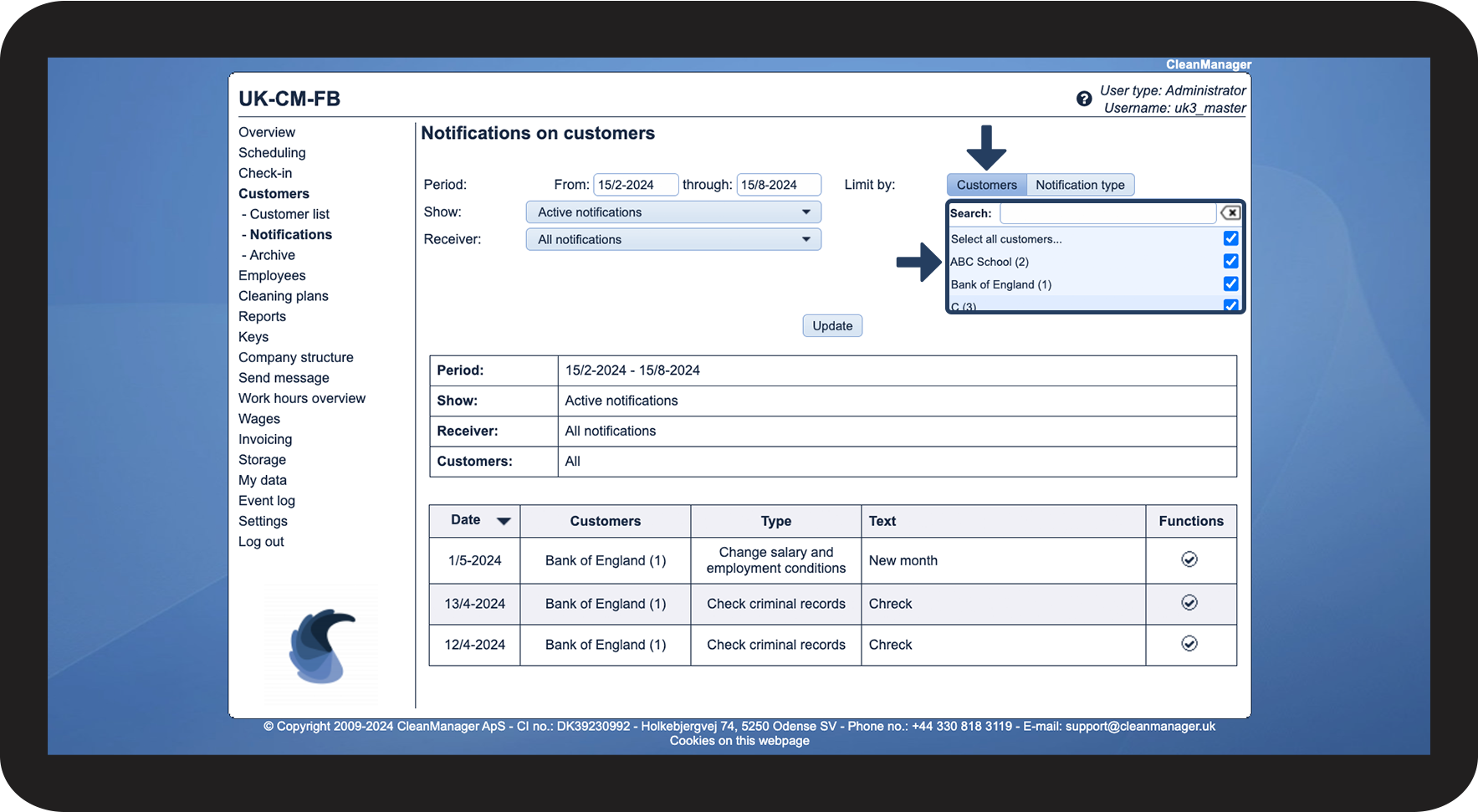
In Limit by, you can determine if you want to see notifications for all customers at the same time, or simply those of selected customers
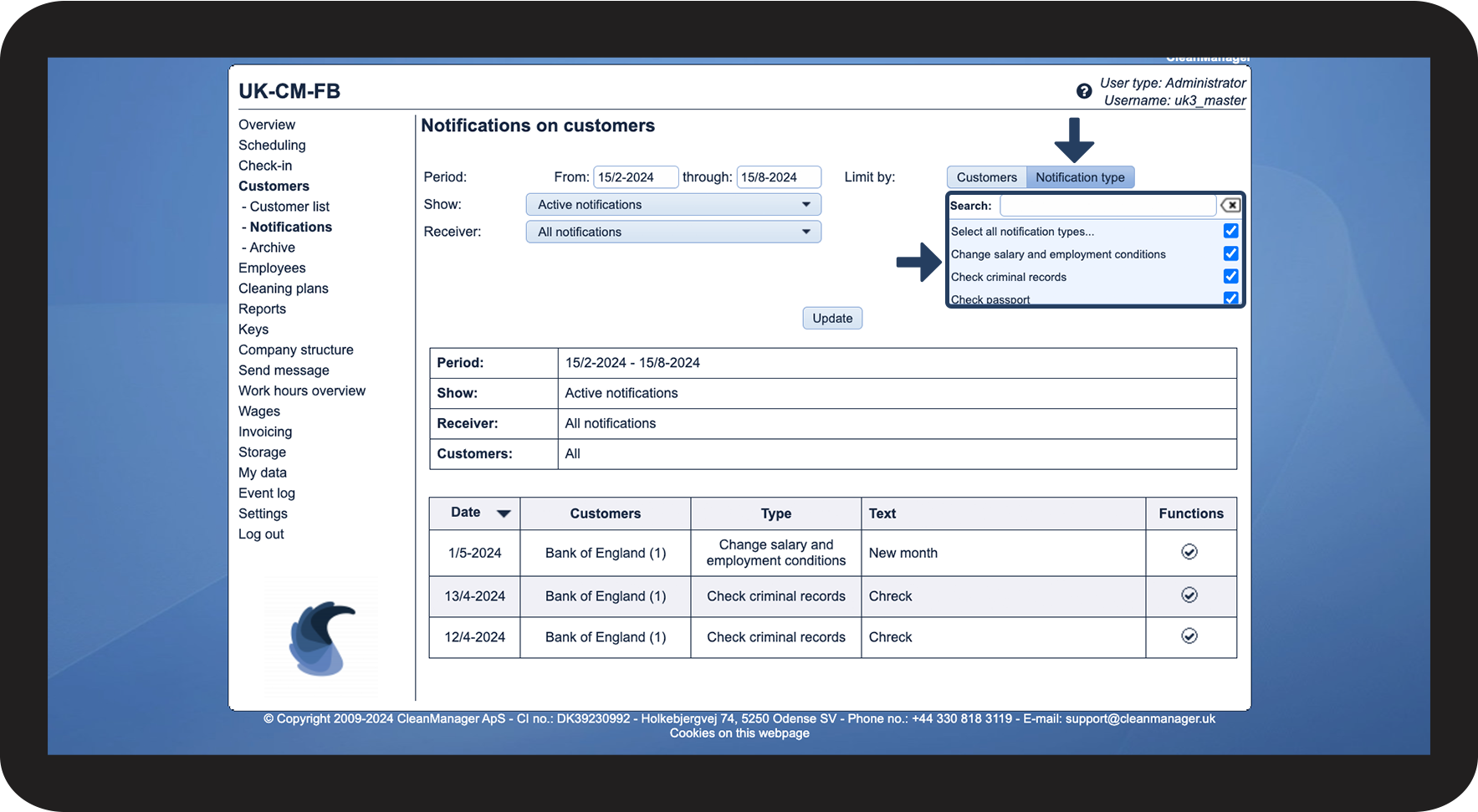
By clicking on Notification type in Limit by, you can also determine if you want to view all notifications types or only a few selected ones
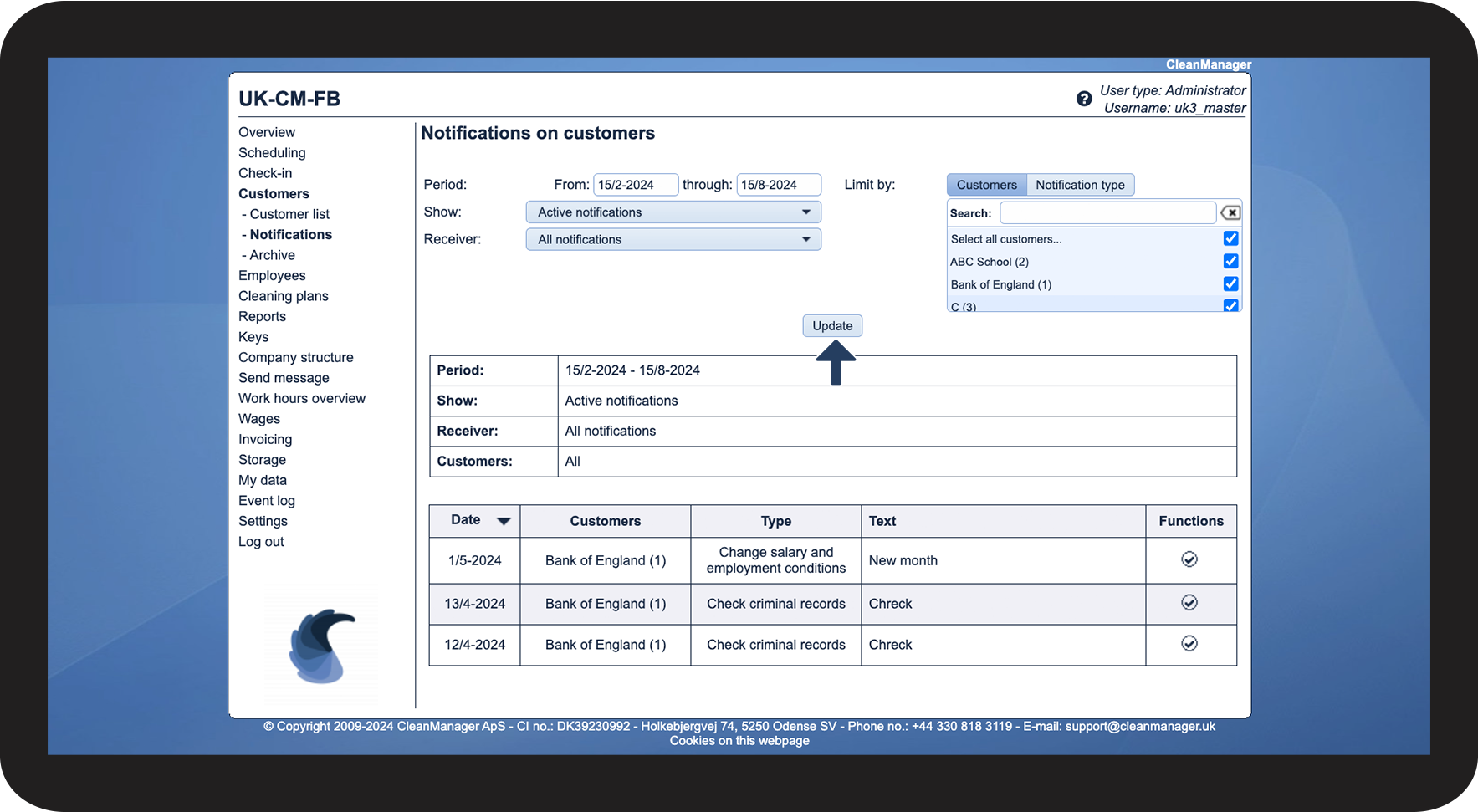
Finally, click on Update to display the notifications that match your sorting
Continue with the article Managing customer notifications
Here, you can read more about the options for handling your customer notifications in the system.