Skip to content
English
  • There are no suggestions because the search field is empty.

Filling out a report as a Customer contact

How do I fill out a report as a Customer contact?

A customer contact can only fill out reports if customer permission has been granted in the report template settings. Likewise, permission needs to be granted for the customer to be able to see the completed reports associated with them.

In most cases, you will have the option to rate parameters, attach images, and add a comment to each parameter.

However, the options may vary from report to report depending on the settings of each template.


In this article, you will learn how a Customer contact can fill out a report through a web browser:


How to get started filling out a new report

number_1.png
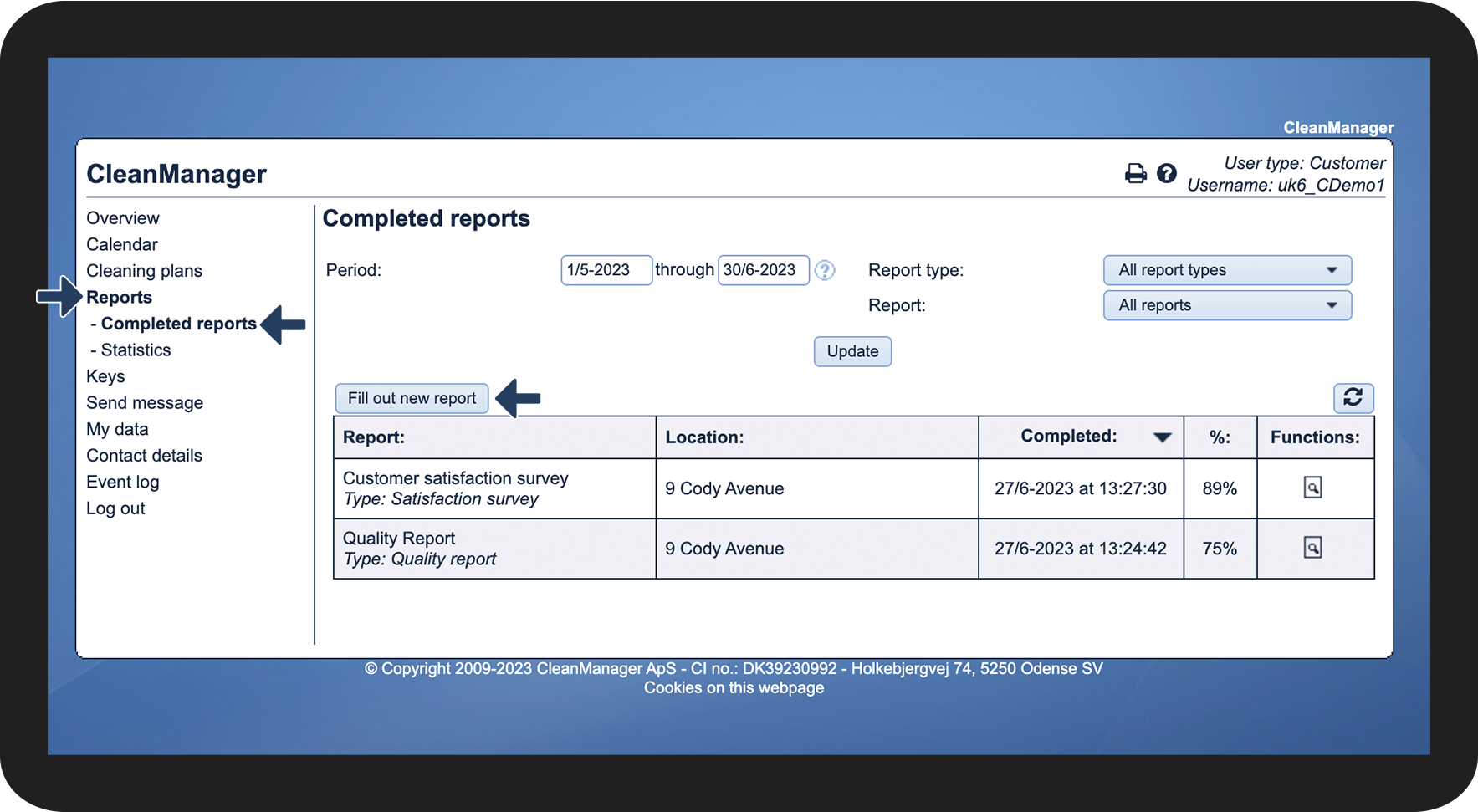
In the menu, go to Reports > Completed reports
 
Click on Fill out new report

1.png

number_2.png
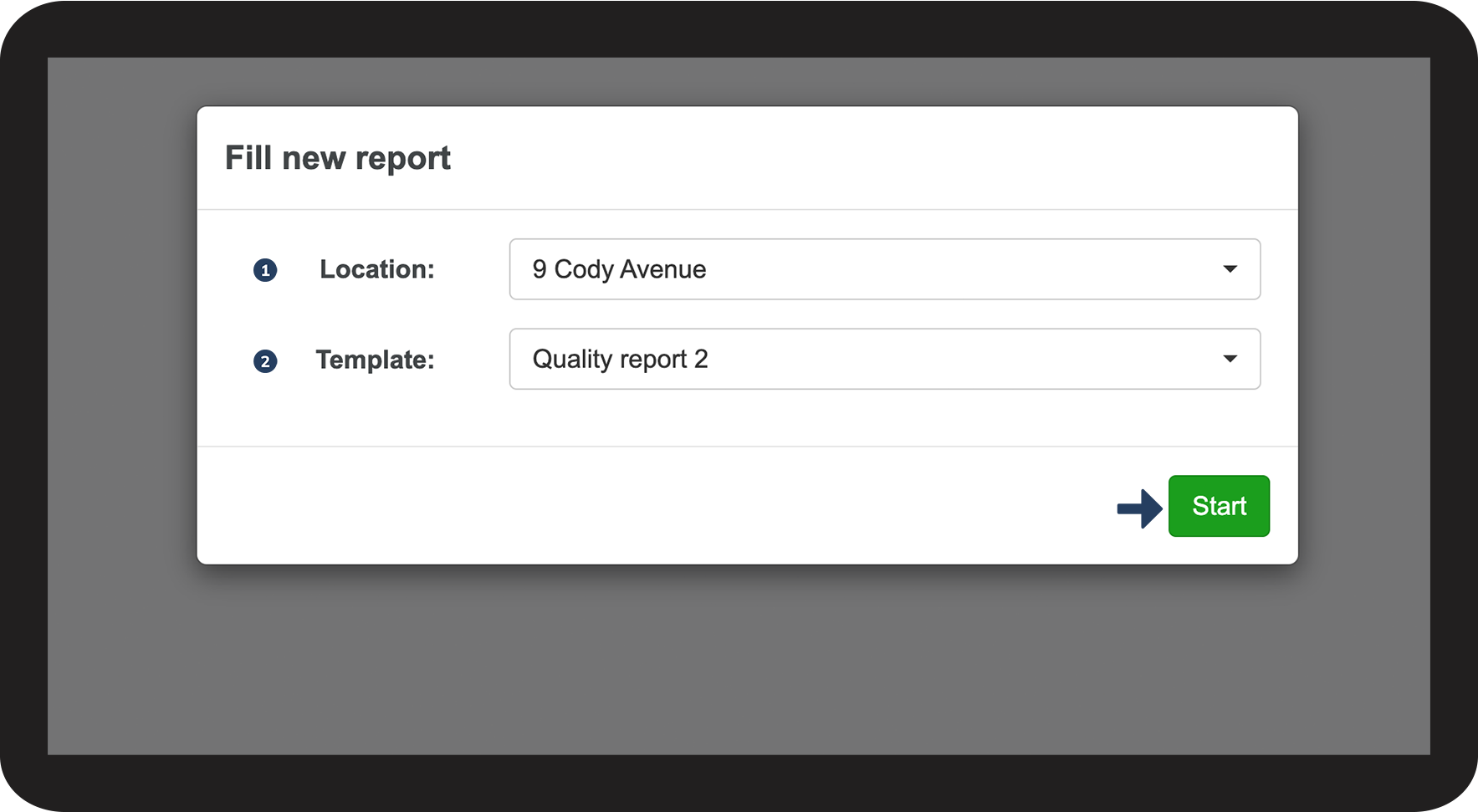
Consider the following 2 things before you start:
 
  1. Location: Select the relevant location for the report
  2. Template: Select the template that you need for this report
 
Click on Start to begin filling out your report

2.png


How to rate a parameter

mceclip0.png
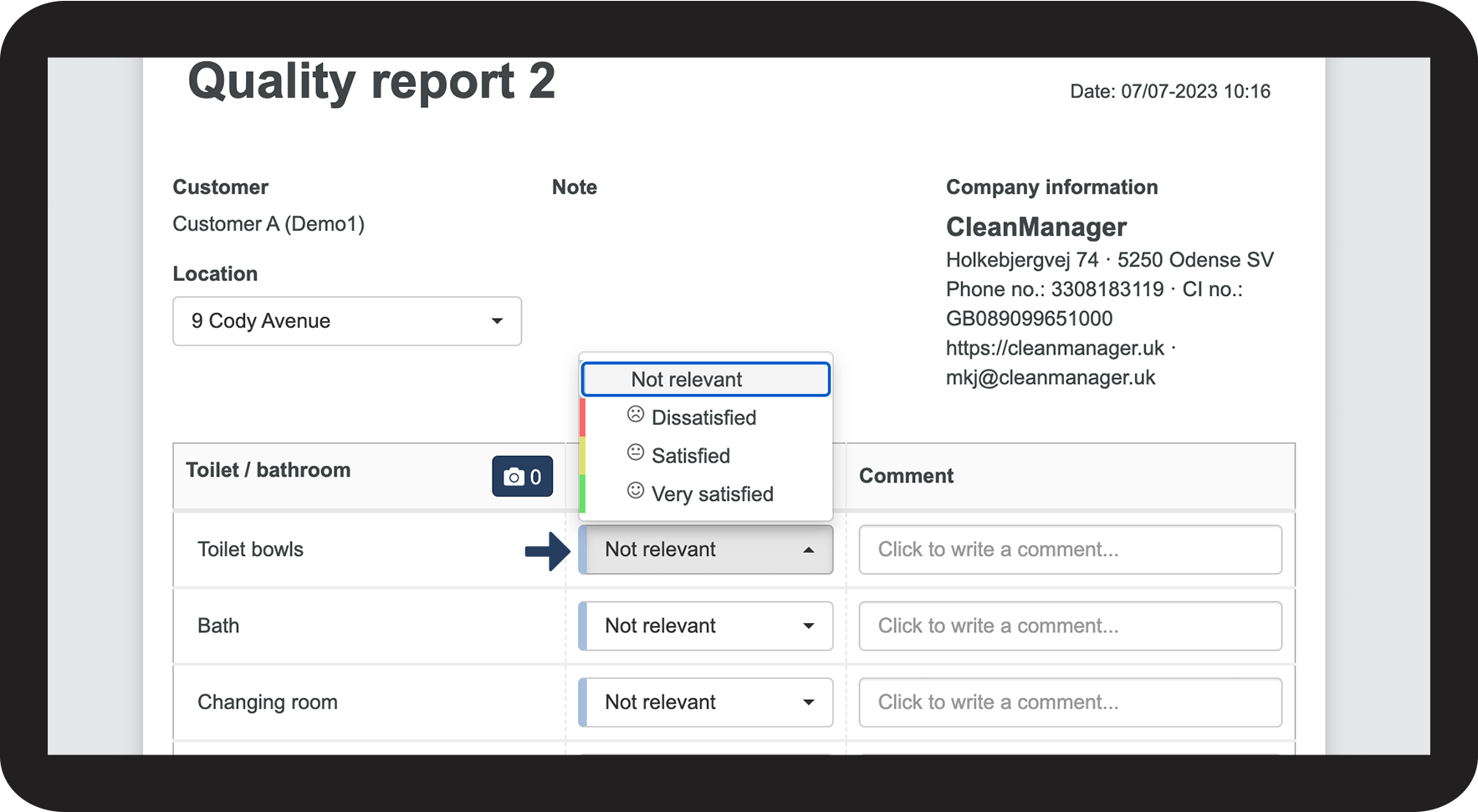
Next to a parameter, click on the dropdown menu and select the rating that you want
 
You can rate each parameter in a report

3.png


How to attach images

mceclip1.png
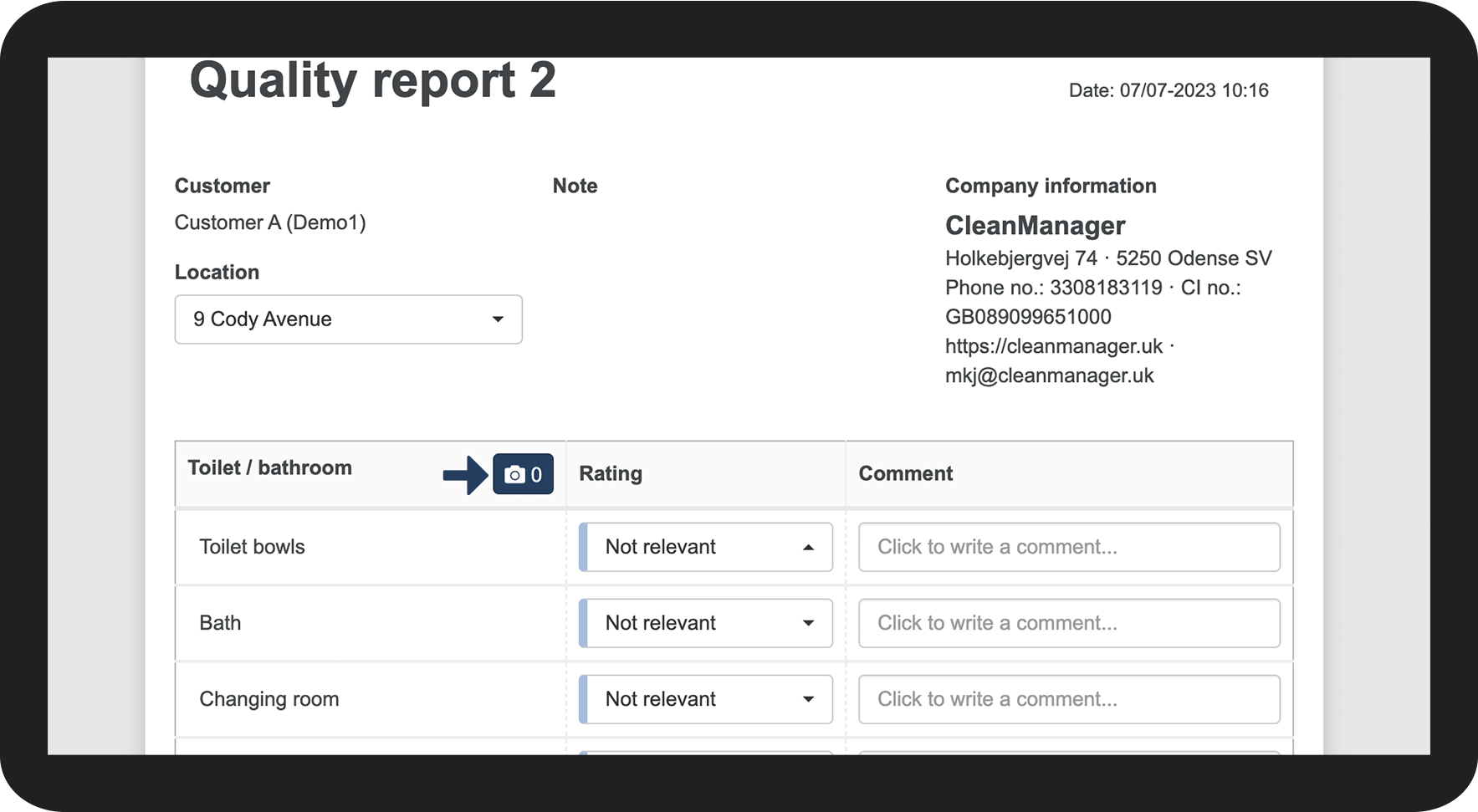
Click on Kamera_-_rapport.png in a parameter group

4.png

number_2.png
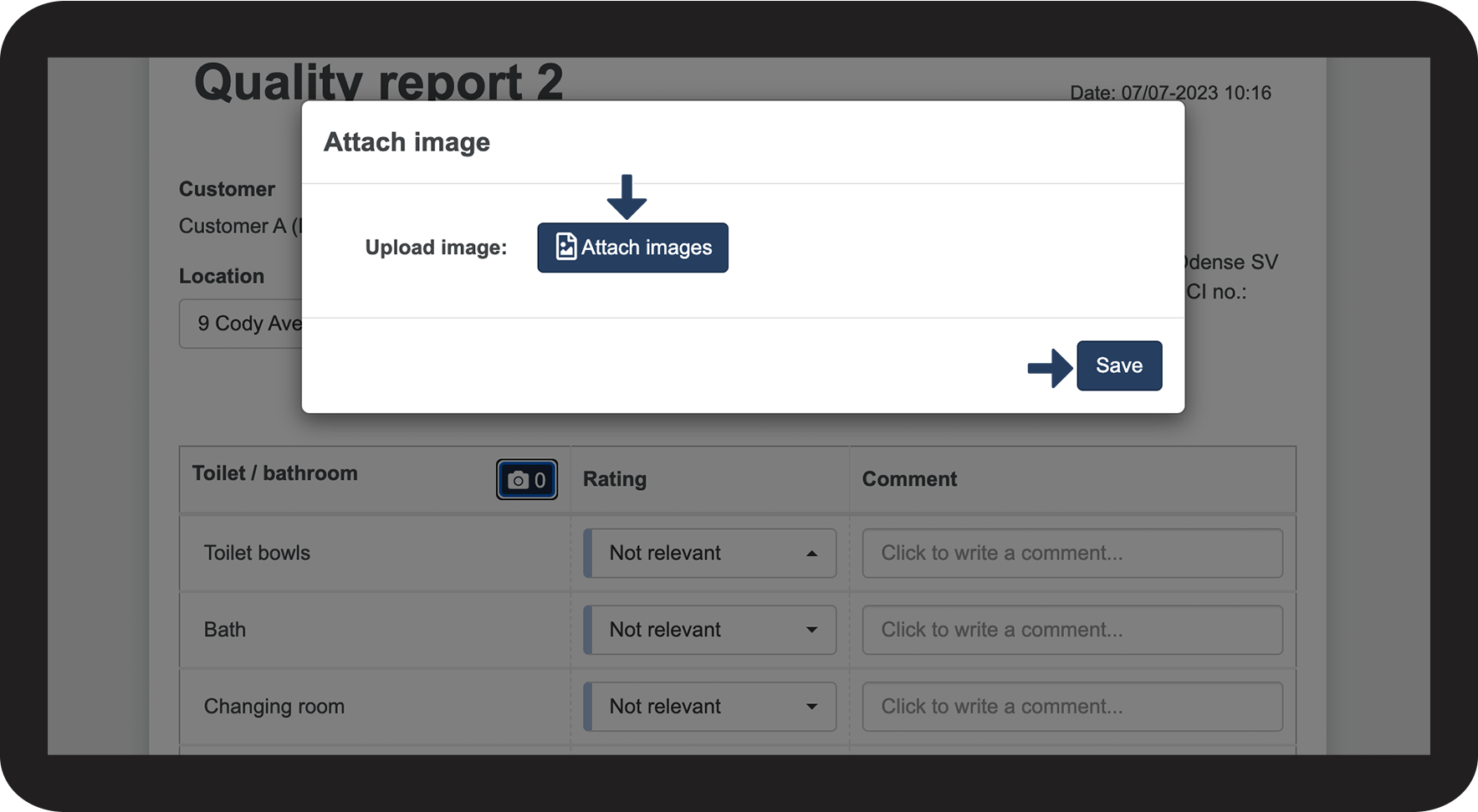
Click on Attach images and select your picture(s) 
 
Finally, press Save to add your pictures to the parameter group

5.png


How to add a comment

mceclip2.png
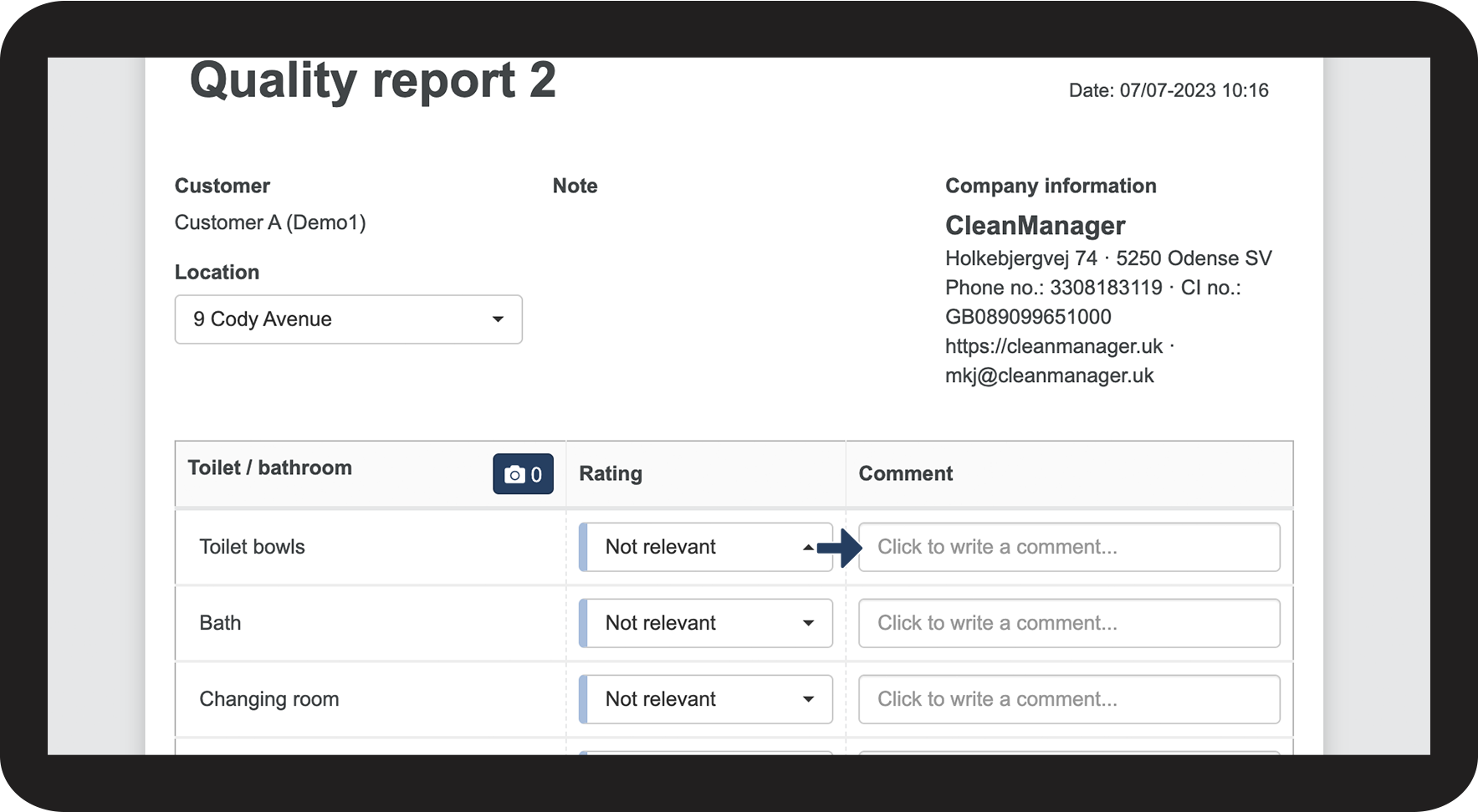
Click on a Comment field next to a parameter (if available)
 
Enter your comment

6.png


How to fill out a text field

mceclip3.png
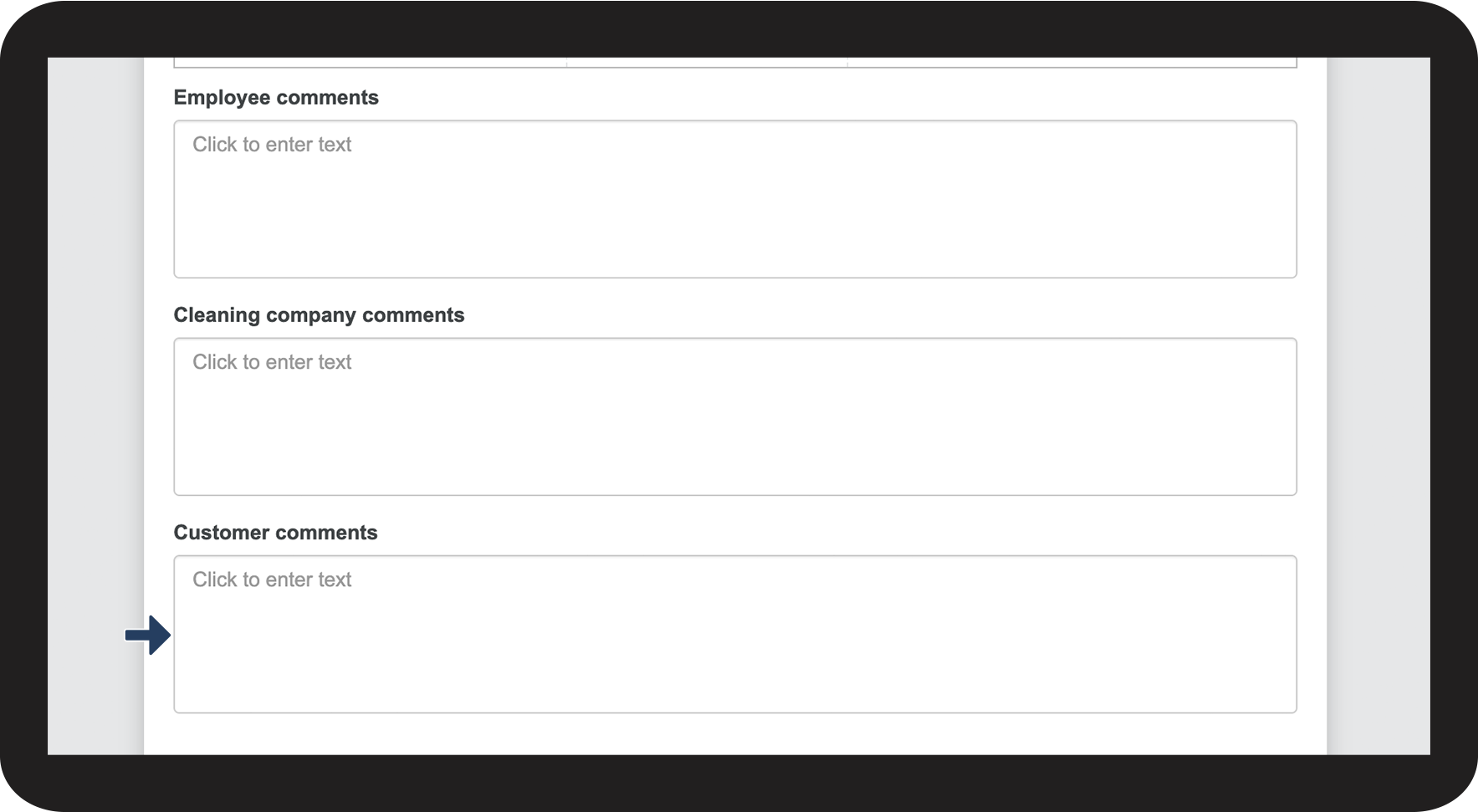
Click on a Text field and add your text
 
These text fields make it possible for the customer to add a comment that is not necessarily relevant to a given parameter, but which needs to be added to the full report

7.png


How to sign the report

mceclip4.png
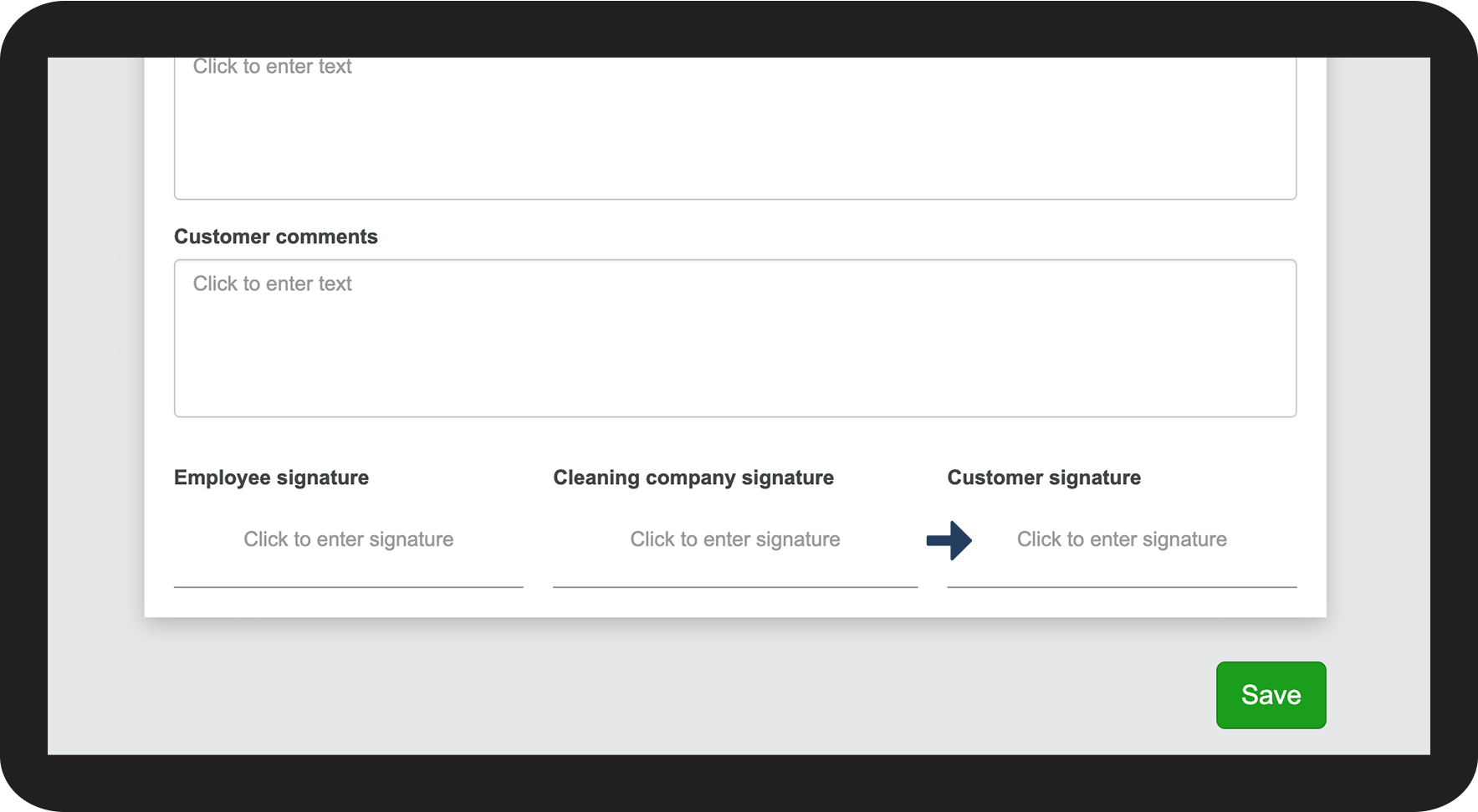
Click on a signature field at the bottom of the report
 
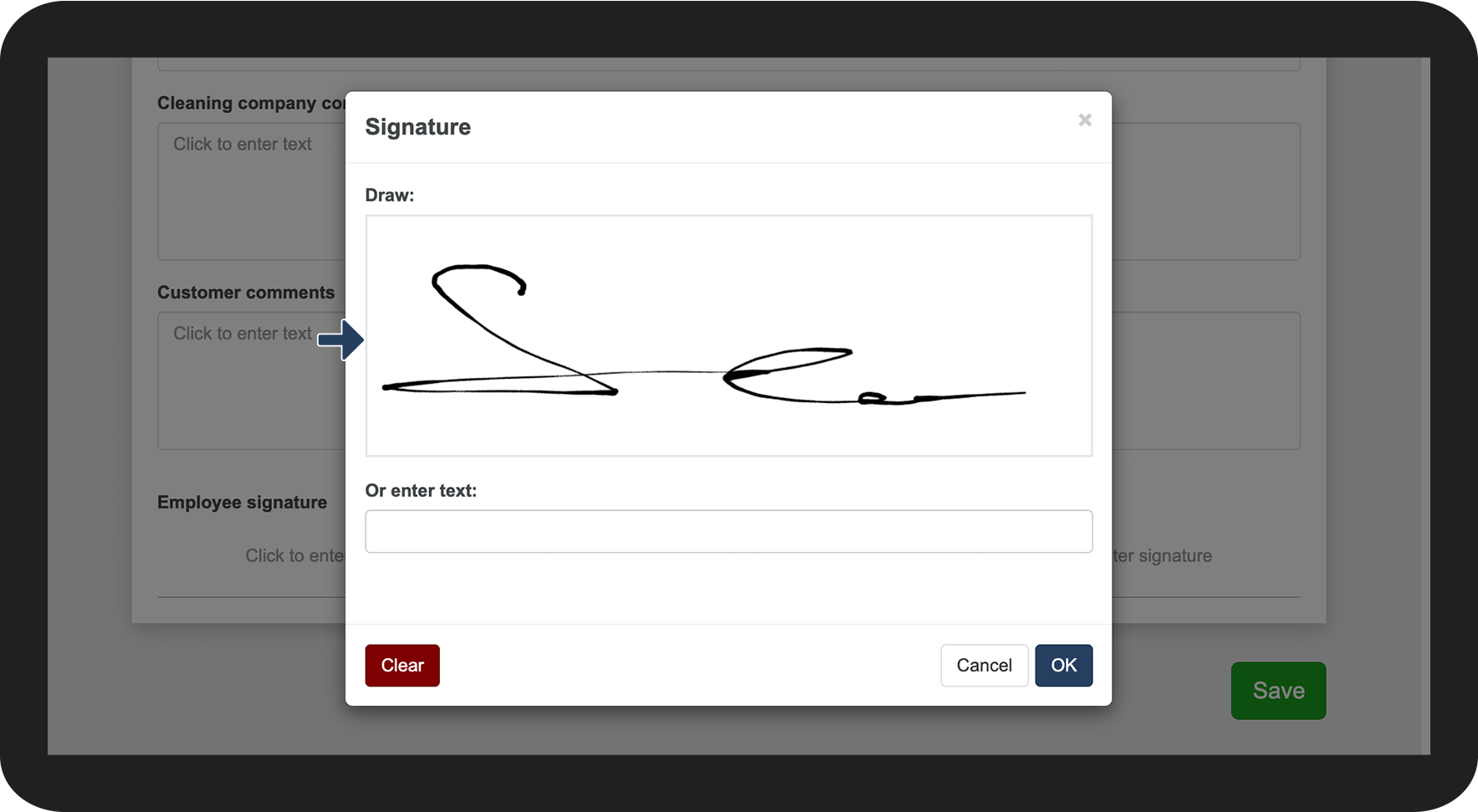
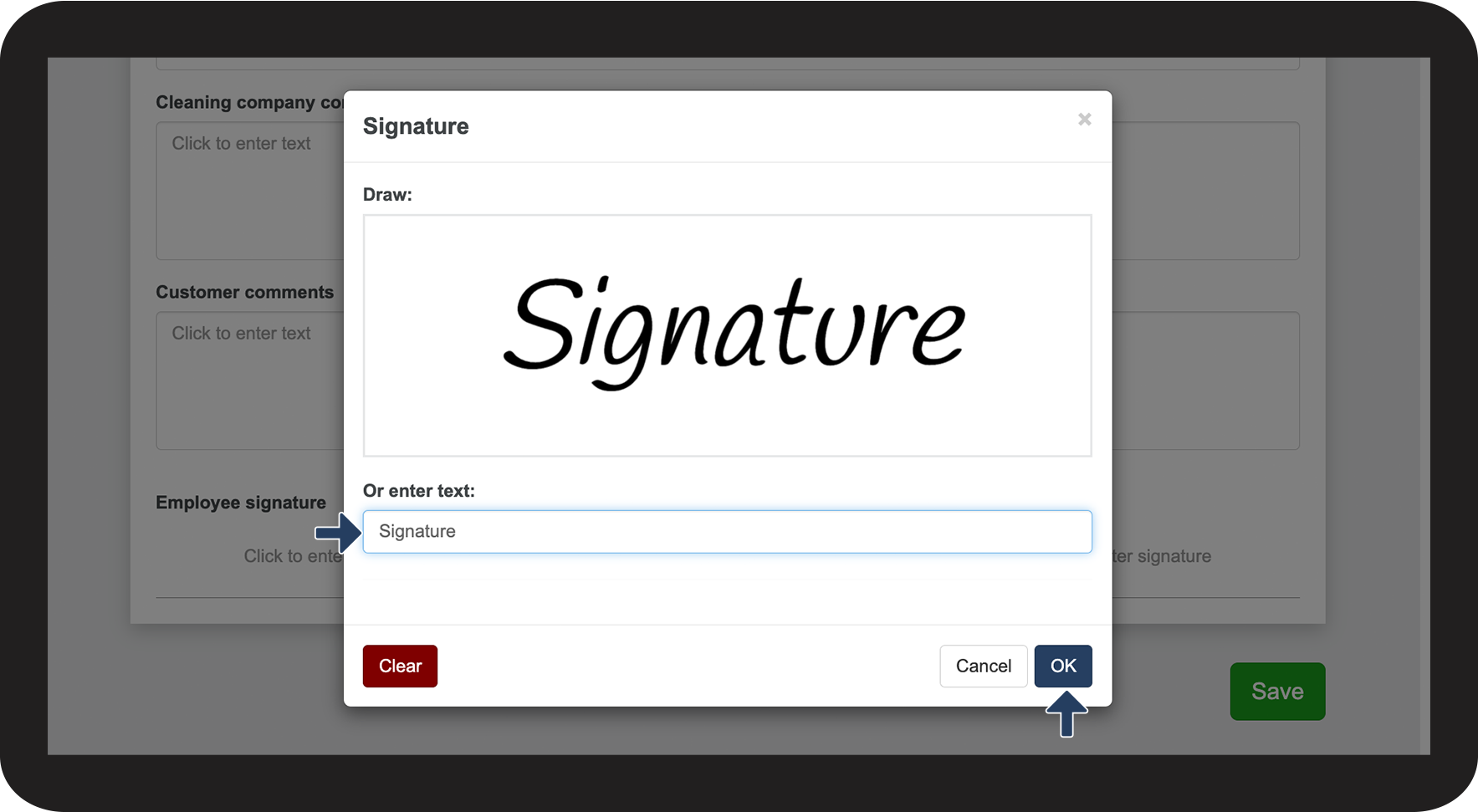
If signatures have been enabled, the customer can either draw or enter their signature

8.png

number_2.png
Drag the cursor or your finger (if it is a touchscreen) over the field to draw a signature

9.png

number_3.png
You can also enter your name in the text field
 
Click on OK to add your signature
10.png