Skip to content
English
  • There are no suggestions because the search field is empty.

Fill out new reports

How do I fill out new reports in the app?

Note:

To be able to fill out reports, the add-on module Audits needs to be activated on the administrator's account.

See: Add-on modules

As an employee, supervisor, or admin, you have the option to fill out reports through the CleanManager app.

Note:

To be able to fill out reports, the administration, or the supervisor has to set up a report template in CleanManager, which needs to be done in the browser.

This report template can be a quality report, a control report, or a satisfaction report.

The report's access settings determine if employees or supervisors can see and fill out the report.


As an employee, supervisor, or administrator, you can fill out reports in the CleanManager app.

You can answer the listed questions in the created report template and finish the report within the app.


In this article, you can read about how to fill out a new report:


How to fill out a new report in the app as a supervisor

number_1.png
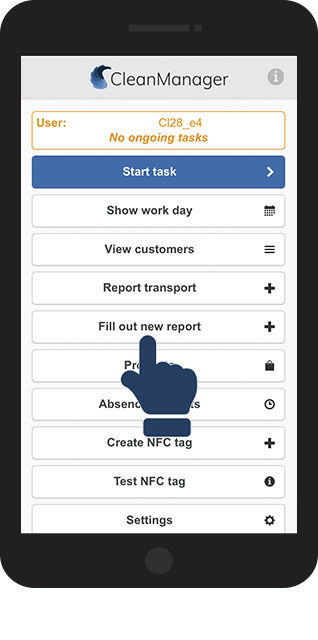
In the main menu, click on Fill out new report

1.png

number_2.png

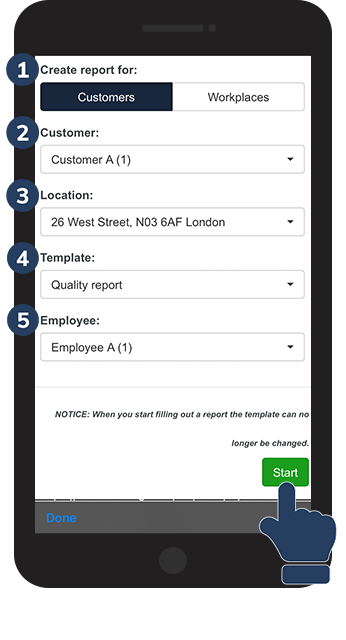
Adjust the information about the new report and start filling out the report by clicking on Start 

 
  1. Choose if it's a Customer or a specific Workplace that you are connected to and are evaluating.

  2. Select which customer the report is connected to. (You can choose your own company as well.)

  3. Select the customer's location, if multiple are available.

  4. Pick the report template that needs to be used. (The report template can be assigned to be used either with every customer or with only specific customers. Therefore, be sure that the supervisor or administrator has set up the accessibility for the report template correctly)

  5. Select the Employee that is connected to the task at the location.

2.png

number_3.png

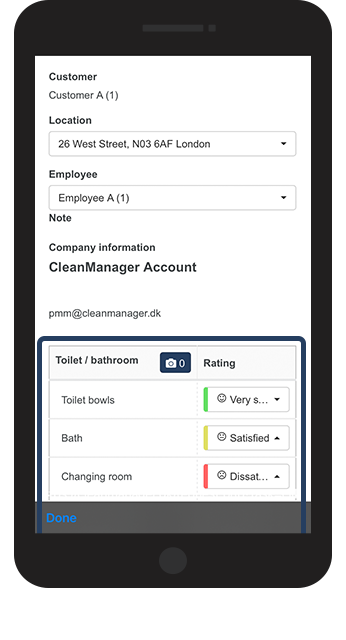
Fill out the report


Answer the questions in the report and add comments, imagery, and signatures as needed.

3.png

number_4.png

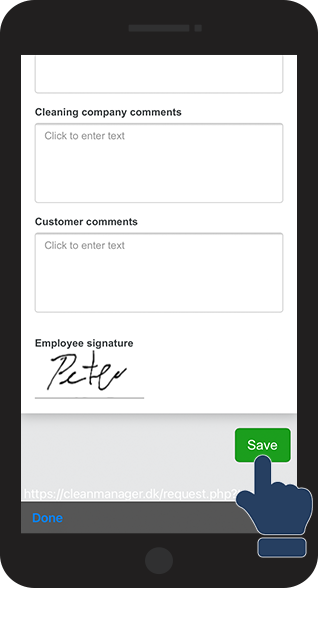
Finish the report by clicking on Send

4.png
number_5.png

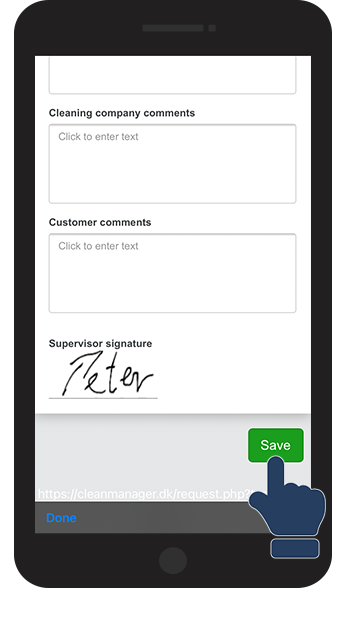
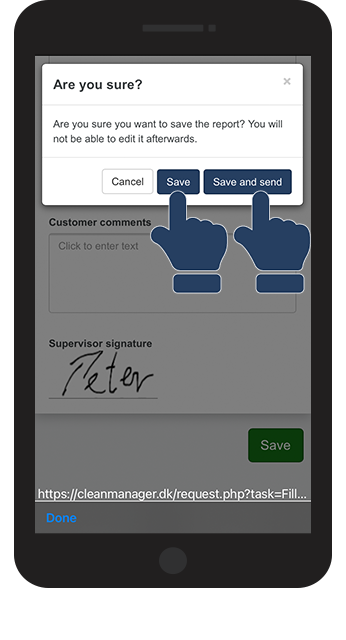
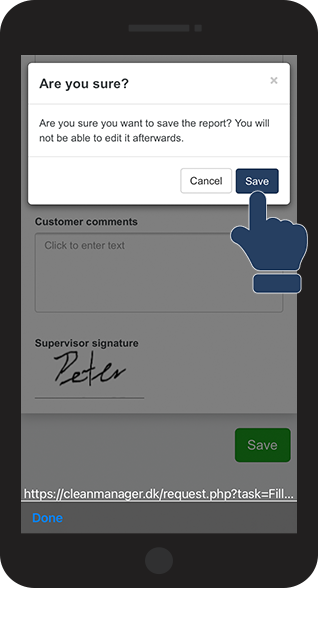
Click on Save to save the report


Click on Save and send to save the report and forward it by e-mail or SMS to customers and employees straight away.

5.png

number_6.png

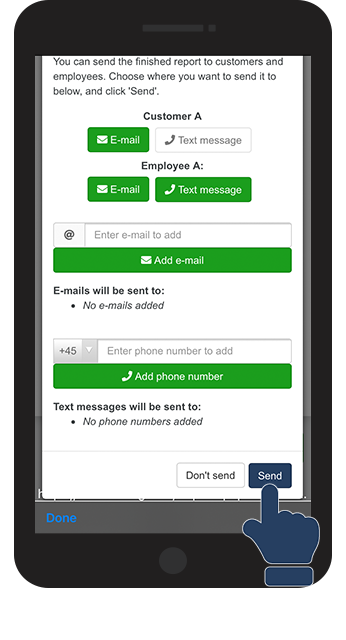
If you selected Save and send you can fill in recipient details and confirm by pressing Send


Click on the E-mail or Text message buttons below the customer or employee names to add their contact details.

You also have the opportunity to add in e-mails and SMS of other people, to whom you want to deliver the report.
Fill in the e-mail or phone number and click Add e-mail or Add phone number before clicking on send

6.png


How do I fill out a new report in the app as an employee
number_1.png

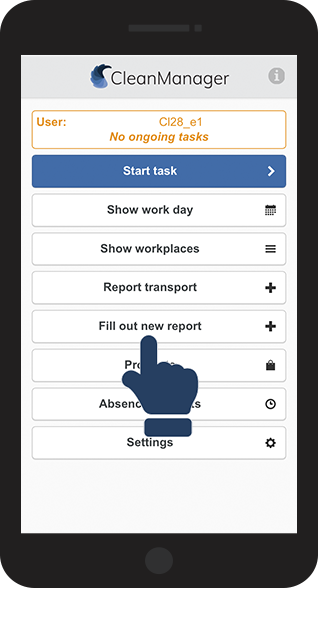
Click in the main menu on Fill out new report

1.png

number_2.png

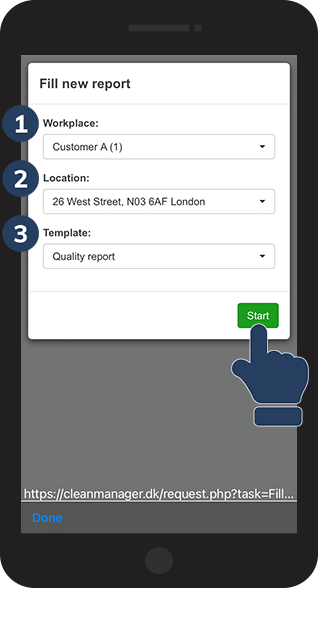
Adjust the information about the new report and start filling out the report by clicking on Start

 
  1. Choose which workplace the report is about, this can be your own company as well.

  2. Choose which customer location the report is about.

  3. Choose which report template is to be used. 

2.2.png


number_3.png

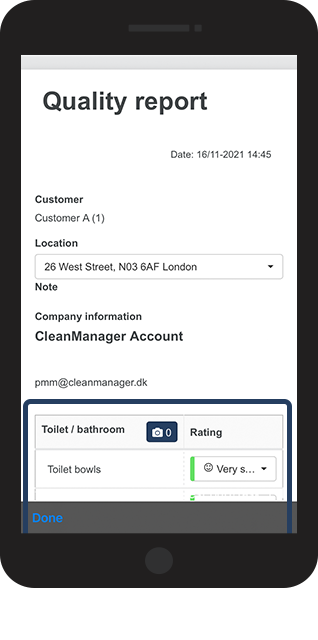
Fill out the report


Answer the questions in the report and add comments, imagery, and signatures as needed.

3.png

number_4.png

Finish the report by clicking on Save

4.png
number_5.png
Click on Save to confirm the hand-in of the report
5.png