Features in the employee list
Which features do I have access to in the employee list?
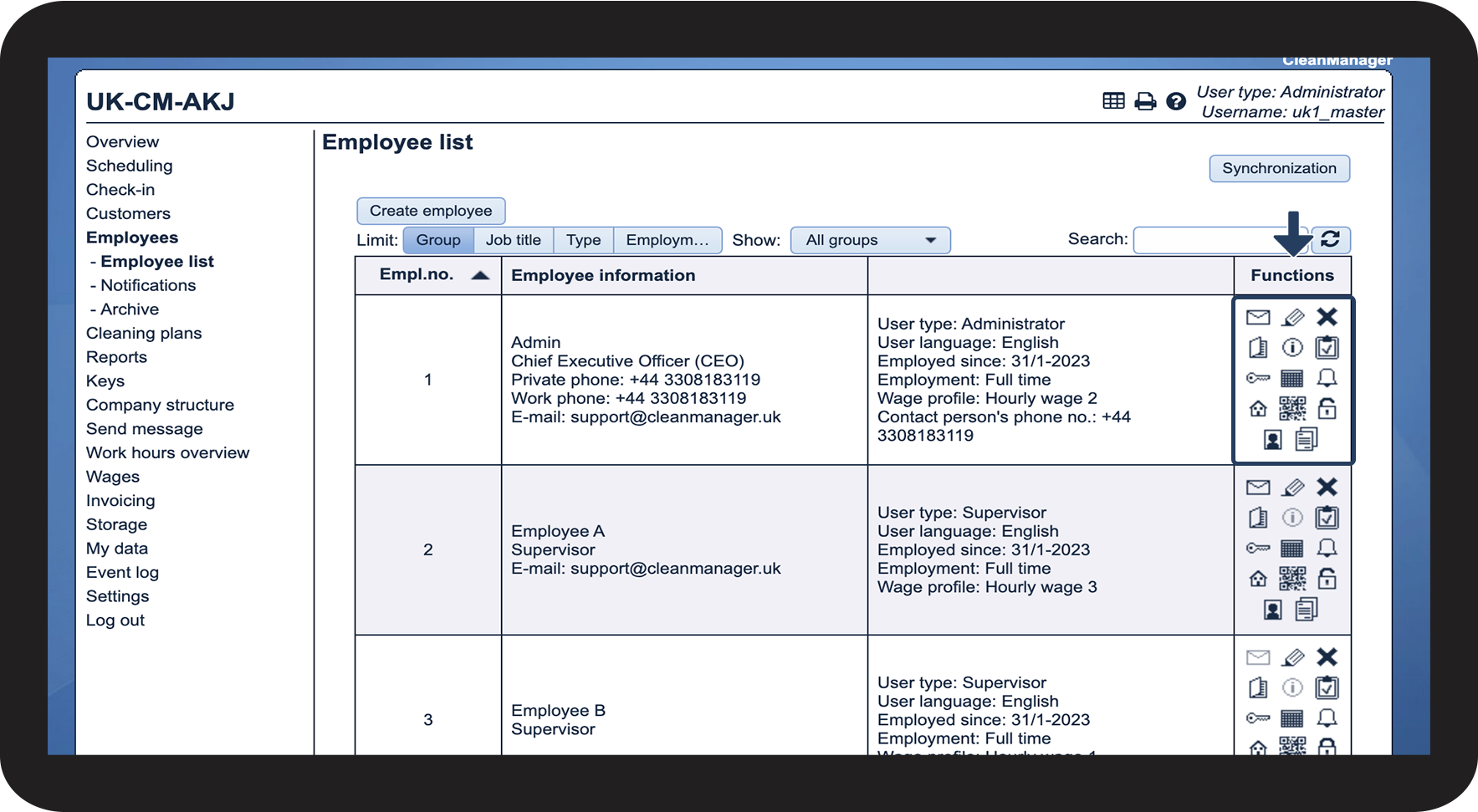
After creating an employee in CleanManager, the administrator and supervisors will be able to access a number of features for said employee in the Functions column. These features can help you access different areas in the system that affect the individual employee, such as keys associated with the employee or reminders.
In this article, you will learn how to use the features in the employee list:
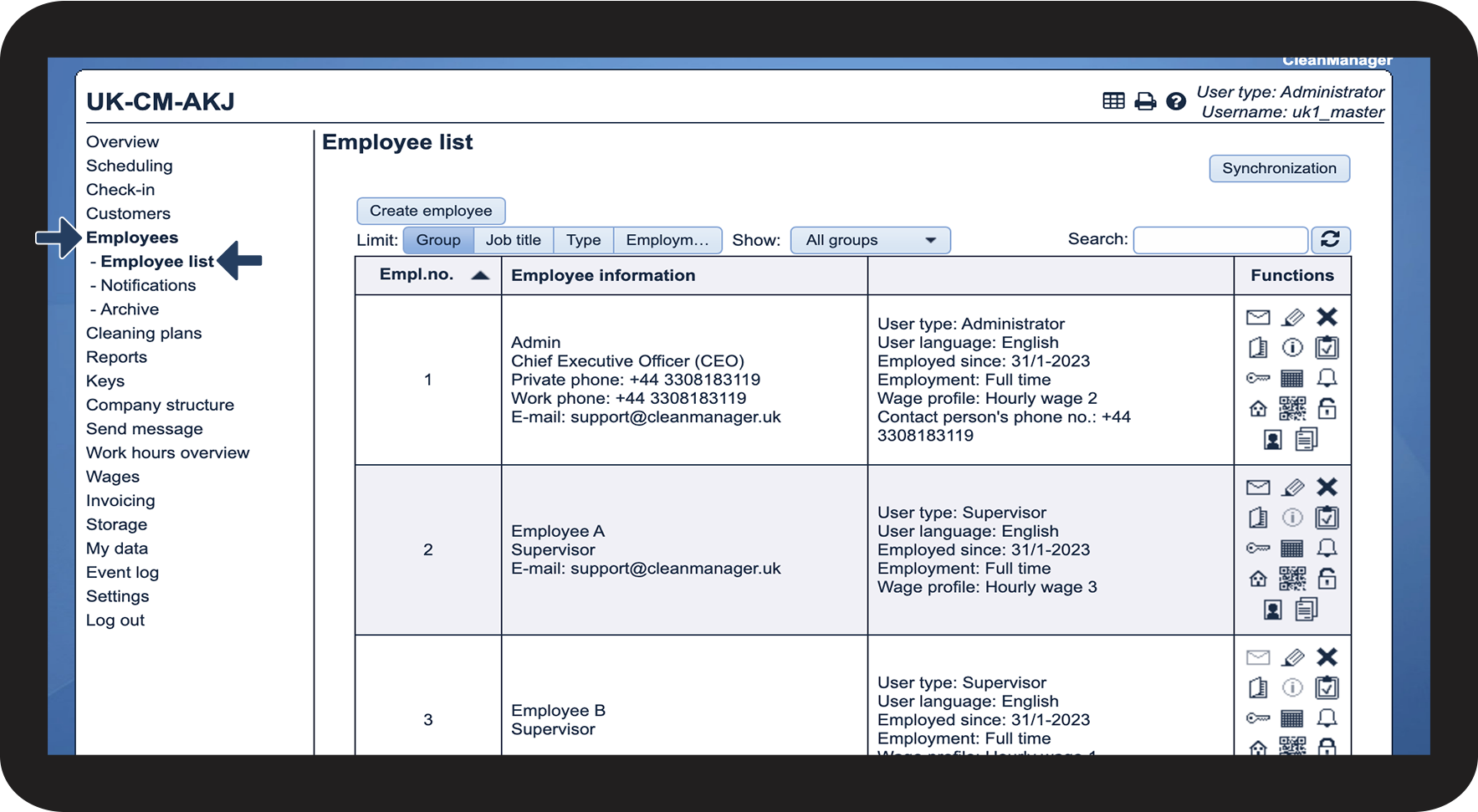
How to access the features in the employee list

These are the features you have access to in the Functions column
Click on this icon to be redirected to the menu Send message, from where you can send an e-mail or text message to the employee in question. Read more about that here: Sending a message from the employee list.
NOTE! In order to send text messages, the Text Messages add-on module needs to be activated in your account. Read more about how to do that here: Add-on modules.
NOTE! This feature is only available if the fields for e-mail and/or work phone number have been filled out.
Click on this icon to edit the employee data. Read more about that here: Editing an employee
, you delete the employee in question, and they will be removed from future tasks. The employee will be moved to the archive, from where they can be reactivated at a later time. Read more about that here: Deleting an employee and How do I restore a deleted employee?
Employee journal
NOTE! This feature is only available if the Audits add-on module has been activated in your account. Read more about how to do that here: Add-on modules.
By clicking here, you can access the audits that have been completed and assigned to this employee, or that the employee has filled out themselves. You can also go directly to filling out a new report. Read more about that here: Get started using reports.
/
the employee has no access. If it is open
the employee has been granted access to CleanManager. Read more about that here: How do I grant an employee access?