Skip to content
English
  • There are no suggestions because the search field is empty.

Features in the customer list

Which functions do I have access to in the customer list?

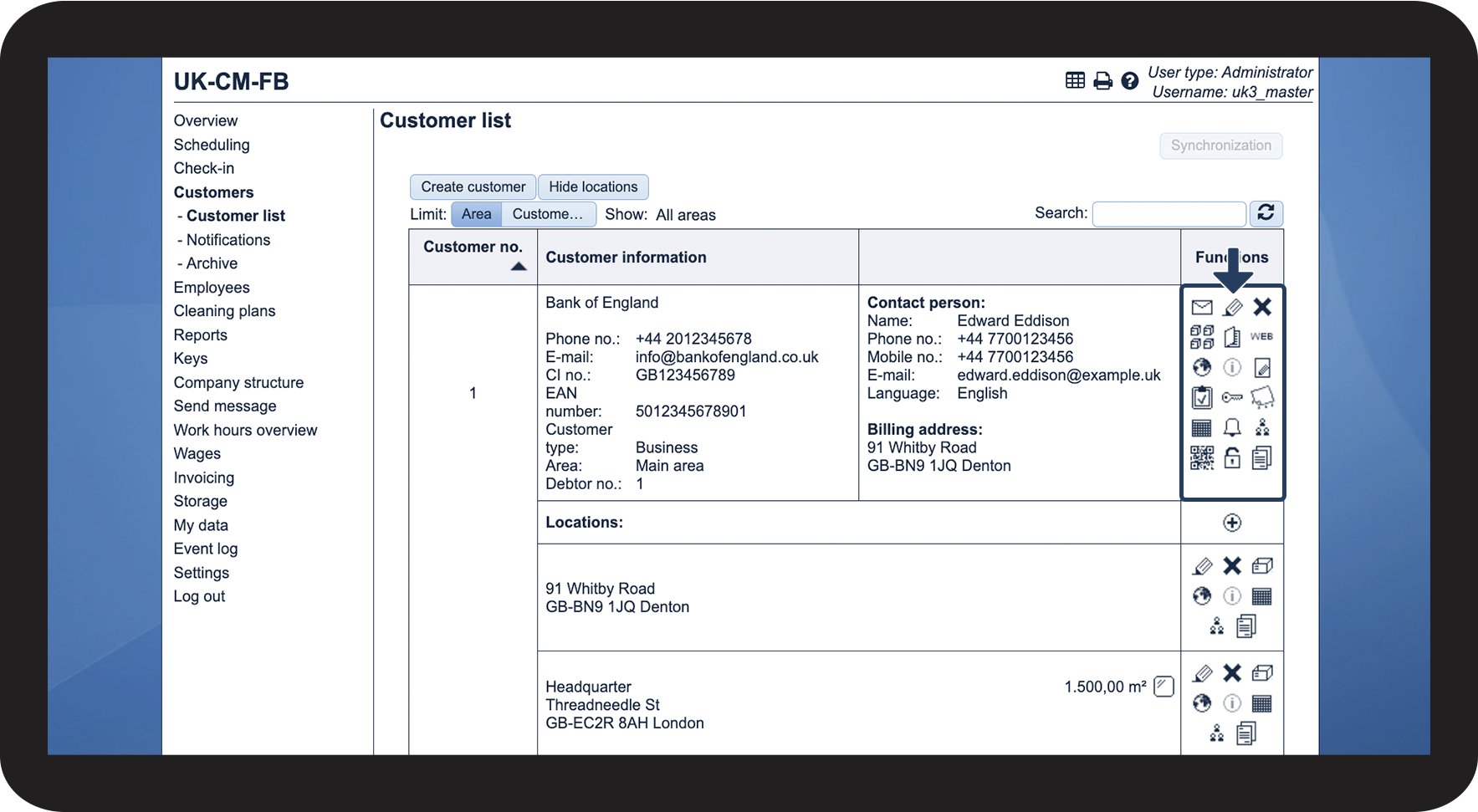
After creating a customer in CleanManager, the administrator and supervisors will be able to access a number of features for said customer in the Functions column. These features can help you access different areas in the system that relates to the individual customer, such as cleaning plans or service agreements.

In this article, you will learn how to use the features in the customer list:


This is where you access the features in the customer list

number_1.png

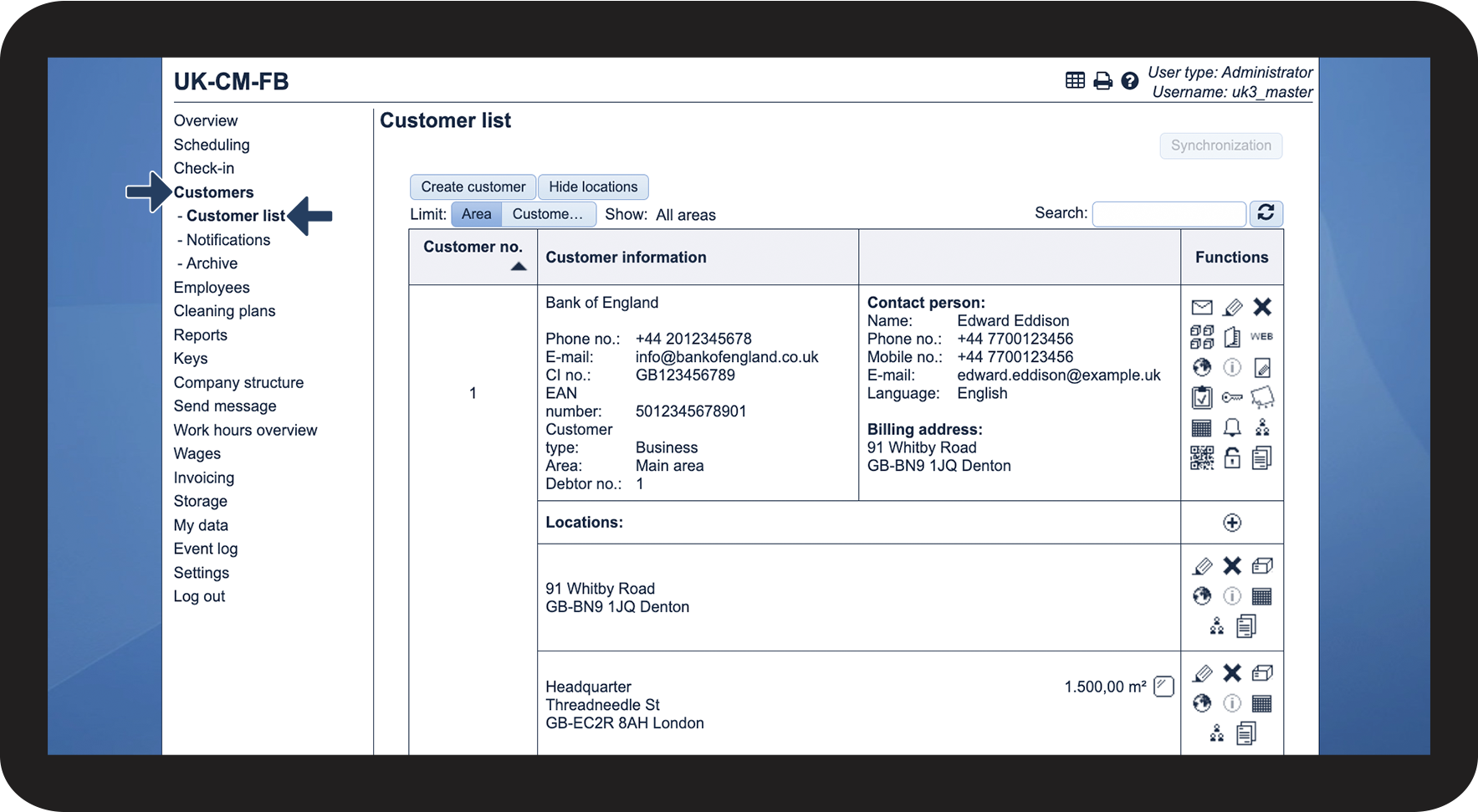
In the menu, go to Customers > Customer list

1.1.png

number_2.png

Here, you can access all the features of the individual customer in the Functions column

1.2.png


These are the features you have access to in the Functions column

number_1.png

See the table below for an explanation of what the different features do:

Send message to customer

Click on this icon to be redirected to the menu Send message, from where you can send an e-mail or text message to the customer in question. Read more about that here: Sending a message from the customer list

NOTE! In order to send text messages, the Text Messaging add-on module must be active in your account. Read more about how to activate add-on modules here: Add-on modules

NOTE! This feature is only available if the fields for e-mail and/or mobile number have been filled out for the contact person.

Edit customer

Click on this icon to edit the customer data. Read more about that here: Editing customers.

Delete customer

By clicking on , you delete the customer in question, and they will be moved to the archive. Read more about that here: Deleting a customer.

Choose products, that can be ordered for the customer

If you have set up your storage in the system, click here to specify which products it should be possible to order for this customer. You can read more about that here: How do I limit which products can be ordered for a customer?

Customer journal

By clicking here, the administrator and/or supervisors can create a journal entry and see previous entries. This is useful if, for example, a customer sends in a complaint, and you want to document the date and the specific criticism. Supervisors can only delete entries they have created themselves. The customer in question cannot see the journal.

View customer's homepage

Click here to be redirected to the client's website. This is only accessible if the website has been added to the customer data.

View address on map

By clicking on  you can view the location of the billing address in Google Maps.

View comments Info3.png

If a comment has been added to the customer data, you can click on the information icon to view it.

View service agreements for this customer

NOTE! This feature is only available if the add-on module Invoice Calculation is active in your account. Read more about add-on modules here: Add-on modules

Click here to access the customer's service agreements. Read more about that here: How can I access a customer's service agreement?

View reports related to this customer

NOTE! This feature is only available if the add-on module Audits is active in your account. Read more about add-on modules here: Add-on modules

By clicking here, you can access completed reports for the customer. You can also go directly to filling out a new report. Read more about reports here: Get started using reports

View keyrings for this customer

Here, you can see key rings connected to the customer and create new ones. Learn more about setting up key rings here: Get started using keys

View cleaning plans for this customer

Click here to see cleaning plans for the customer. You can also go directly to creating a new cleaning plan. Learn more about cleaning plans here: Get started with cleaning plans

Show cleaning in calendar

This function sends you directly to the customer's calendar.

Edit notifications for this customer

Click here to see and create notifications for the customer. Read more about that here: Setting up customer notifications 

Show associated employees

Click here to see which employees have been assigned tasks at the customer, and employees that have been directly linked to the customer. Read more about that here: How can I see which employees are connected to a customer?

Show QR code containing the customer's details

This feature generates a QR code containing the most important contact details of a customer, so you can create them as a contact in your phone.

Edit access for contact person /

Click here to grant the customer contact access to CleanManager, or revoke their access. If the lock is closed , the customer contact does not have access to the system.

Is the lock open , the customer has been granted access to CleanManager. Read more about that here: How do I grant the customer contact access to CleanManager?

View resources

Here, you can upload files and hyperlinks related to the customer, as well as access the files and hyperlinks you have already uploaded. Read more about that here: Attaching files and hyperlinks to a customer