Which functions are available to the Administrator / Supervisor to copy and move elements?
This article provides insight into the copying functions that Administrators and Supervisors can use when setting up a cleaning plan.
The Administrator and Supervisors can copy rows of tasks or headings during the setup of a cleaning plan. In this regard, it is also possible to move the rows around after they have been copied, to put them in the preferred order.
INFO:
The Administrator/Supervisor has the option to create a Standard Cleaning Plan, which afterward can be copied and adjusted slightly, to be used for a different customer.
In this article, you will learn how the Administrator / Supervisor can copy and move elements:
How to copy and move tasks and headings

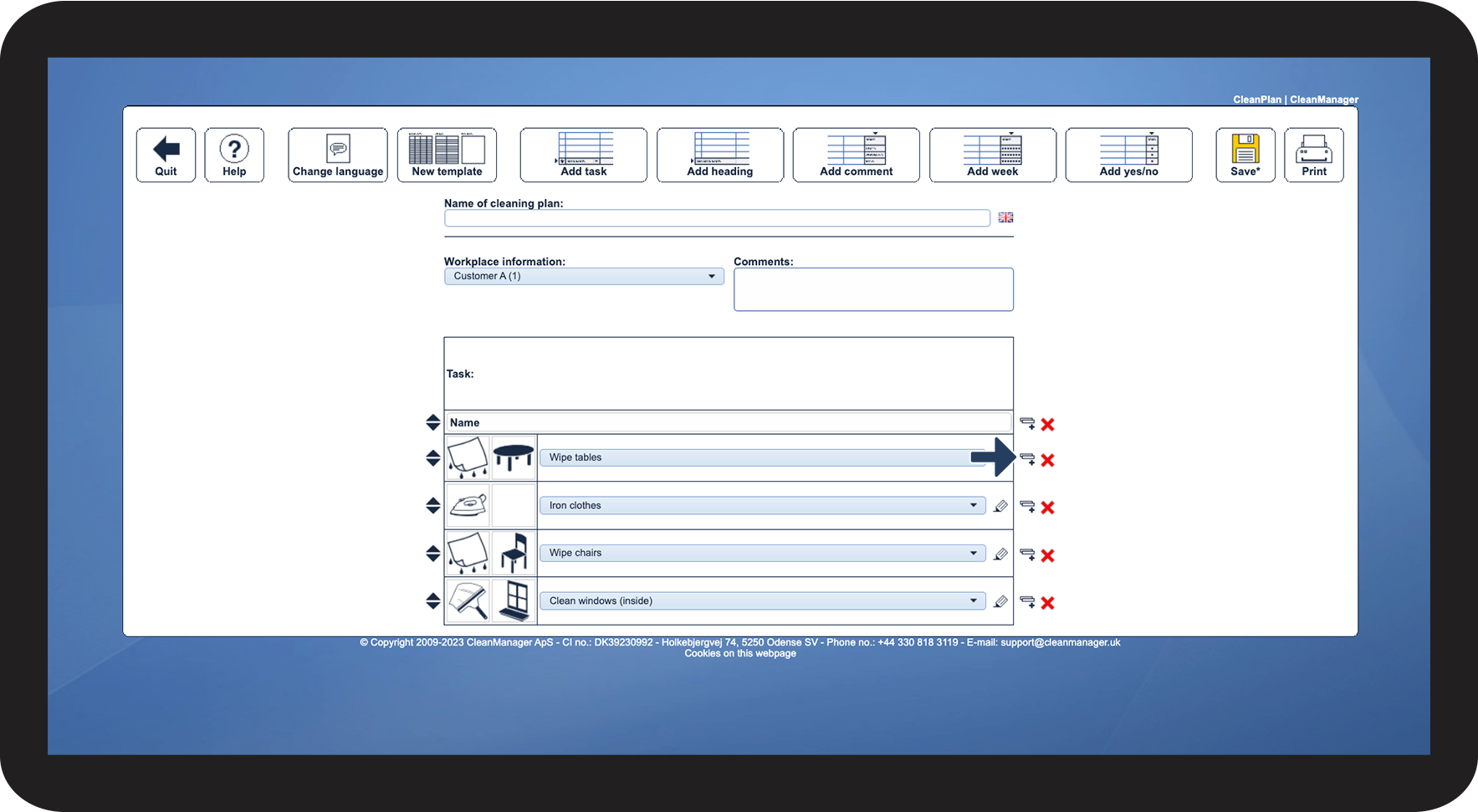
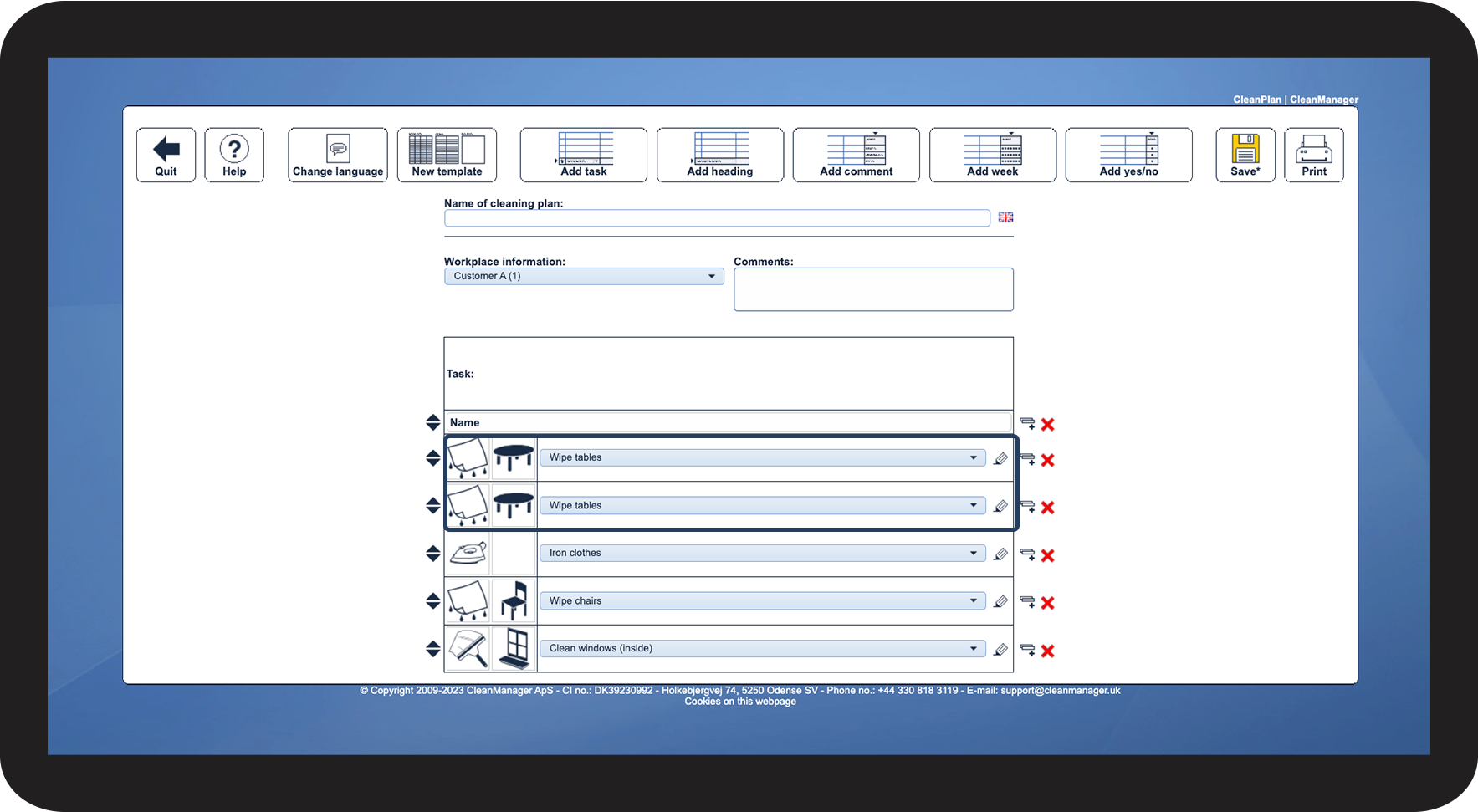
 to copy a task


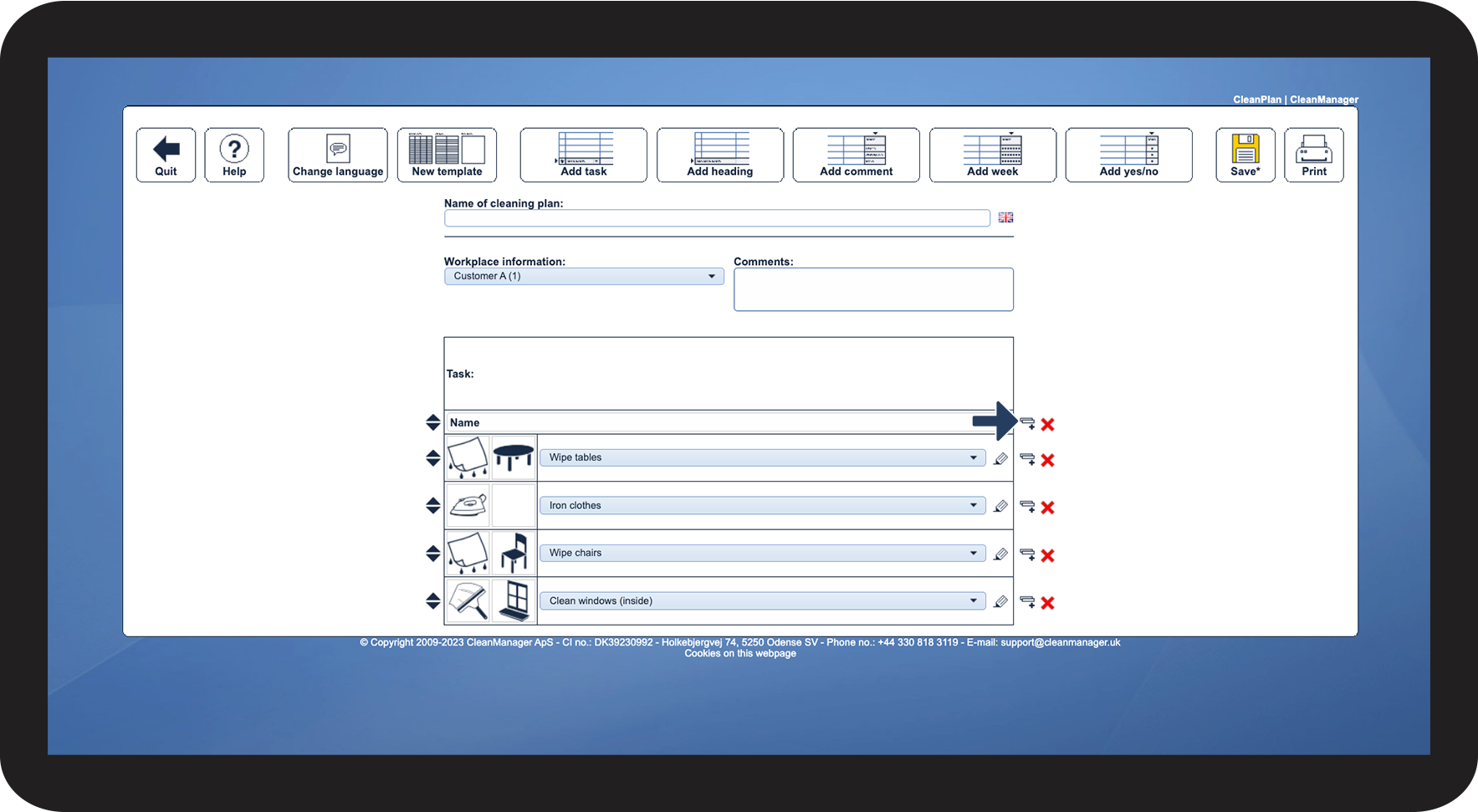

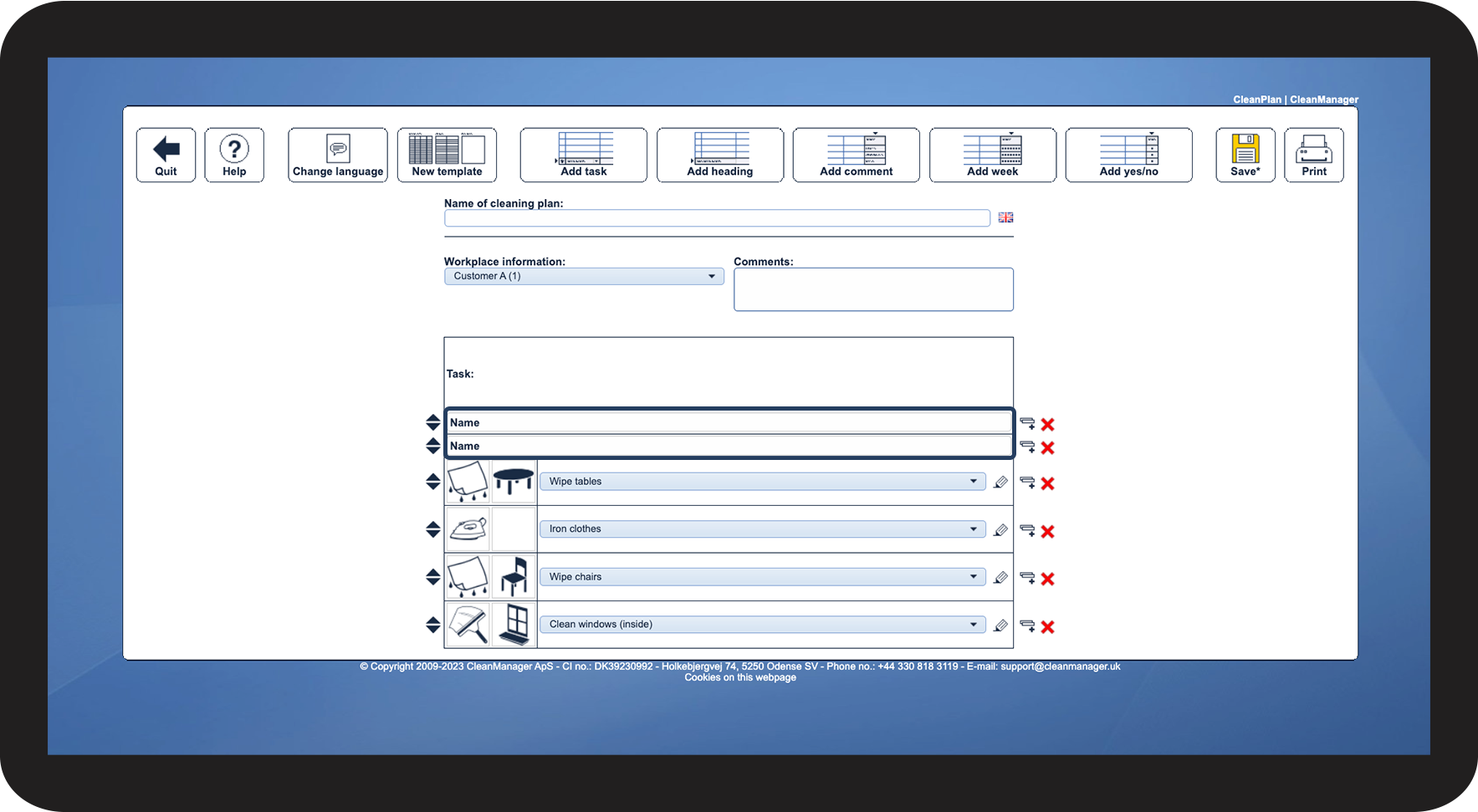

 next to a task or a heading and hold the left mouse button down, to Drag and drop them to a new location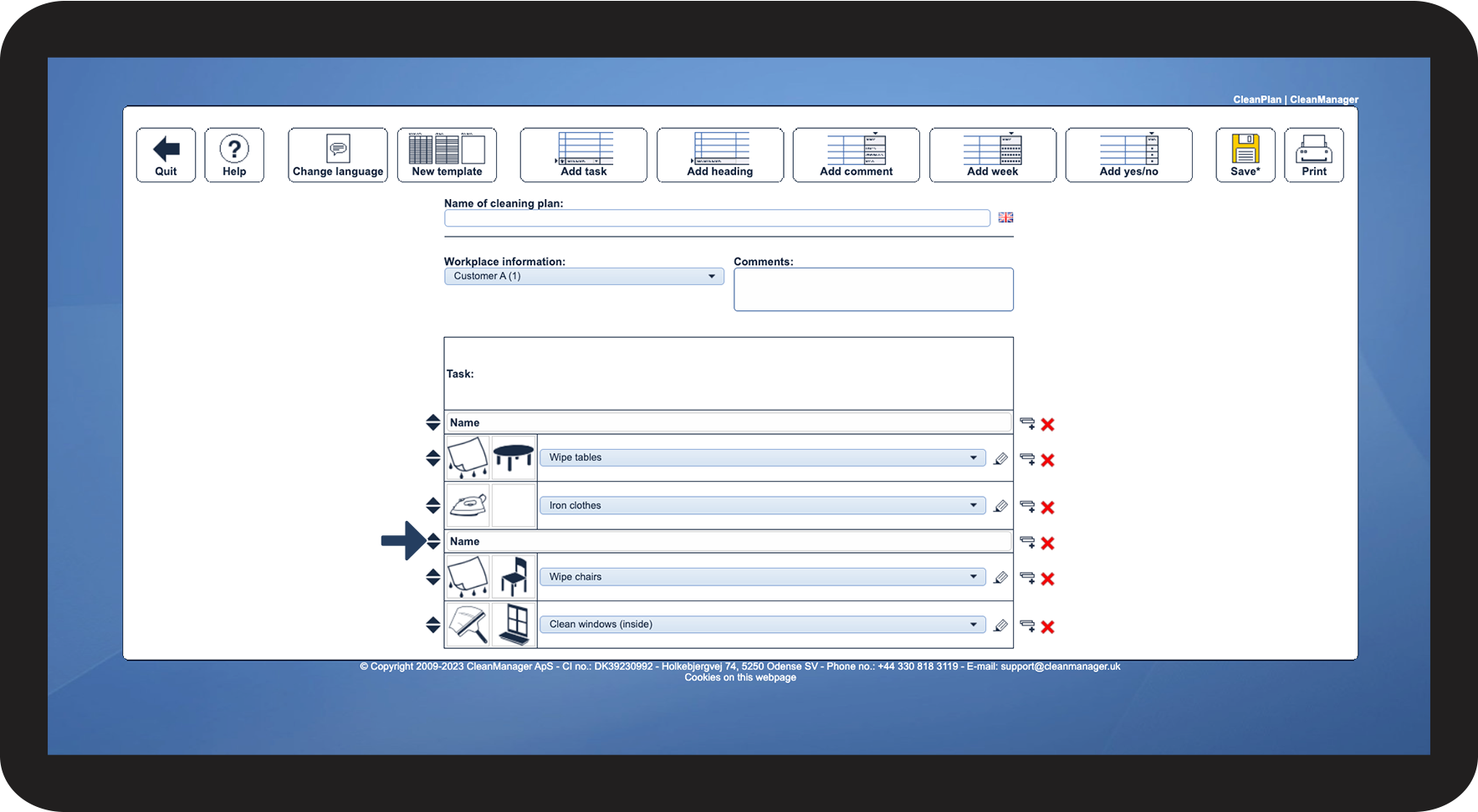
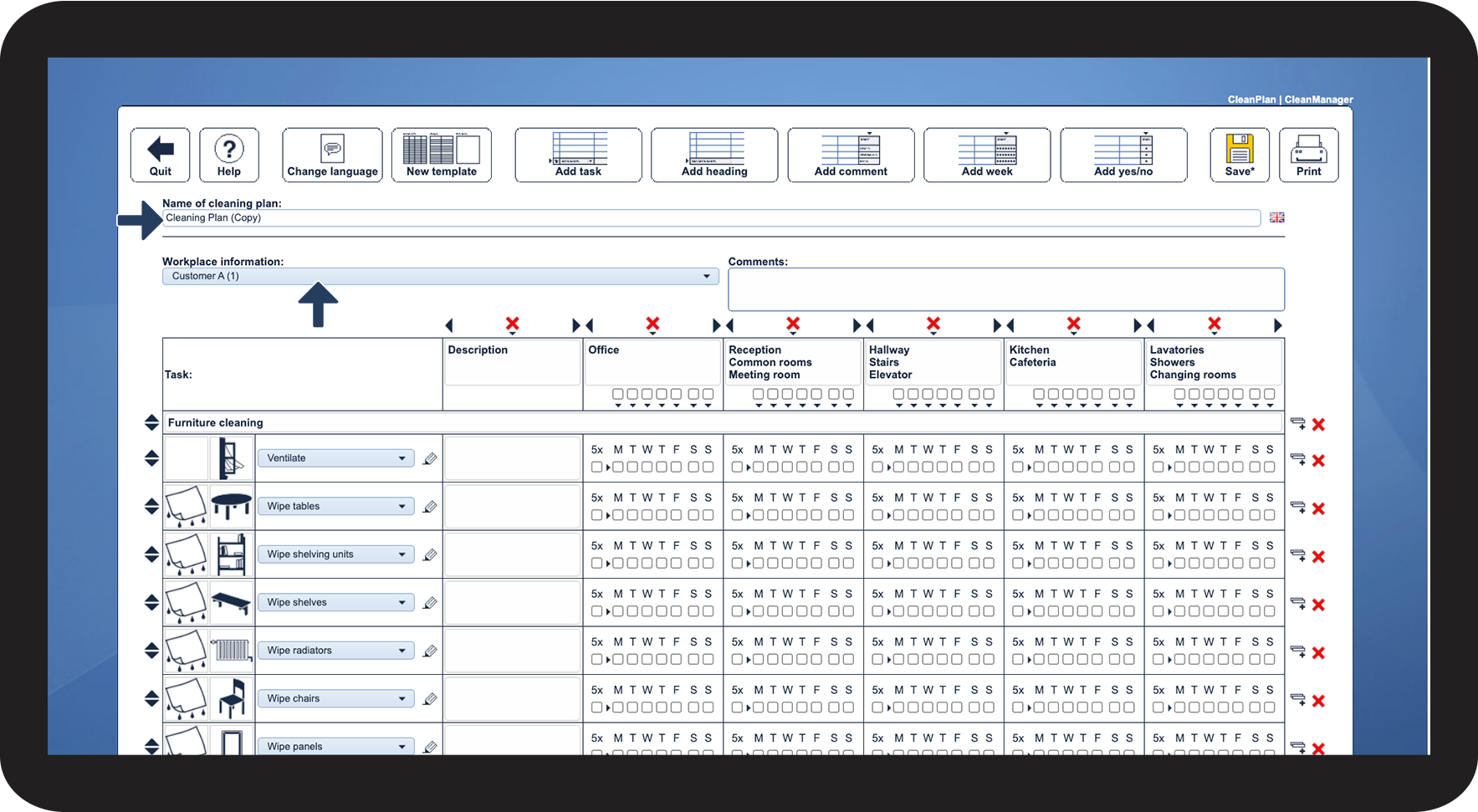
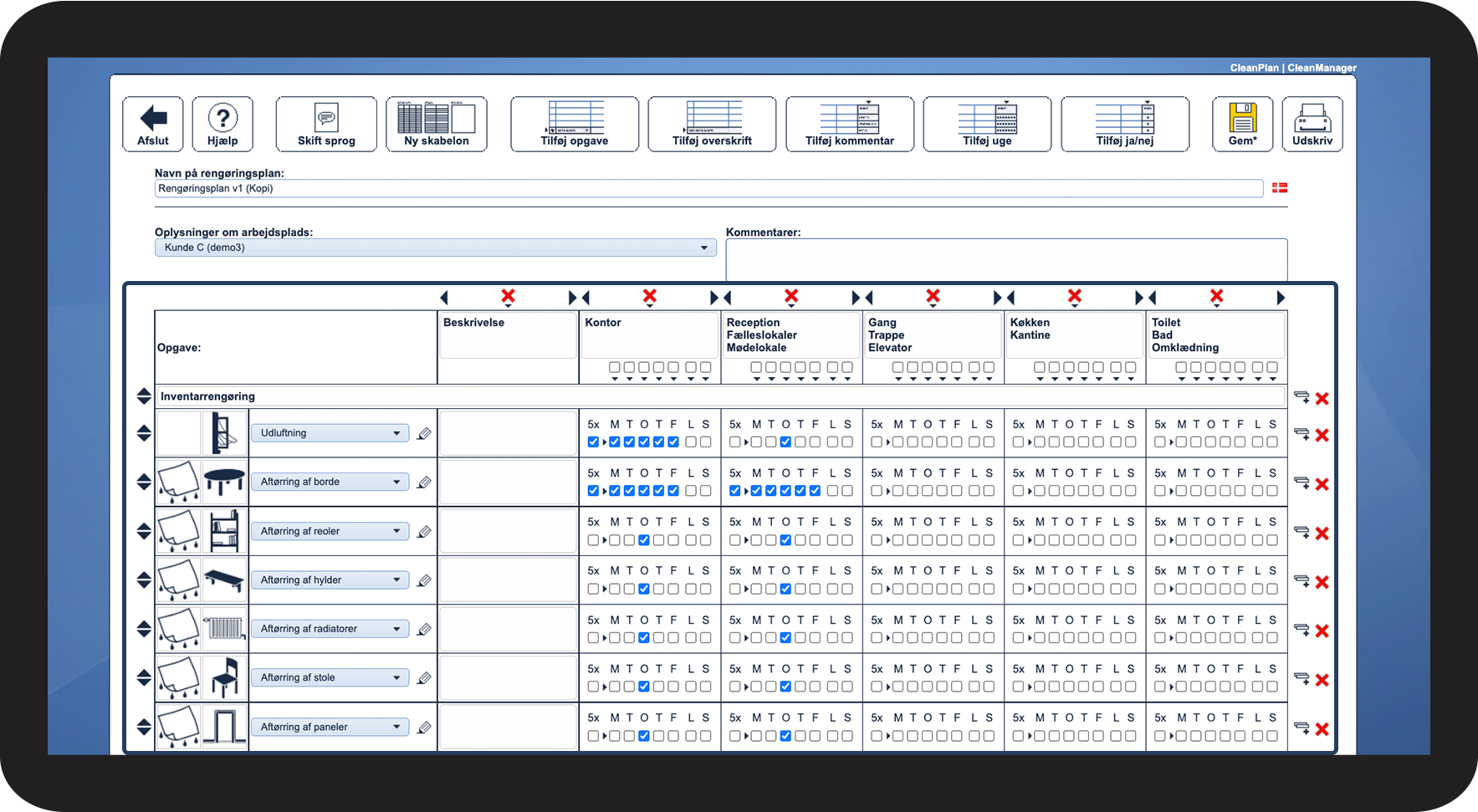
How to copy a cleaning plan
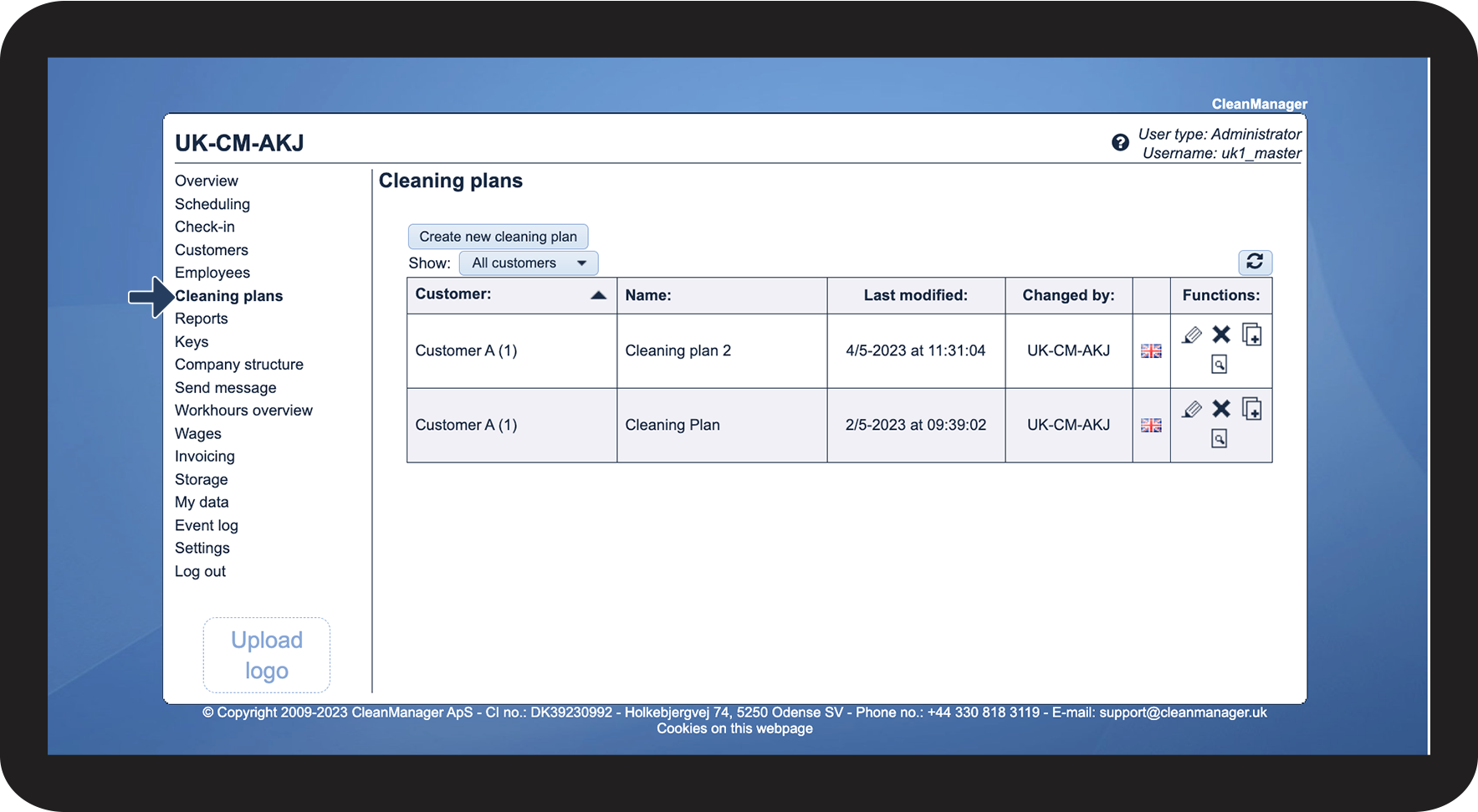

 in the functions-column of a cleaning plan to copy the cleaning plan
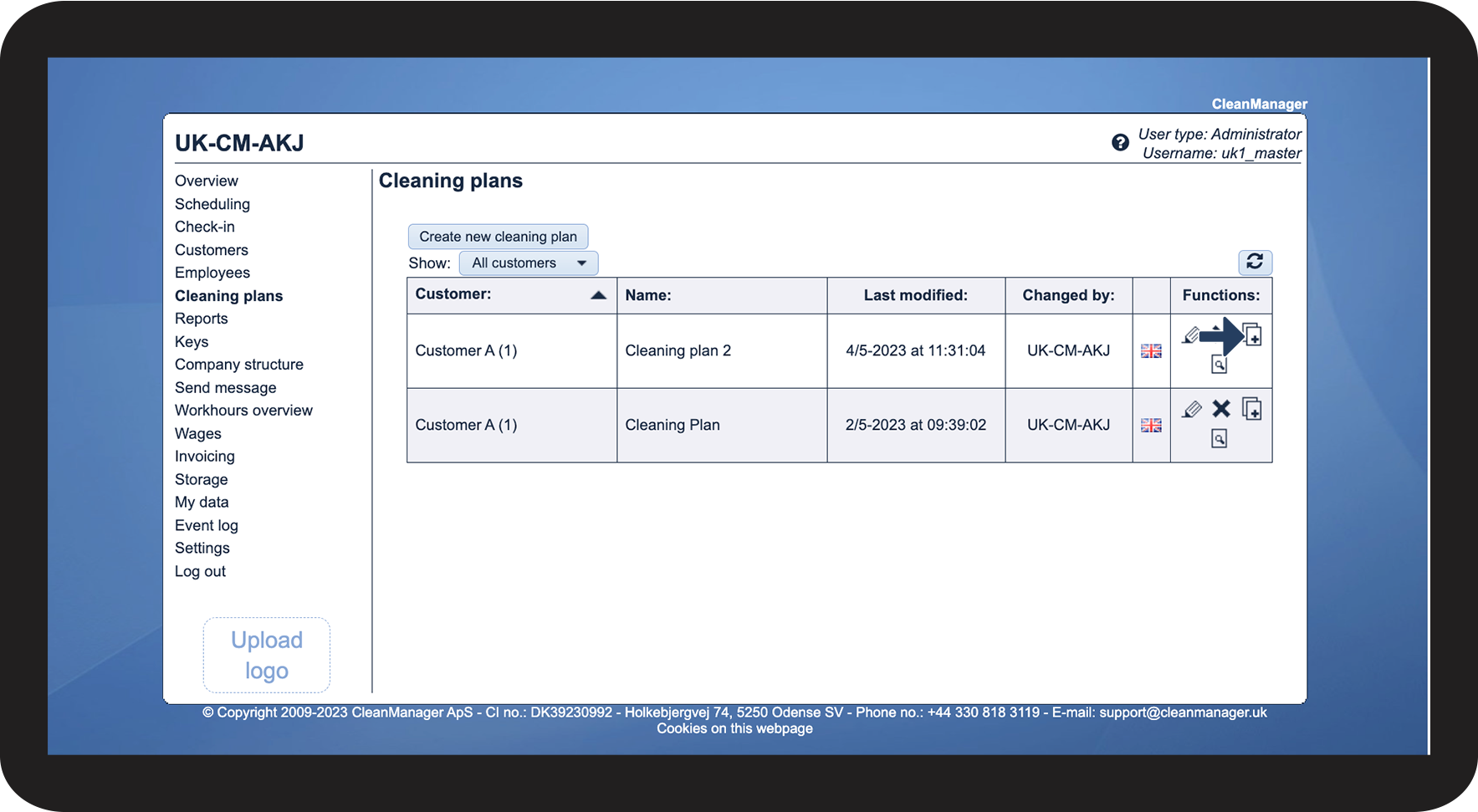
INFO:
This feature makes it possible to create a standard template that can be used for various customers after a few adjustments.
The cleaning plan template can be stored under your own company, which can be selected in the list of customers at Workplace information, which is selectable during the setting up process of the cleaning plan.