Skip to content
English
  • There are no suggestions because the search field is empty.

Extracting data as a Customer contact (Statistics)

How do I extract data from the reports as a Customer contact?

If you are logged in as a customer contact, you can see the completed reports associated with you if permission has been granted.

When you go to Statistics, you have the option to specify what data you want to be extracted.


In this article, you will learn about your options for extracting data:


How to sort your data extraction

number_1.png
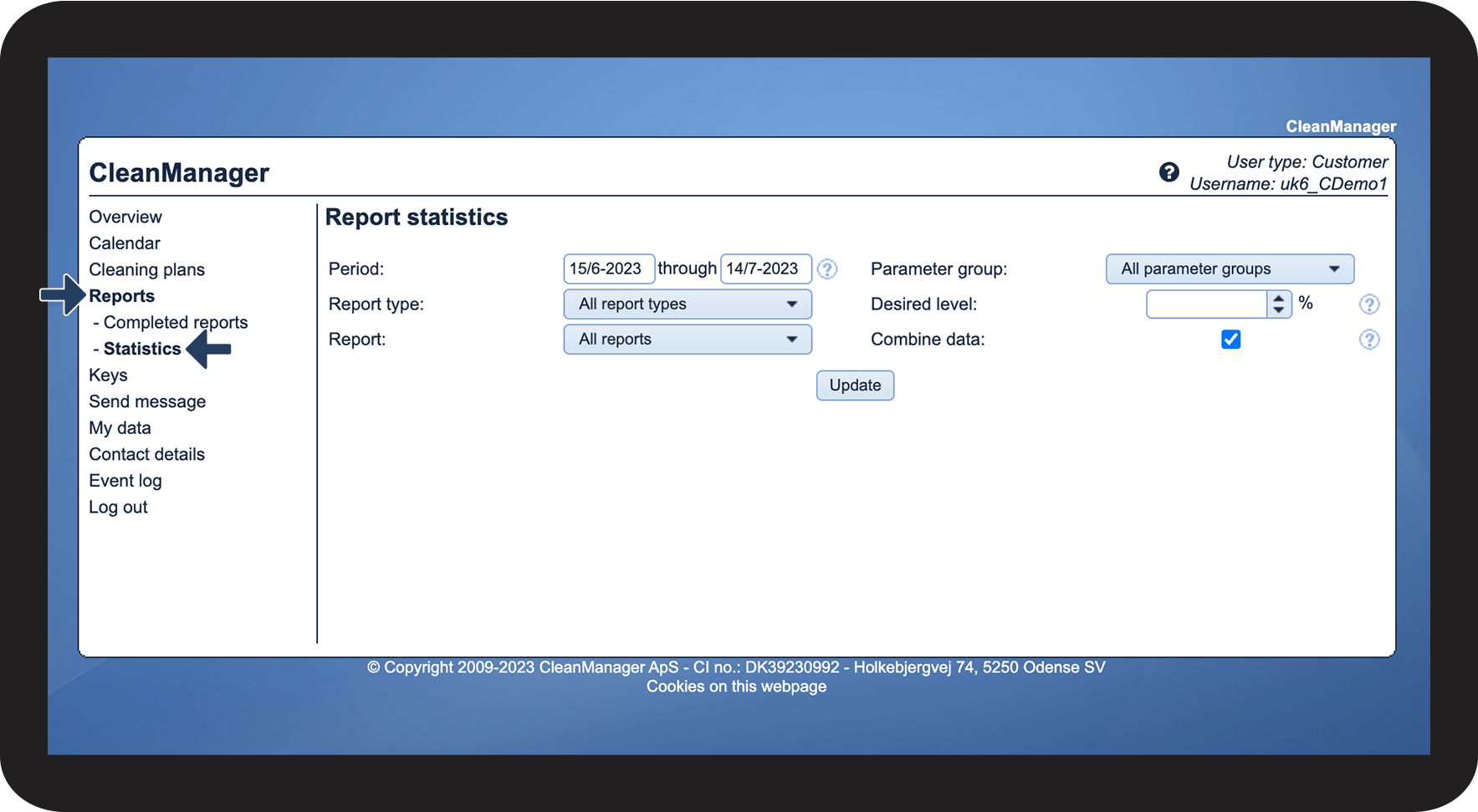
In the menu, go to Reports Statistics

1.png

number_2.png
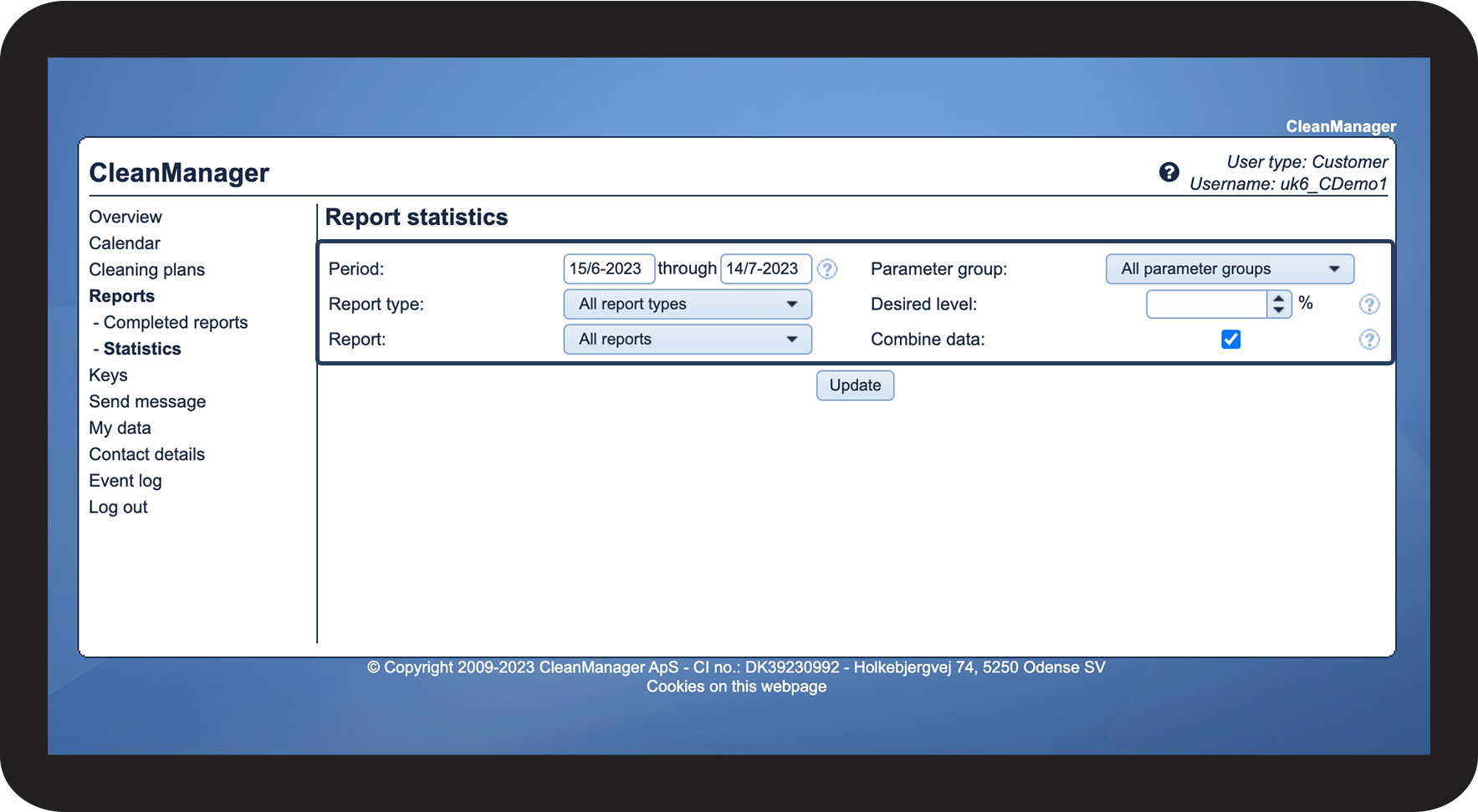
Adjust the filters
 
See a description of the different options in section 2: Description of your options

2.png

number_3.png
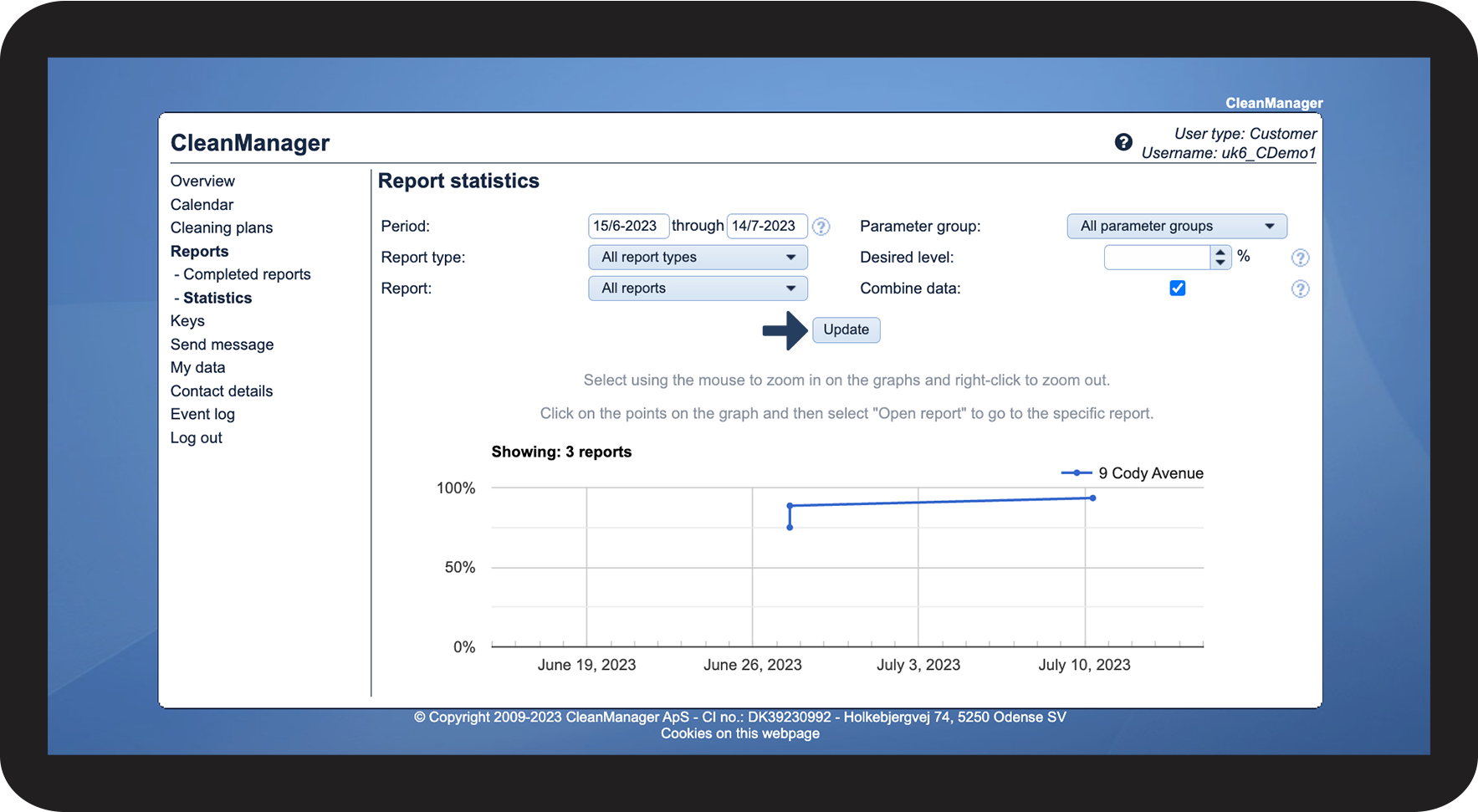
Click on Update to see the result
 
You will be shown a graph based on the score of the reports that match your filters

3.png


Description of your options

Period

You can narrow or broaden your search by entering a start and end date.

The graph will only focus on this time period.

Report type
Report

This function lets you pick a specific report template based on your input in Report type.

Parameter group
You can use this if you wish to extract data on a specific parameter group.

Desired level

Mark your desired level for the report score. You can enter a percentage value from 0 to 100. If you enter a number, your graph will display a red dotted line to mark your bottom line. You can also leave the function blank.

Combine data
This gives you the option to combine your datasets into one graph. Your data will be inserted into one graph, with each dataset in its own color. Alternatively, each dataset will be drawn in separate graphs.