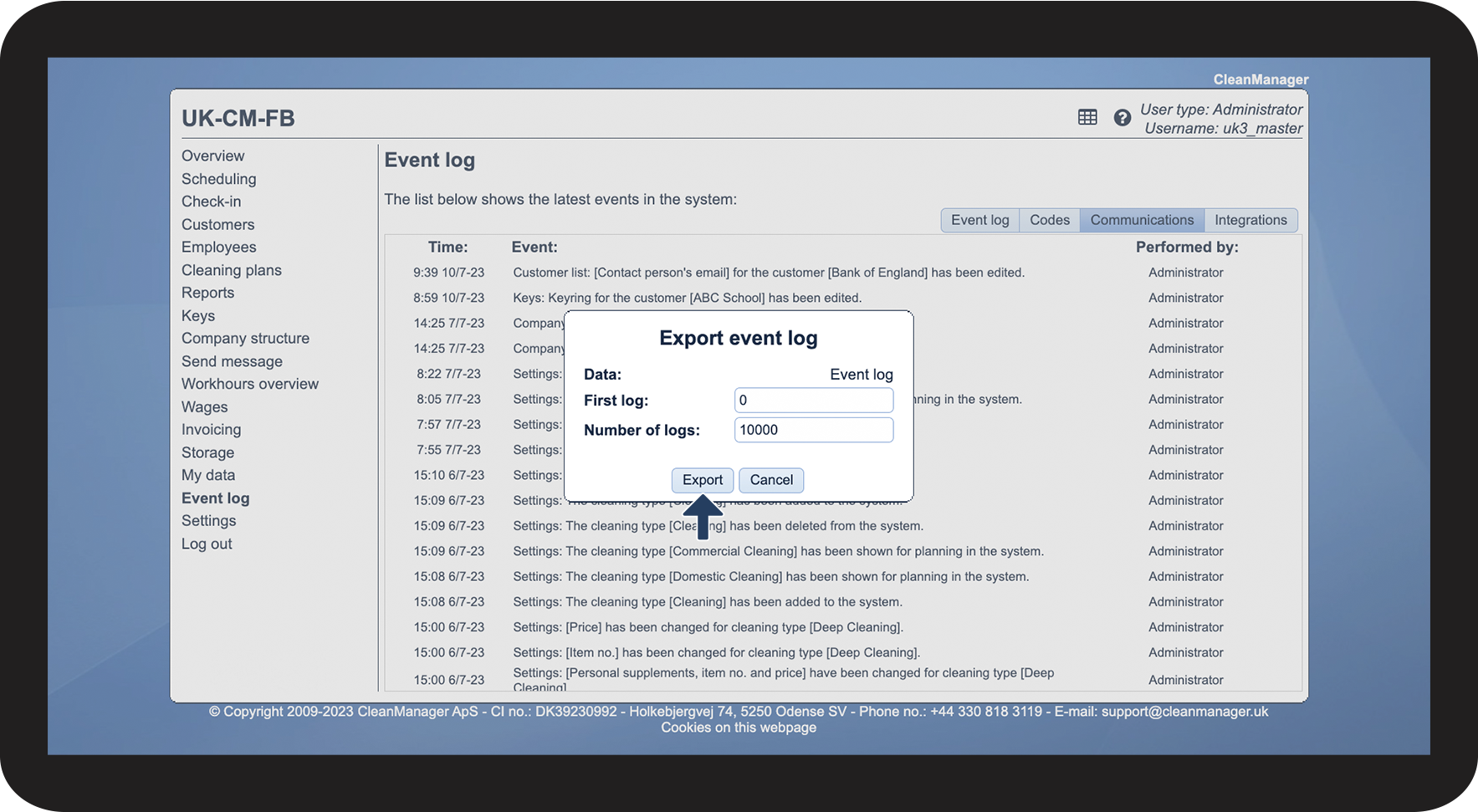
How do I export a bigger part of my event log?
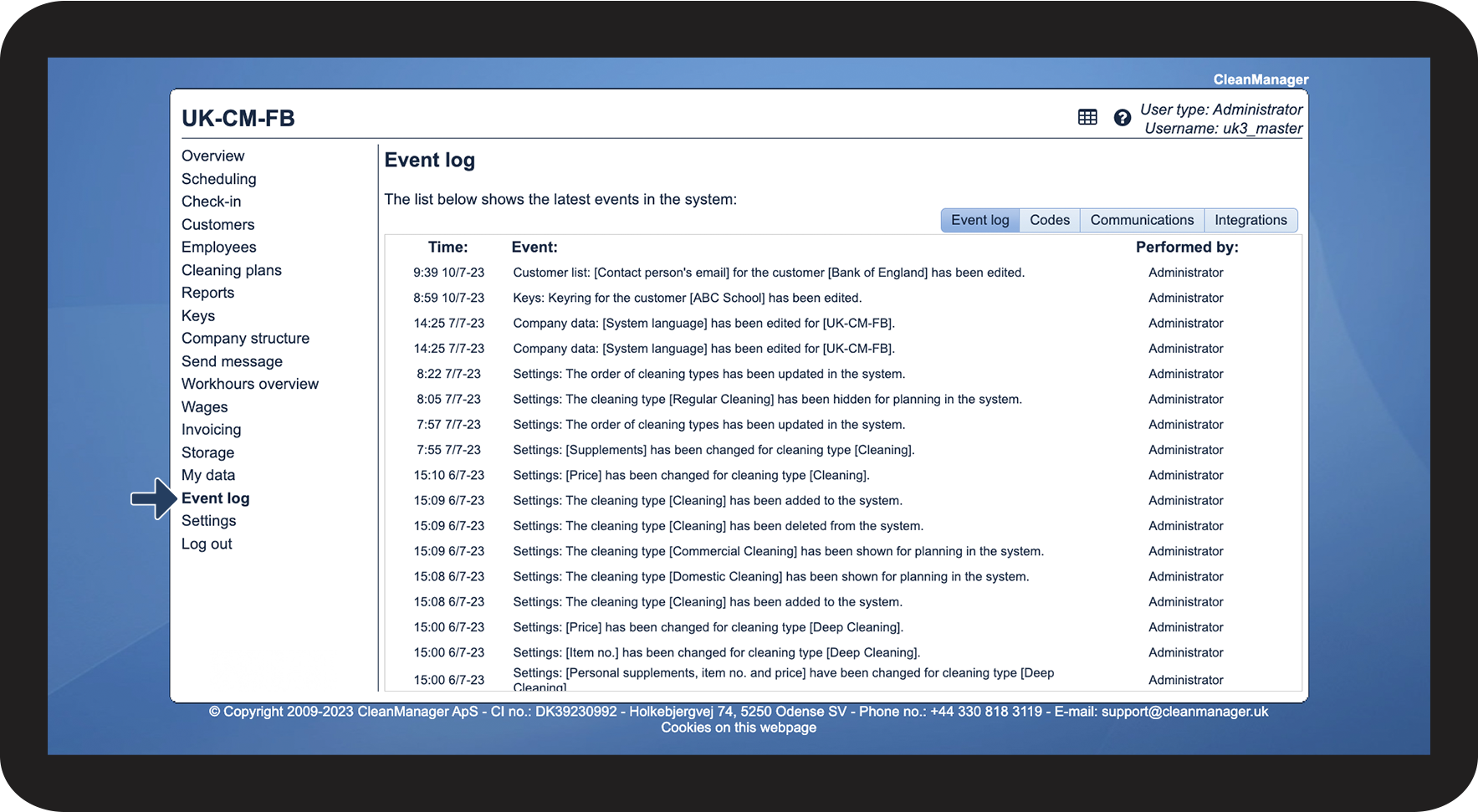
The event log always shows the last 5,000 changes, made in your CleanManager account.
The newest event is registered as number 0 and the oldest as number 5,000.
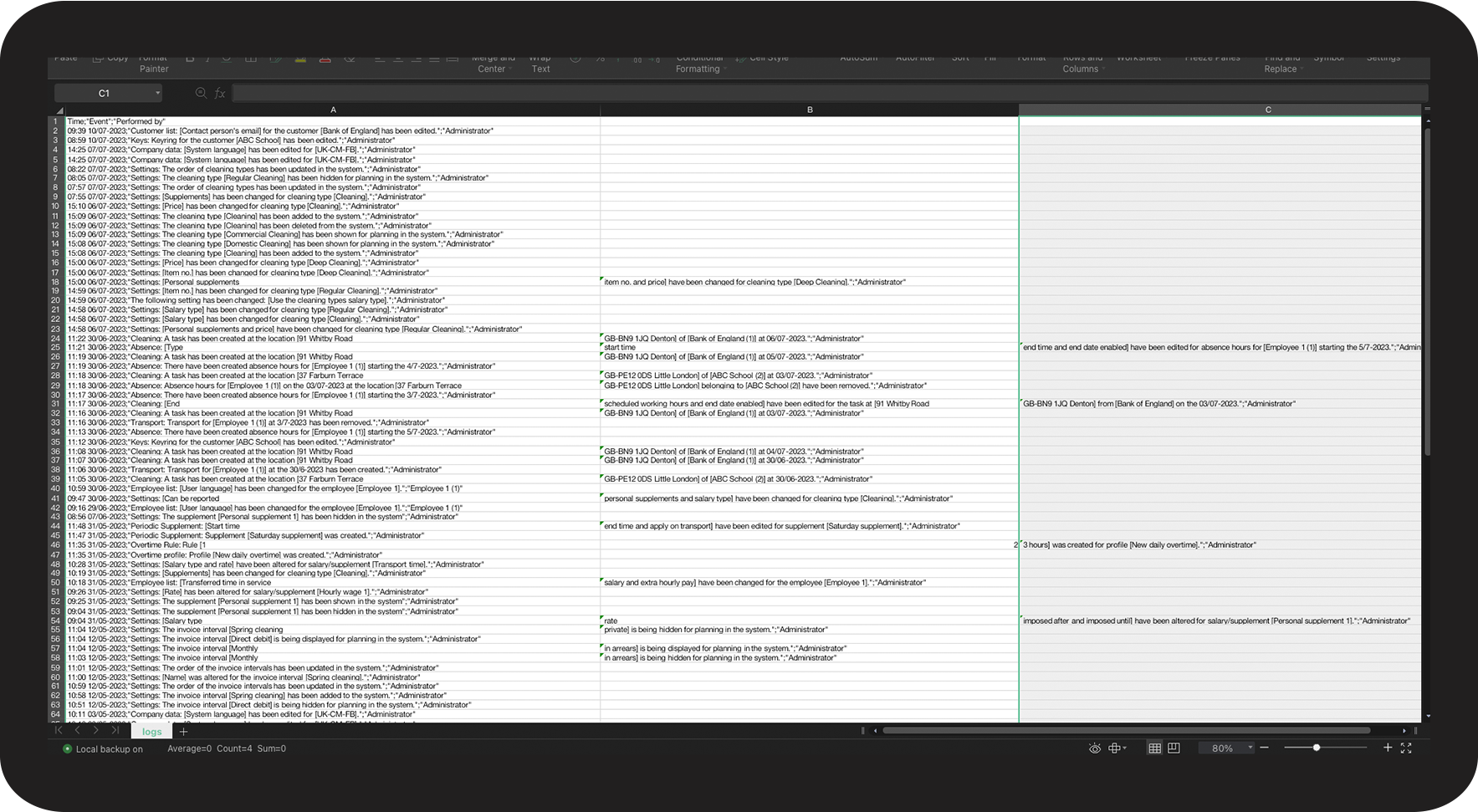
If you need to get access to earlier registered logs, then you have the option to export a bigger part of the event log. (You can only export 10,000 logs at a time)
In this article, you will learn how to export the event log:
This is how you export the event log




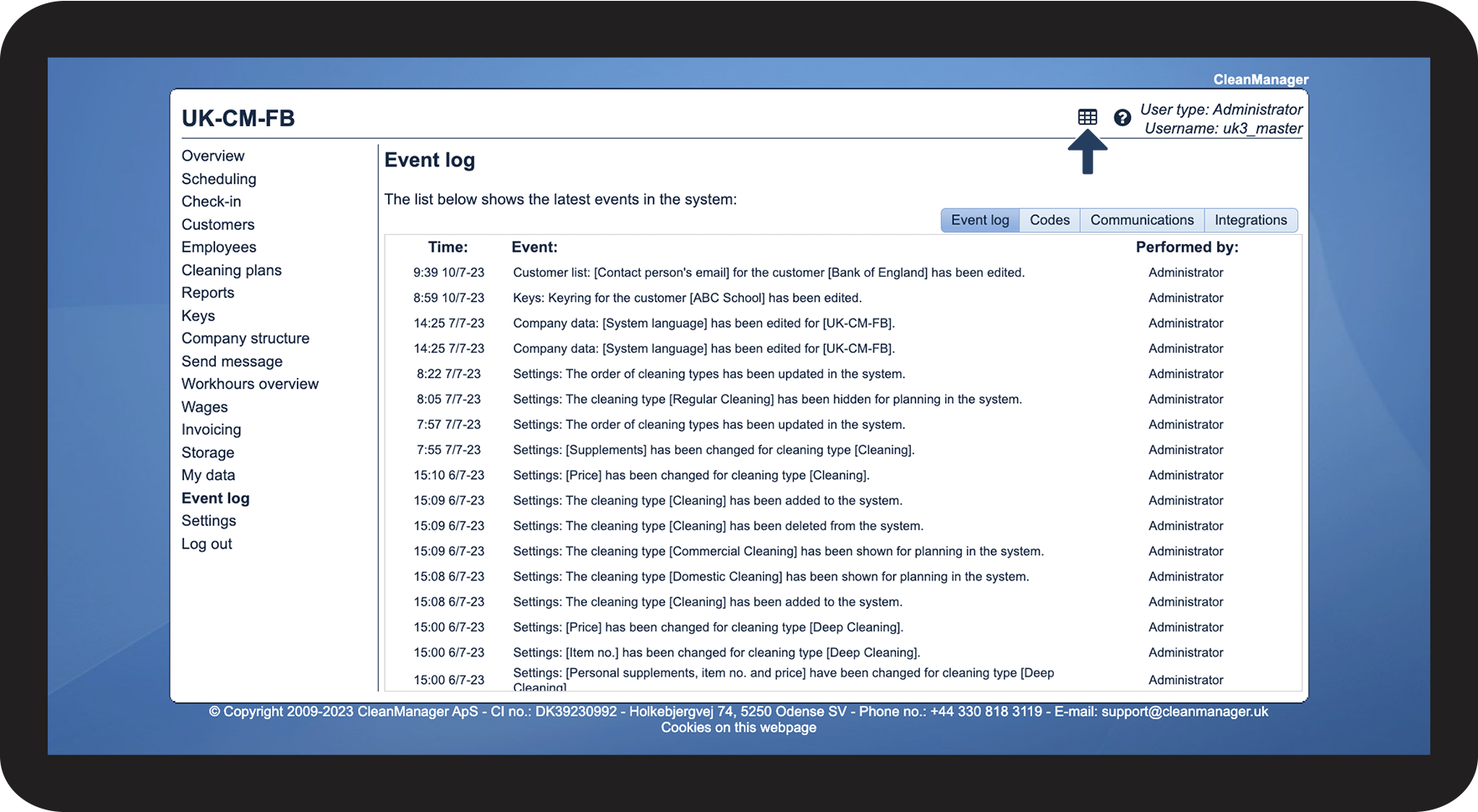

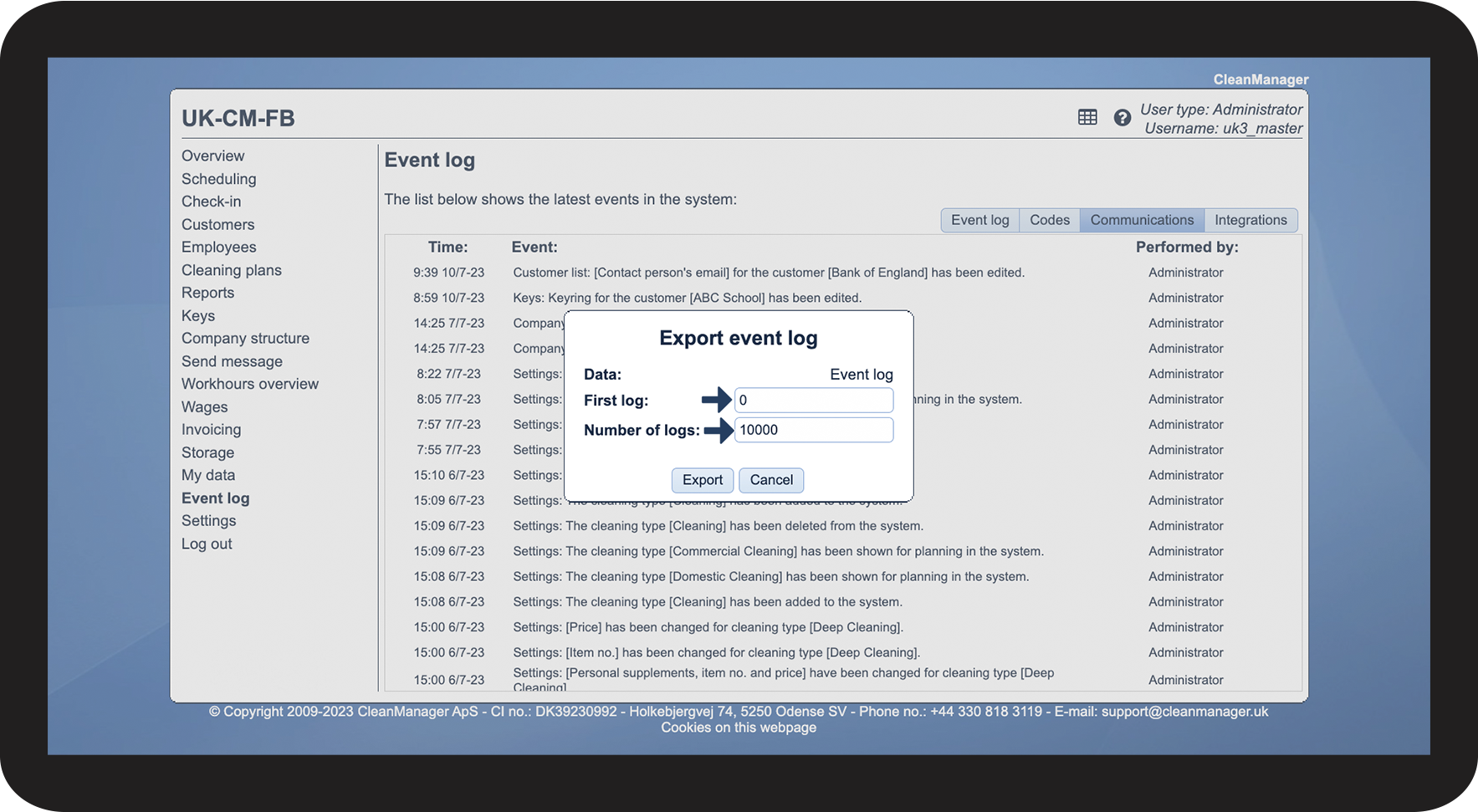
INFO:
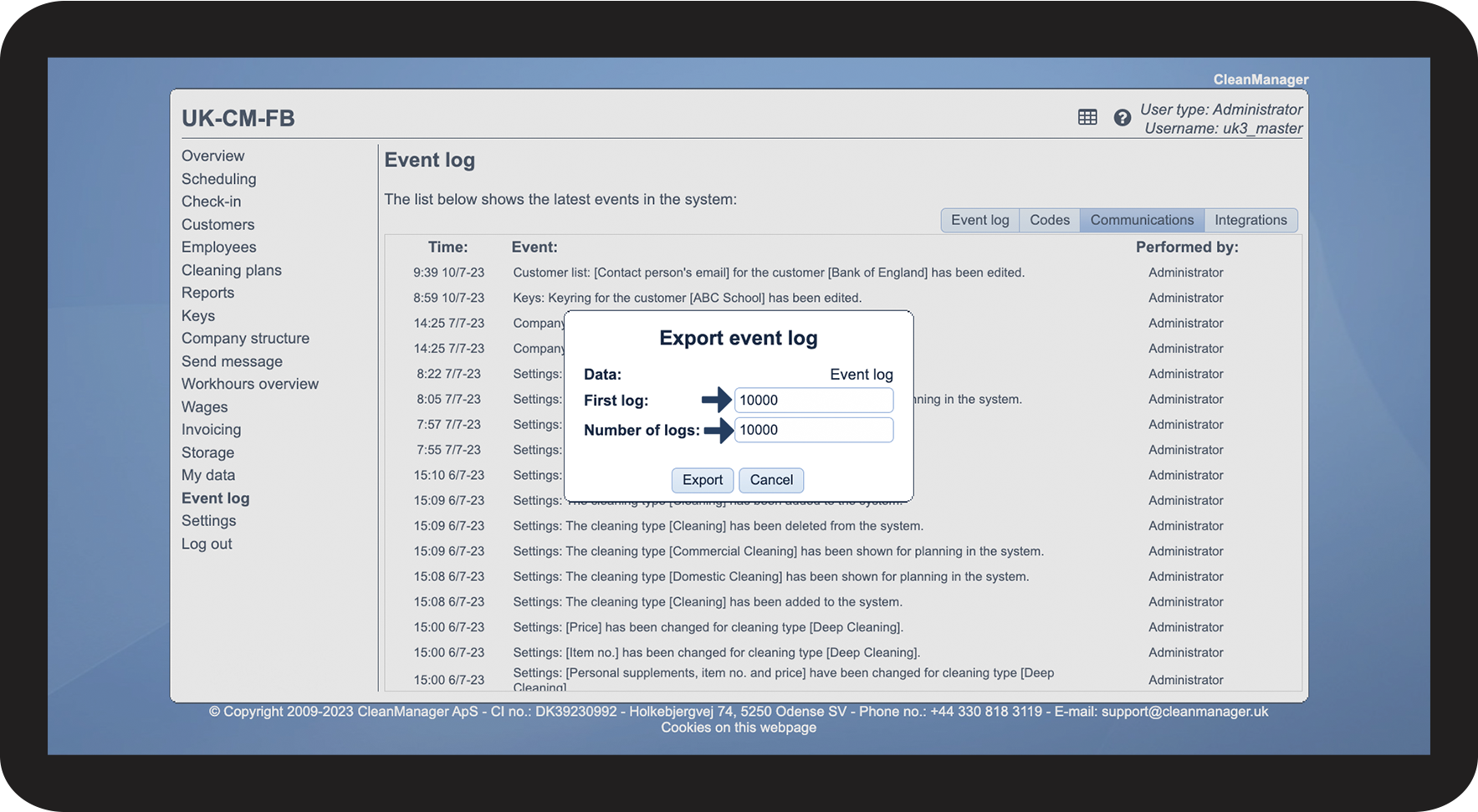
You can never export more than 10,000 logs at a time, but you can freely choose from which log number you want to export from.
If you want to export the latest 10,000 logs, state the First log to be 0 and the Number of logs to be 10,000.
If you want to have access to the next 10,000 logs, state the First log to be 10,000 and Number of logs to be 10,000. Thereby you will export all logs from number 10,000 to 20,000.
The first log will always be the latest log, to be registered in the system. If you then wait a couple of days, between exporting data, then the first log will have changed, since there have been added more logs since the last export.