How do I export and print data from the employee list?
Do you need to extract data from the employee list in the form of an Excel file or a printout?
As the administrator, you can download an Excel file and make a printout, while a supervisor can only make a printout of the data.
In this article, you will learn how to export and print from the employee list:
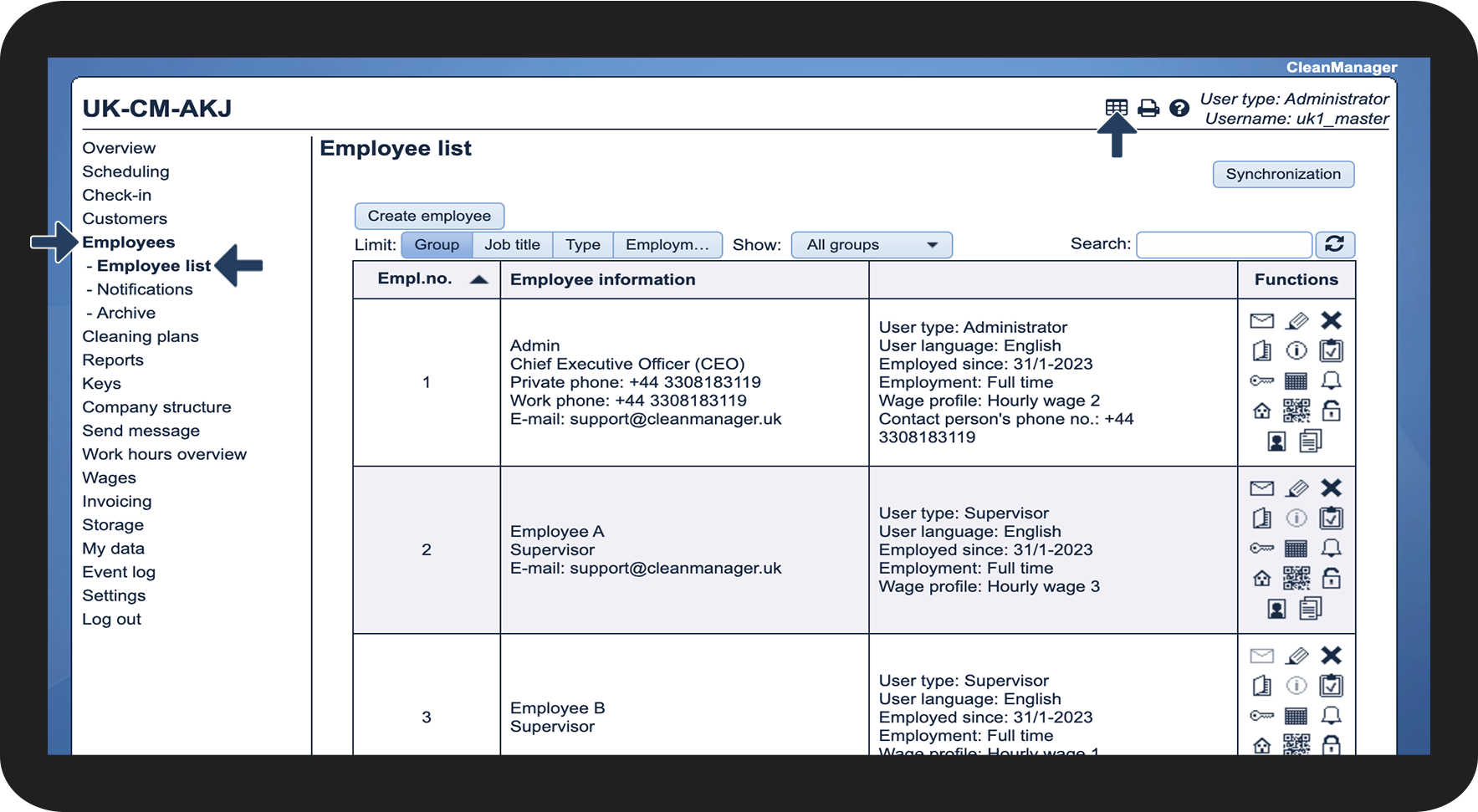
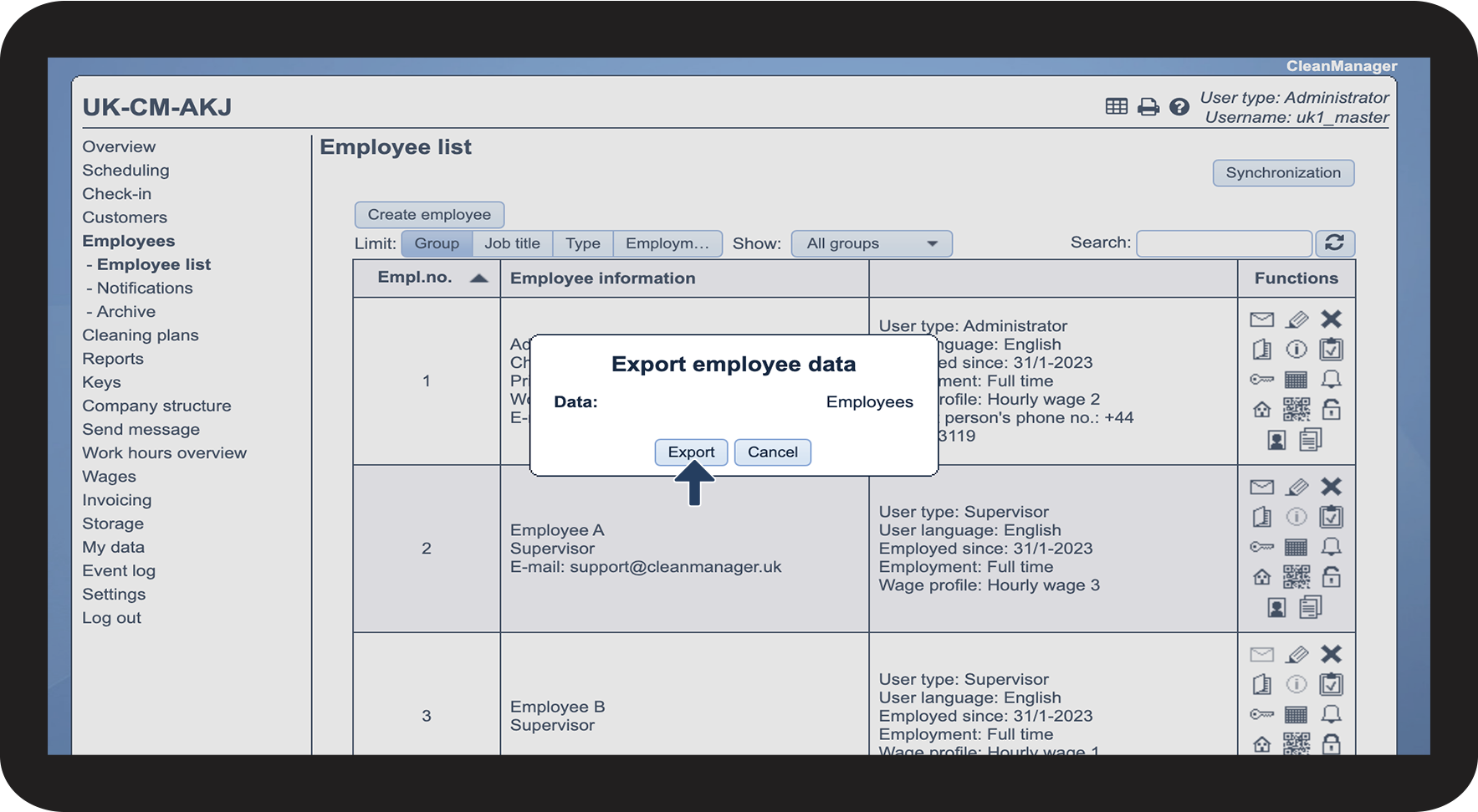
This is how you export data from the employee list


NOTE:
Only the administrator can export data as an Excel file.


NOTE:
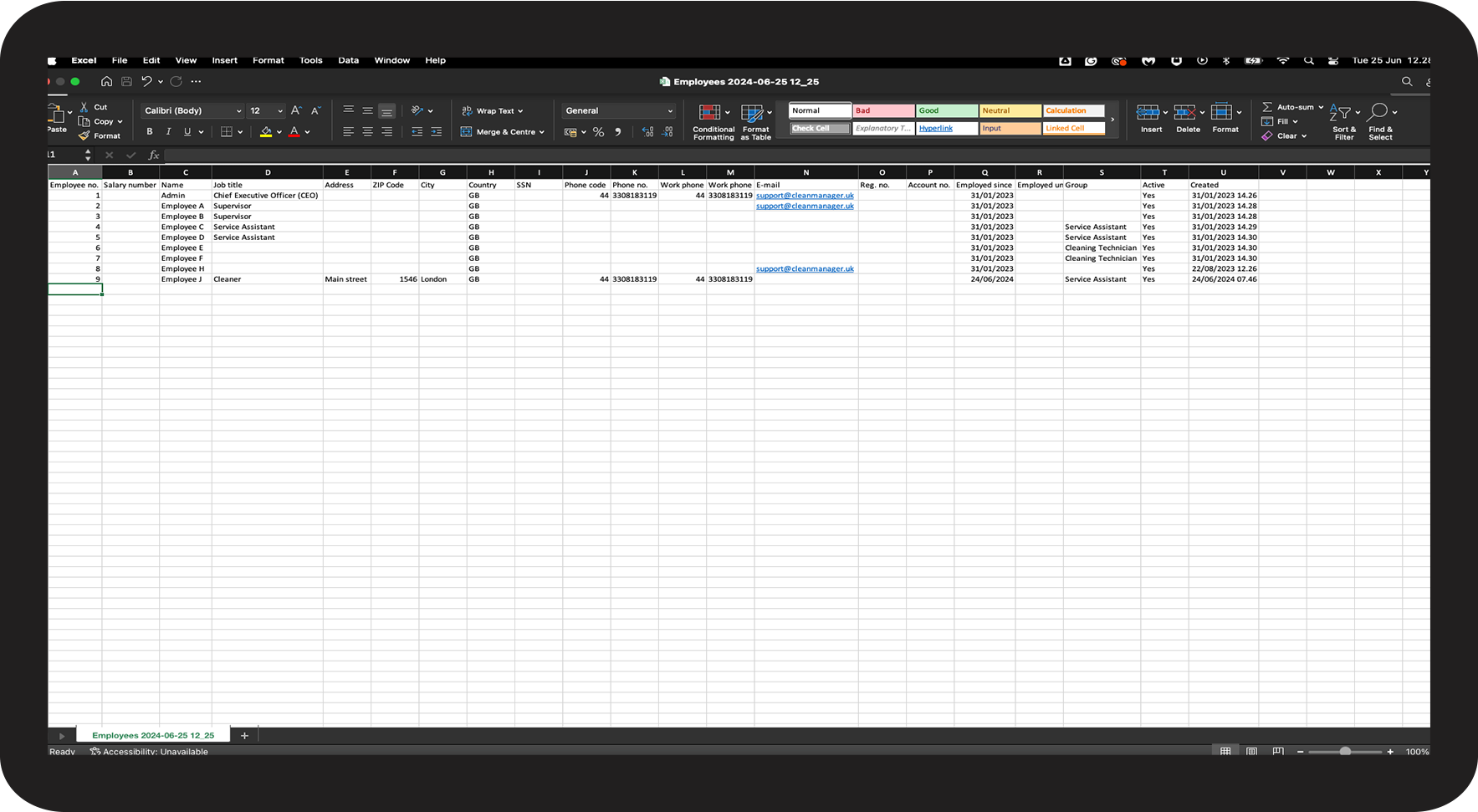
Open the CSV file from an empty sheet in Excel. In Excel, go to Data > Get data and select Text/CSV. Browse your computer and select the file. Before loading it, set the file to file origin: 65001: Unicode (UTF-8) and the delimiter to Semicolon.
For this example, the file has been imported into WPS.
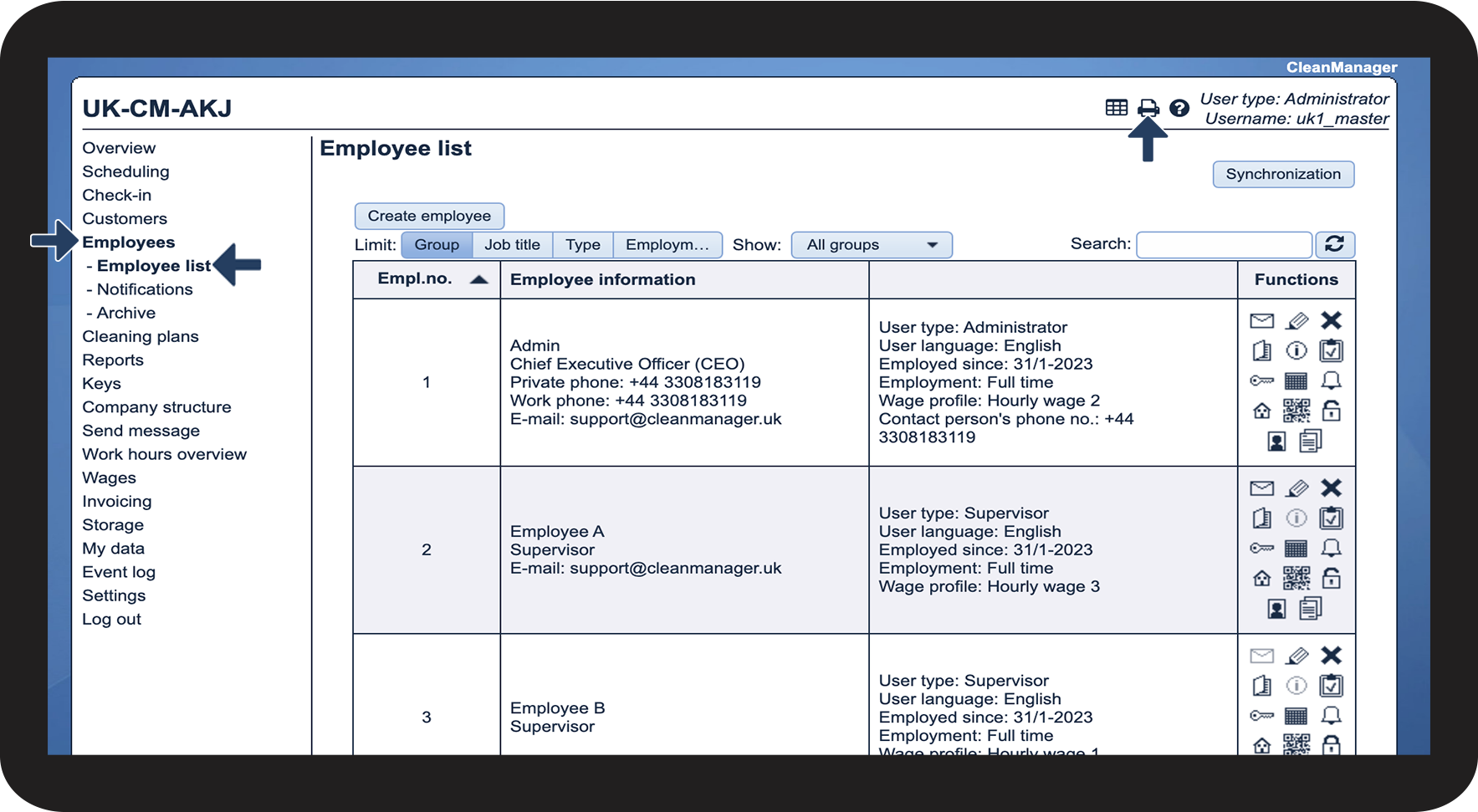
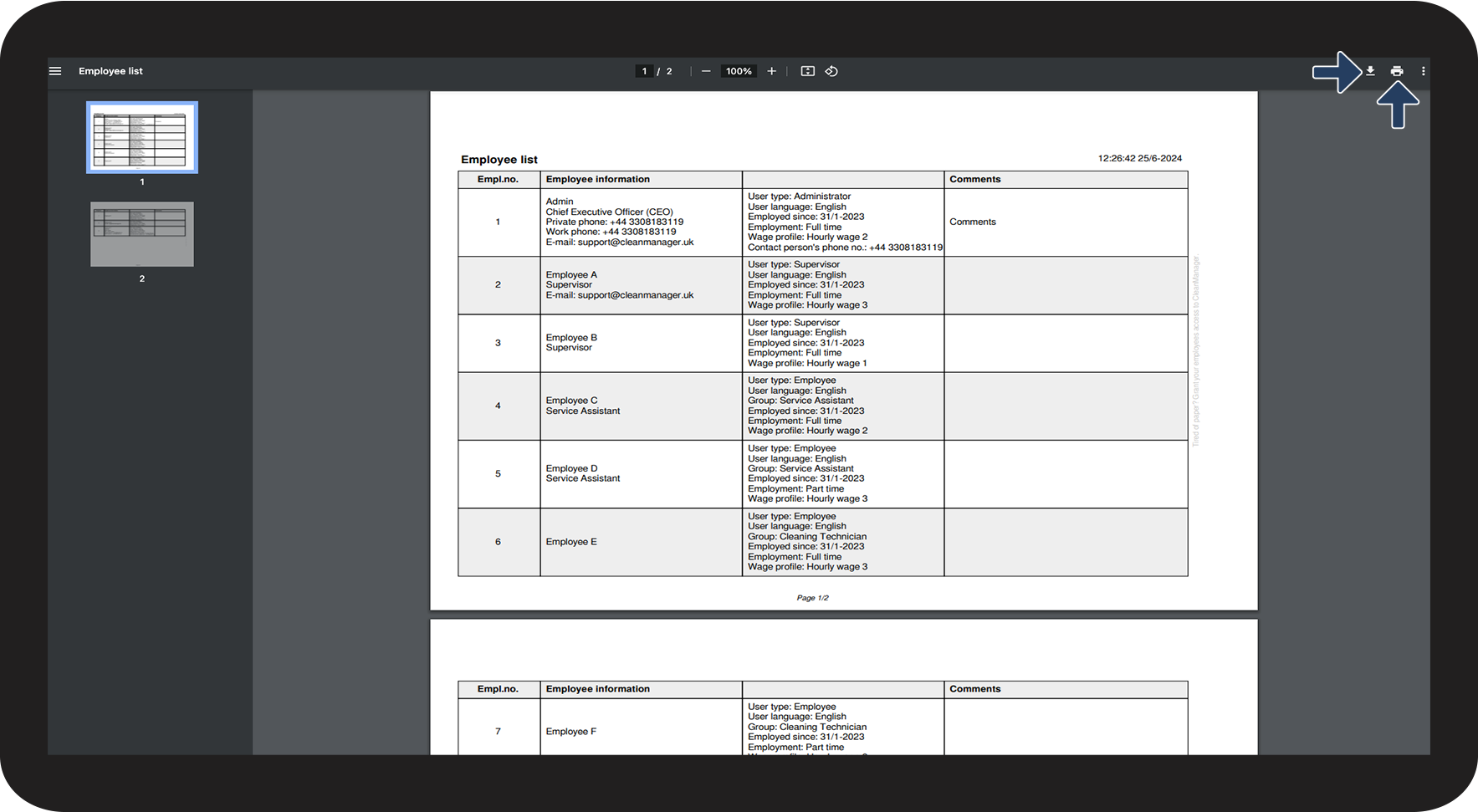
This is how you can print data from the employee list