Event logs for supervisors
How can I see which changes have been made, when login in to my supervisor account?
If you have access to CleanManager as a supervisor, then you have the option to see all events which have occurred in the customer areas, to which you have access. For more information regarding this, go to Company overview. In the event log you can see all the changes made by you, the administrator, the employees, and other supervisors in your area.
As a supervisor, you can inspect general events happening in the system due to administrative changes or by checking into tasks by employees. At the same time, you have the option to see, when codes have been accessed by employees as well as which messages have been sent from the system.
The event log only showcases a limited amount of data. This means, that if many changes have been made to your tasks, your customers, and your products, then there is a chance, that you will not be able to see all changes when going too far back in time.
Your CleanManager account always has a complete event log with all events stored internally. For more information regarding this, go to the following article: Exporting the event log
In this article, you will learn how to access different information in the event log:
-
How do I access the event log?
-
How can I see if employees have accessed codes?
-
How can I get an overview of the messages that have been sent?
This is how you access the event log
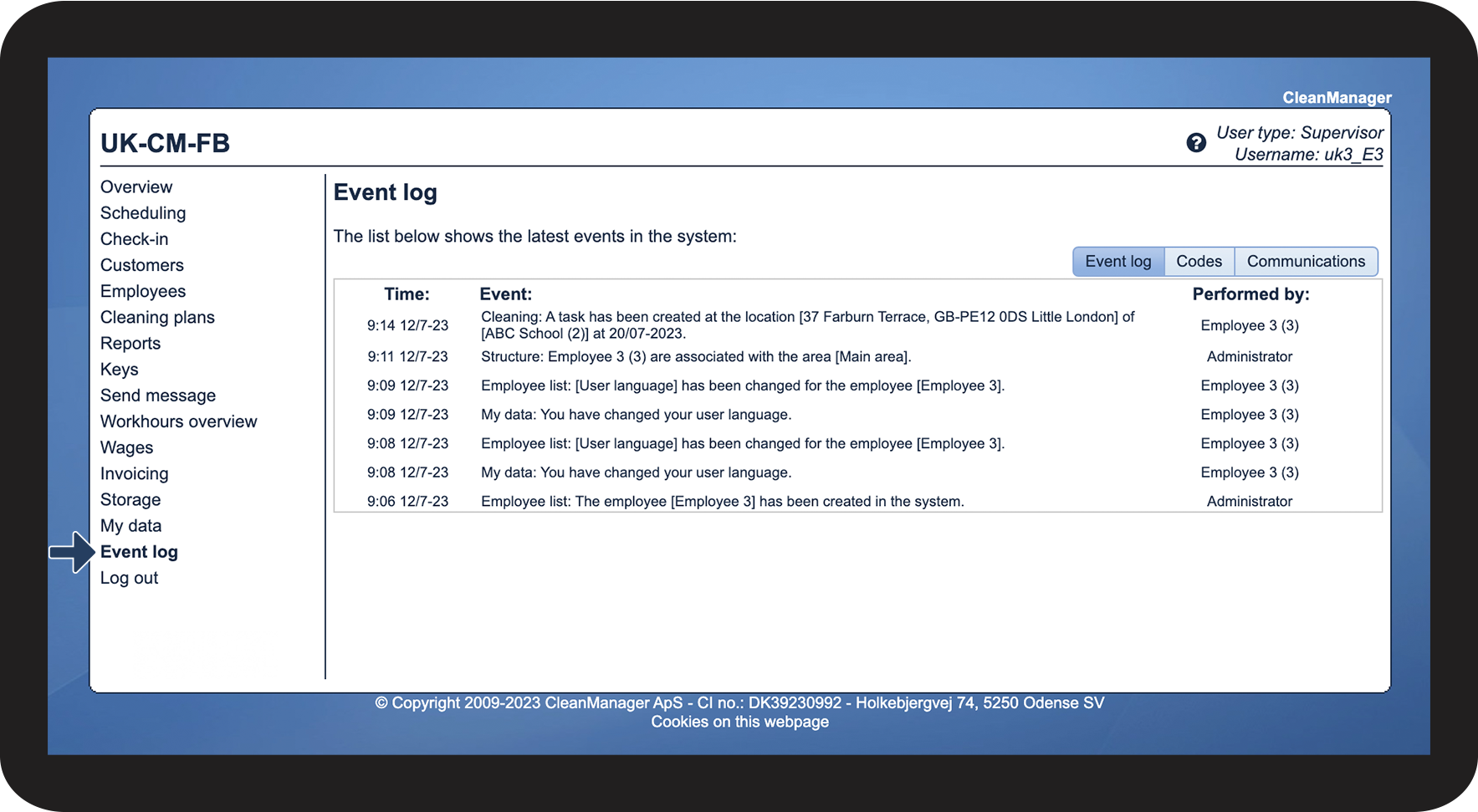
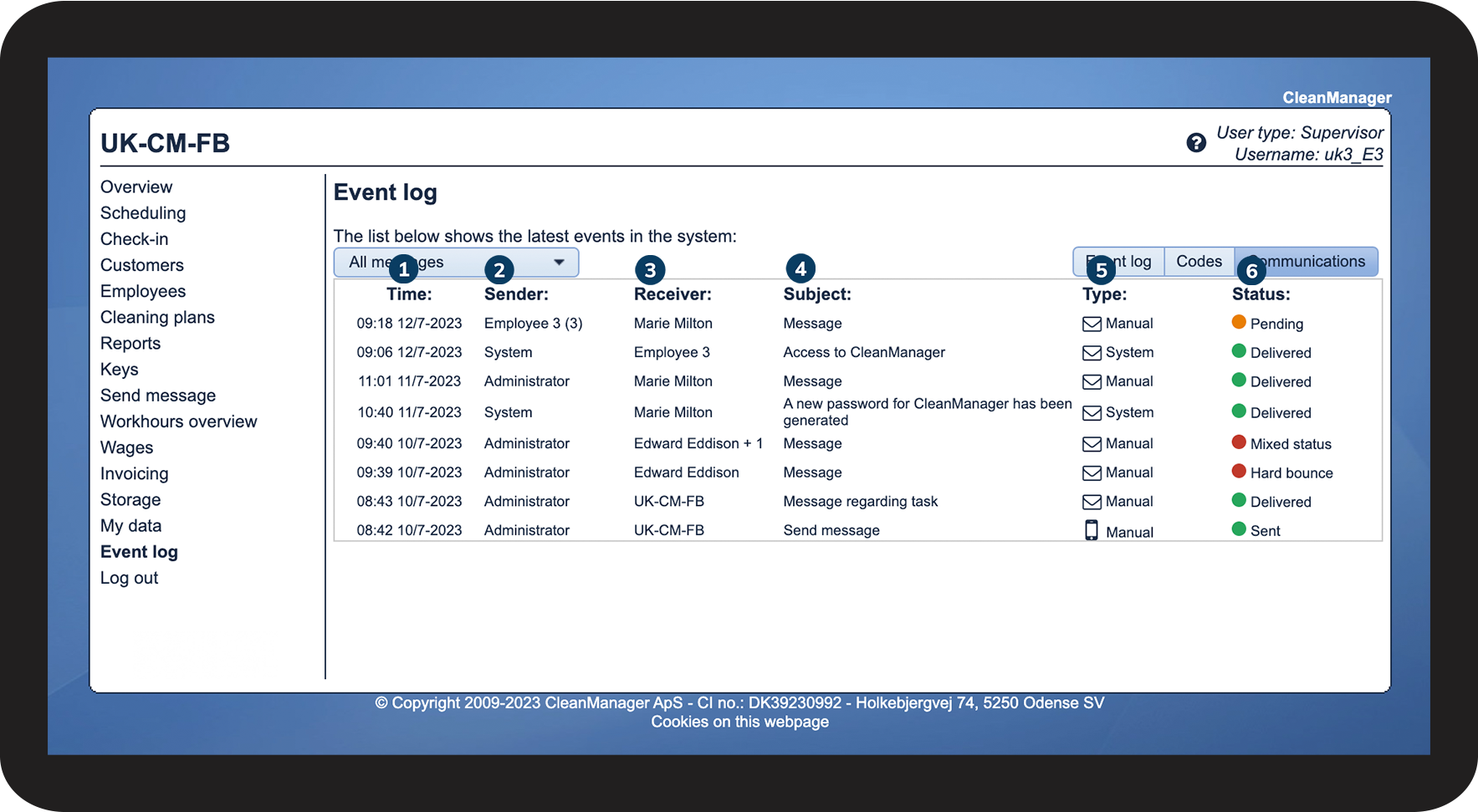
In the menu, go to Event log

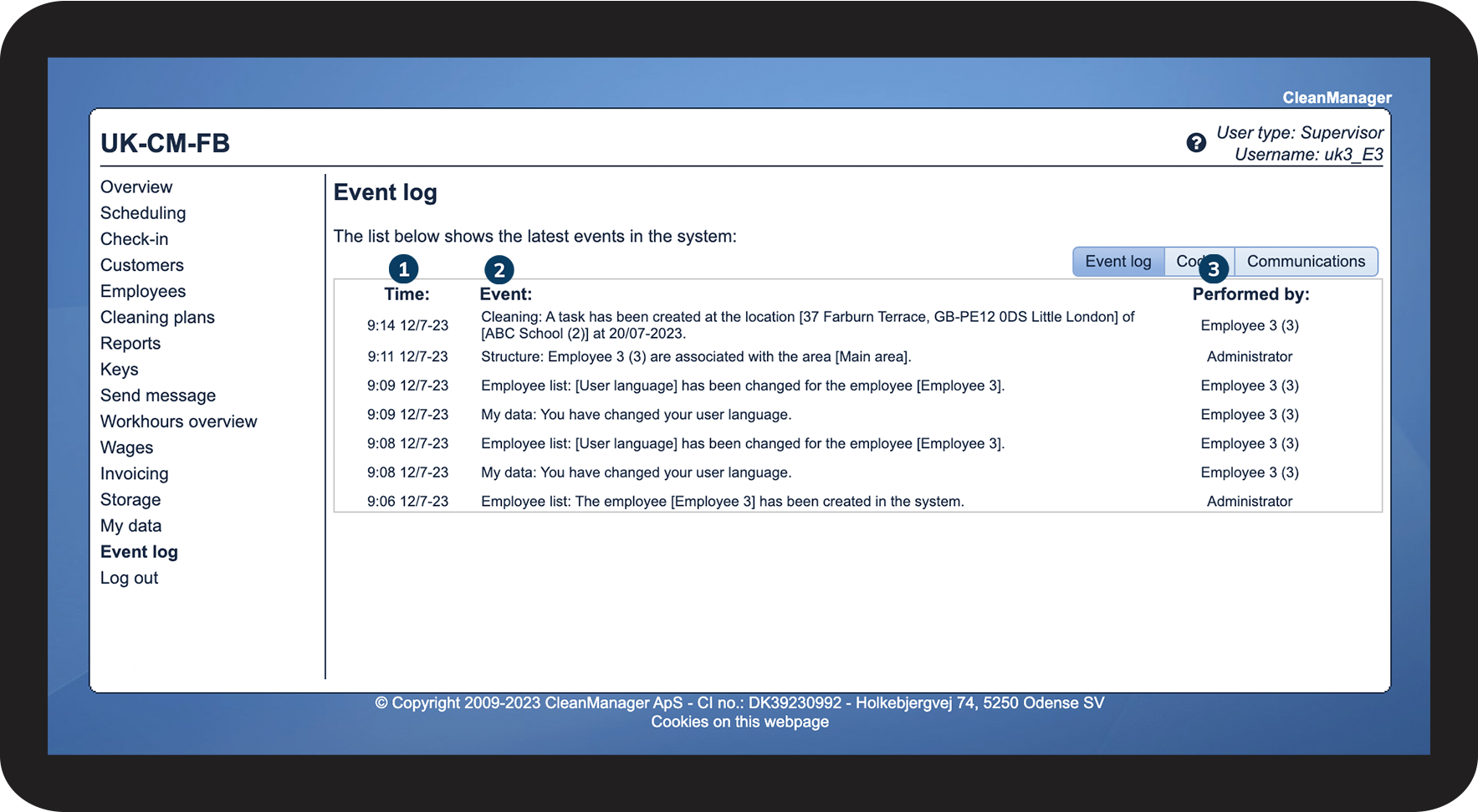
In the list, you can see the changes made in CleanManager
- Time: Time and date of the change made
- Event: Description of the change made
- Performed by: The Administrator, a supervisor, or an employee

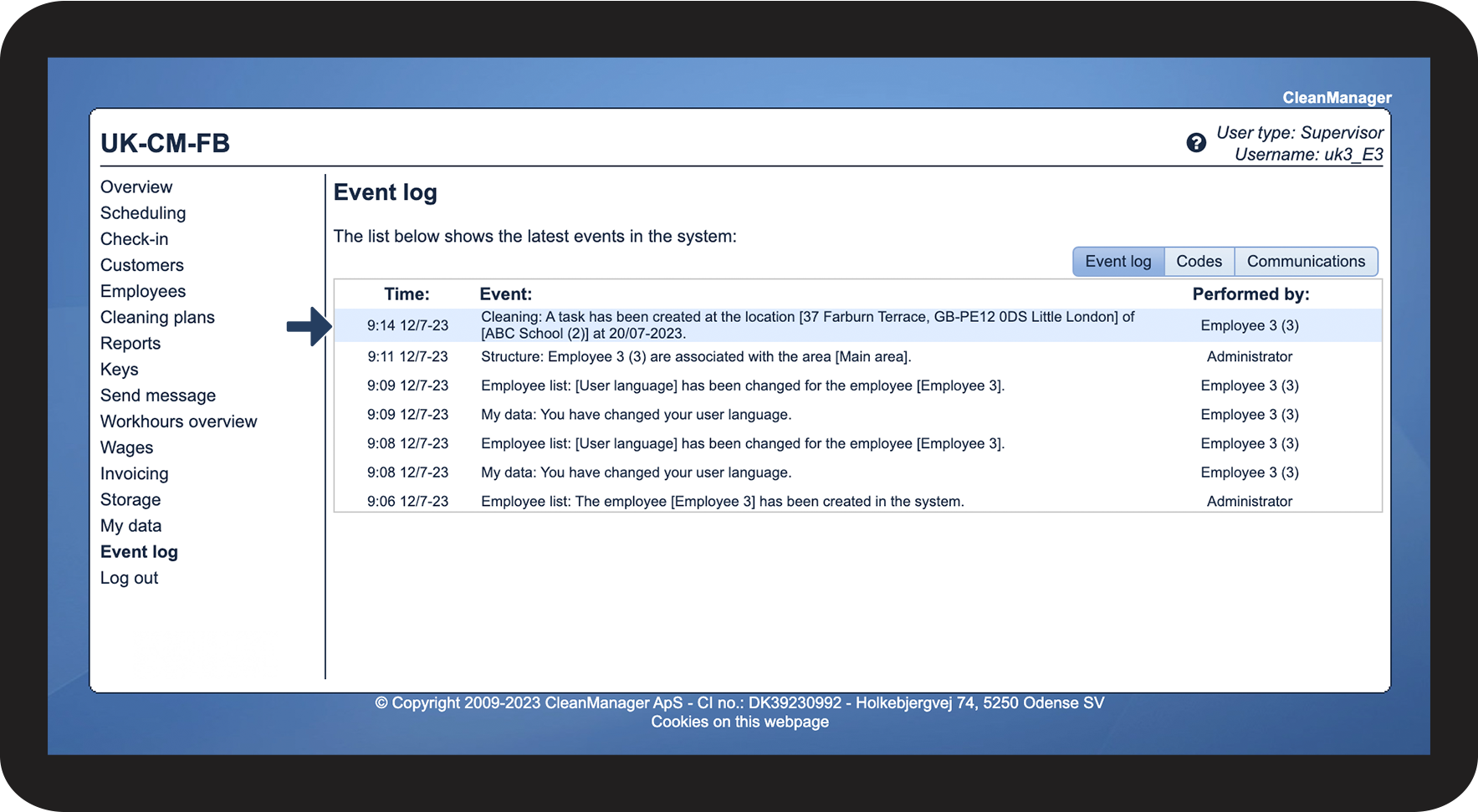
Click on an event, in this case, a task that has been removed at a customer

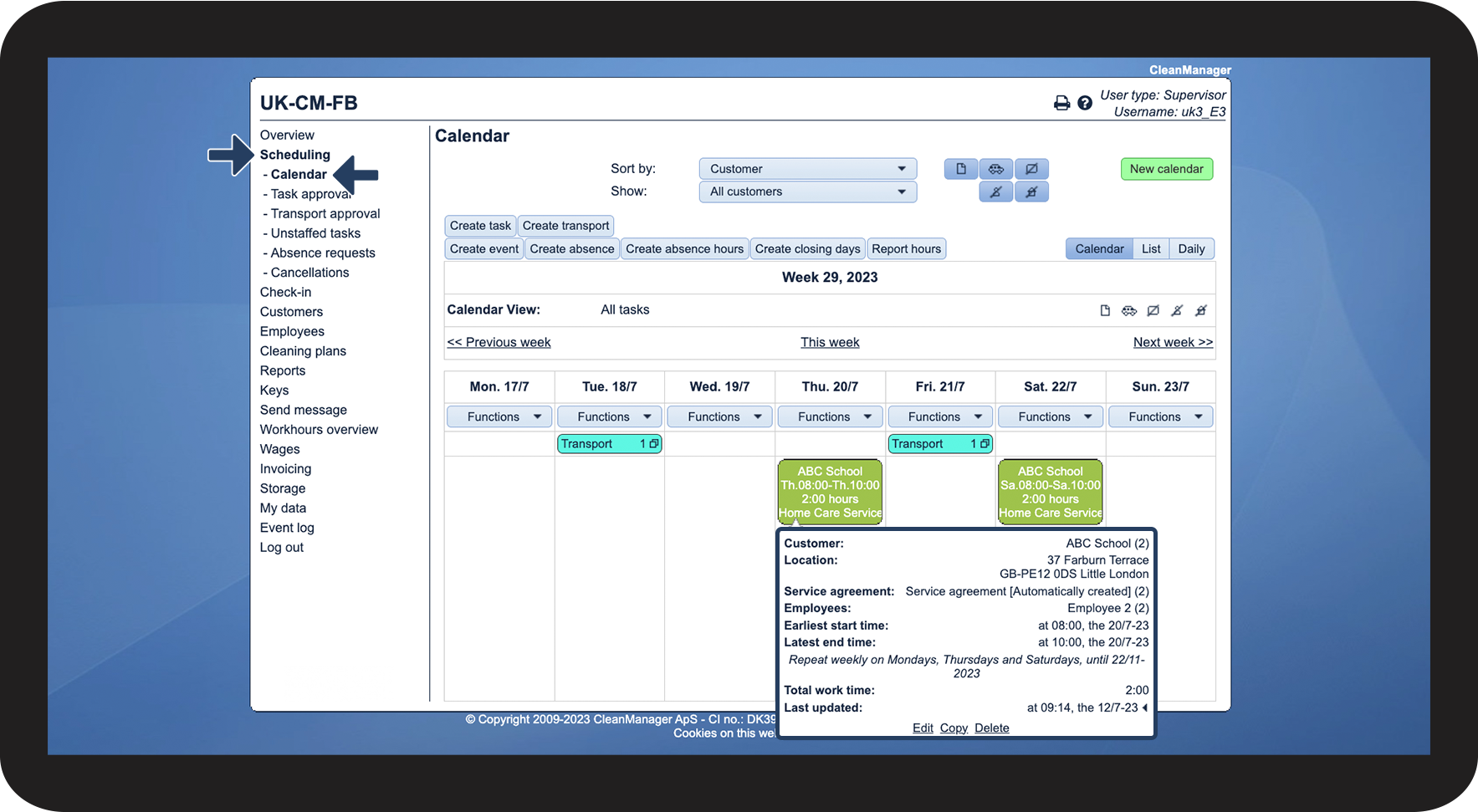
You will then be sent to the part of the system, where the change took place. In this case Scheduling > Calendar on the day the change has been made.
INFO:
A quick way to find the information you are looking for is to click on Ctrl + F (PC) or Command + F (Mac) to search in the browser.
By doing this, all results of your search will be shown in the event log.
This is how you can see if employees have accessed codes
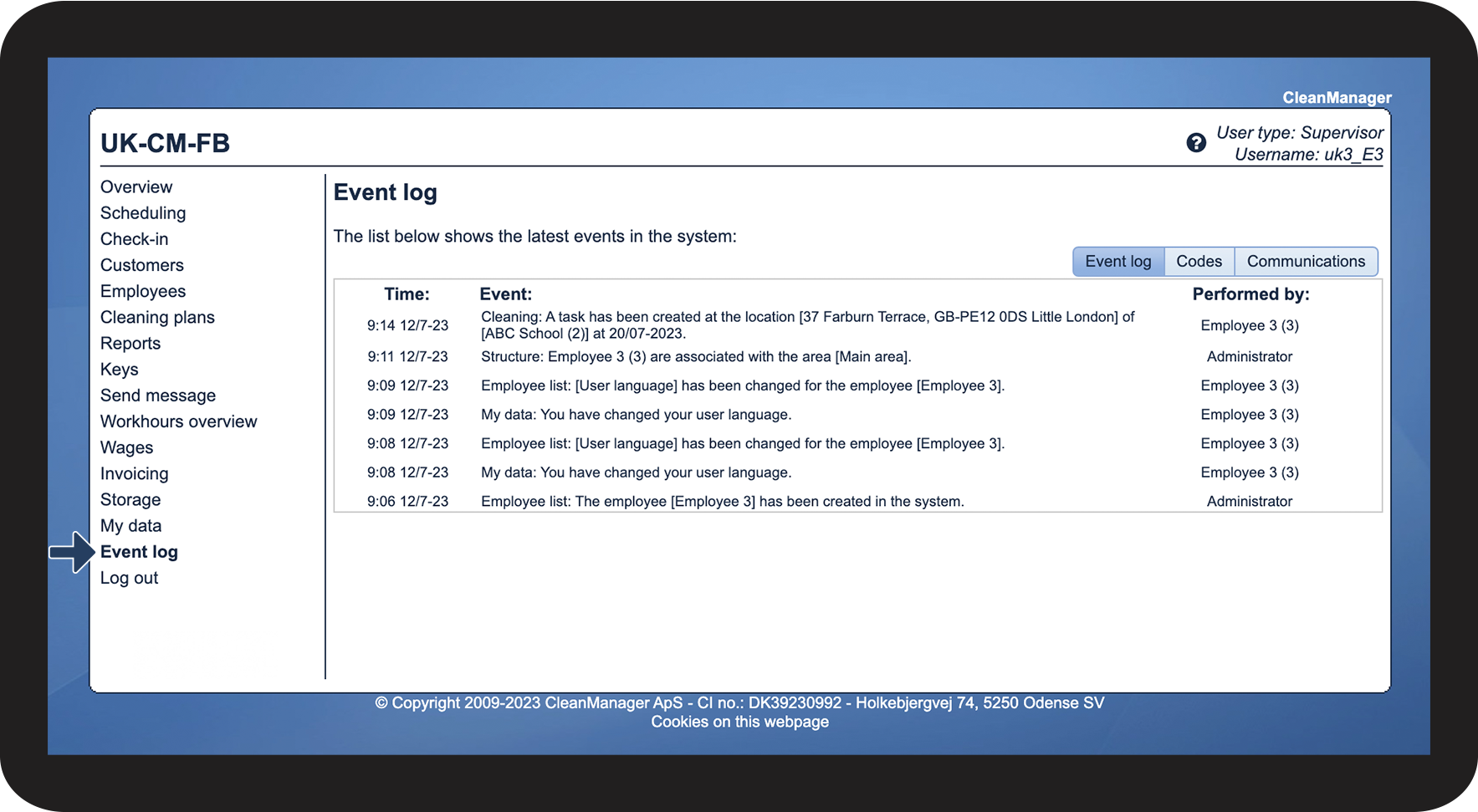
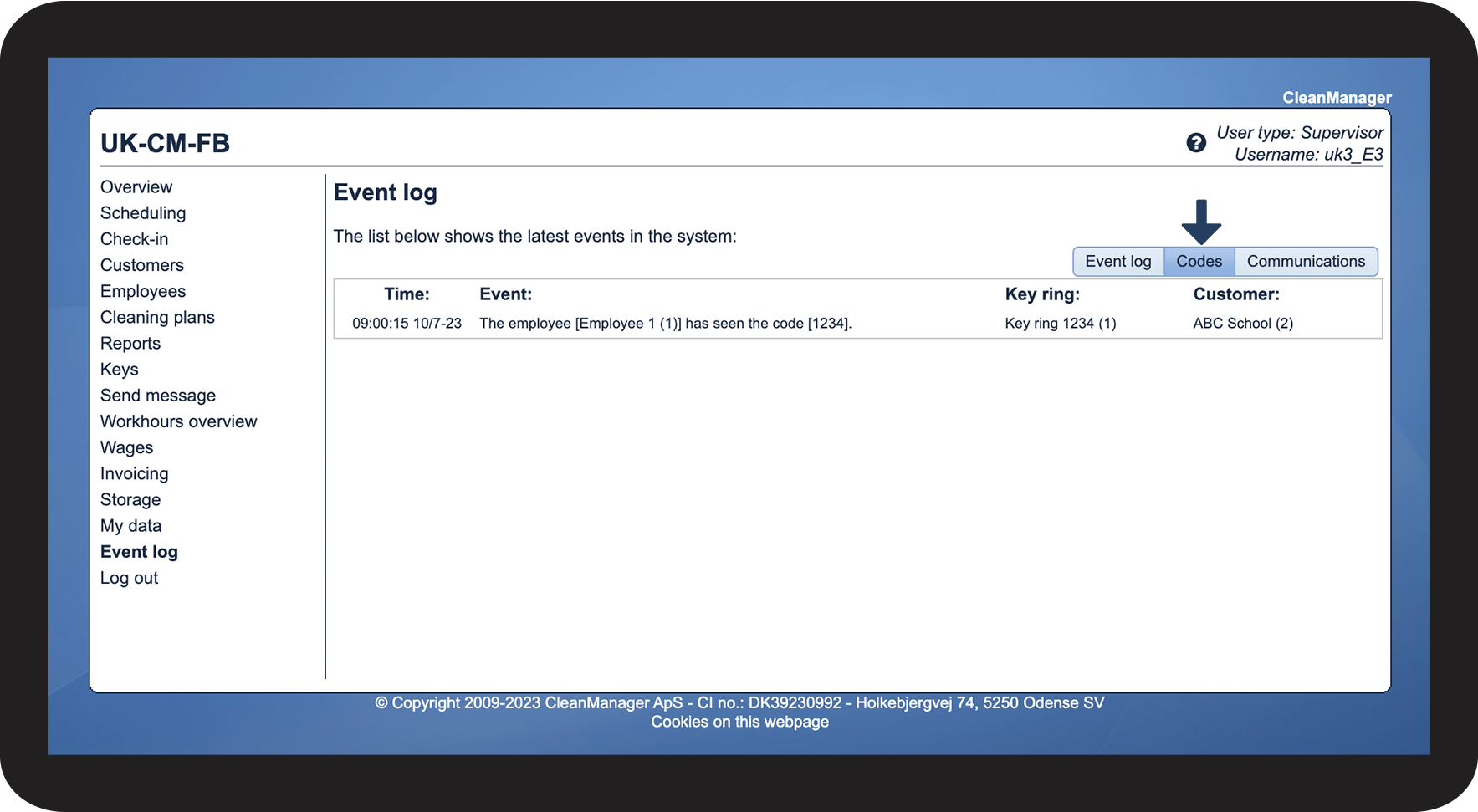
Click on Codes to see all events related to codes

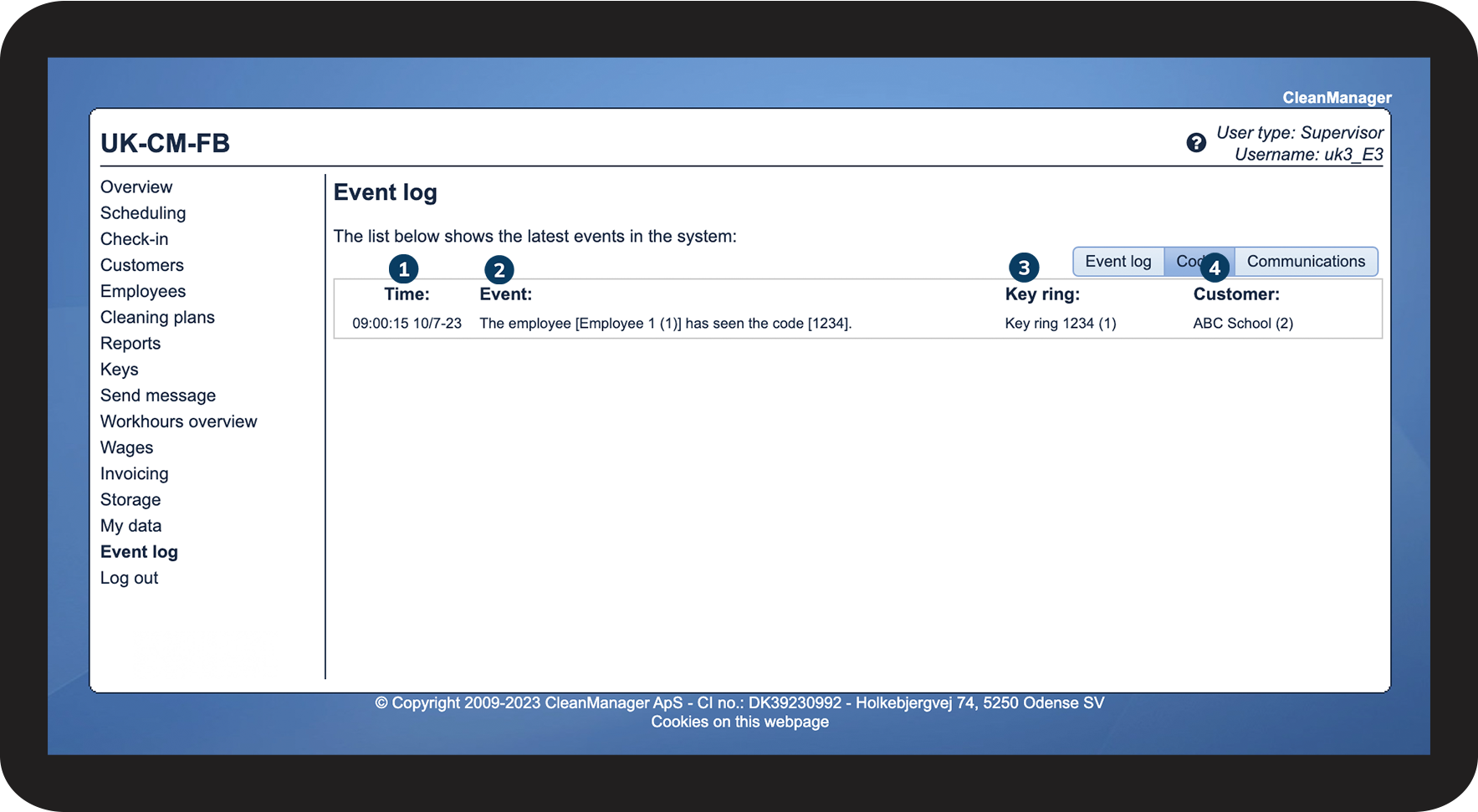
In the list, you will see events, where employees have accessed codes from customers
- Time: Date and time when the event occurred
- Event: Description of the event, as well as which employee has accessed the code
- Key ring: Which key ring has been accessed
- Customer: The customer to whom the key ring is assigned to

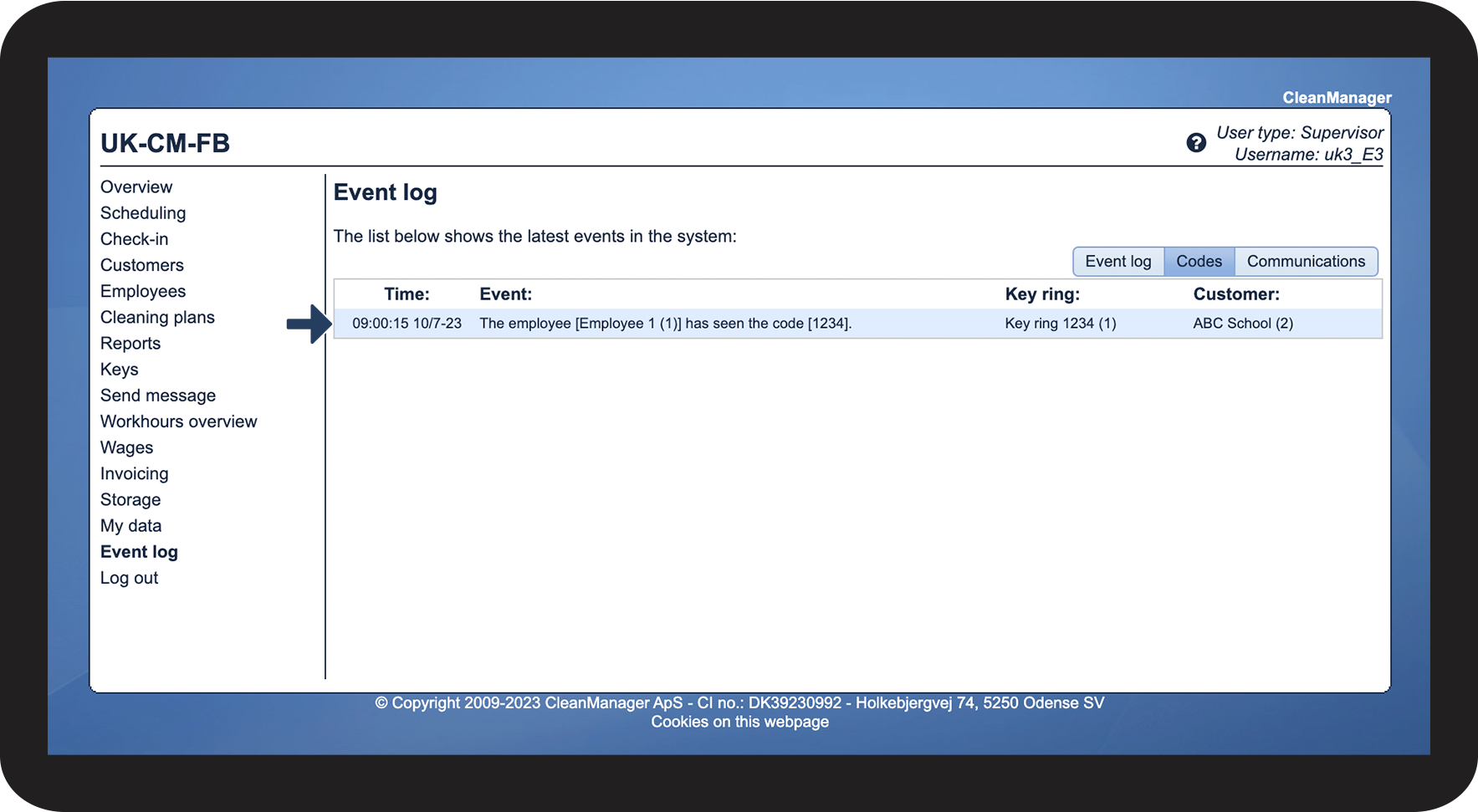
Click on an event to be sent to Keys > Overview
This is how you can get an overview of the messages that have been sent
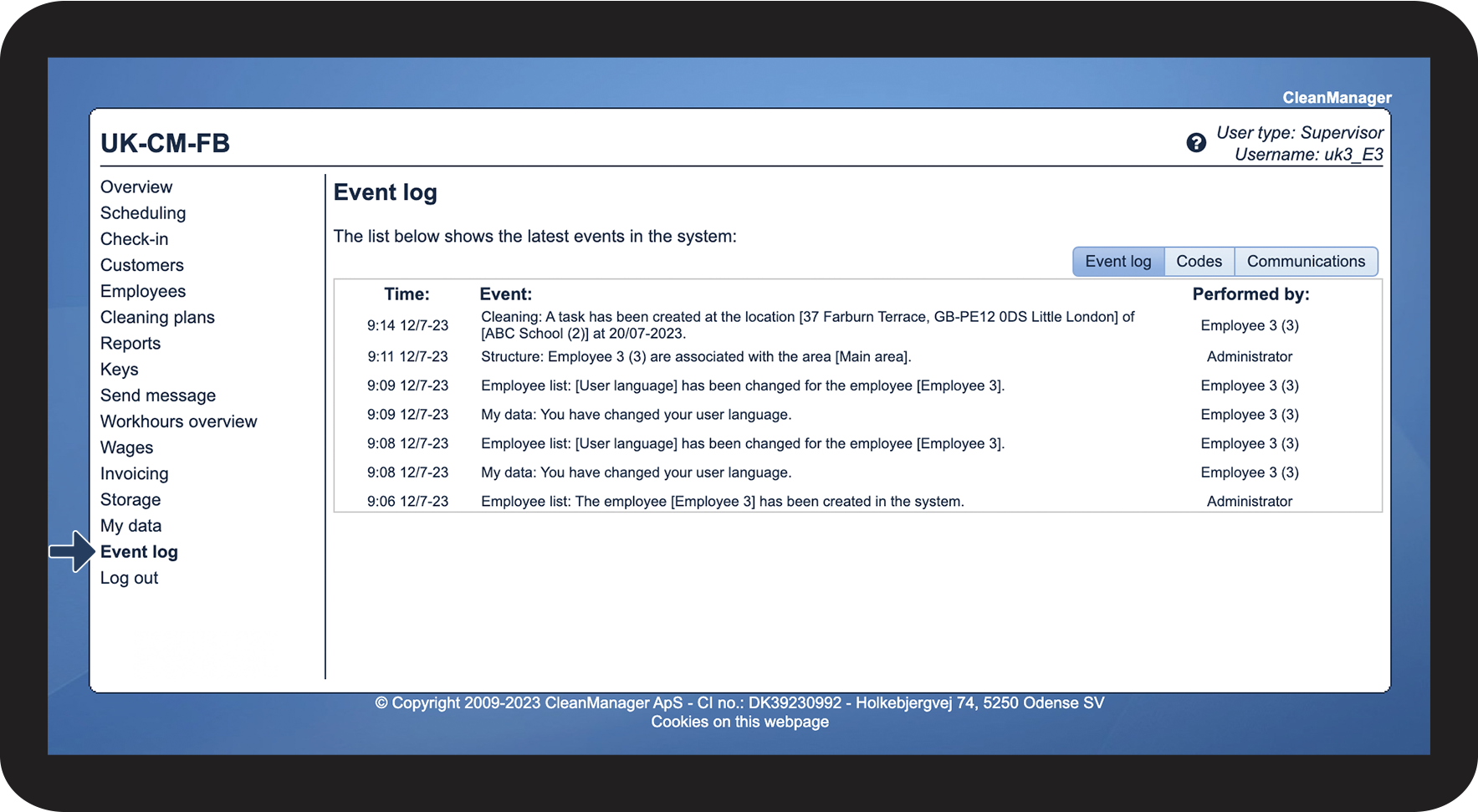
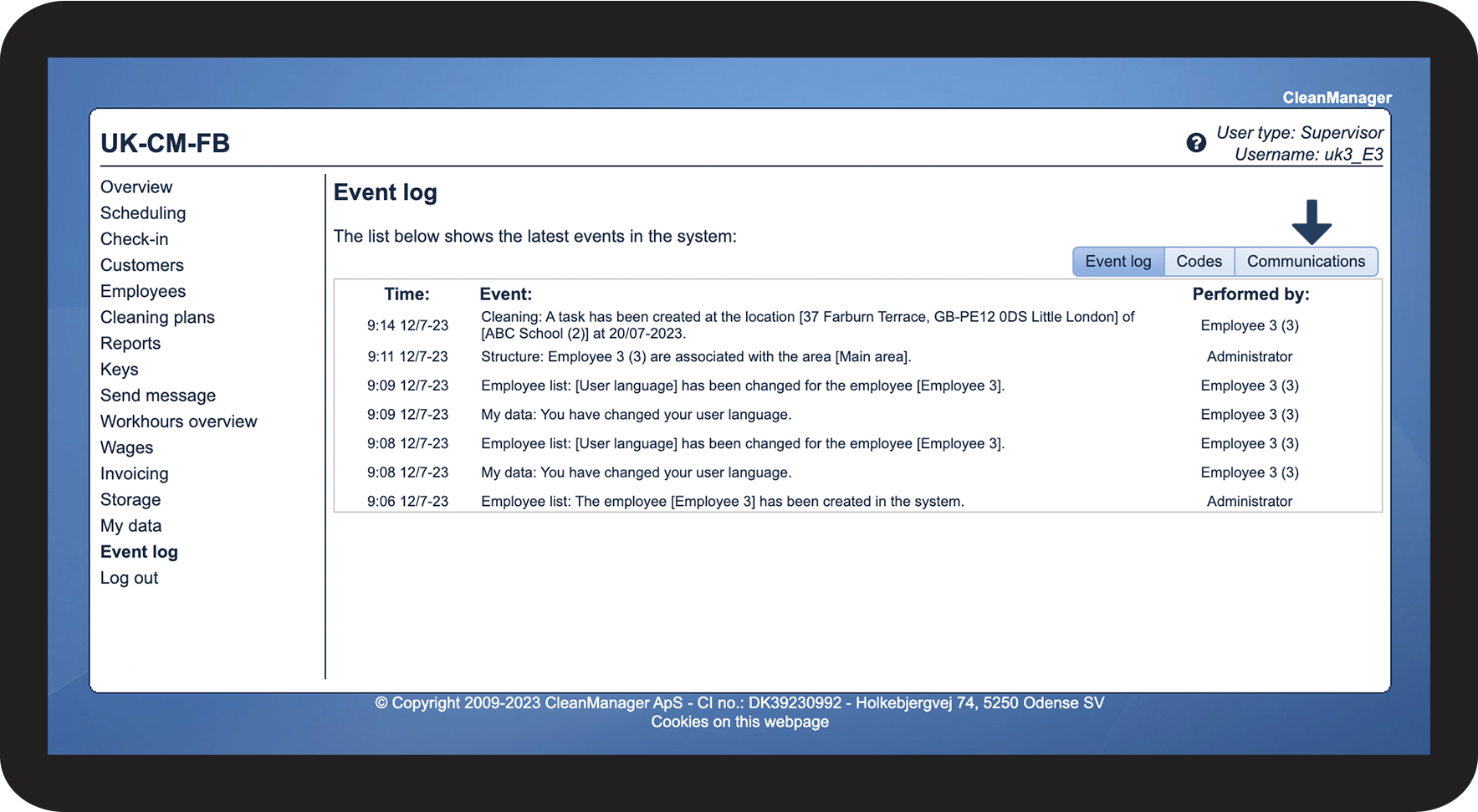
Click on Communications to see the e-mails and SMS sent from the system

In the list, you can see all events related to messages
- Time: Time and date when the message was sent
- Sender: The employee that sent the message
- Receiver: The name of the receiver. If you click on it, it will either show the e-mail address or the phone number of the receiver
- Subject: Description of the content of an automated message
- Type: Description of the way the message was sent (e-mail or SMS) and if it has been sent manually by a user or if it is an automated message from the system
- Status: Verification that the message is being delivered or has been received by the receiver

For a further explanation of the different status options, read the following table
Status when sending to a singular receiver
Sent
Delivered
Pending
Internal delivery error
An internal error has occurred in CleanManager, please contact the support for help
Blocked
The receiver has received the message but has actively chosen to block it
Spam
Your e-mail address has been registered as spam by the receiver
Deferred
External delivery error
An error on the receiver's side has prevented the message from being received. This could for instance be the case because there is a mistake in the e-mail address or in the phone number.
Hard bounce
A permanent error at the receiver's end, which prevents the deliverance of the message. This could be because the e-mail address does not exist or because the receiver's e-mail server has blocked all deliverances
Soft bounce
A smaller error, which prevents the message from being received. This could be caused by different things, for instance, that the mailbox is full, that the e-mail is too big, that the e-mail has been blocked by the receiver's anti-spam or antivirus system, etc.
Unsubscribed
Invalid e-mail
The receiver's e-mail address is not correct
Note:
When a red error notification is shown, the receiver did not receive the message, and you have to send it again after the error has been corrected.
Mixed status
Mixed status
The message has been sent to most of the receivers, but to some, the message could not be sent (see the table above for possible red error messages)