Skip to content
English
  • There are no suggestions because the search field is empty.

Event log for employees

How do I see which changes have been made in my employee account?

If you have access to CleanManager, then you have the option to see which changes have been made that could have an impact on your work.

The event log only showcases a limited amount of data. This means, that if many changes have been made to your tasks and to your system, then there is a chance, that you will not be able to see all changes when going too far back in time. 


In this article, you will learn how to access your event log:


This is how you access your event log

number_1.png
Log into your employee account
 
number_2.png
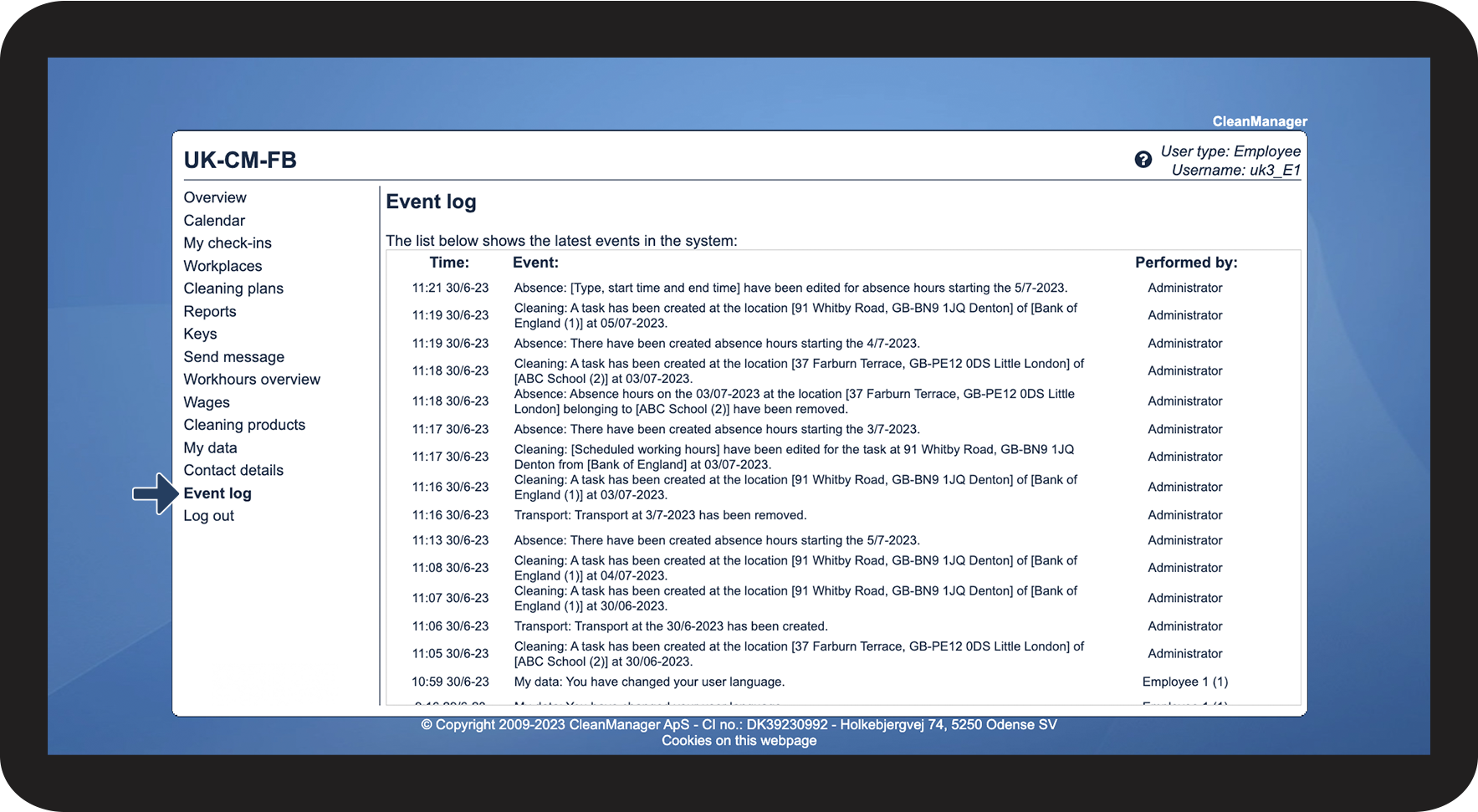
In the menu, click on Event log

1.png

number_3.png

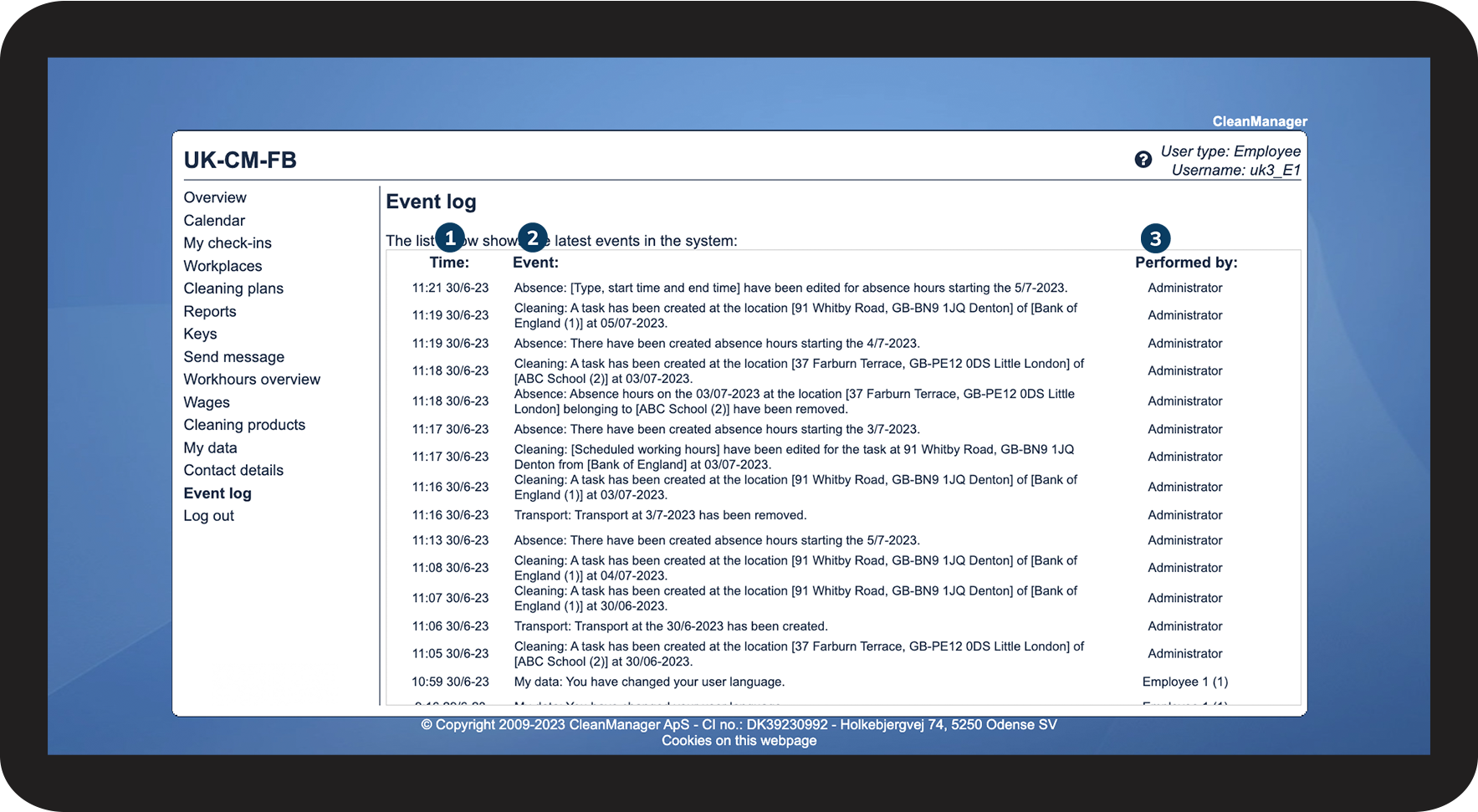
In the list, you see changes made in CleanManager, which have an effect on you

 
  1. Time: Time and date of the made change

  2. Event: Description of the made change

  3. Performed by: You, the responsible administrator or the supervisor

2.png

number_4.png

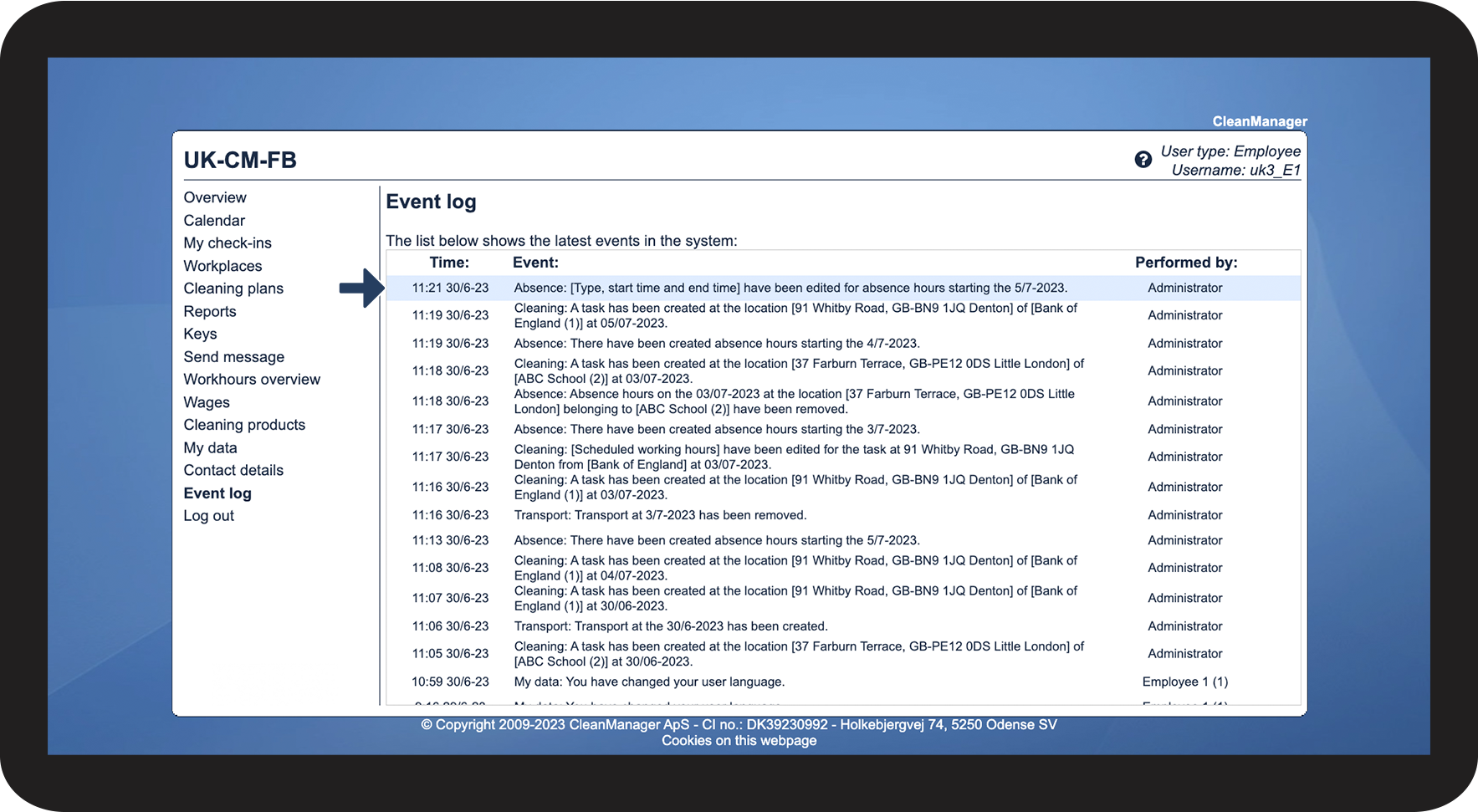
Click on an event, in this case, absence hours have been edited

3.png

number_5.png

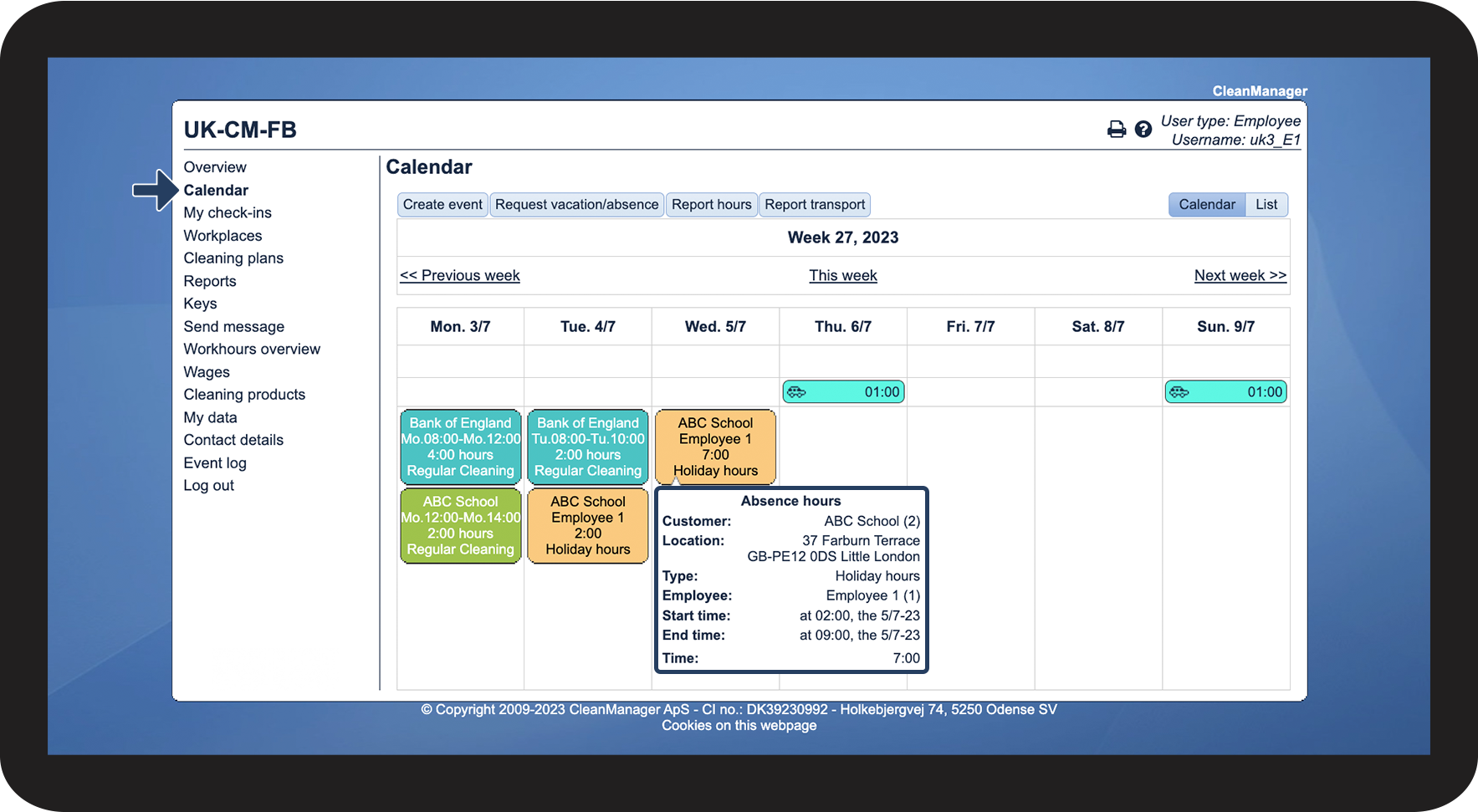
You will then be sent to the part of the system, where the change was made.

In this example, you will be sent to Calendar and the date on which the absence hours have been edited.

4.png


INFO:

A quick way to find the information you are looking for is to click on Ctrl + F (PC) or Command + F (Mac) to search in the browser.

By doing this, all results of your search will be shown in the event log.