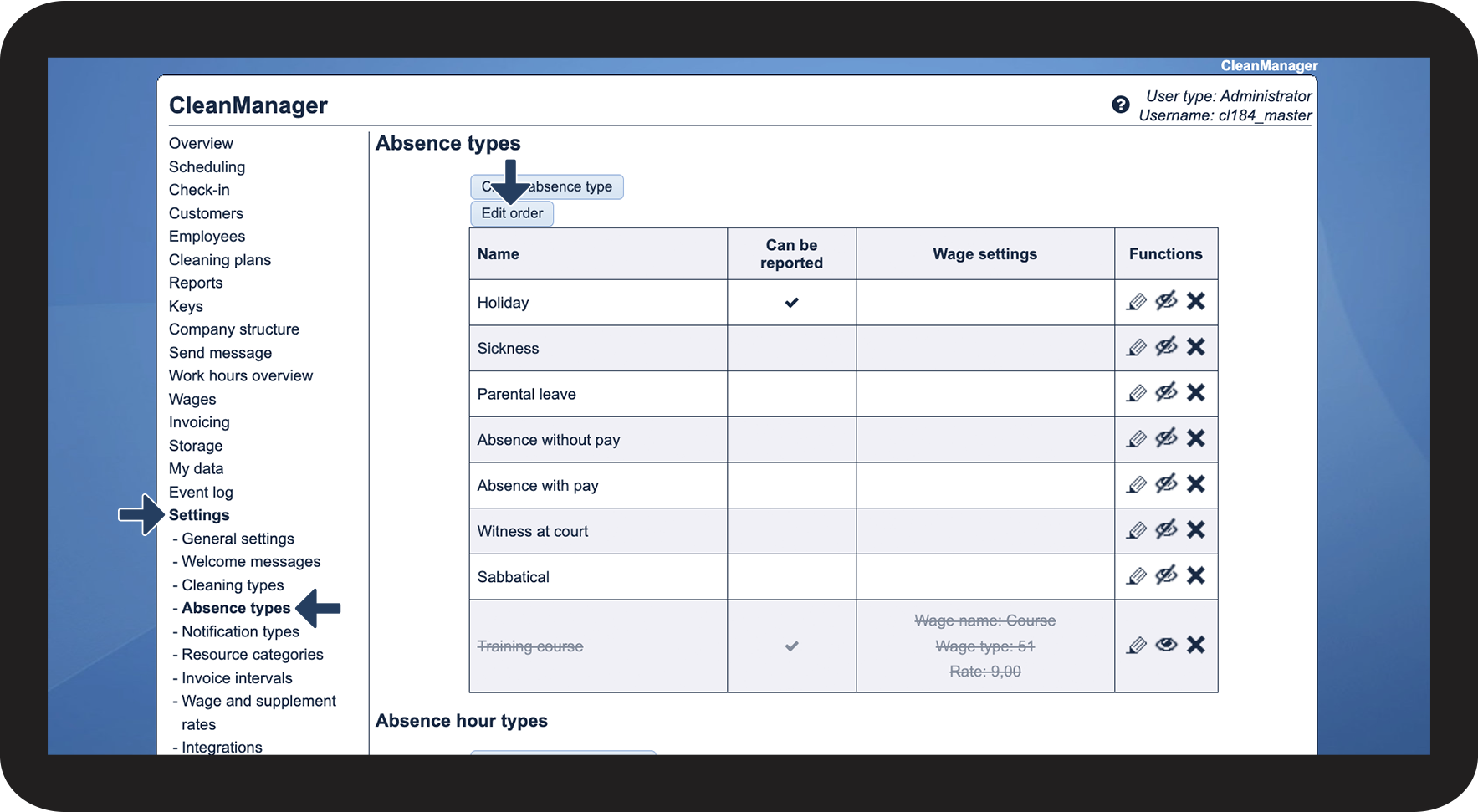
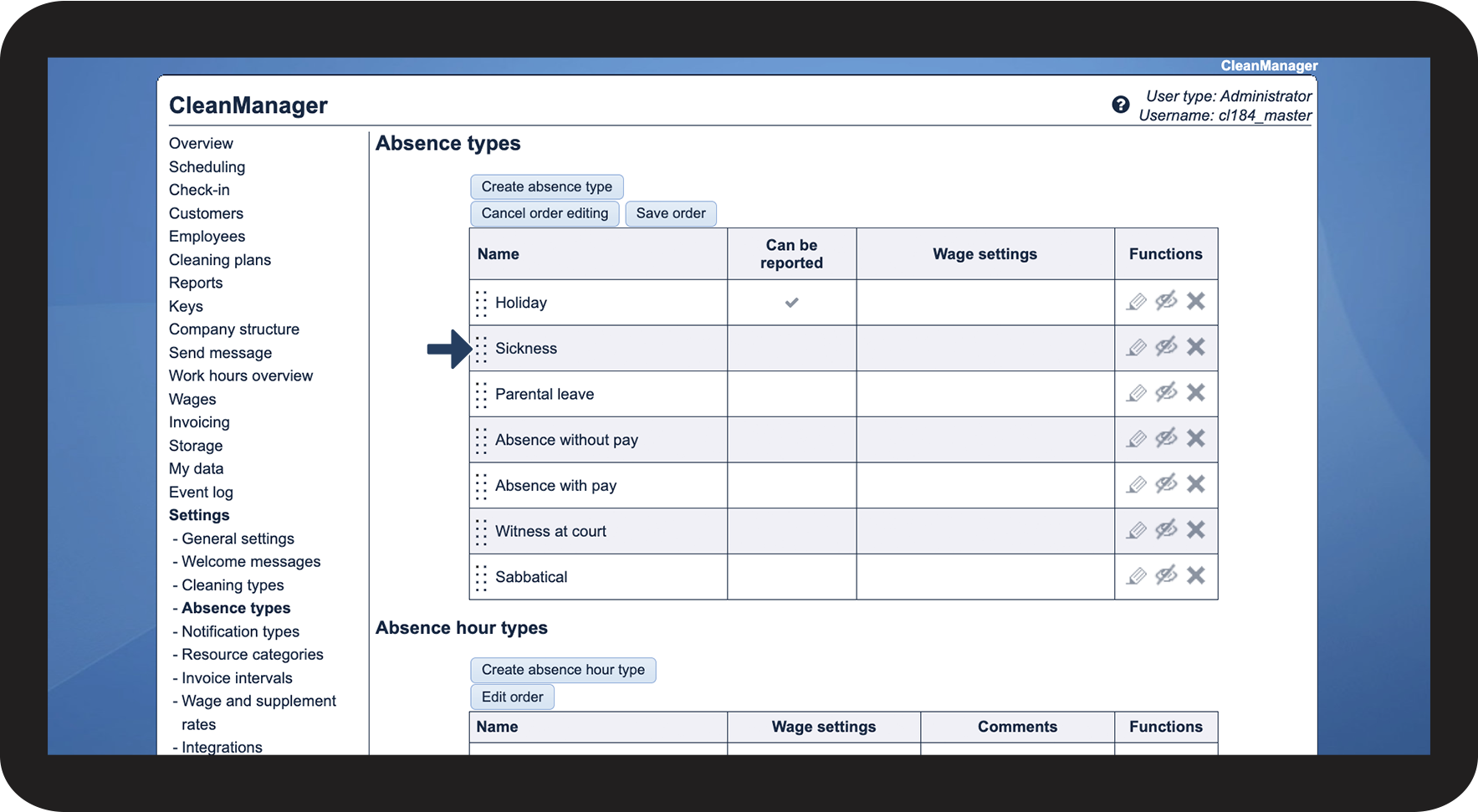
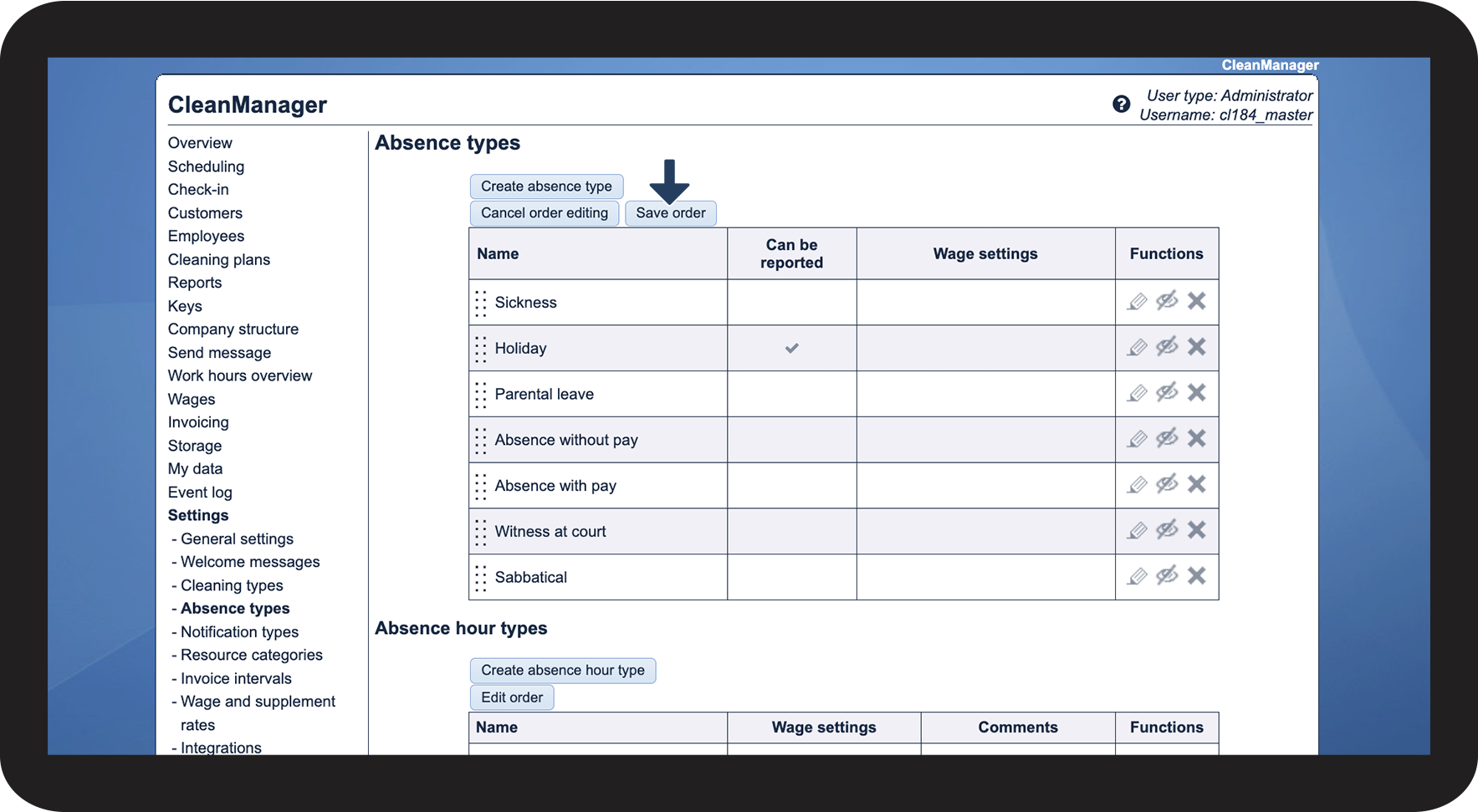
How do I edit the order of absence types?
Do you have absence types that are more in use than others? If so, you can change the order of your absence types, so the most used are at the top of your list. The absence types will then appear first on the list when you plan absence in the calendar, as well as when your employees request absence through the app.
In this article, you will learn how to edit the order of your absence types:
This is how you edit the order of your absence types