Skip to content
English
  • There are no suggestions because the search field is empty.

Editing the order of absence hour types

How do I edit the order of absence hour types?

Do you have absence hour types that are more in use than others? If so, you can change the order of your absence hour types, so the most used are at the top of your list. The absence hour types will then appear first on the list when you register absence in the calendar.


In this article, you will learn how to edit the order of absence hour types


This is how you edit the order of absence hour types

number_1.png

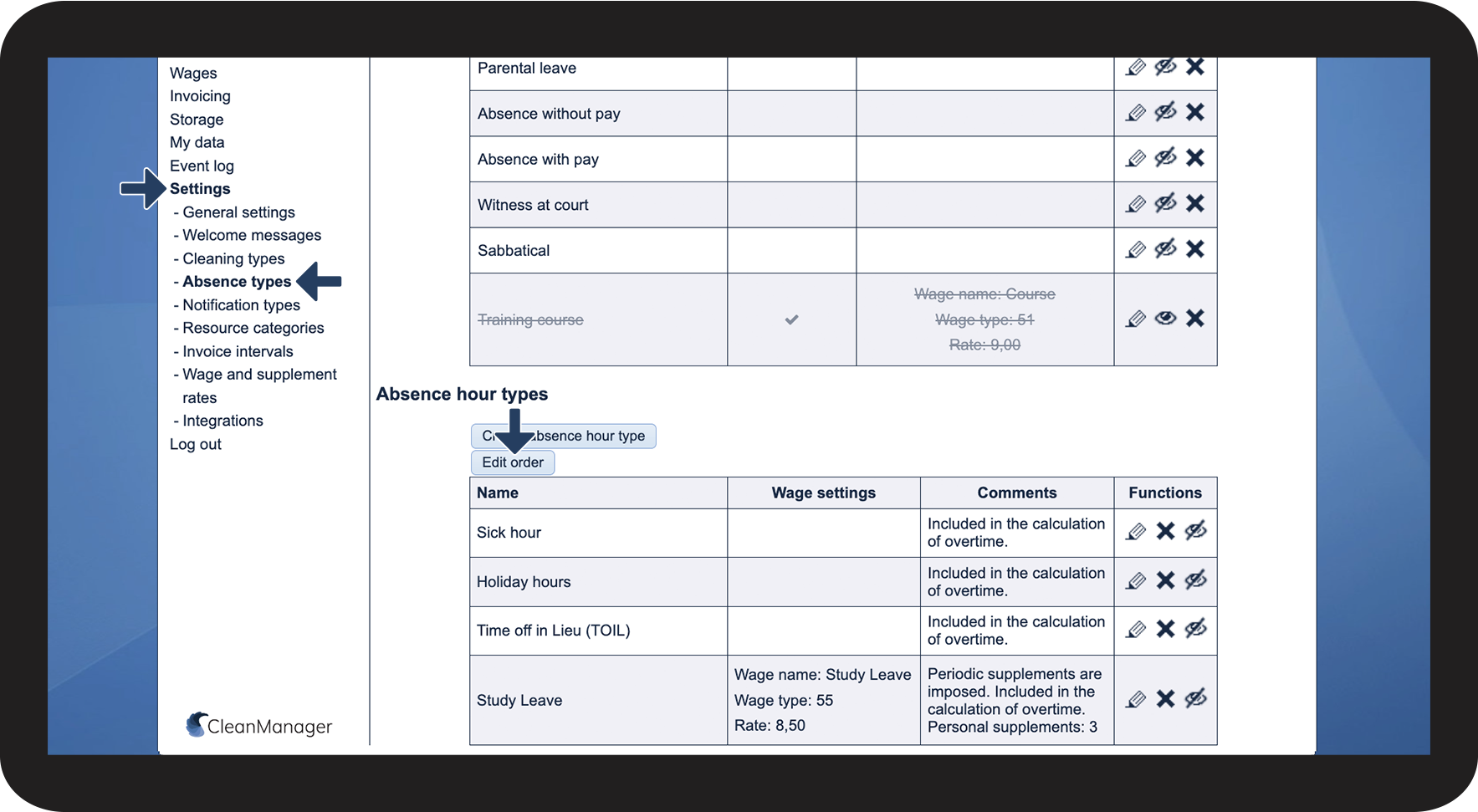
In the menu, go to Settings > Absence hours


In the section Absence hour types, click on Edit order

1.png

number_2.png

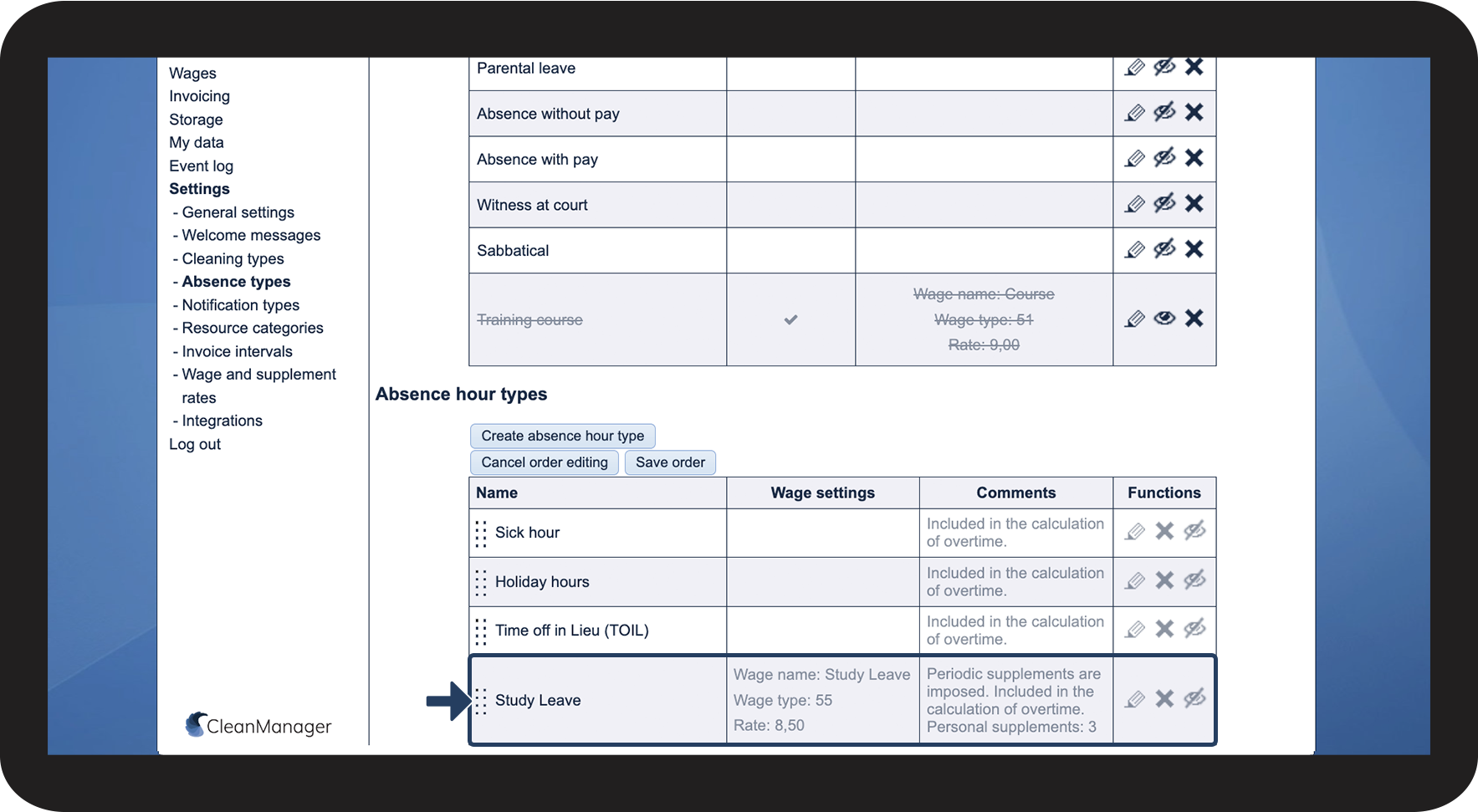
You can now drag and drop the absence hour type by clicking on the row, holding the left-mouse-button down, and then moving the absence hour type to the desired position

2.png

number_3.png

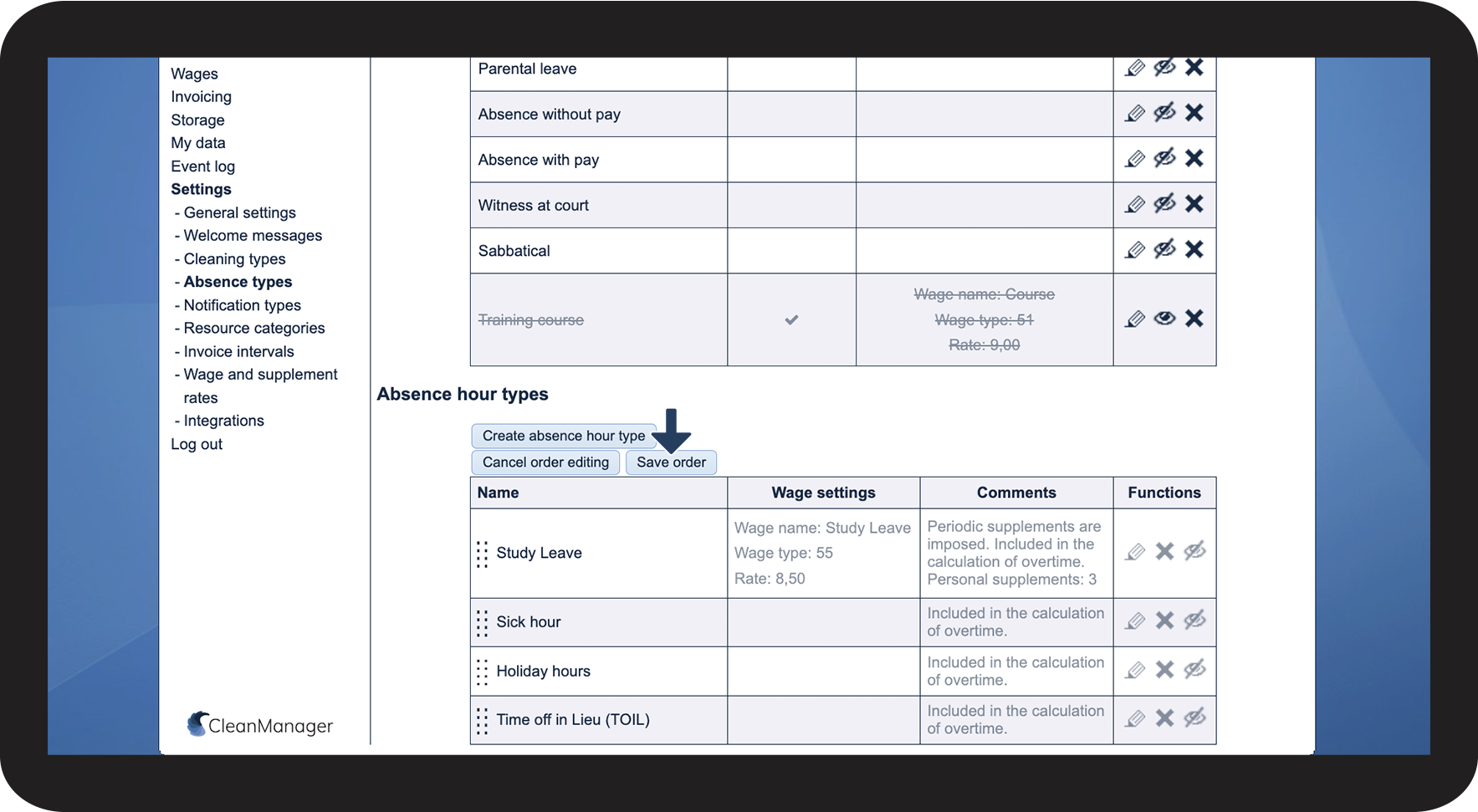
Finally, click on Save order

3.png