
How do I edit and hide my supplements?
In CleanManager, you can edit and hide supplements to ensure that your employees are paid correctly.
Editing
Each supplement can be edited in terms of name, wage type, and rate.
Certain supplements can be edited to include a time interval for when the supplement should be applied. This can be used to set up supplements based on seniority, where a certain rate should be applied after 12 months of employment.
Hiding
You can hide supplements if they should no longer be included in the wage export.
By doing this, personal supplements can no longer be activated for employees in your employee list or for absence hour types and cleaning types. Special supplements cannot be activated on cleaning types either.
In this article, you will learn how to edit and hide supplements:
This is how you edit a supplement

 next to the supplement you want to adjust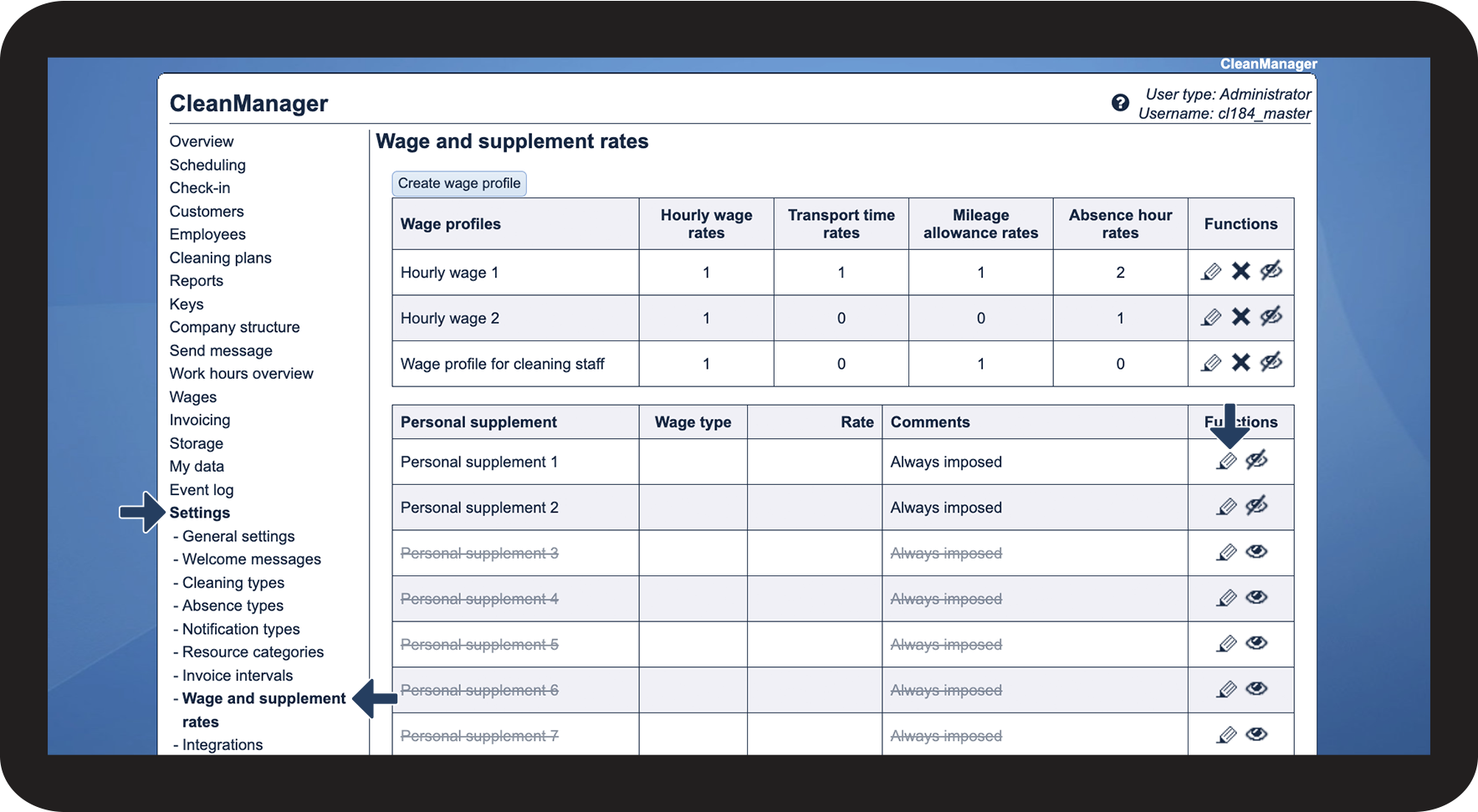

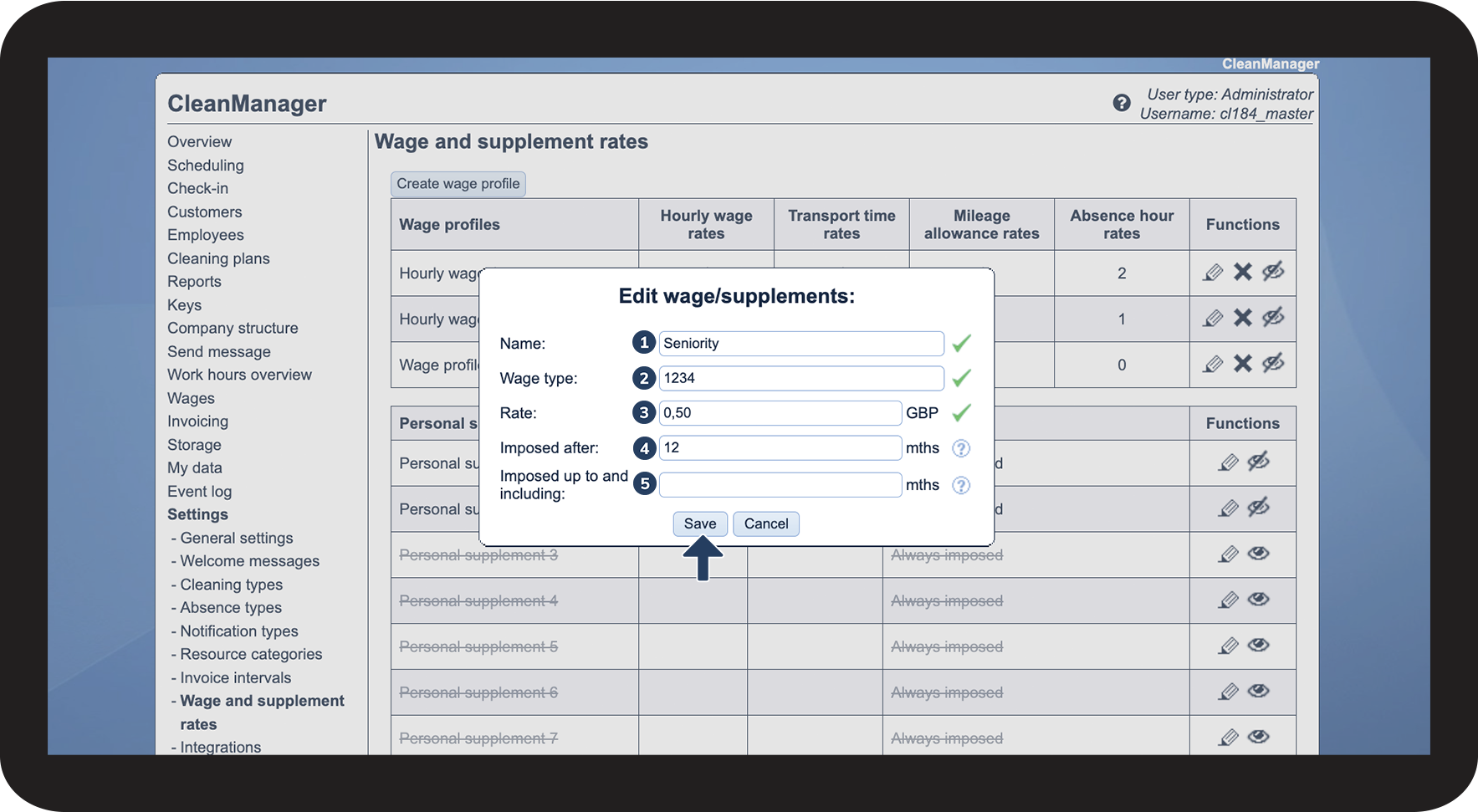
NOTE:
For a Personal Supplement to be activated, it needs to be ticked off at the employee, as well as on the cleaning type (and/or the absent hour type). Read more here: Introduction to cleaning types and Editing absence hour types.
This is how you hide a supplement
Use the hide function to exclude a supplement rate from the wage calculation, wage export, and cleaning types.

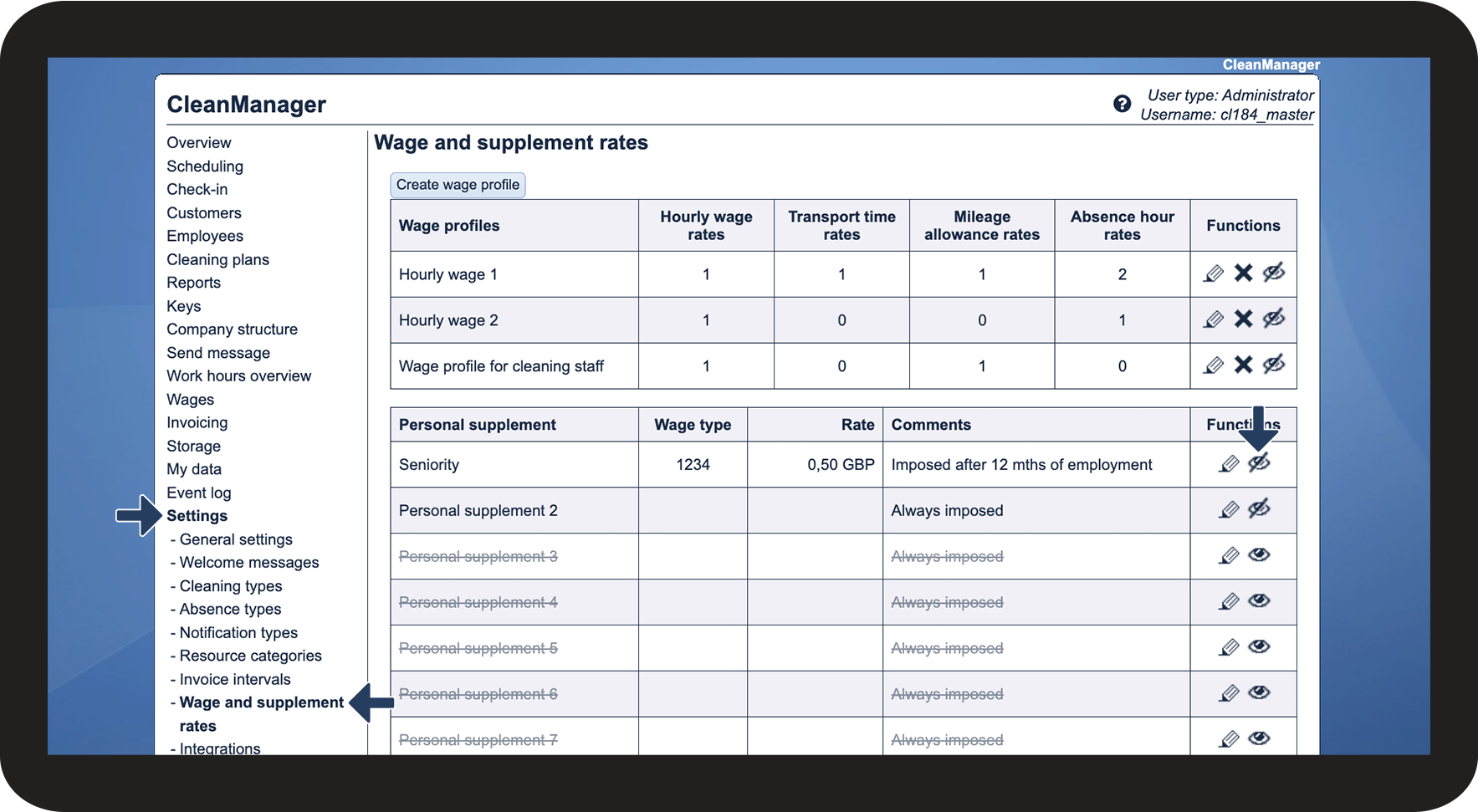
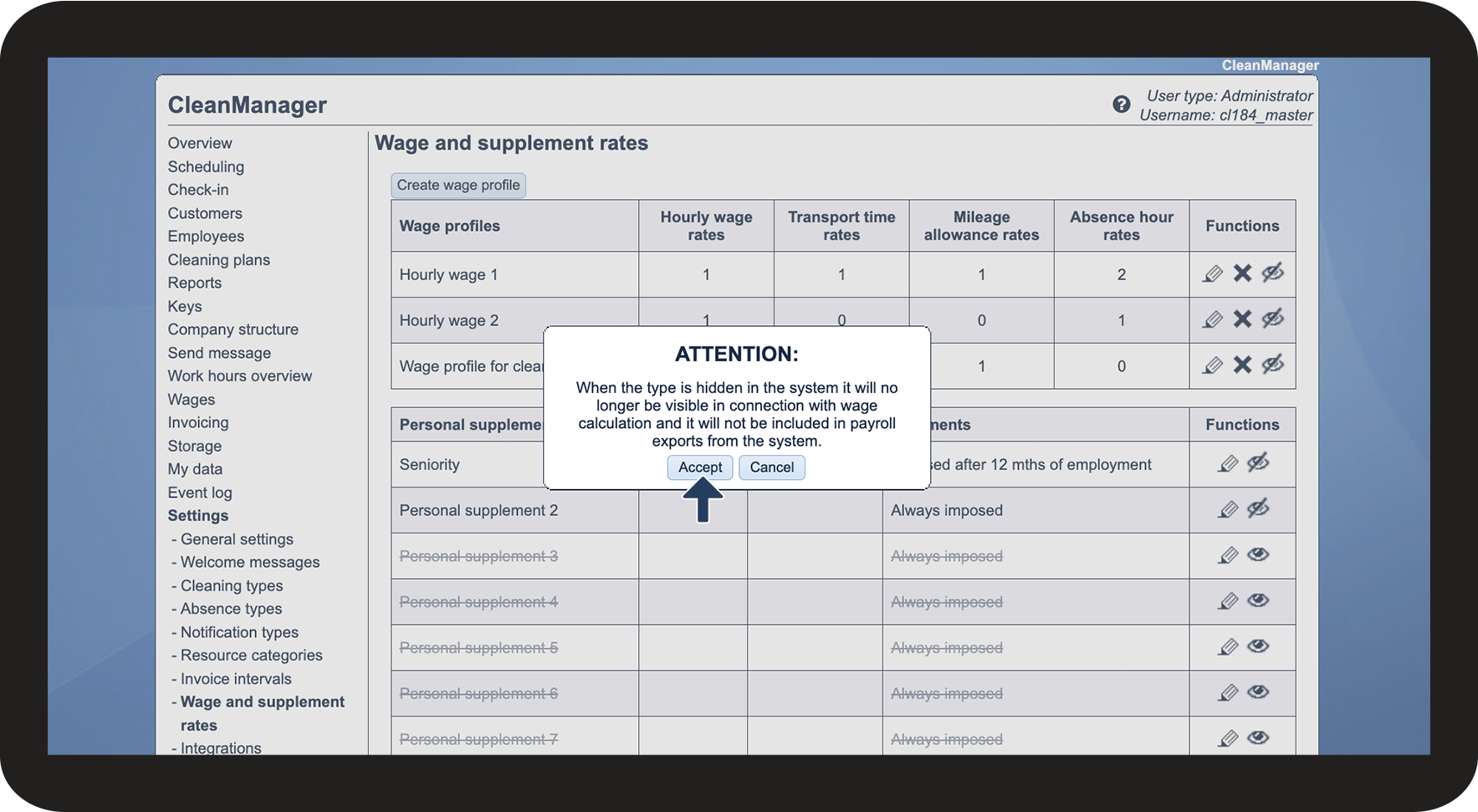

 to reactivate it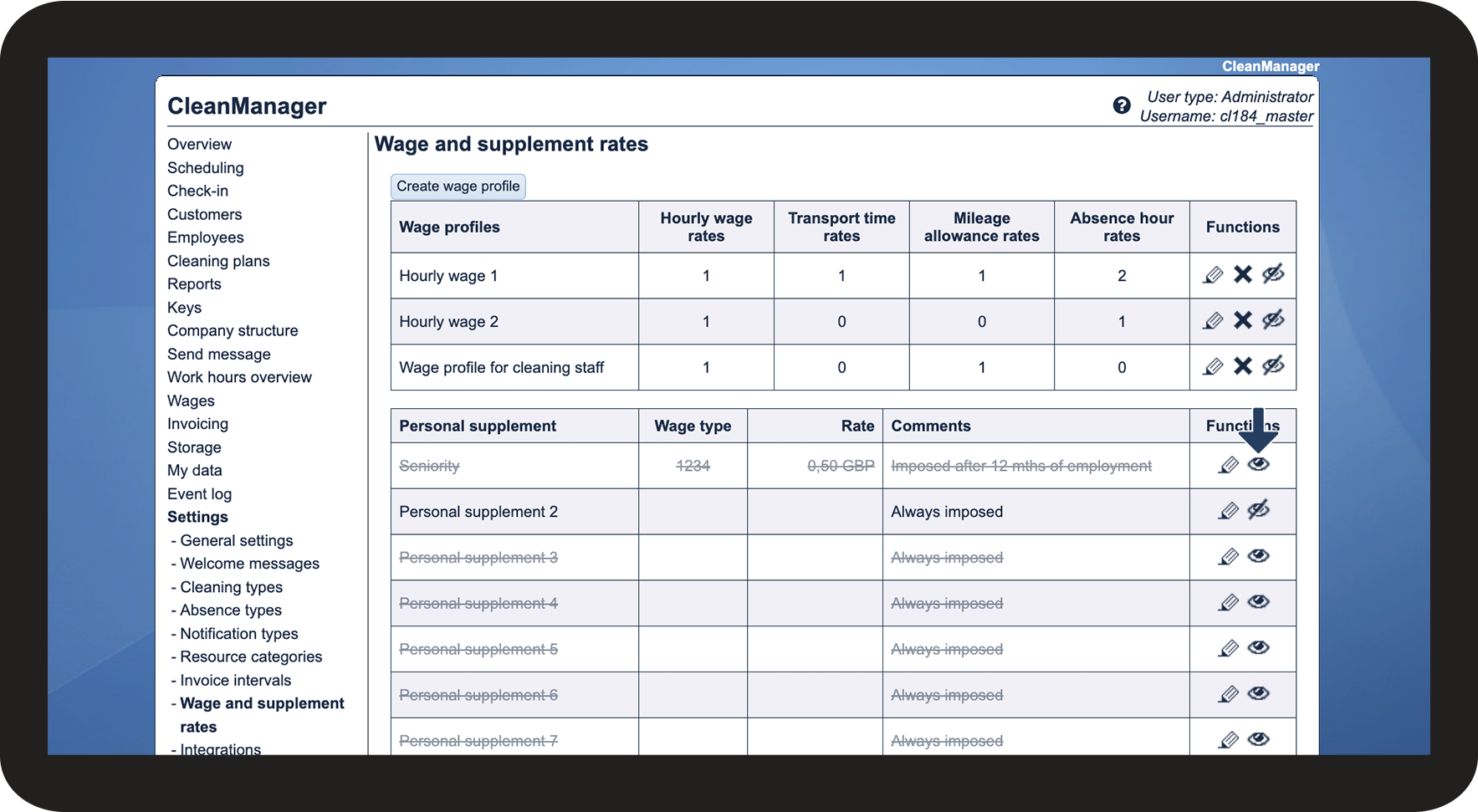
INFO:
By hiding a supplement, it can no longer be activated for e.g. employees, and it will not be included in the wage calculation or wage export.
If a supplement is shown again, it will once again be active for the employees, cleaning types, and/or absence hour types who had it activated prior to it being hidden.