How do I delete absence types?
Absence types that are not relevant to your day-to-day activities can be deleted from your system. This way, you can manage your absence types so you will only see a list of applicable absence types when you register absence in your calendar.
NOTE:
An absence type can only be deleted from the system if it has not been used to register absence in the calendar.
If it is in use in the calendar, you would have to remove the absence type from the calendar for all employees in order to delete it. However, we do not recommend this as deleted absence cannot be restored.
Instead, you have the option of hiding the absence type, so it can no longer be selected in the calendar. Read more about that in the following article: Hiding absence types
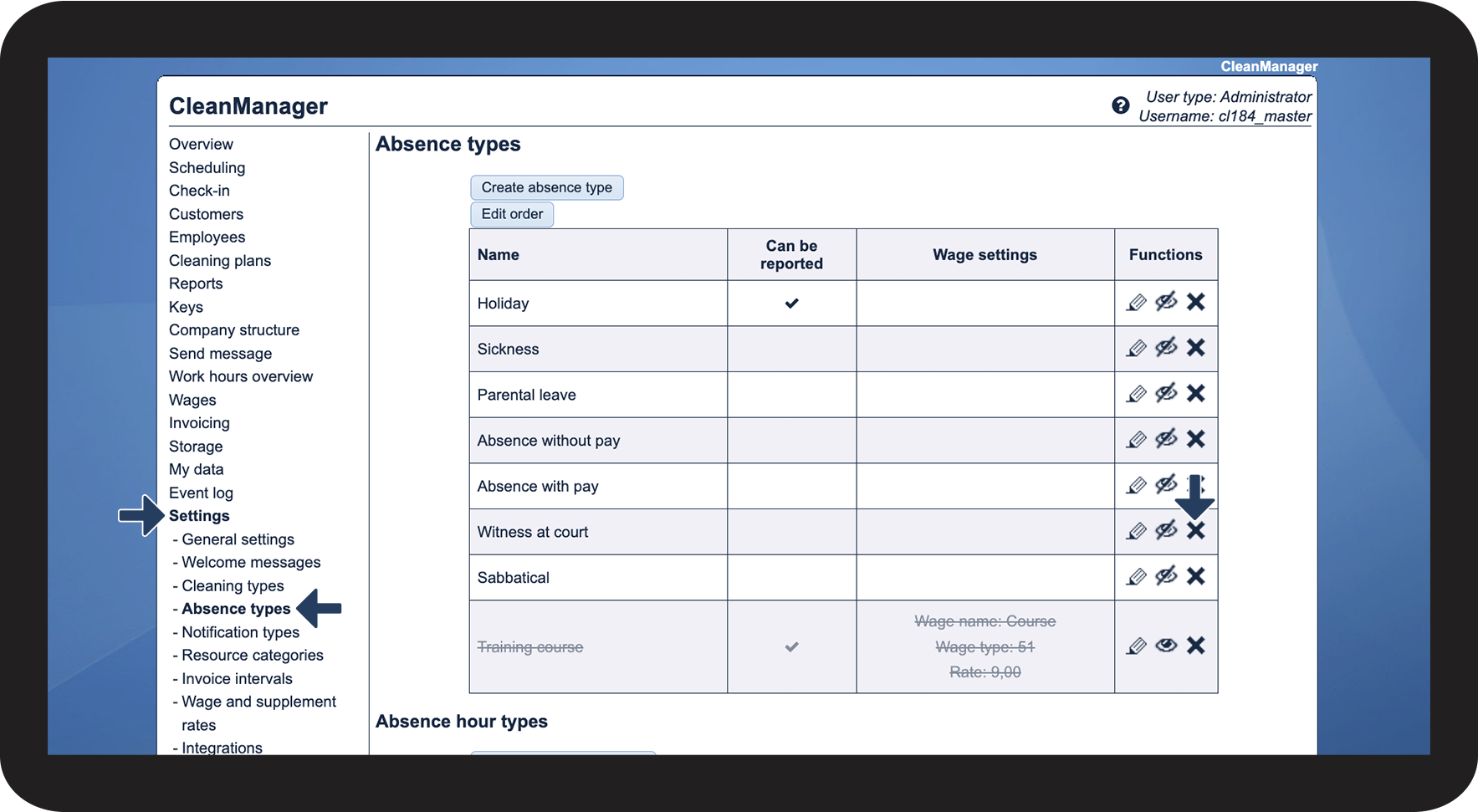
In this article, you will learn how to delete an absence type:
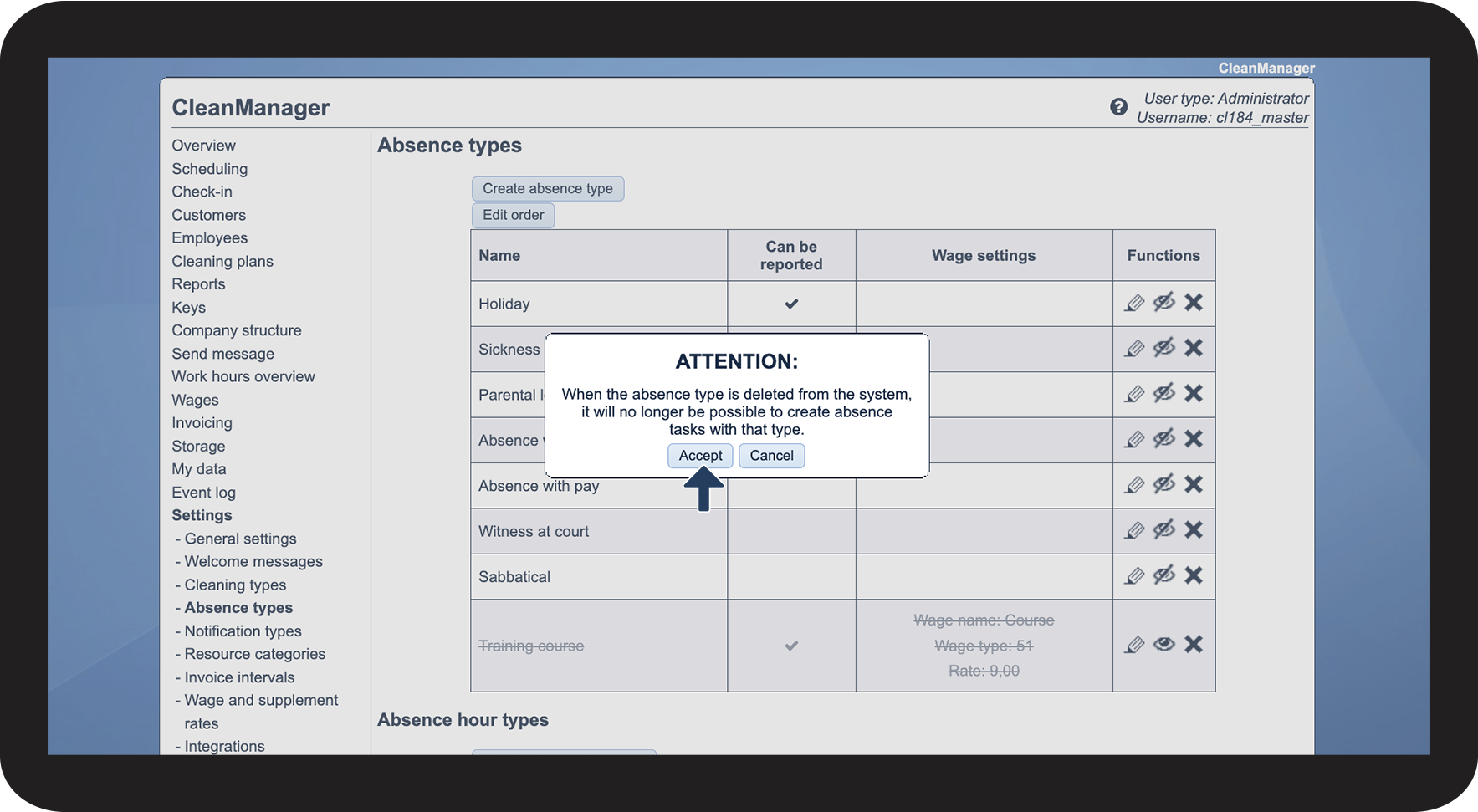
This is how you delete an absence type

 next to the absence type you want to delete