How do I import and synchronise customers between CleanManager and other systems?
When a file is being prepared with the necessary customer data in a spreadsheet, or you establish a connection to a financial system, your data can be uploaded to CleanManager.
Note:
If you haven't prepared your data or an integrated connection to a financial system, you can follow the setup instructions in the category Integrations for your relevant financial system.
INFO:
As an administrator, you can synchronise your customer list, either through file import or through an integrated connection to a financial system.
You can now begin to import your customers in a synchronised process:
-
Start the synchronisation of a customer
-
Import customer data (only for file imports)
-
Setup of a customer/ partner
-
Setup of all customers/ partners
-
Choose a partner for a customer
-
Synchronisation conflicts/ correction of customer data
-
Deactivation of synchronisation for customers
Start the synchronisation of a customer

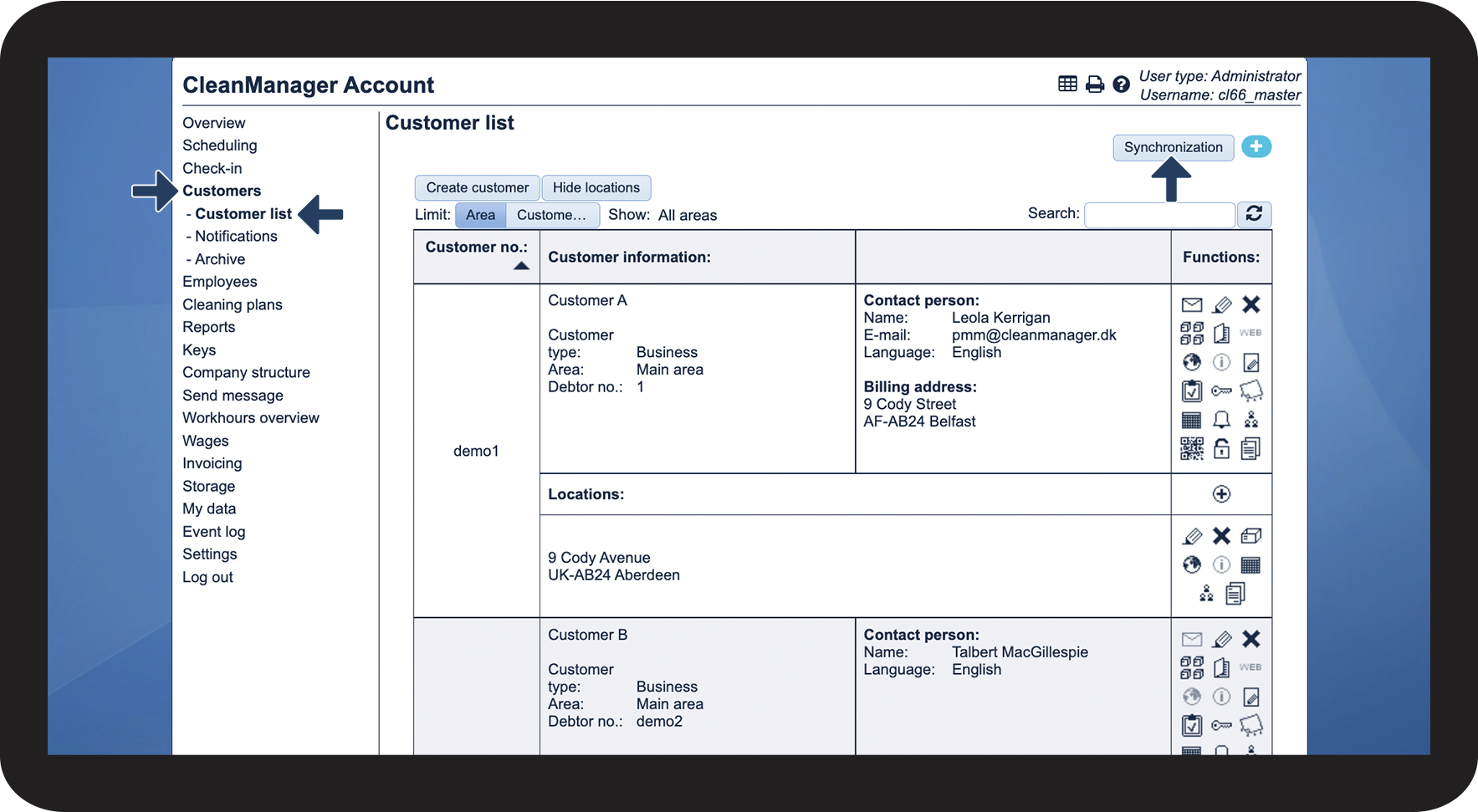
Attention:
You cannot click on the Synchronisation button?
This means that you have not set up your customer synchronisation yet.
Go to the category Integrations to choose the setup instructions for the system you want to synchronise your data with.
Import customer data (only for file import)
INFO:
If you are using an API integration, you do not have to import files, and you can skip the Import customer data section and go directly to the synchronisation of your data: Setup of a customer/partner
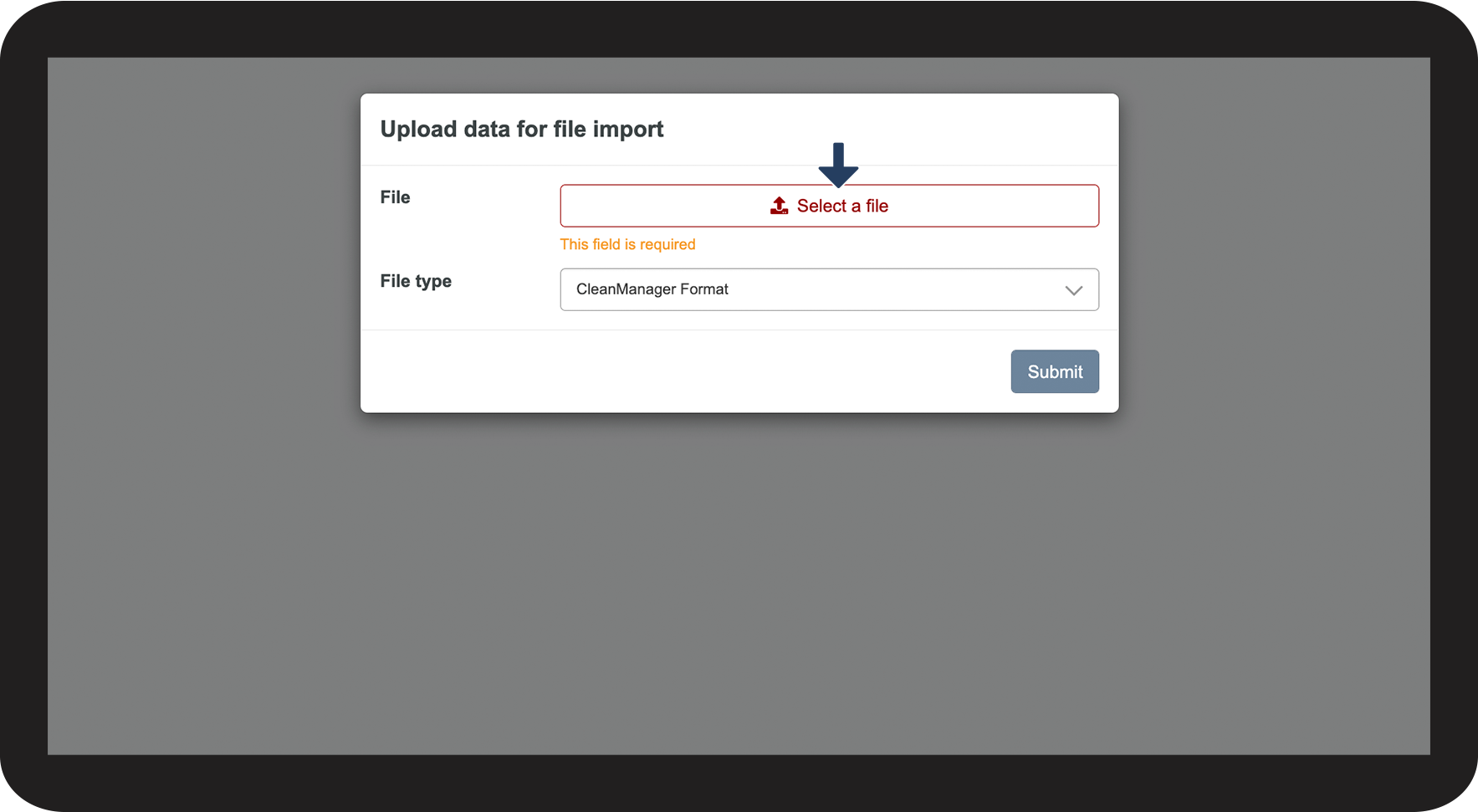
If you have to synchronise your customer with a file import, you first need to select a file (with the CleanManager format).

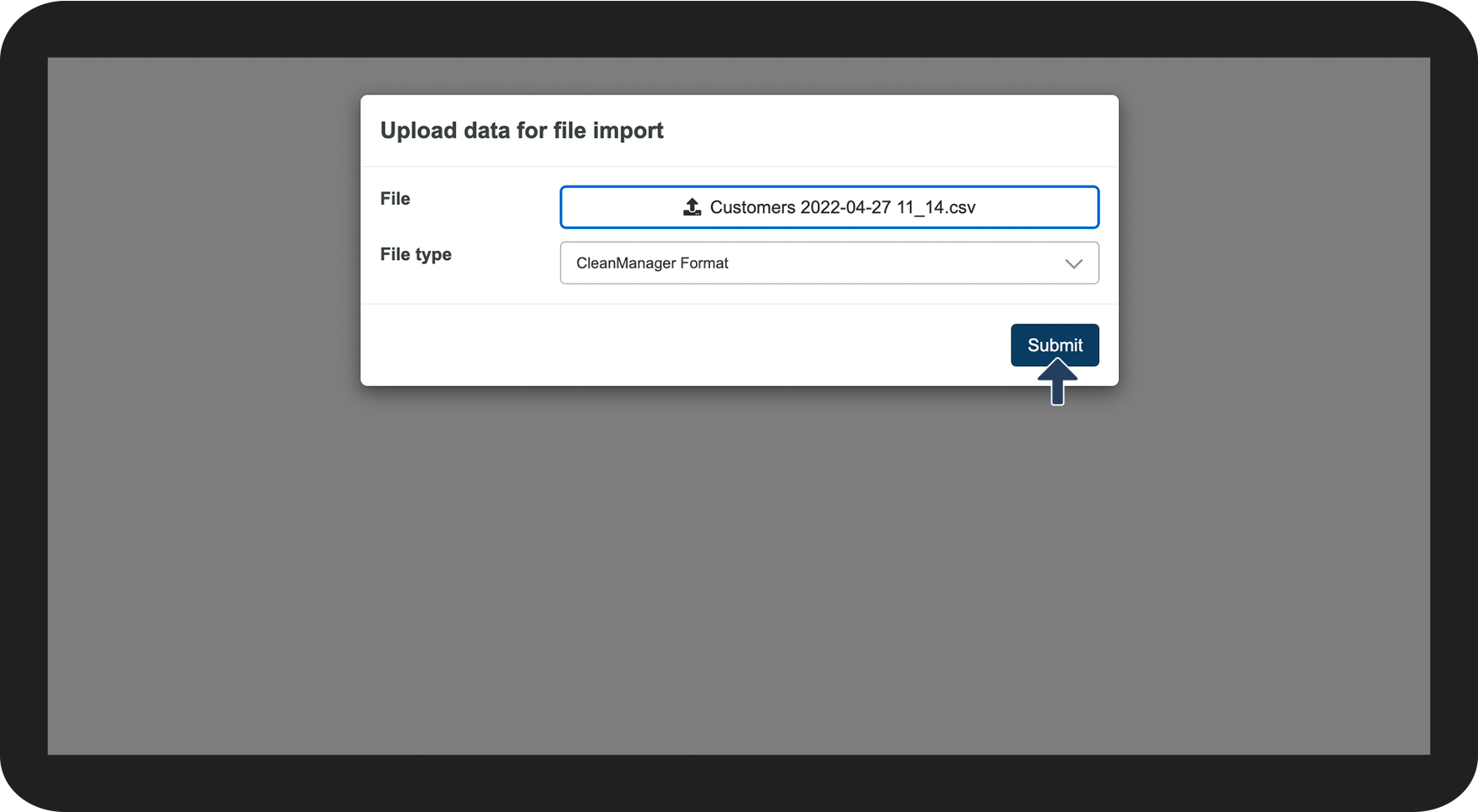
Setup of a customer/ partner
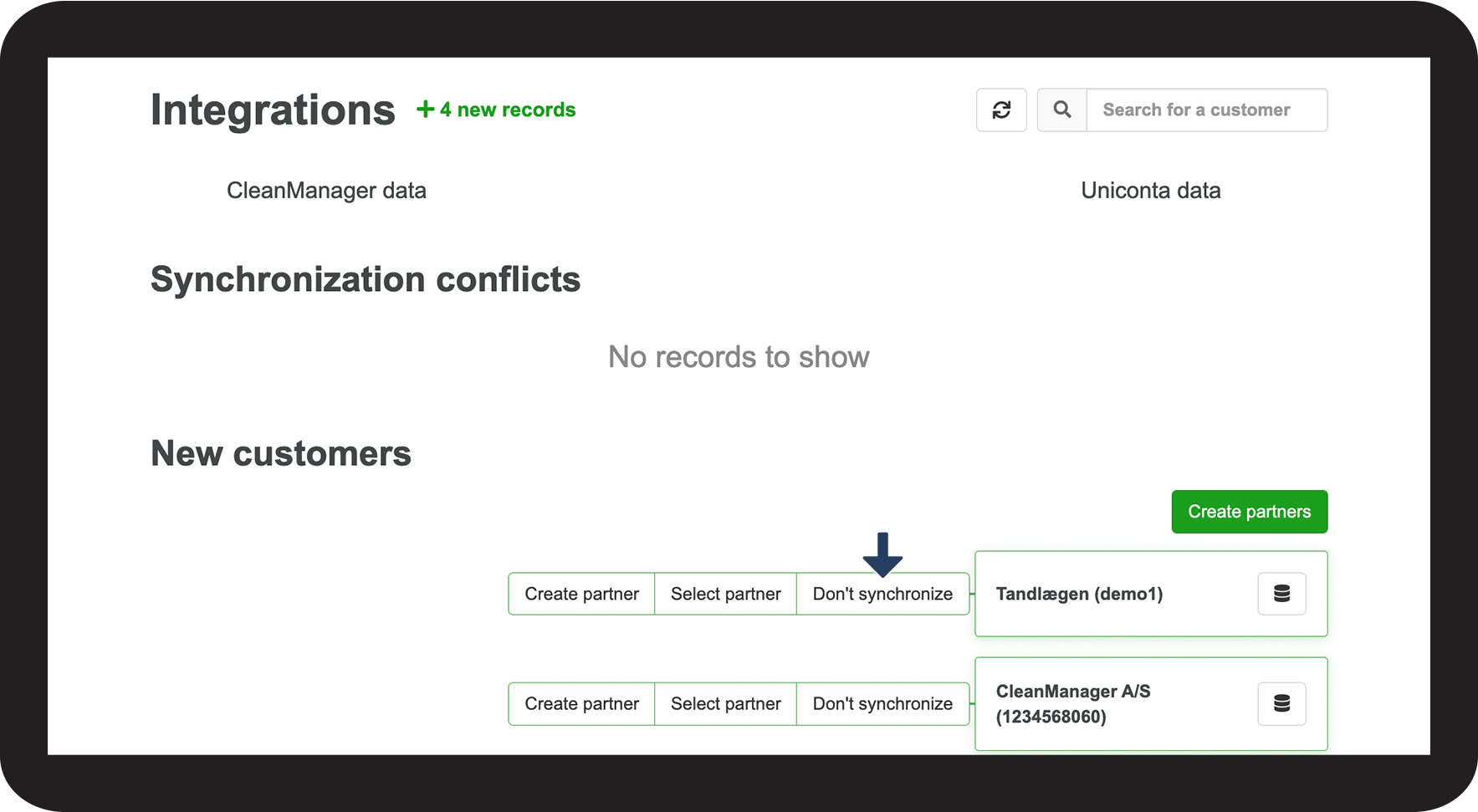
If a customer exists in one of the systems, you can set up a partner in the opposite system. The customer's data will be imported, and the customer will be connected between the two systems. This process can be done both ways.
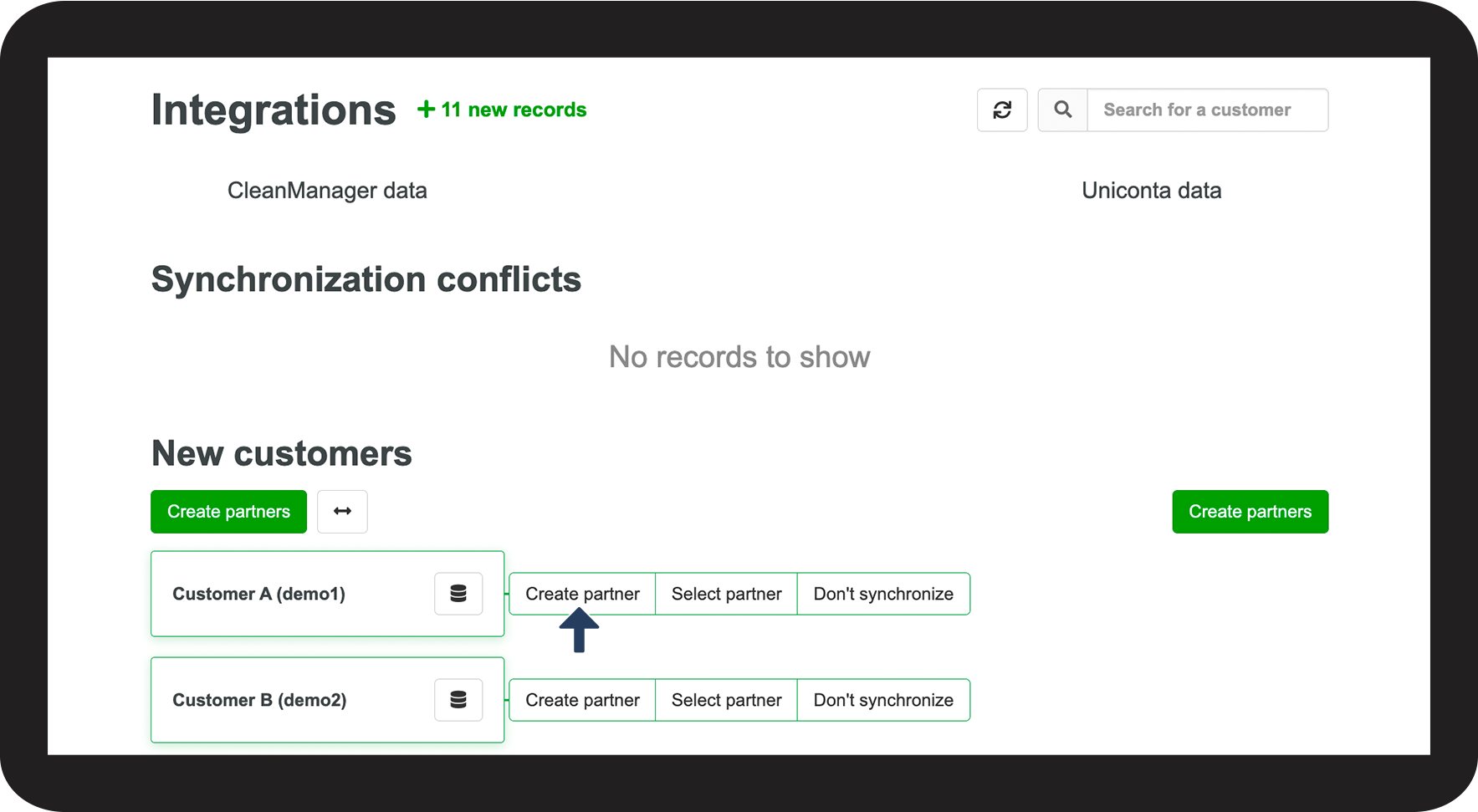
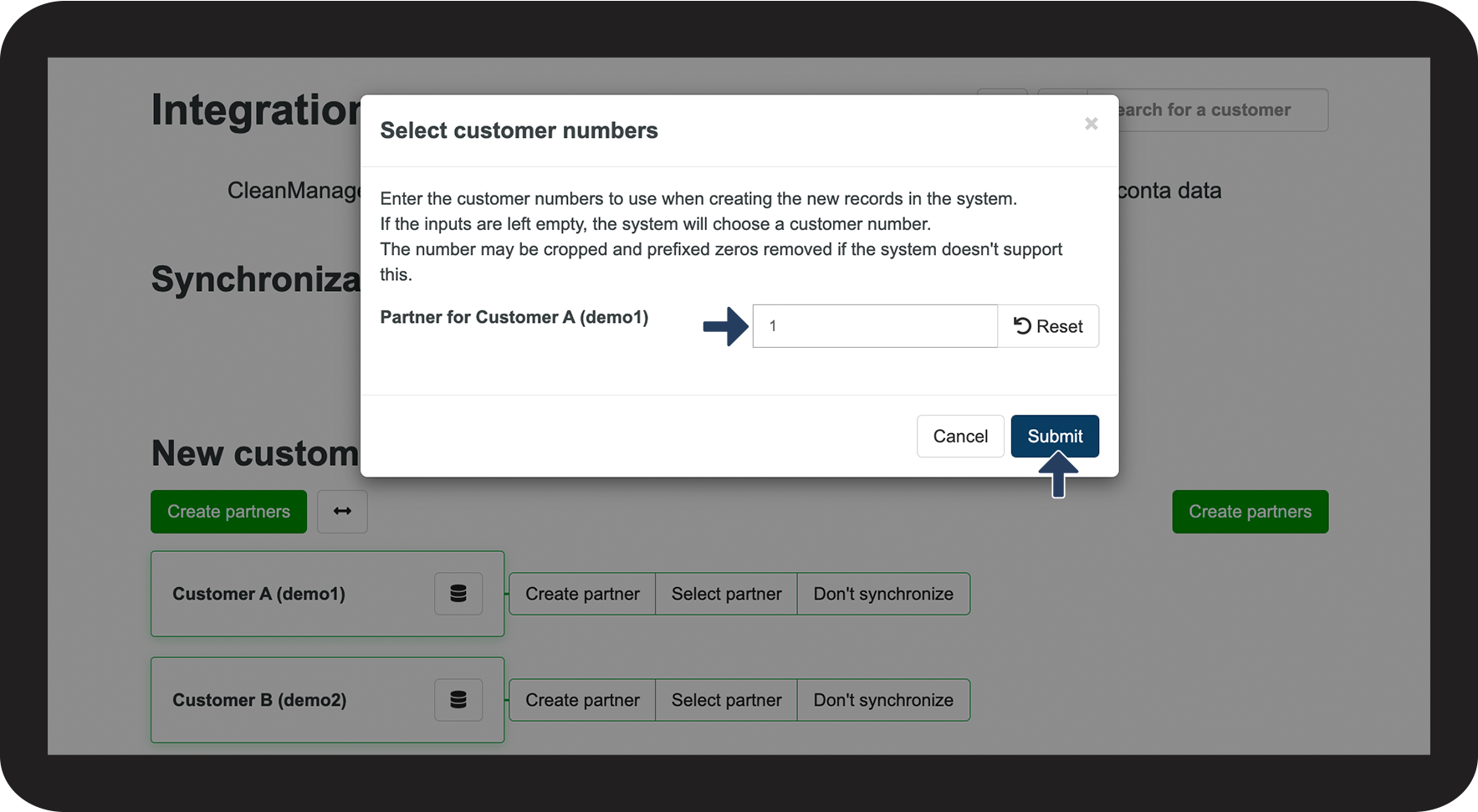
Attention:
In most cases, you would keep the same customer number as in the system the data is imported from.

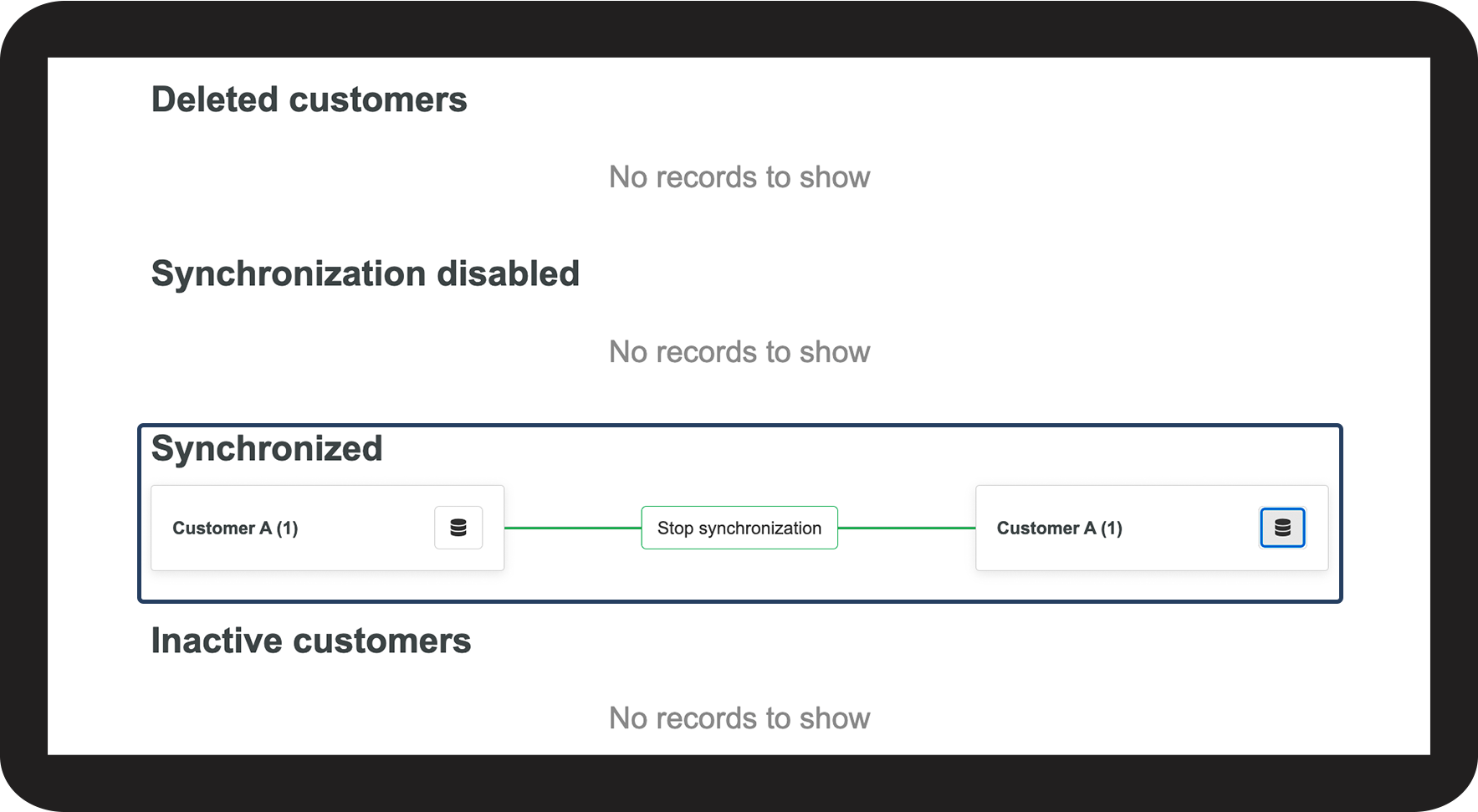
Attention:
If you cannot see the newly imported customer, then update/refresh the page in your customer list to see your new customer data.
If conflicts arise, read this section:
Synchronisation conflicts/correction of customer data
Setup of all customers/ partners
When you start using CleanManager, then you can e.g. import all your customers at once. You can also export all your customers' data from CleanManager to the opposite system.
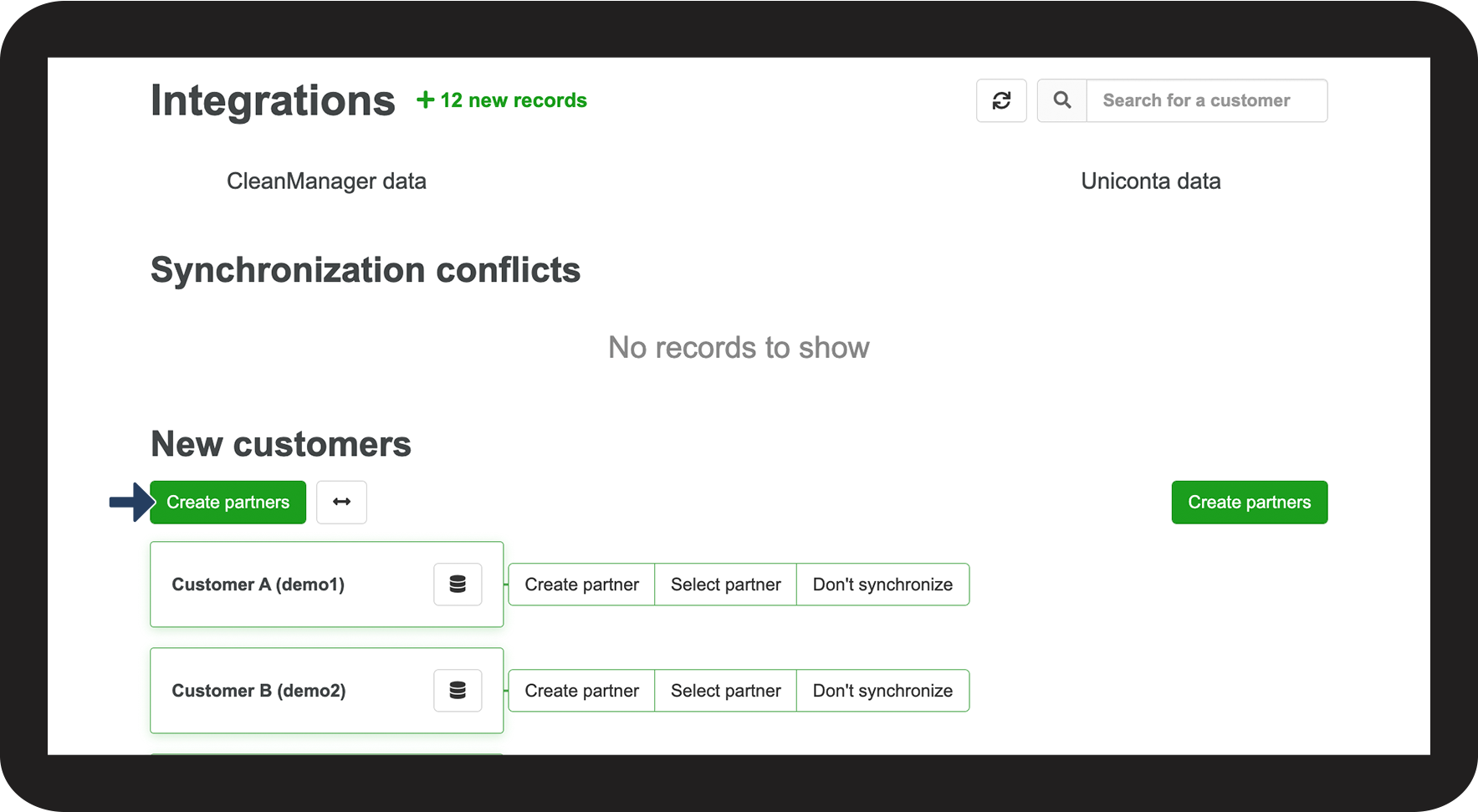
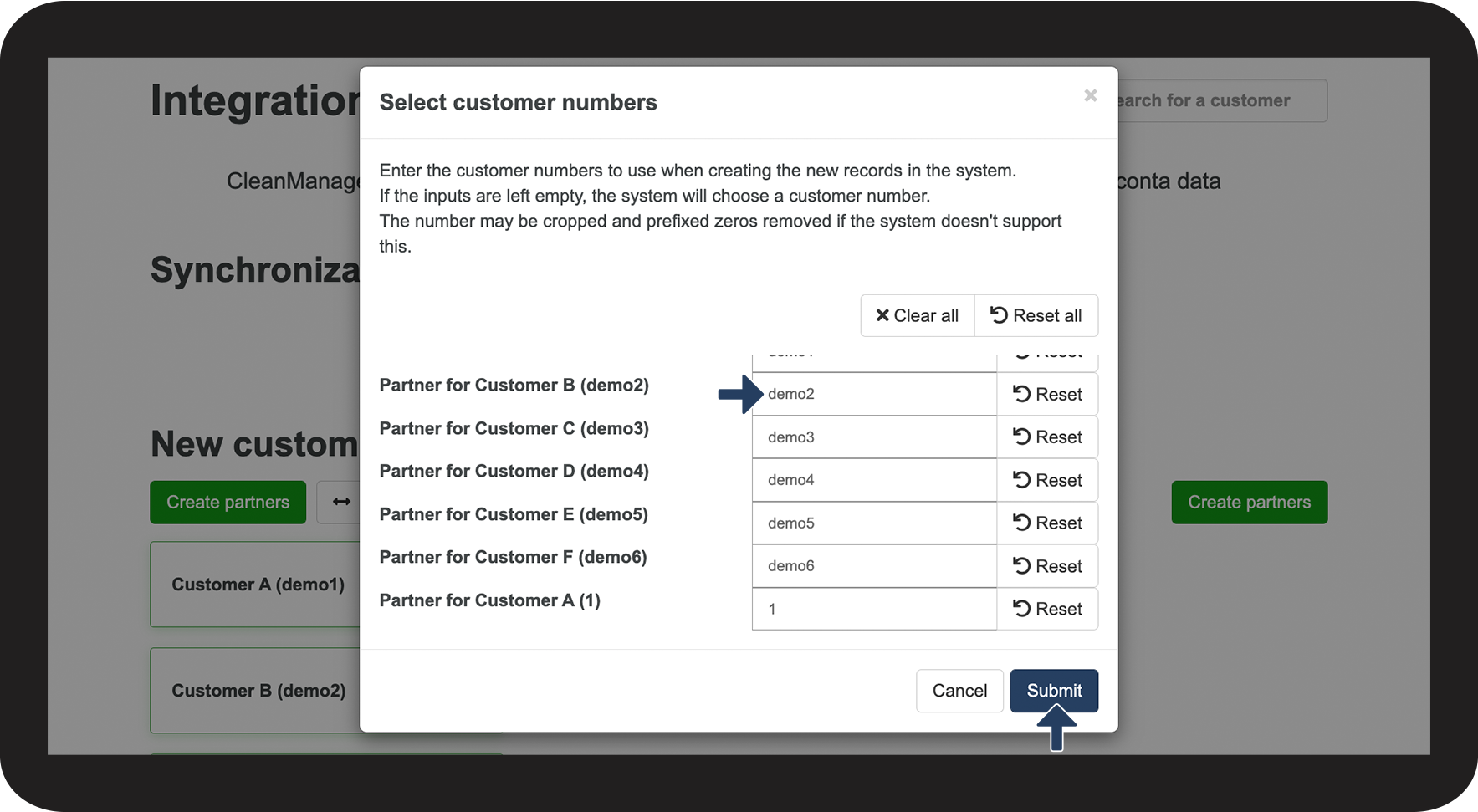
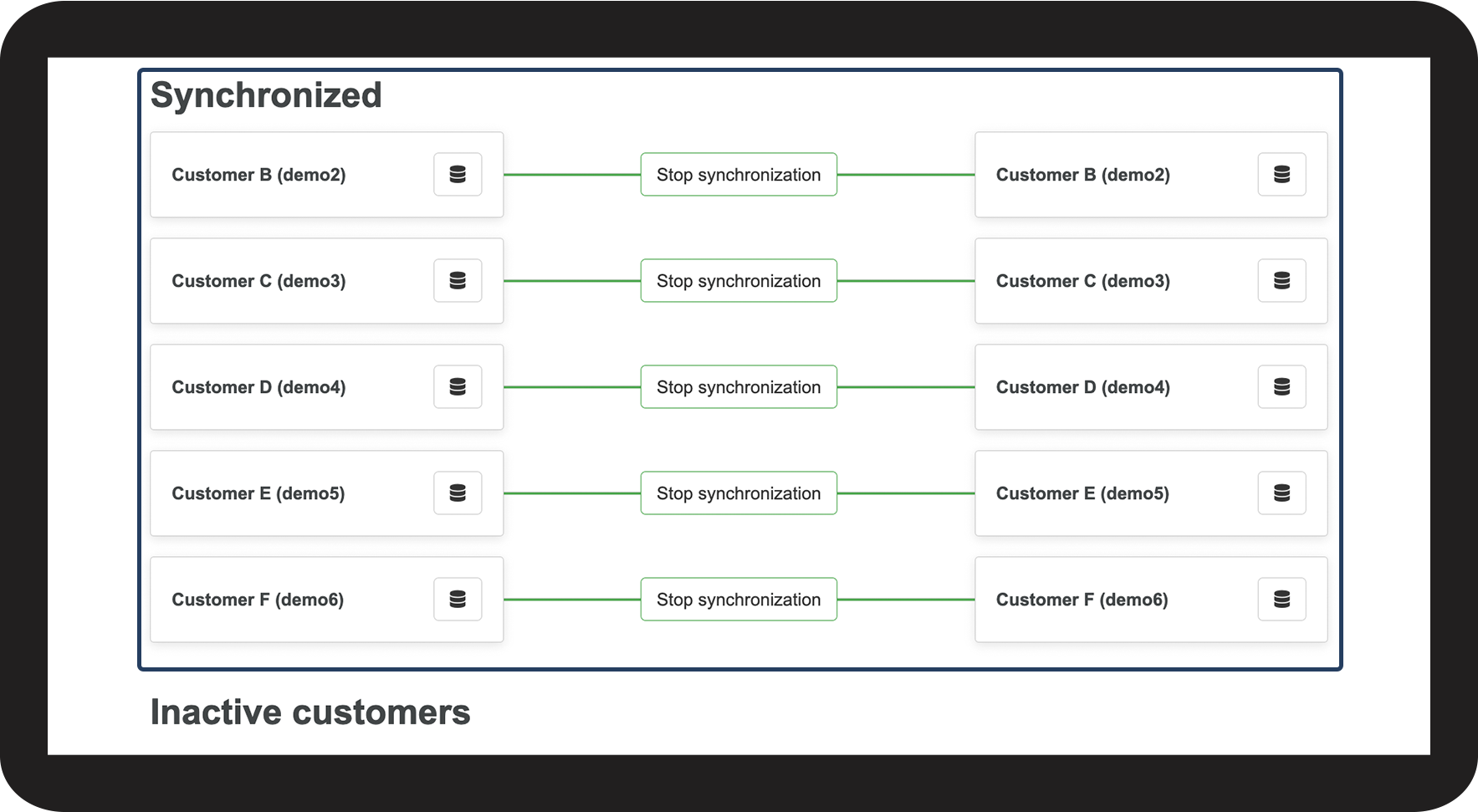
Attention:
If you cannot see the newly imported customers, then update/refresh the page in your customer list to see your new customer data in CleanManager.
If conflicts arise, read this section:
Synchronisation conflicts/ correction of customer data
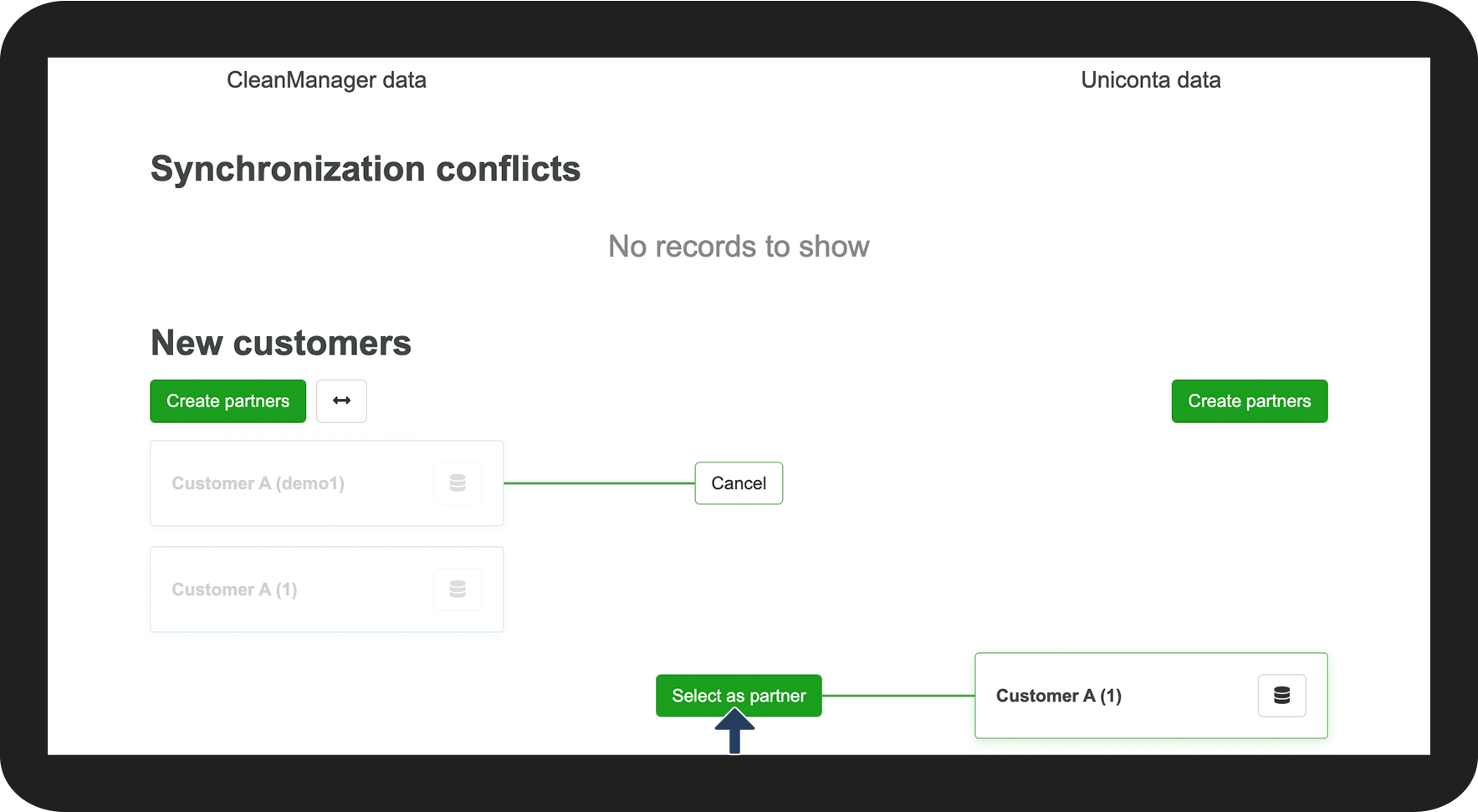
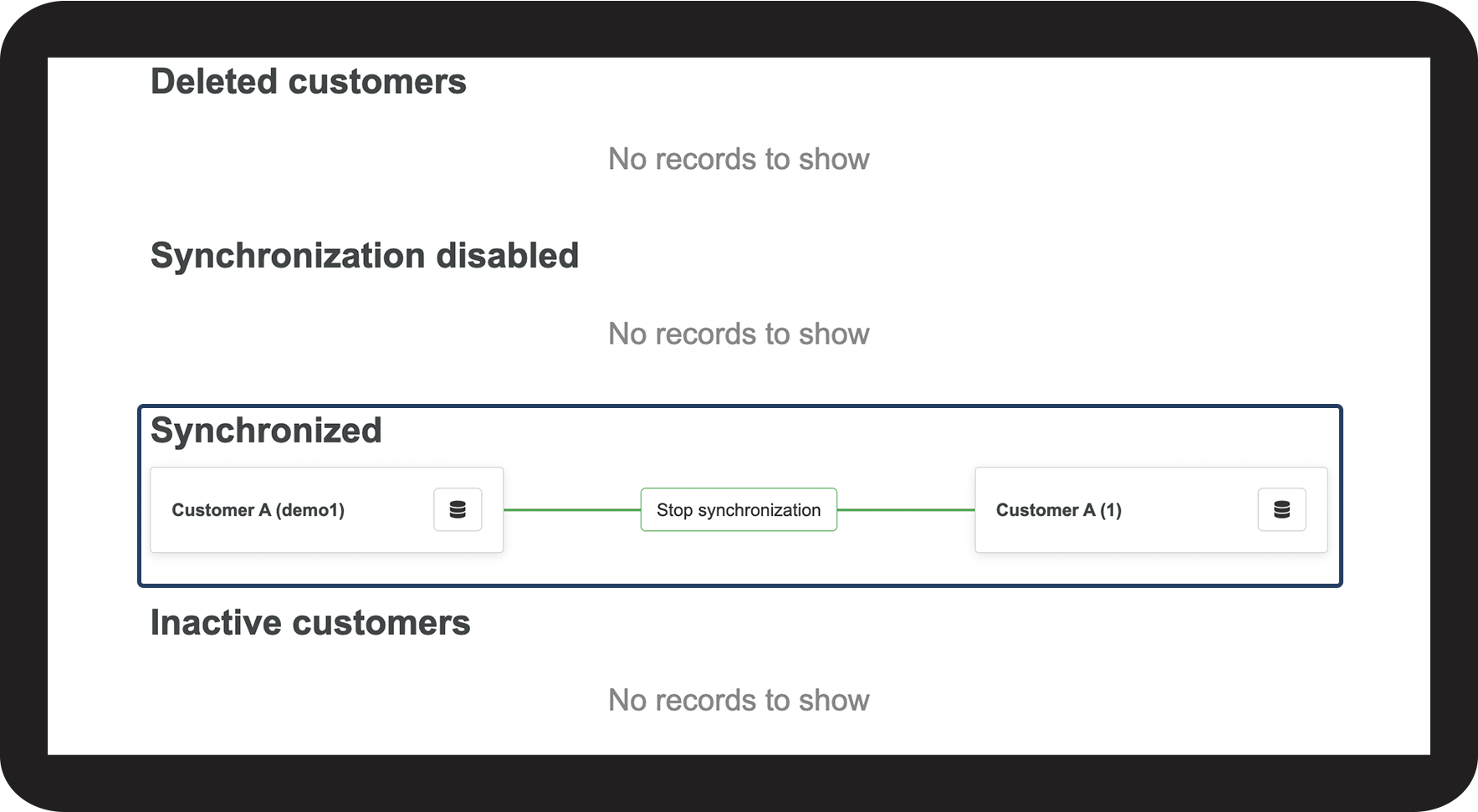
Choose a partner for a customer
If a customer exists in both CleanManager and the opposite system, you can pair them up as partners.
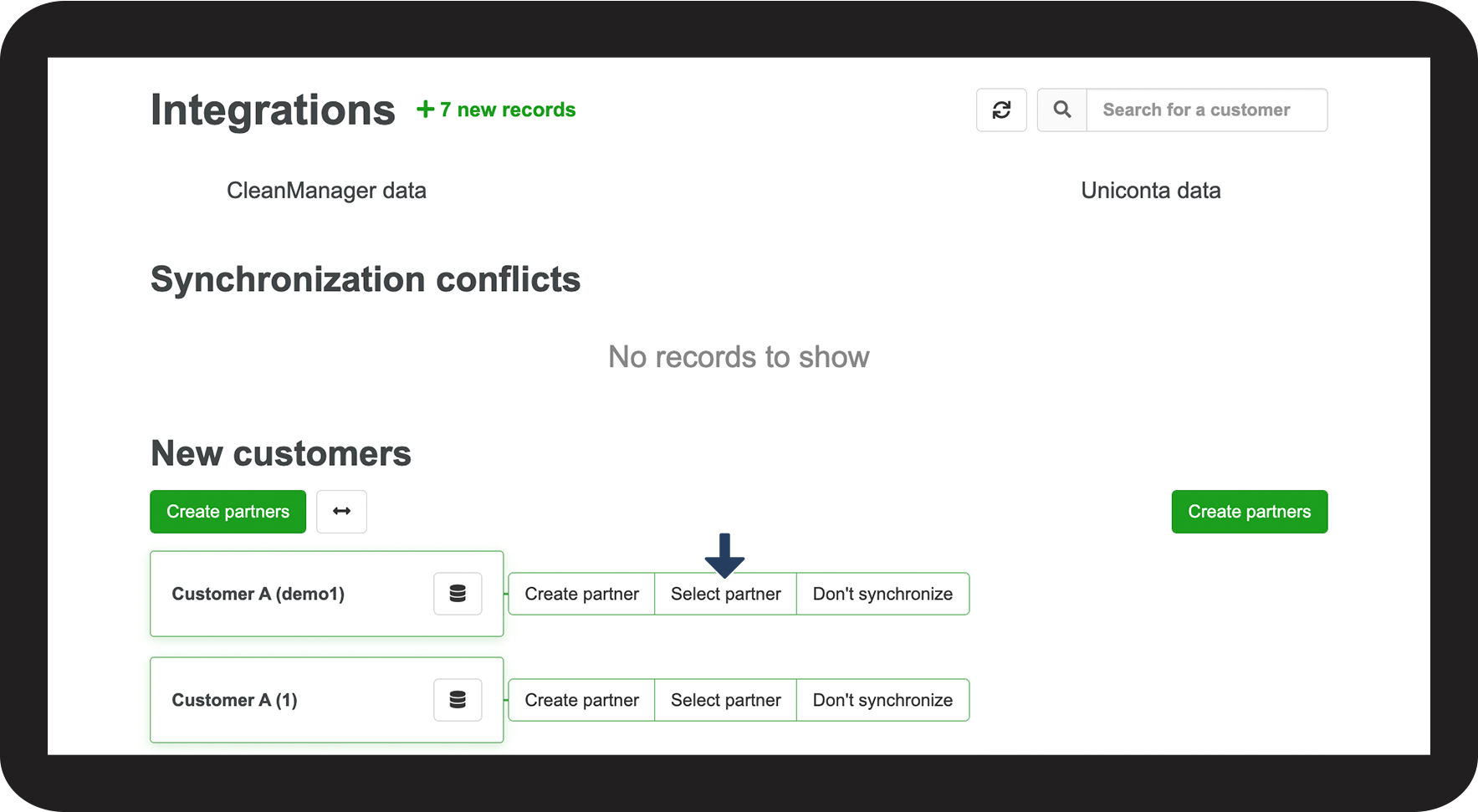
Attention:
If conflicts arise during synchronisation, read this section: Synchronisation conflicts/correction of customer data
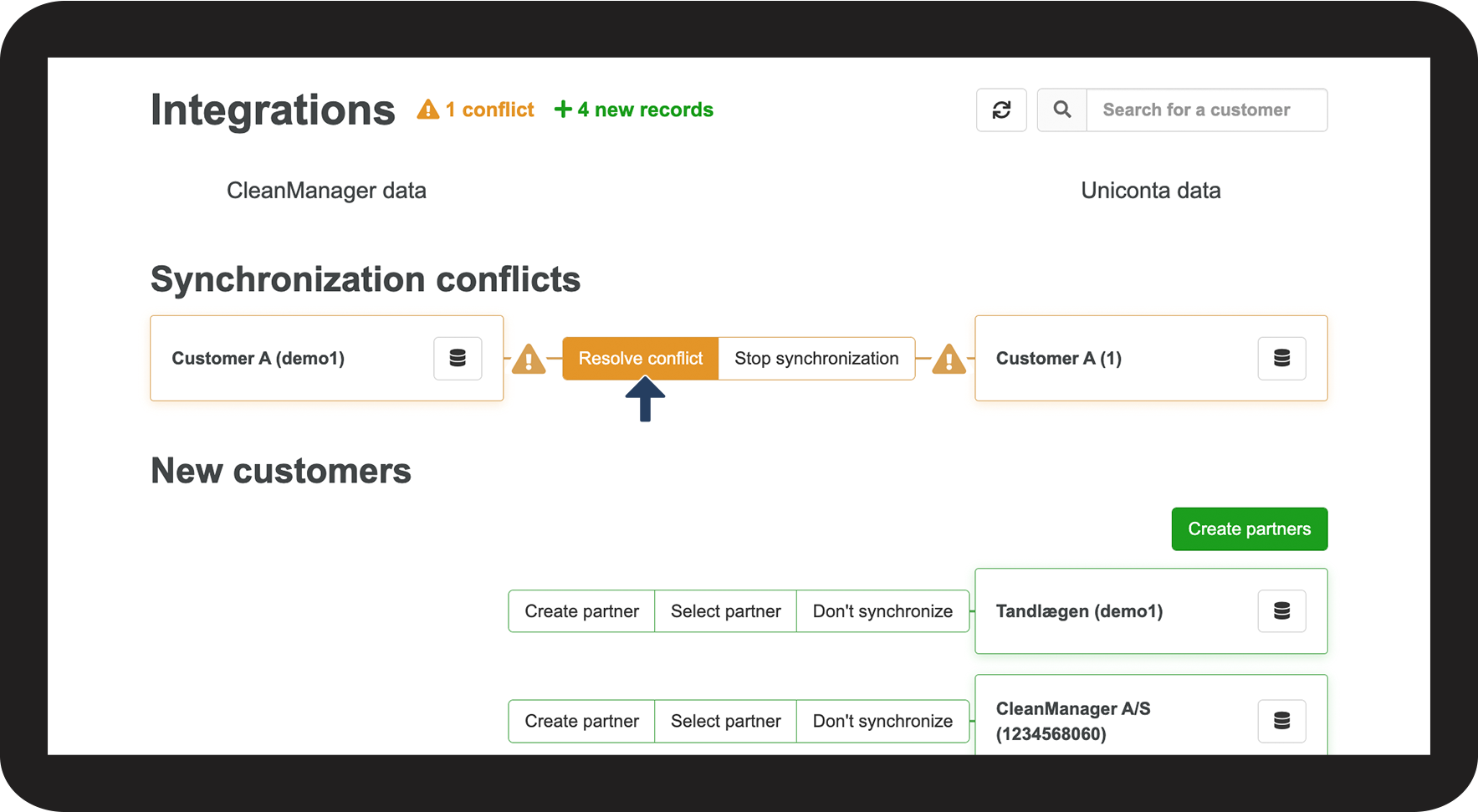
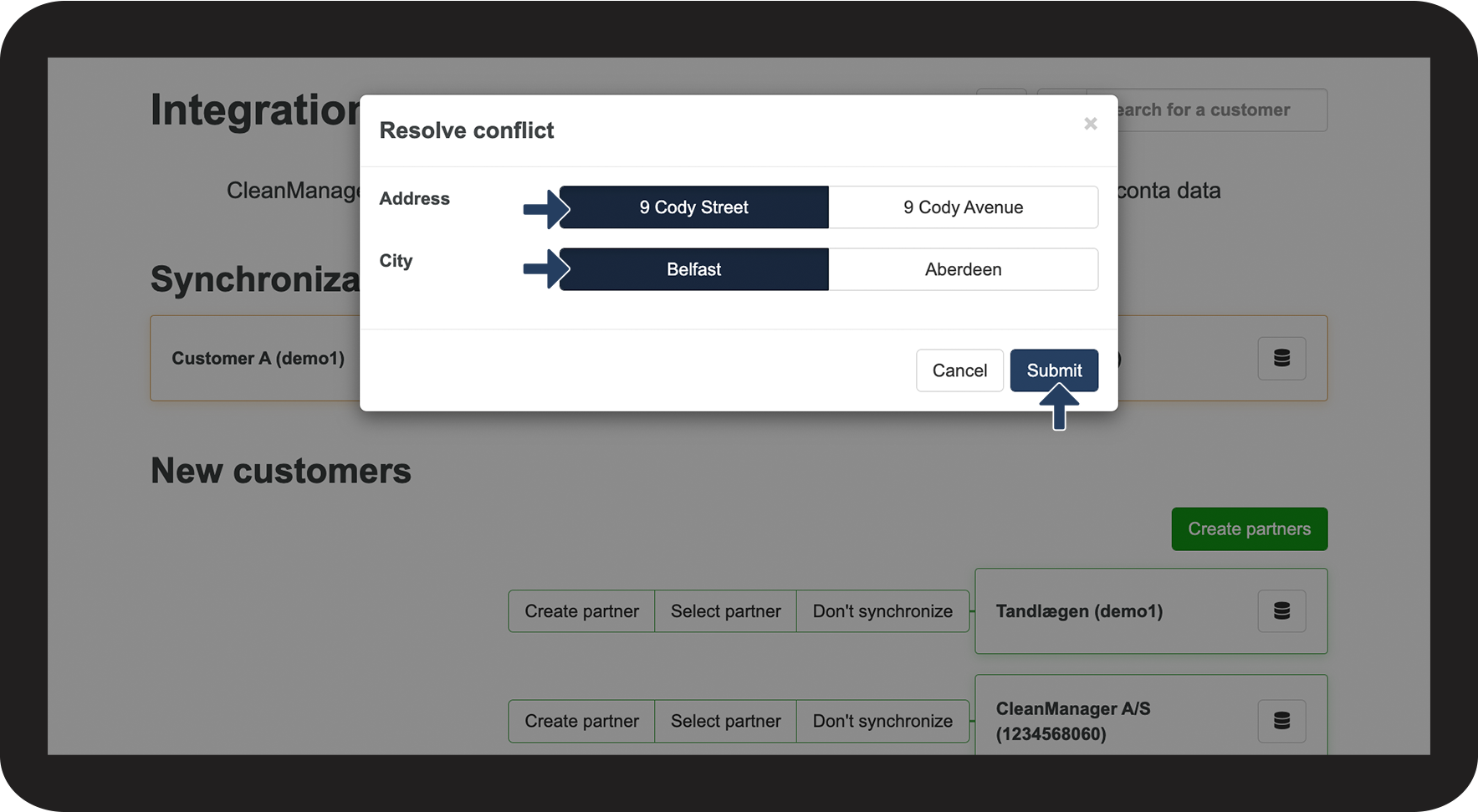
Synchronisation conflicts / correction of customer data
When customers are partnered up and their data does not match, a conflict arises. This conflict must be addressed in order to save the right data.
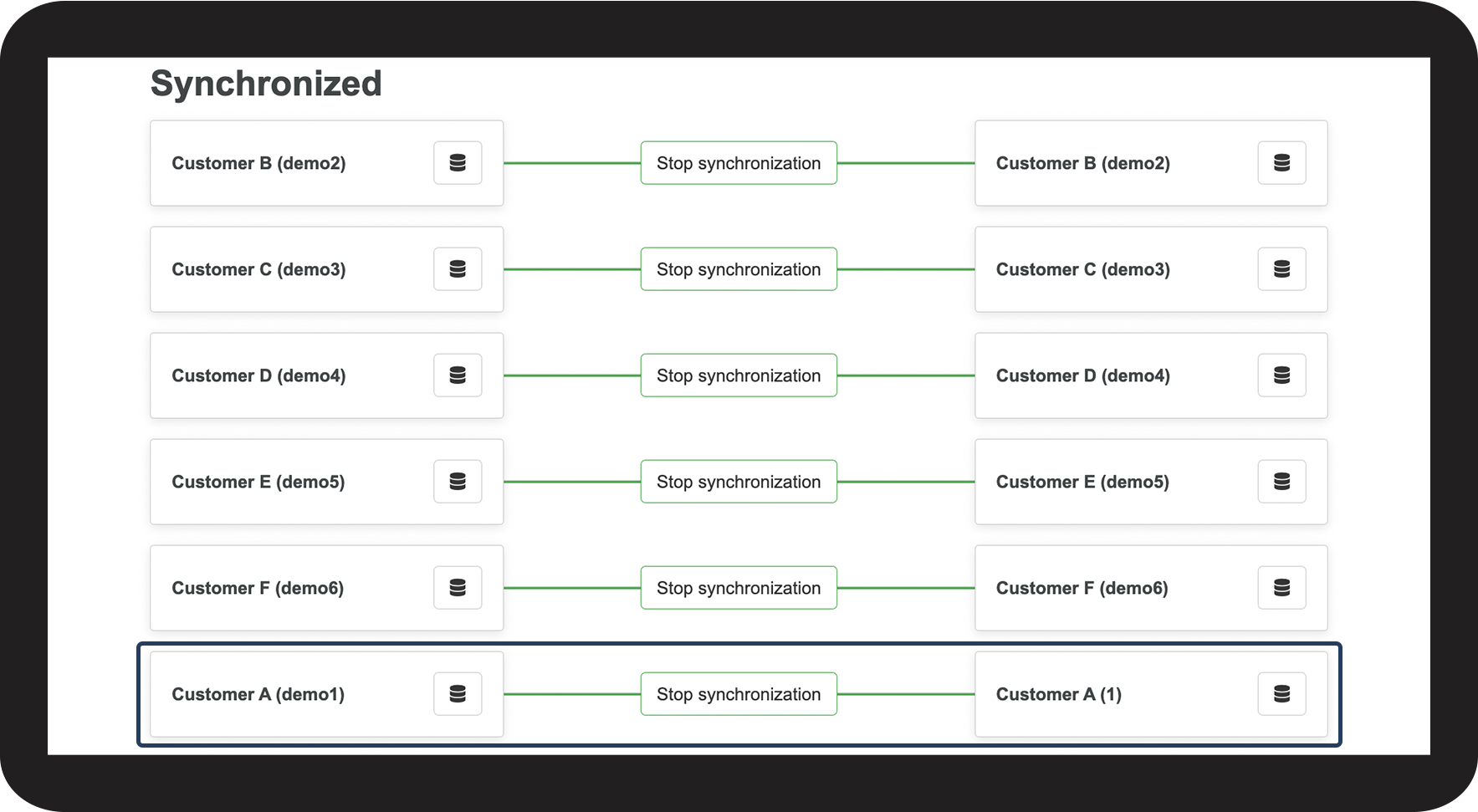
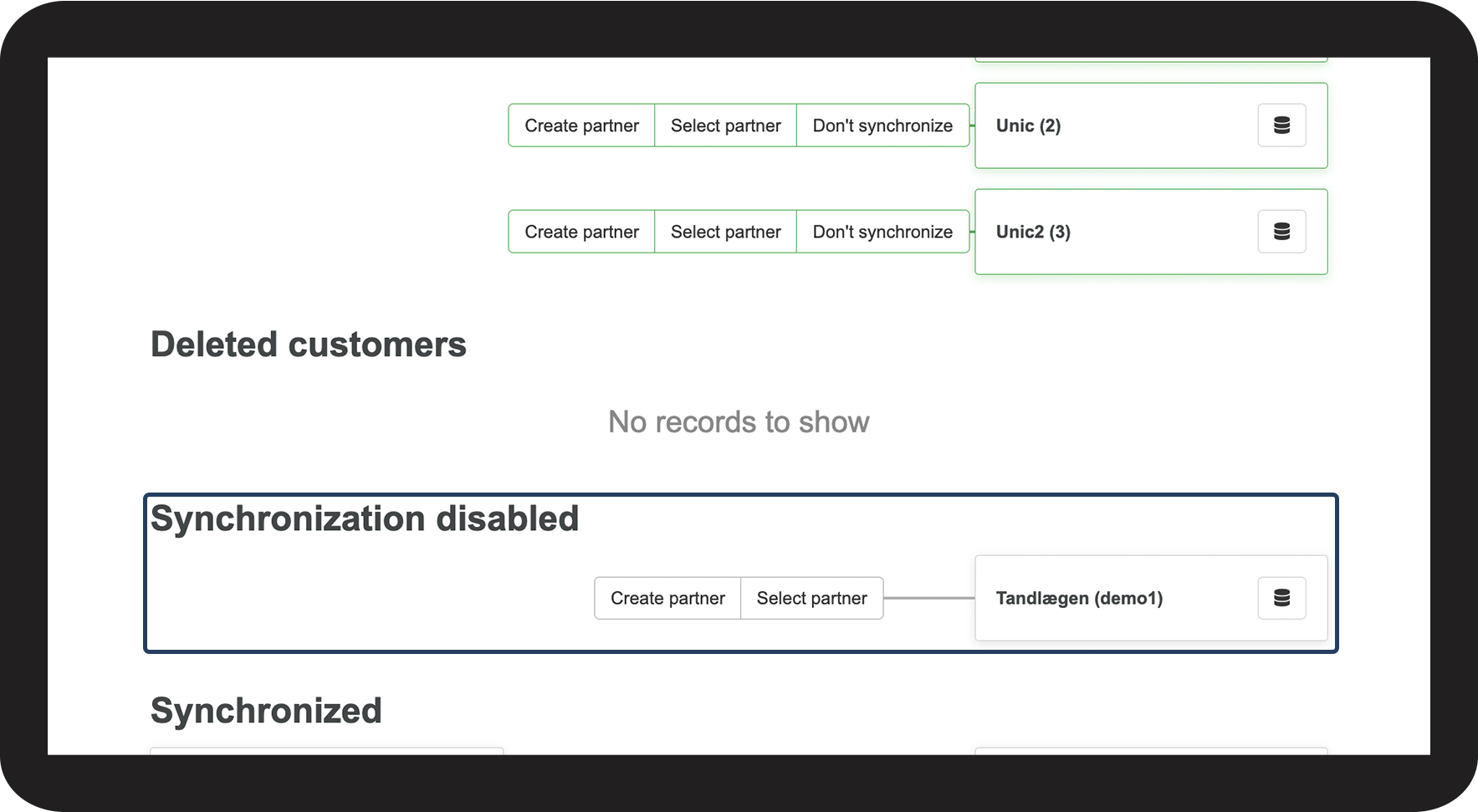
Deactivation of synchronisation for a customer
If a customer is supposed to only exist e.g. in your financial system, to execute short-term billing, or you do not want to import the customer, you are able to exclude those customers from synchronisation.