
How do I create absence types?
In CleanManager, we distinguish between Absence and Absence hours. Absence hours are calculated on an hourly basis, while absence is totalled in days, e.g. how many holiday days, sick days, etc., an employee has within the payroll period.
When it comes to registering absence, you can use the existing absence types or create your own. These absence types are used to plan your employees' absence in the calendar.
You can use the absence types to pay compensation for the absence, or use them as a tool to keep track of absence days.
INFO:
Absence types can be edited after you have created them.
If the absence type has not been used to register absence in the calendar, you can also delete it again.
We recommend that you create and customize your absence types so that they fit your needs in terms of registering absence and exporting data for your payroll system.
In this article, you will learn how to set up absence types:
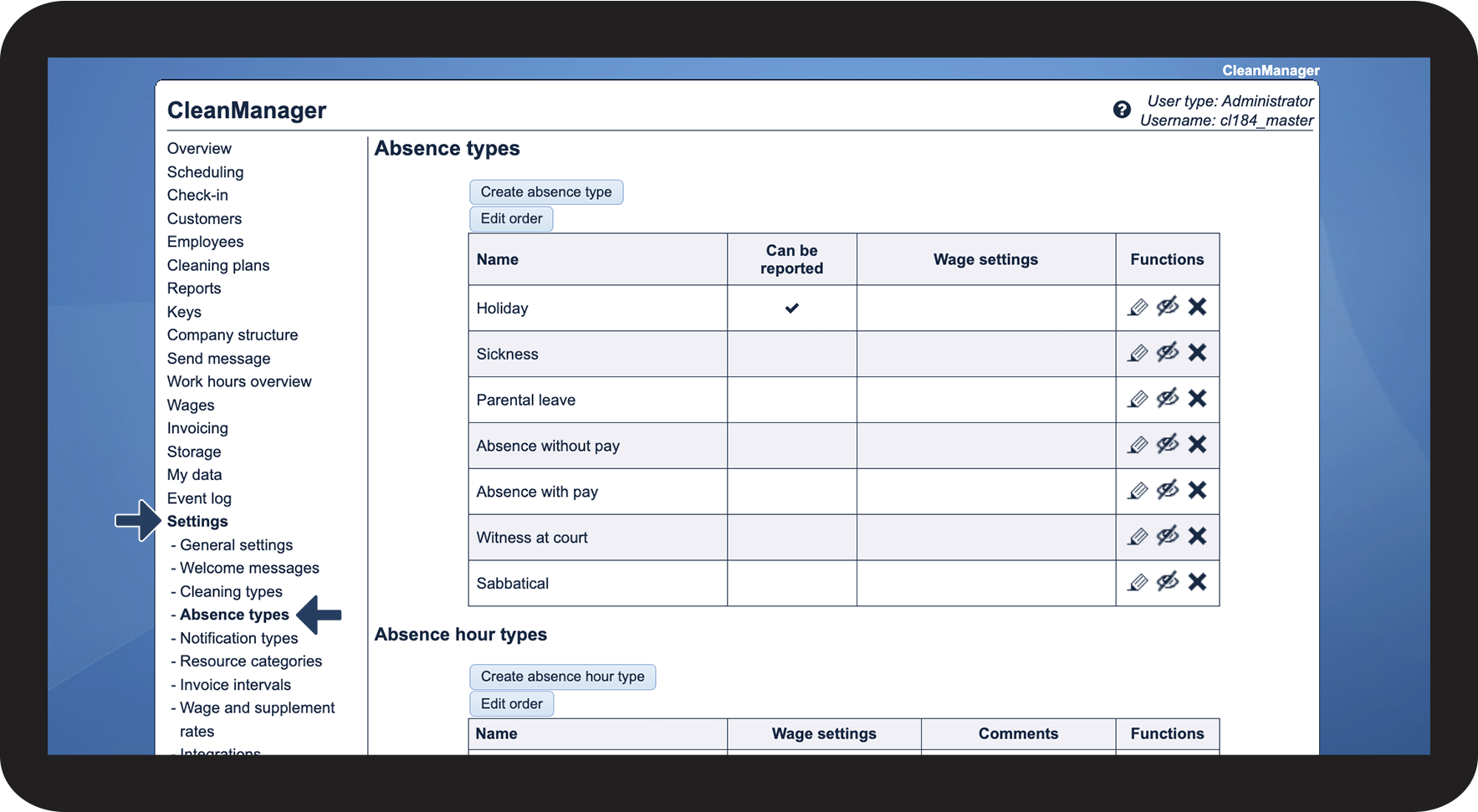
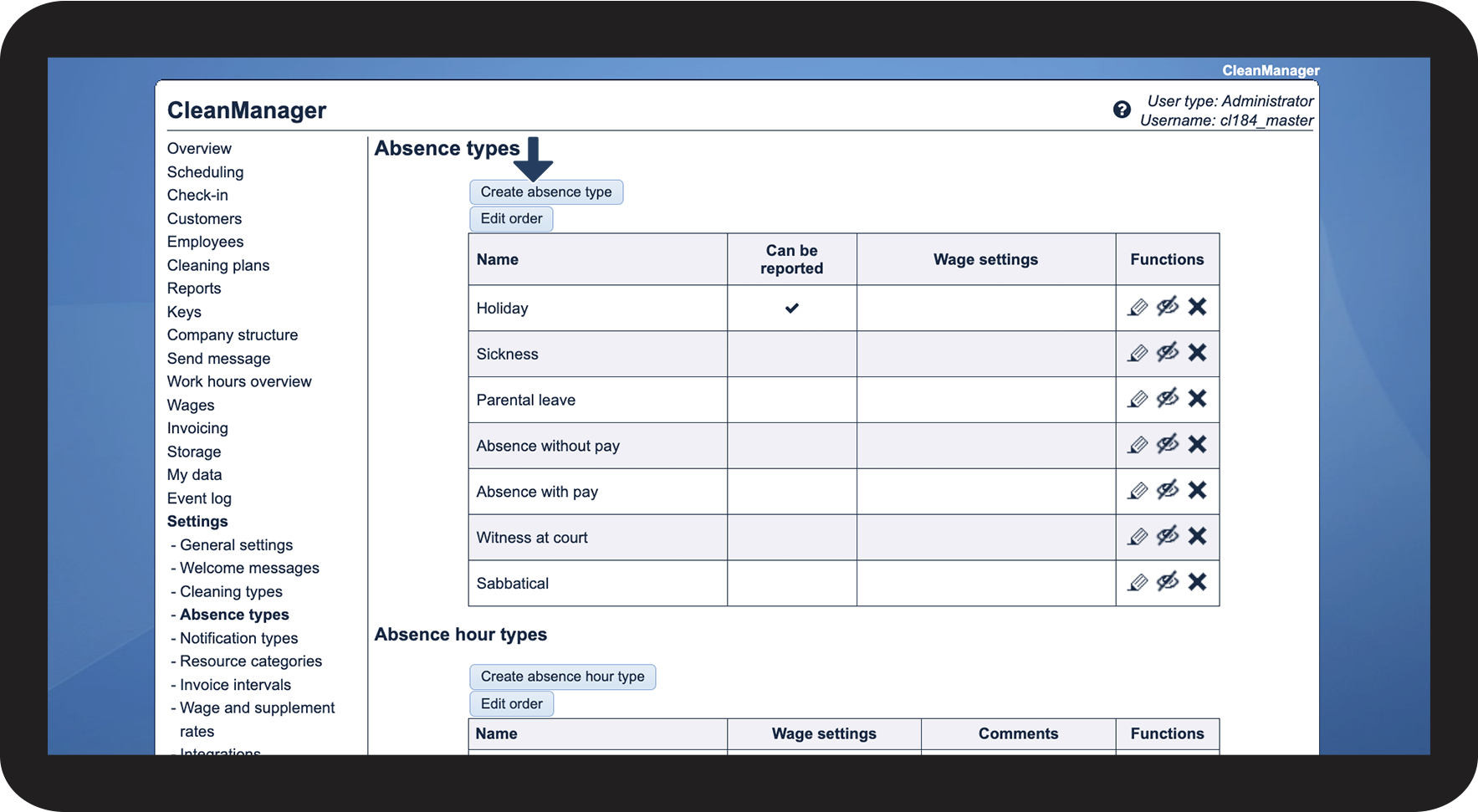
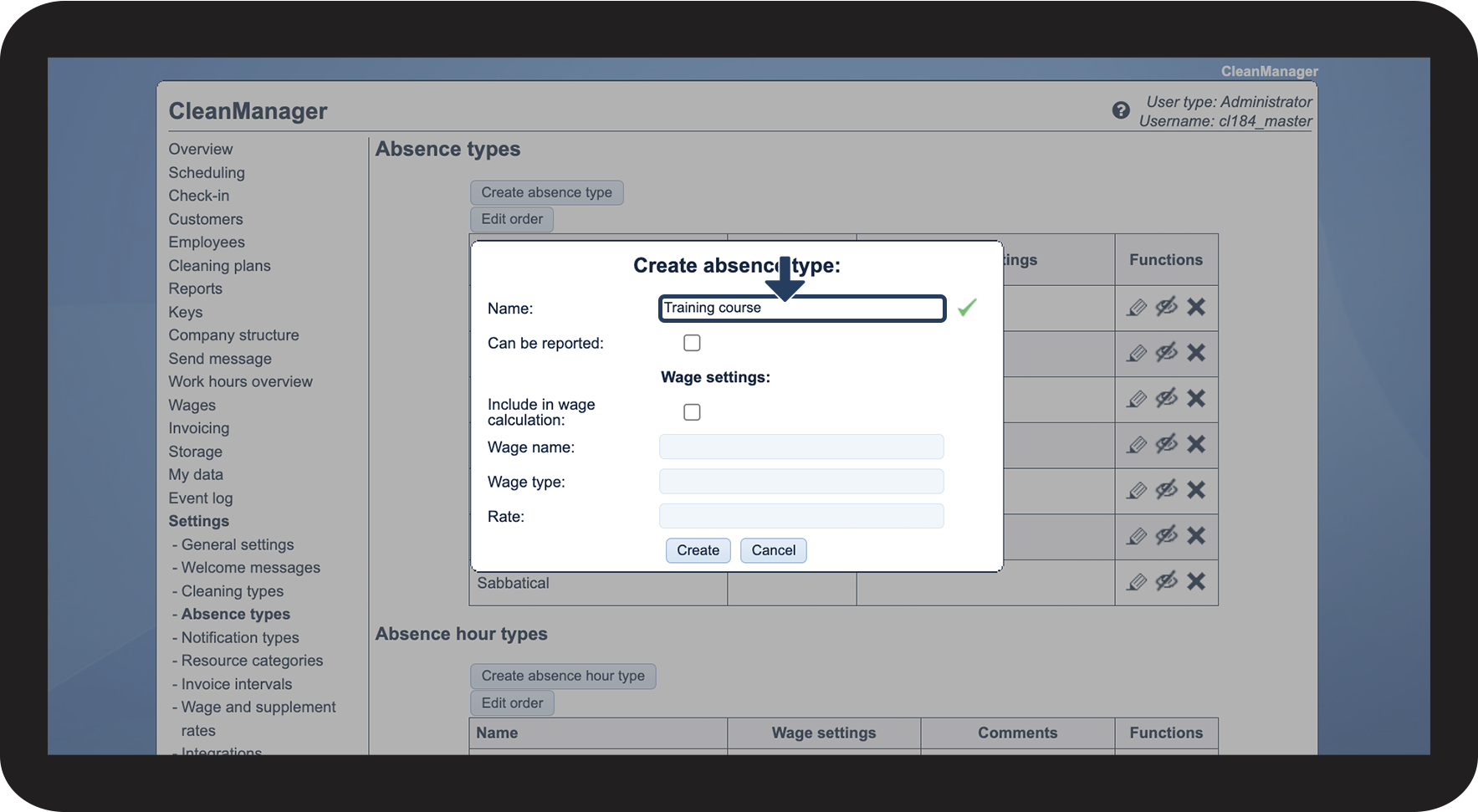
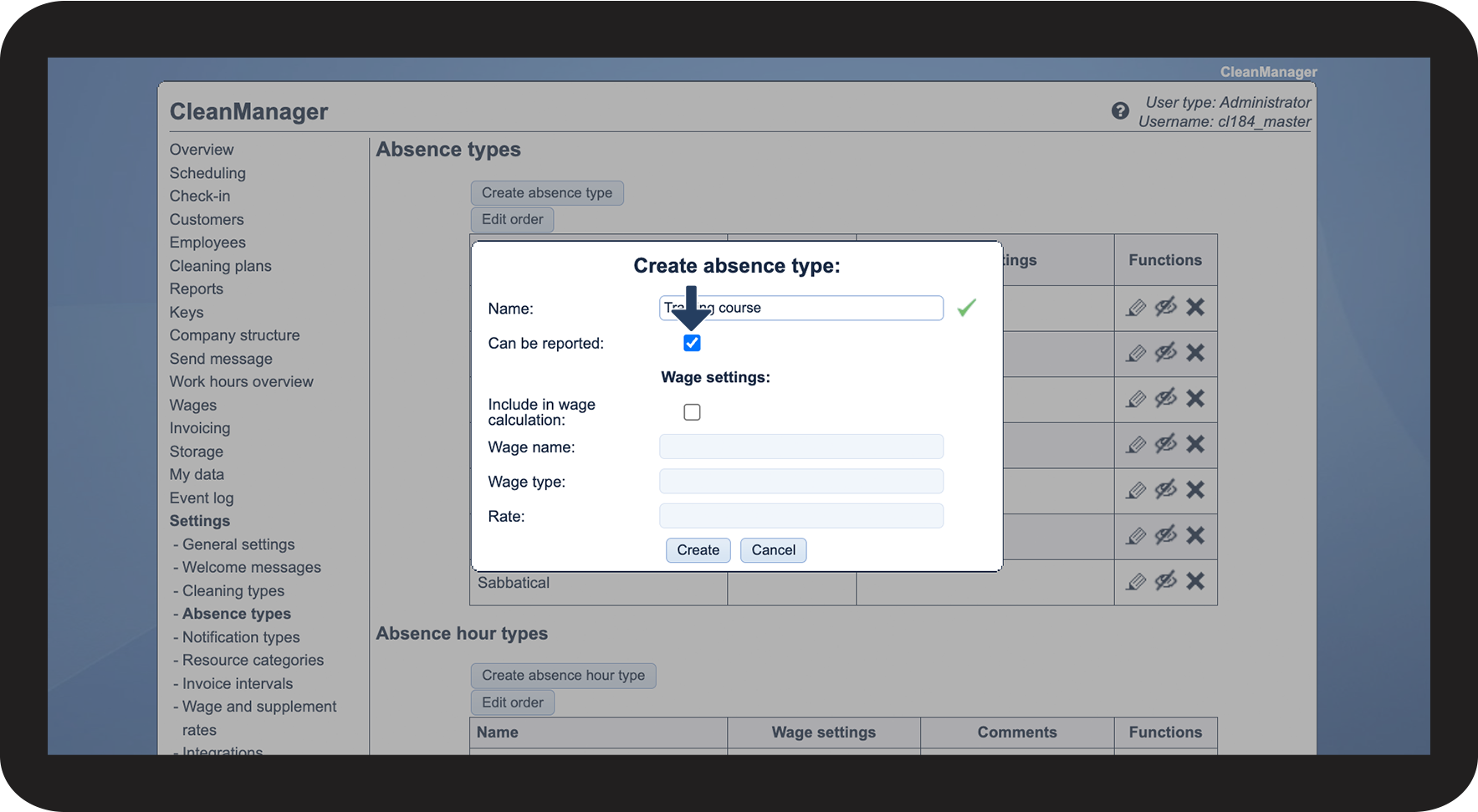
This is how you create an absence type





NOTE:
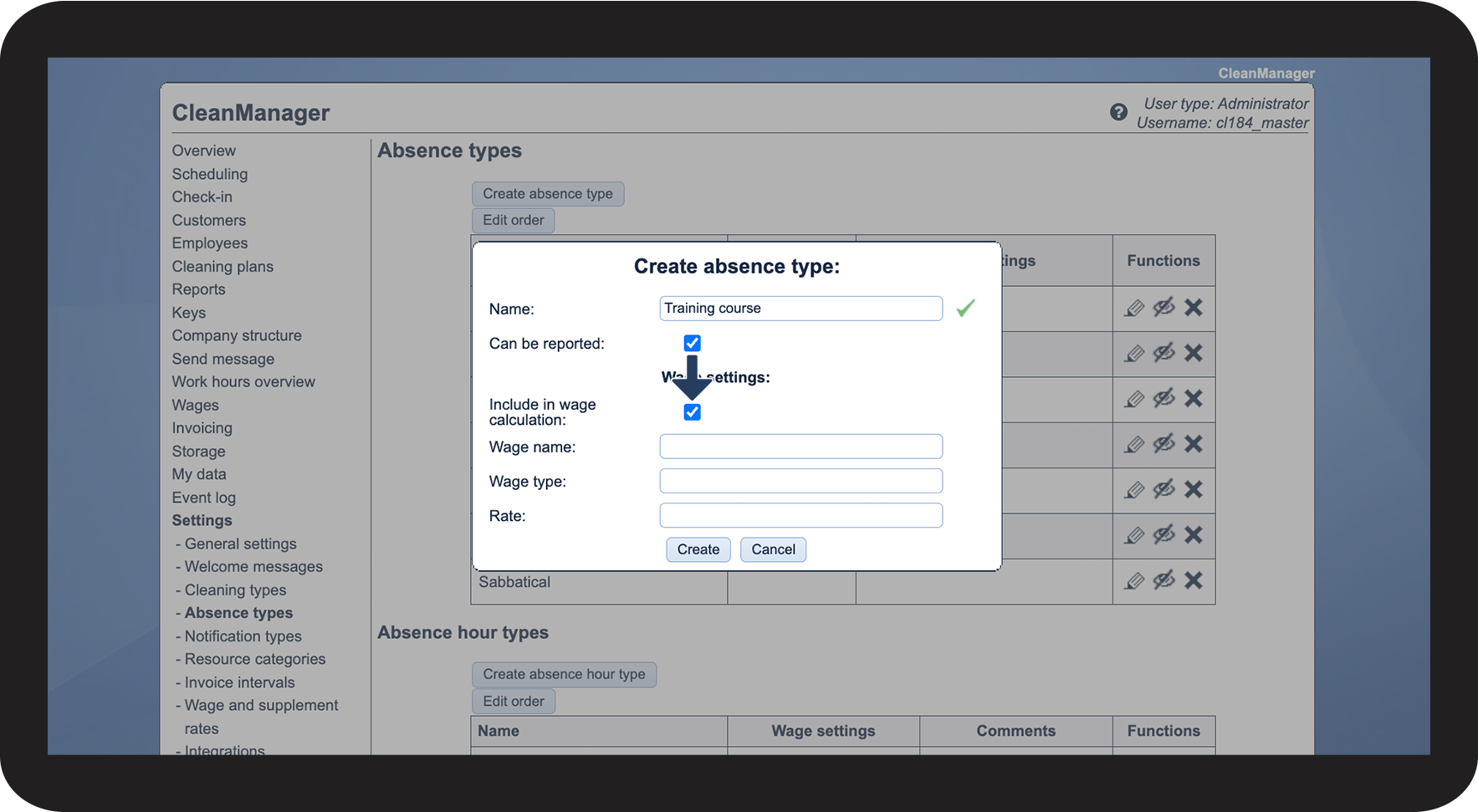
In order to follow step 5 and 6, the add-on module Wage Calculation must be activated in your account. You can read more about activating add-on modules in the following article: Add-on modules
If the add-on module Wage Calculation is not active in your account, proceed to step 7.

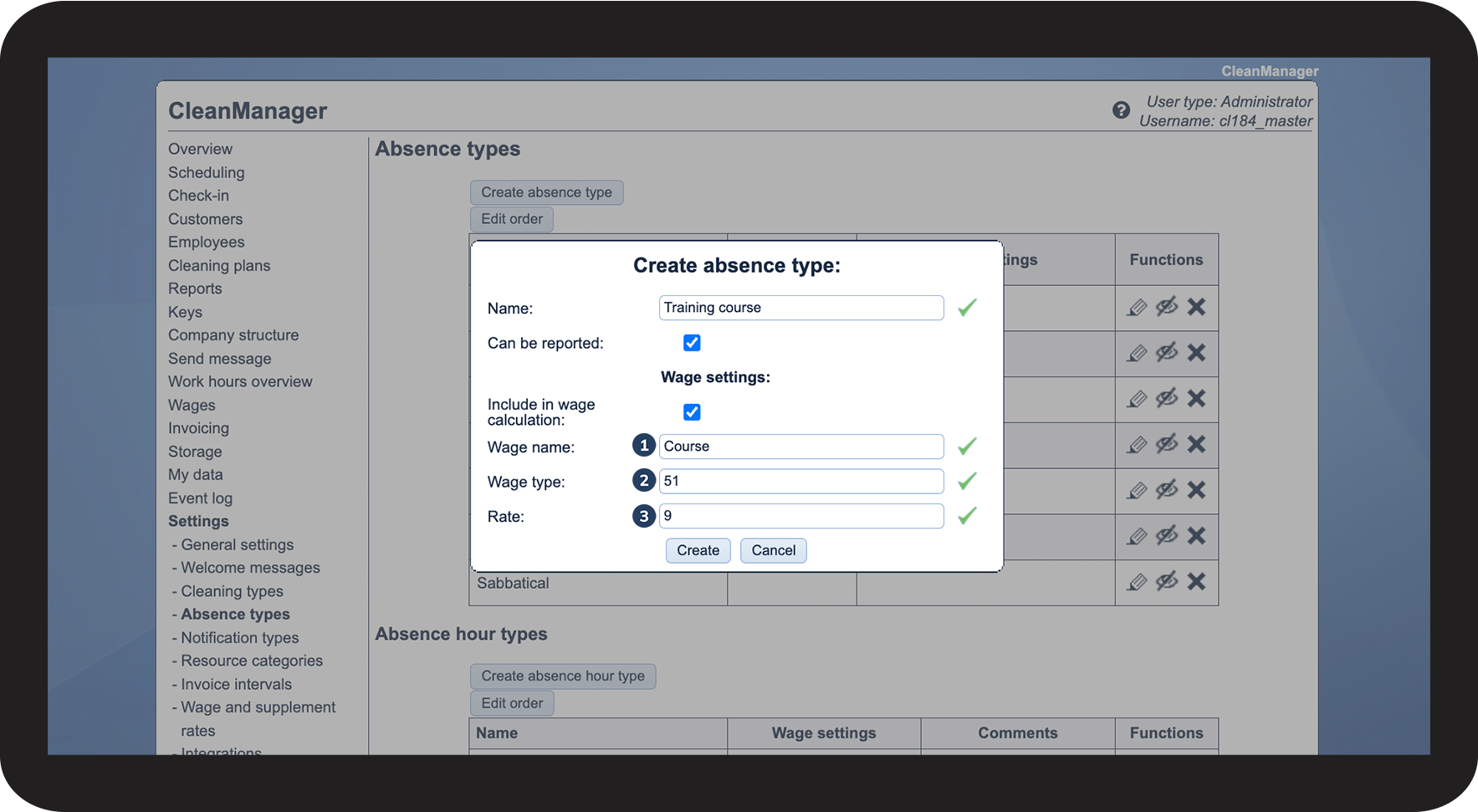
INFO:
The fields are not mandatory. For example, if you only wish to use the wage type, you can leave the other two fields blank.

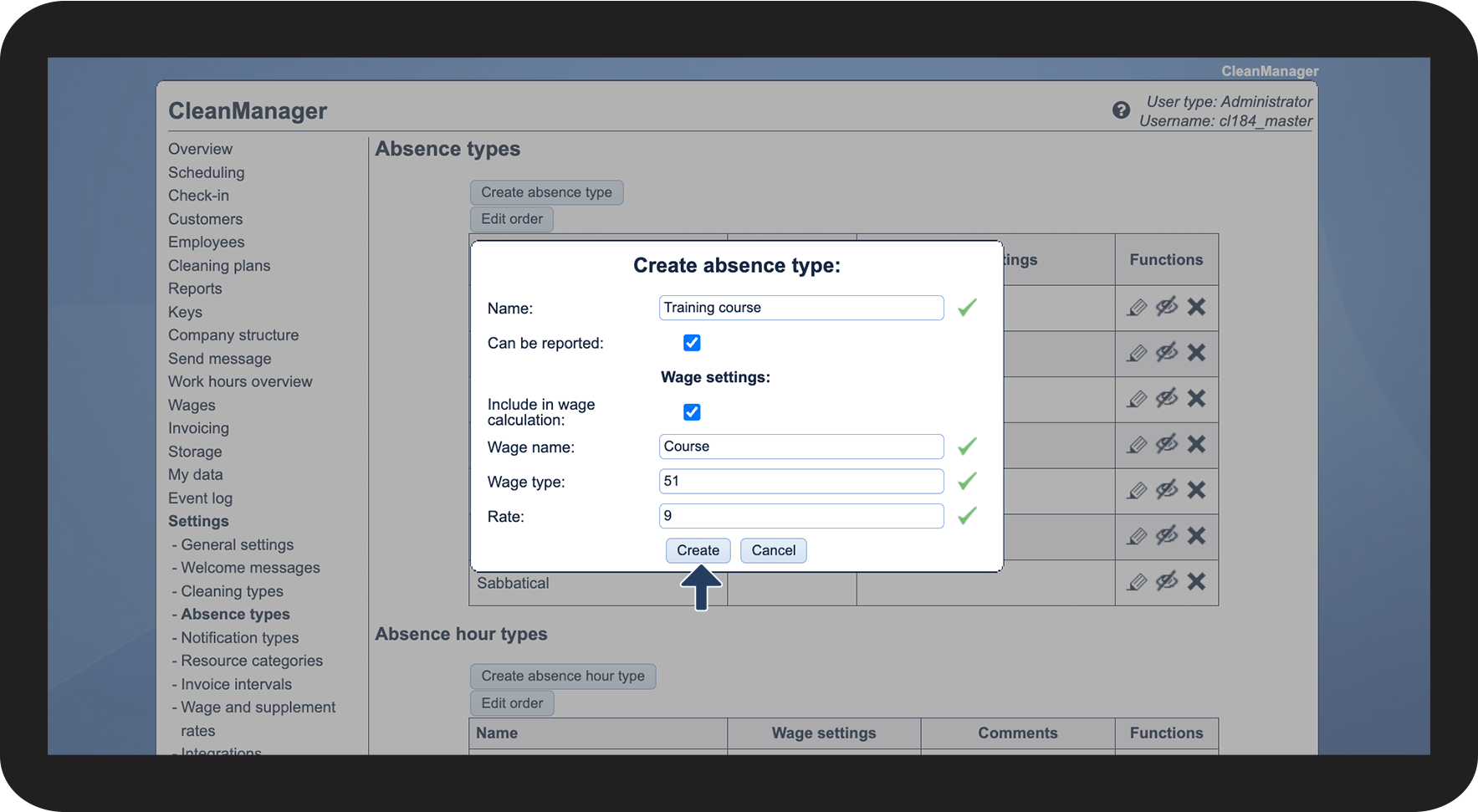
Continue to the article Editing absence types
Here, you can learn more about how to edit existing absence types