Skip to content
English
  • There are no suggestions because the search field is empty.

Create an extra task

How do I start an extra task?

As an employee, it can happen that once in a while you will receive ad hoc/ extra tasks.

It could be that those tasks are not scheduled, or it is an extra cleaning task, which has not yet been added to CleanManager by your supervisor.

Note:

This guide shows you how to set up a new extra task, which was not previously planned in the employee's calendar. For this to work, the following setting needs to be activated: Time registration

Read these guides to start an existing task: 
Start a task - with NFC tag or Start a task - without NFC tag


Set up a new task

This is how you set up a new task

number_1.png

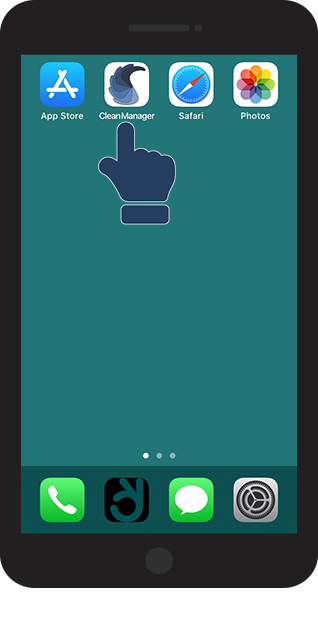
Open the CleanManager app

1.png  
number_2.png

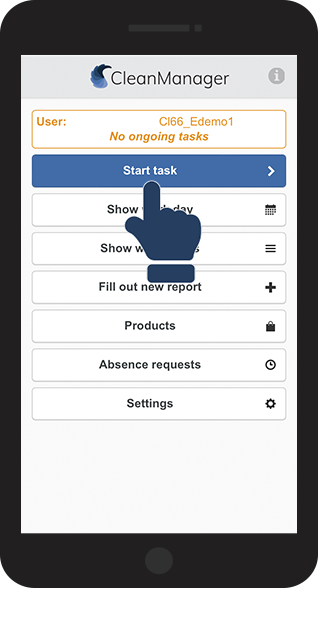
Choose Start task

2.png 
number_3.png

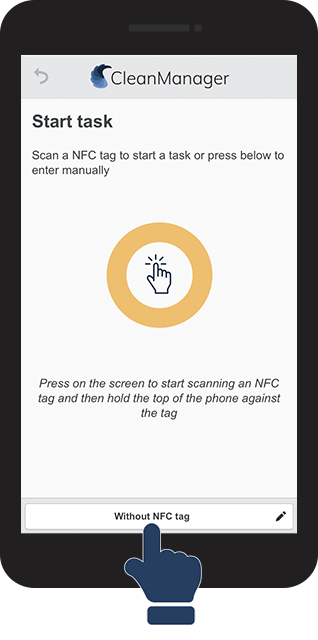
Click on the button Without NFC-tag (You can choose to use a NFC tag as well)

3.png
number_4.png

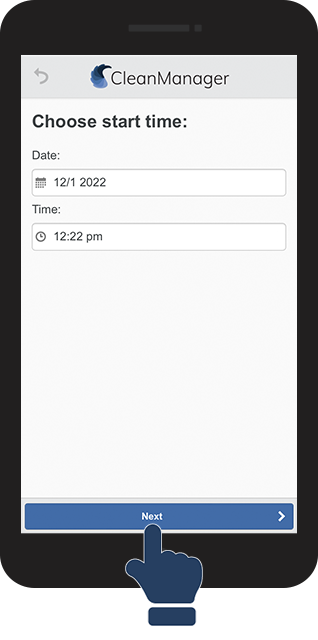
Click on Next


or change the start time for the task

  4.png
number_5.png

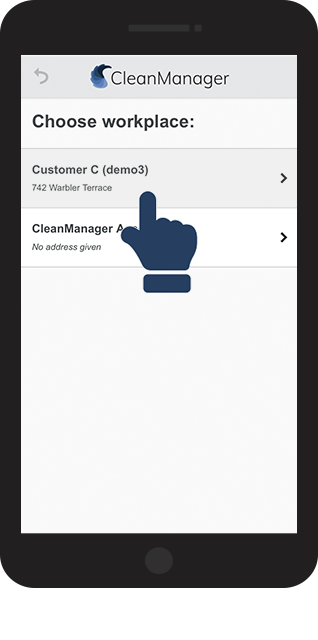
Choose the workplace of the customer you want to start the task at (you need to be connected to the customer in order to see the workplaces on the list)

  5.png
number_6.png

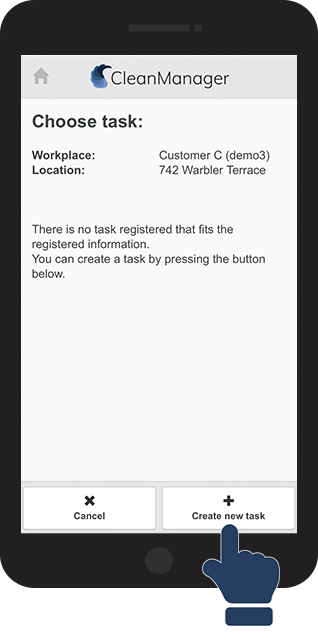
Click on the button Create new task

  6.png


Note:

If you are unable to choose the possibility Create new task, it could be because you as a user do not have access to create a new task. Contact your supervisor, so they can give you access:
SettingsGeneral settingsEmployees can report hours at the workplaces they are associated with
?

number_7.png

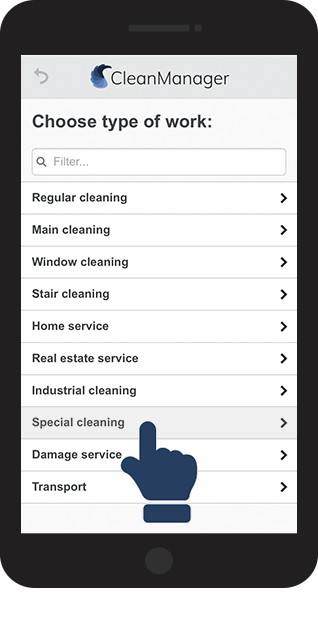
Choose the type of work, which you want to begin with


(In this example, we started a special cleaning. Your company can decide on its own which types of tasks are accessible)

  7.png
number_8.png

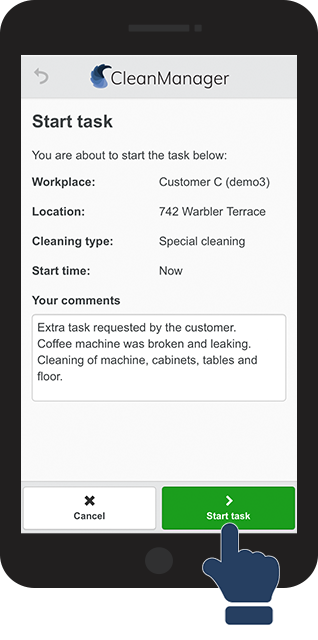
Click on Start task


When you start a new task, it might be a good idea to attach information about the task.

8.png
number_9.png

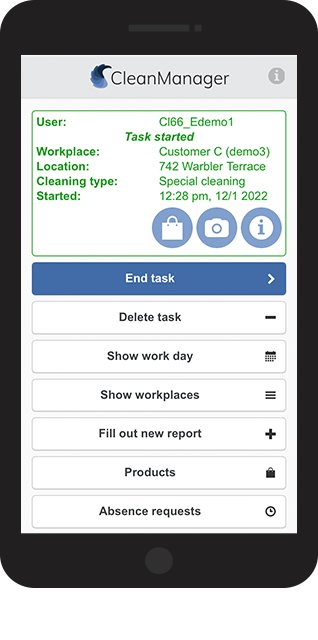
The new task has now been started


To finish your task, read the articleEnd task - without NFC tag

9.png