
How do I set up NFC tags?
NFC tags can be set up and tested through the CleanManager app by the administrator or a supervisor.
Are you curious about NFC tags? You can read more about NFC tags in the following user guides: Why CleanManager is using NFC tags and What are NFC tags?
NOTE:
Supervisors can only set up NFC tags for customers within the supervisor's assigned customer areas. For more information regarding this, go to Company Structure.
Do you have an NFC tag that you are unsure whether has already been set up for a customer? In the following user guide, you will learn how to test it: Test of NFC tags
In this article, you will learn how to set up an NFC tag for a customer:
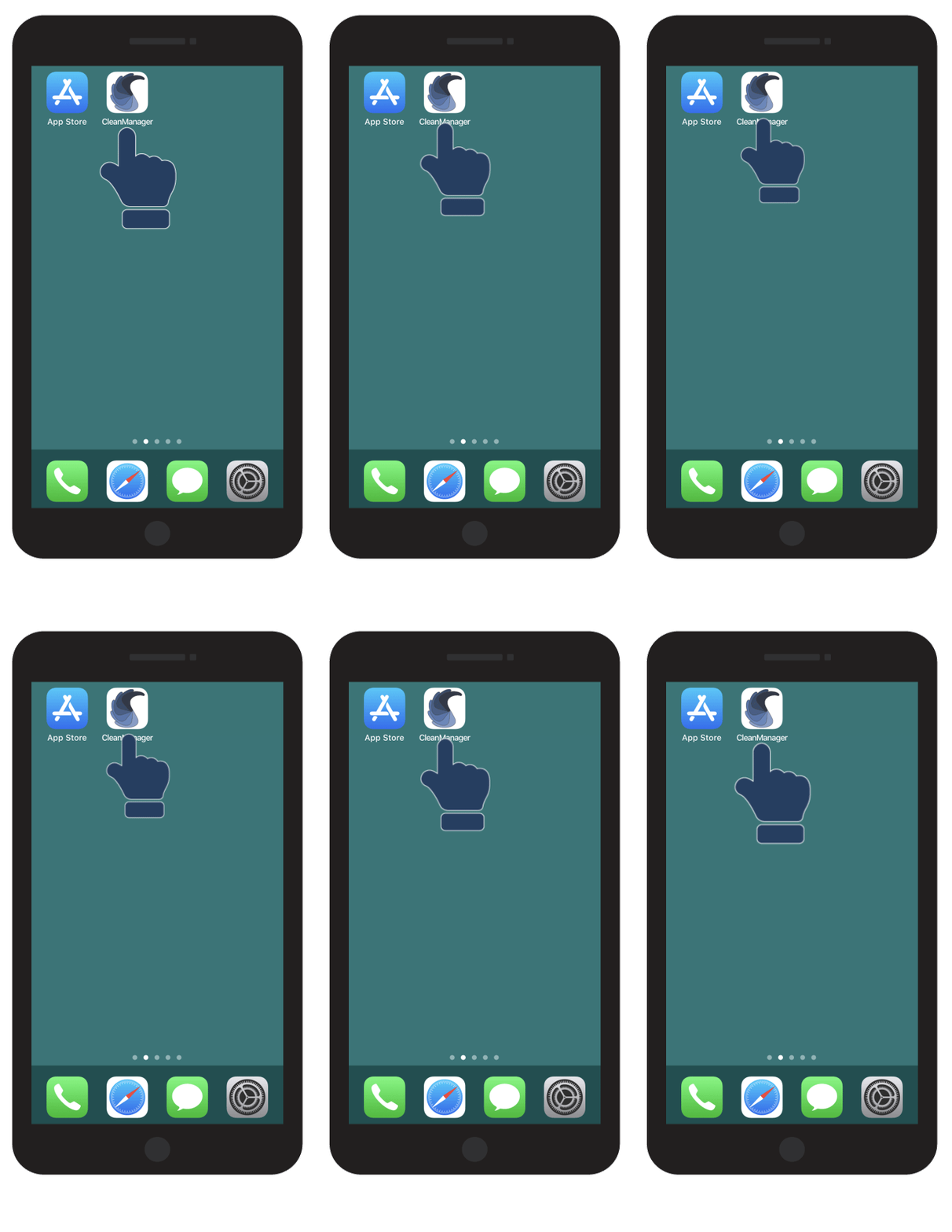
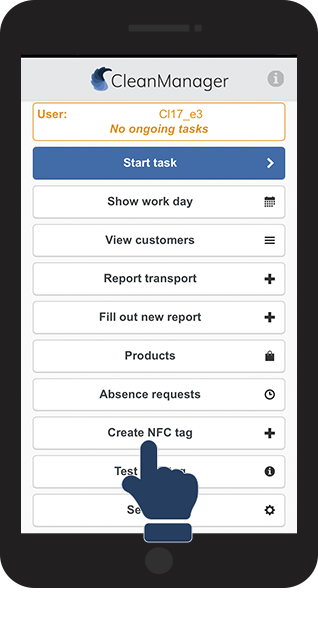
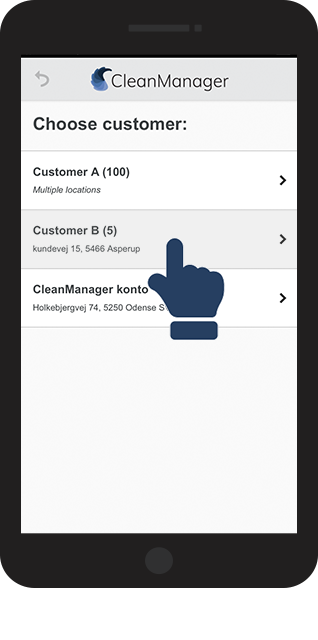
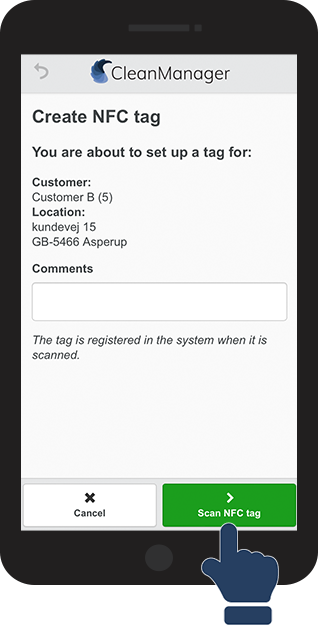
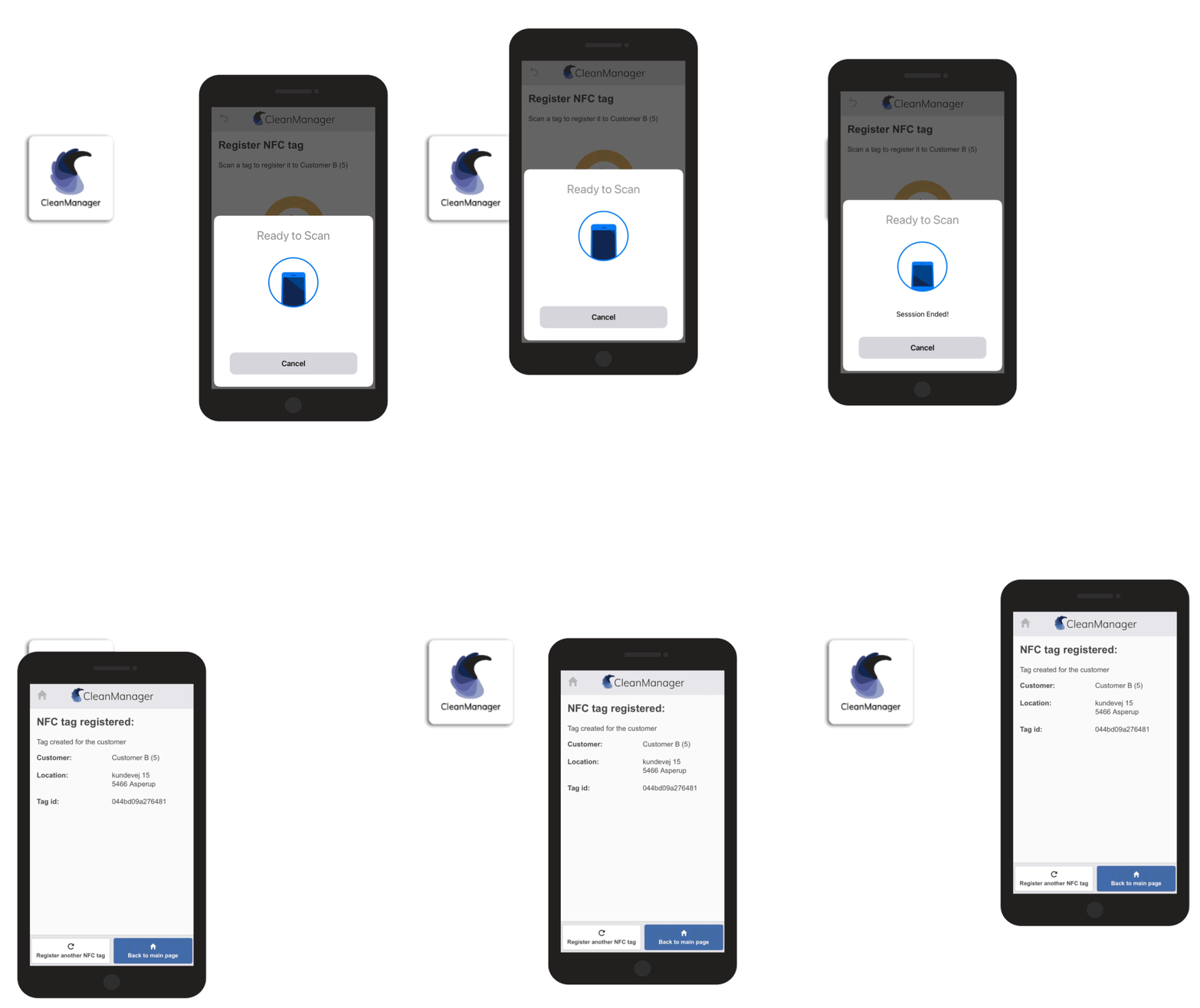
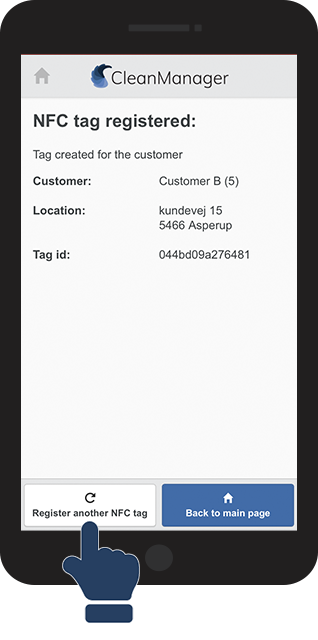
This is how you set up an NFC tag for a customer location






NOTE:
All registered NFC tags will be saved in CleanManager and can be accessed here: Where can I see my registered NFC tags?
If you would like to know how to delete registered tags, see the article: Deleting NFC tags