
Can I use CleanManager in other languages than English, German, and Danish?
The answer to that question is; Kind of.
In CleanManager, you have the option to select one of the three following languages for the system language: English, German, and Danish. By selecting one of these languages, the system language will be translated. In other words, the different categories of the menu and all the standardized texts.
But what can you do if your employees do not understand one of the three languages? And what can you do if you yourself would prefer to use the system in your native language, which is not one of the three choices?
In this article, we will showcase where and how you can change the language in the system, so it becomes accessible.
INFO:
The language we will use in this article as an example is Polish.
In this article, you will learn where you can add your own native language to CleanManager:
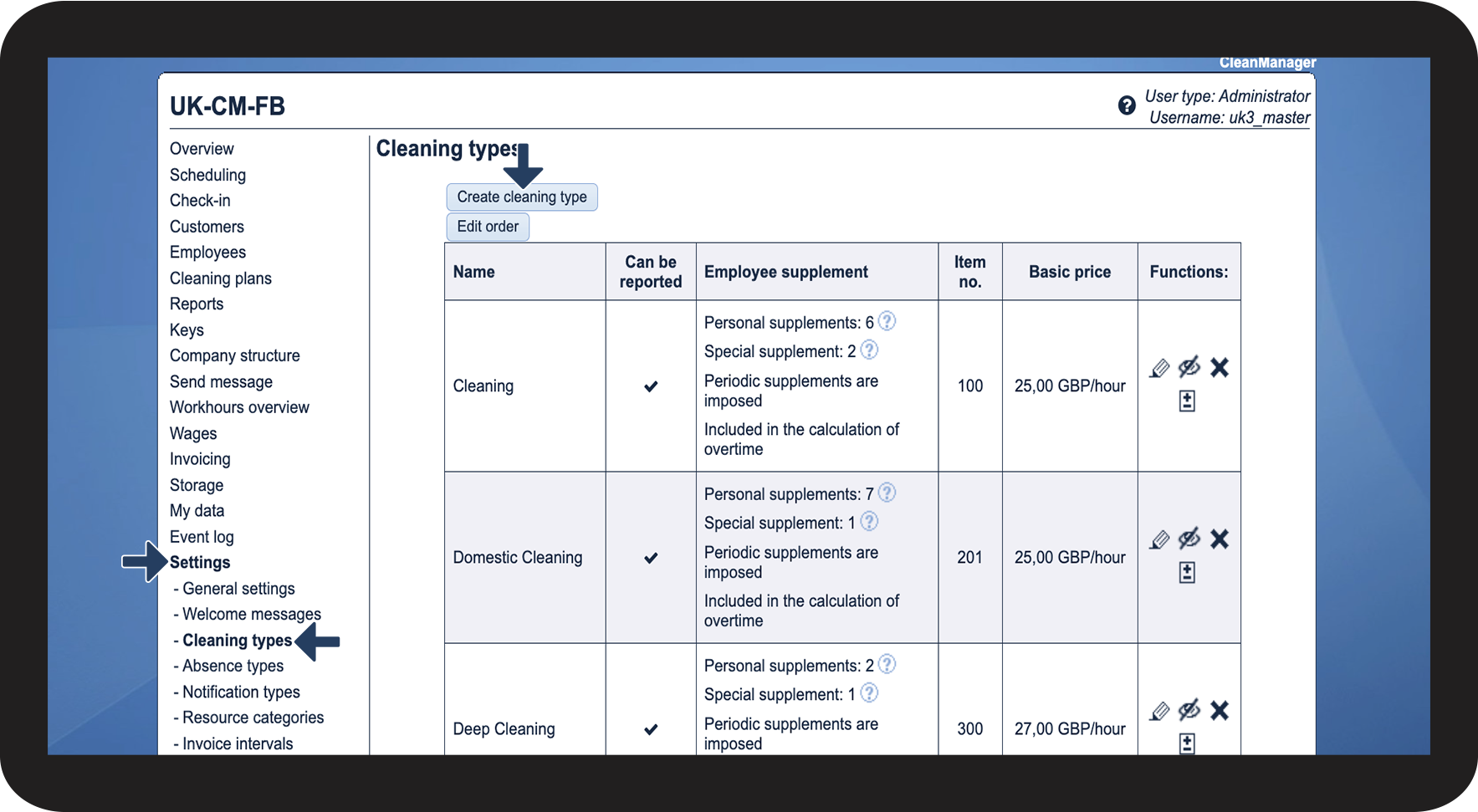
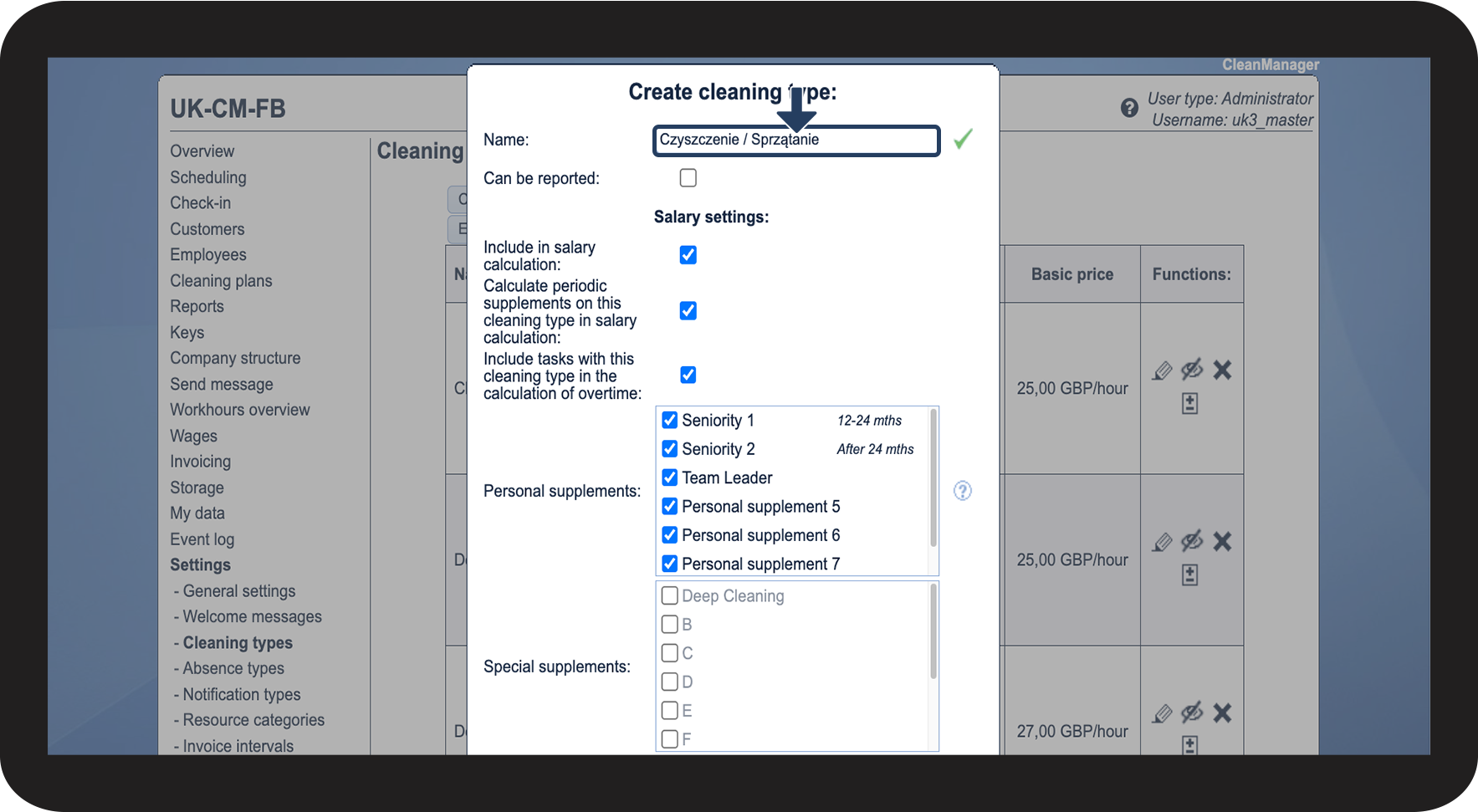
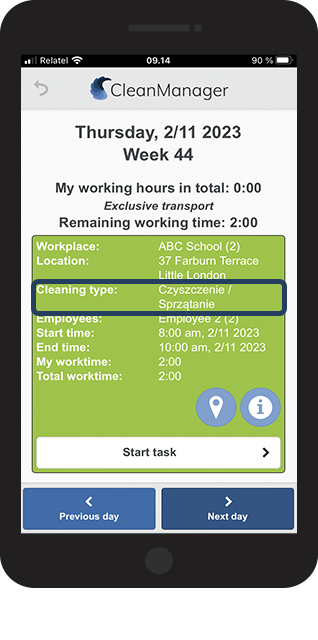
Cleaning types
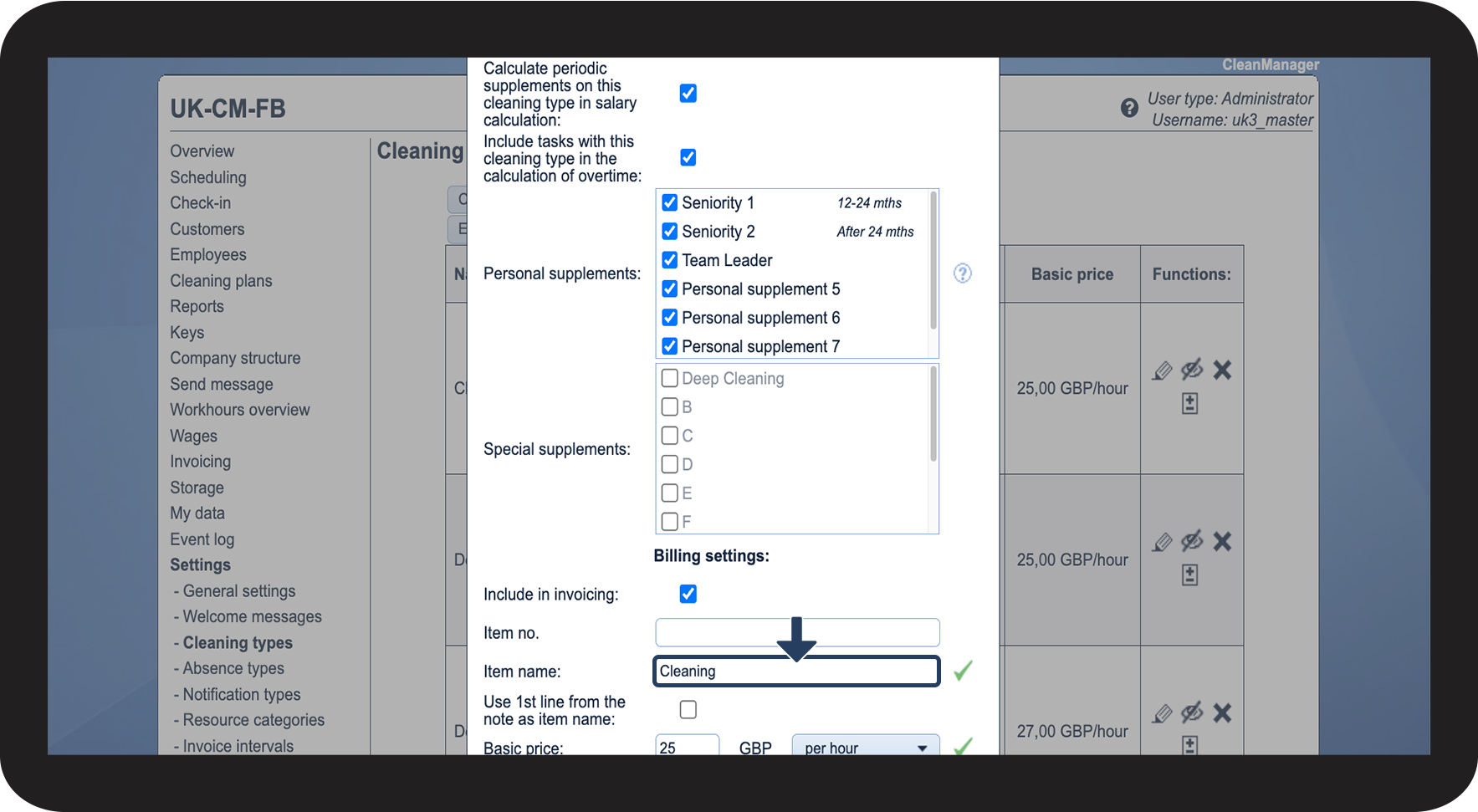
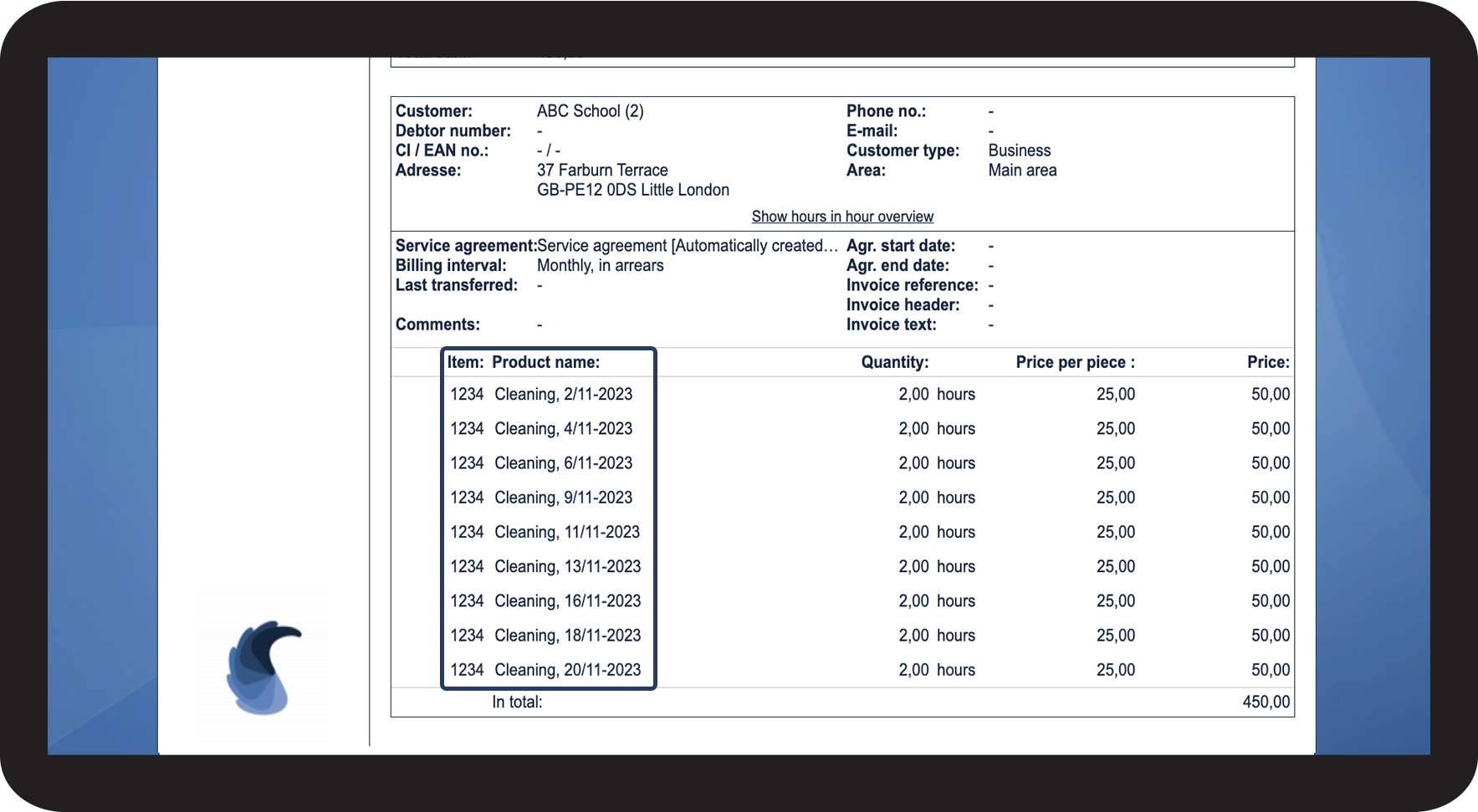
The cleaning types can be seen by the employees and the customers. It is, however, also possible to use two different names for a cleaning type; the name the employees and the customers can see in the calendar and then the name, the customer can see on their invoice.
NOTE:
To be able to follow points 3 to 4, you need to have the add-on module Invoice Calculation activated on your account. For more information on how to activate add-on modules, go to the article: Add-on modules





Cleaning plans
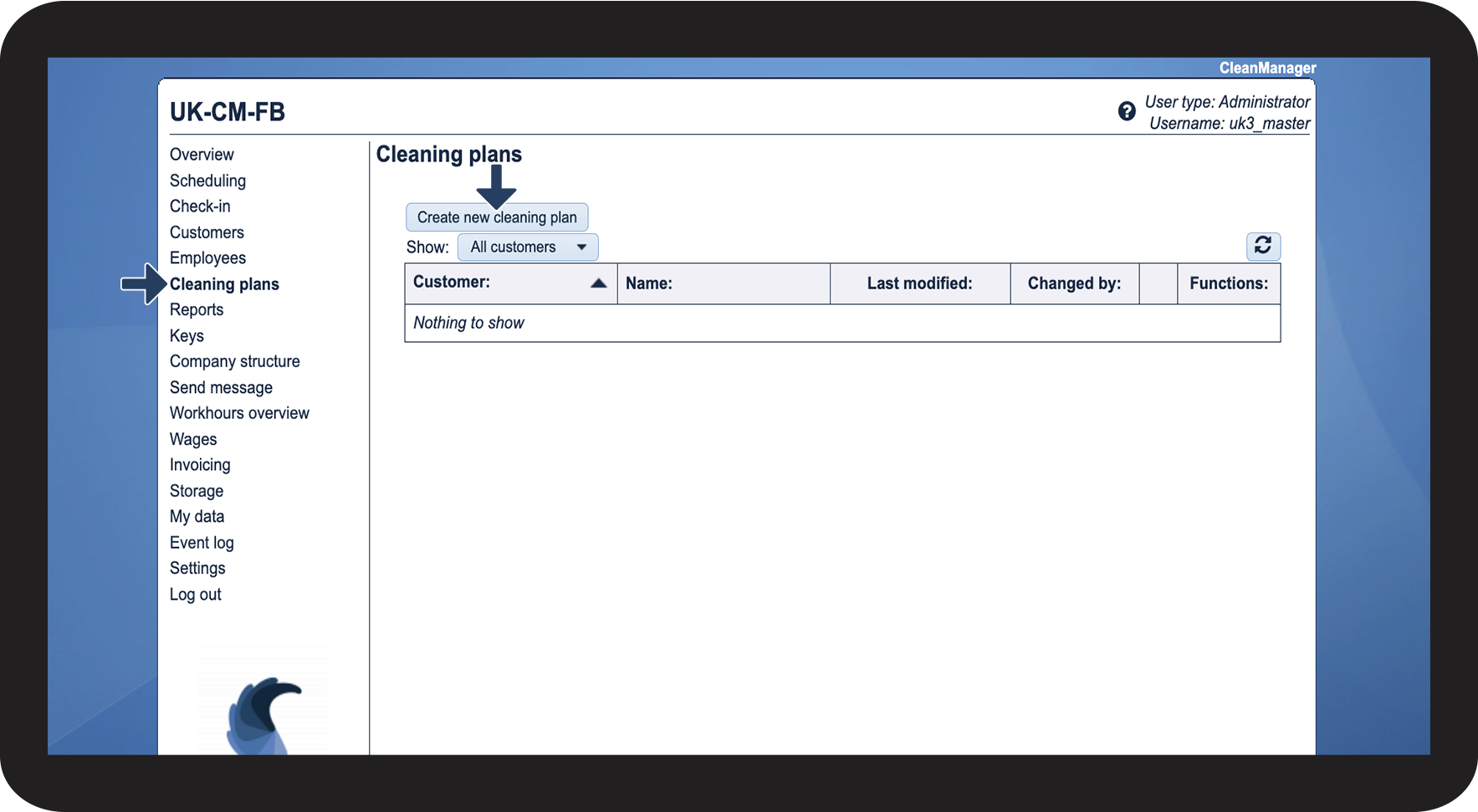
Cleaning plans can be accessed by employees and customers who have been granted access to the system. The cleaning plans are accessible in even more languages, which enables you to translate the cleaning tasks. In case the language you want to use is not available, you can order a new language for a price. For more information regarding this, please contact support at: support@cleanmanager.uk
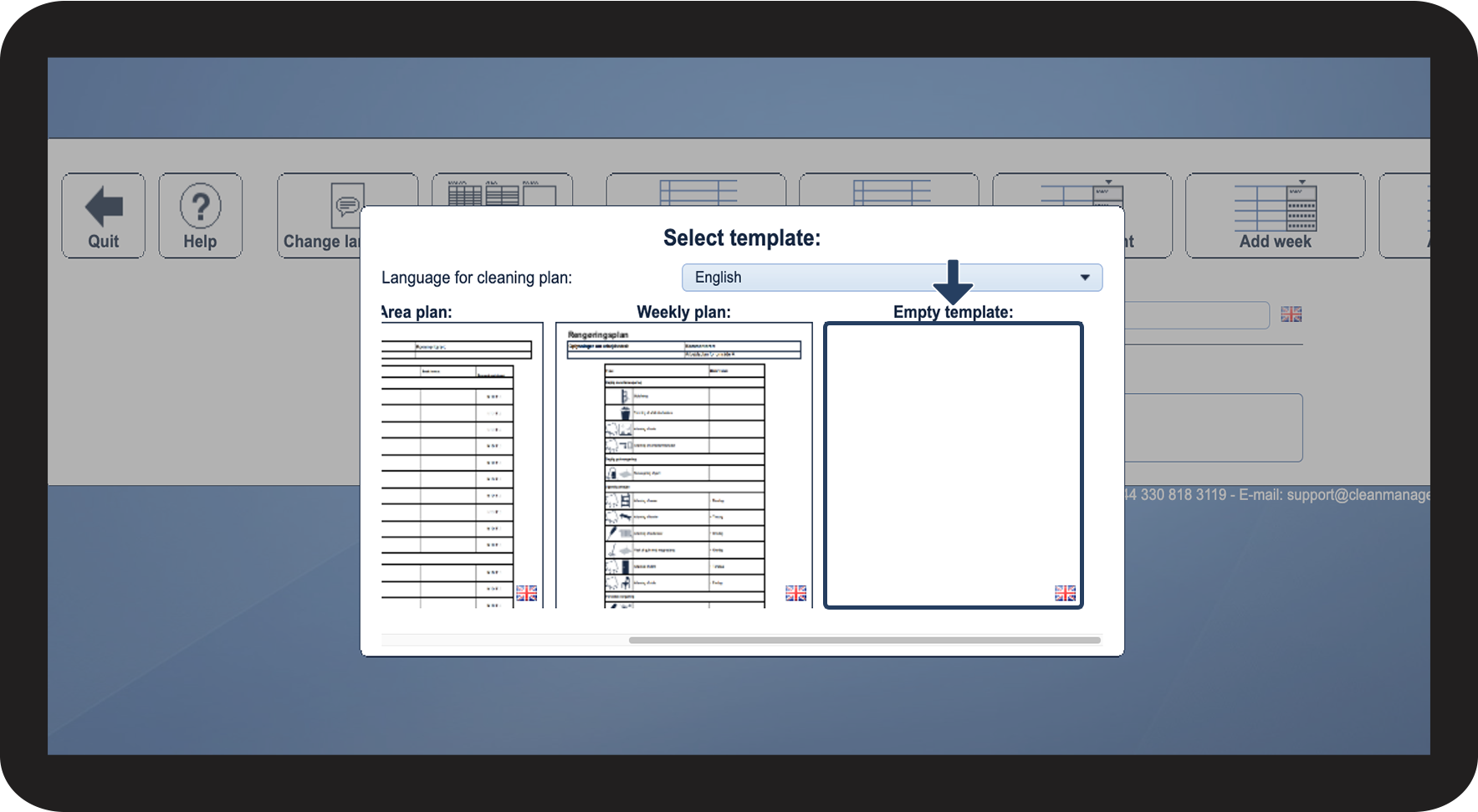
To see which languages are available for the cleaning plans, read the following article: Creating a cleaning plan and selecting the template type and the language
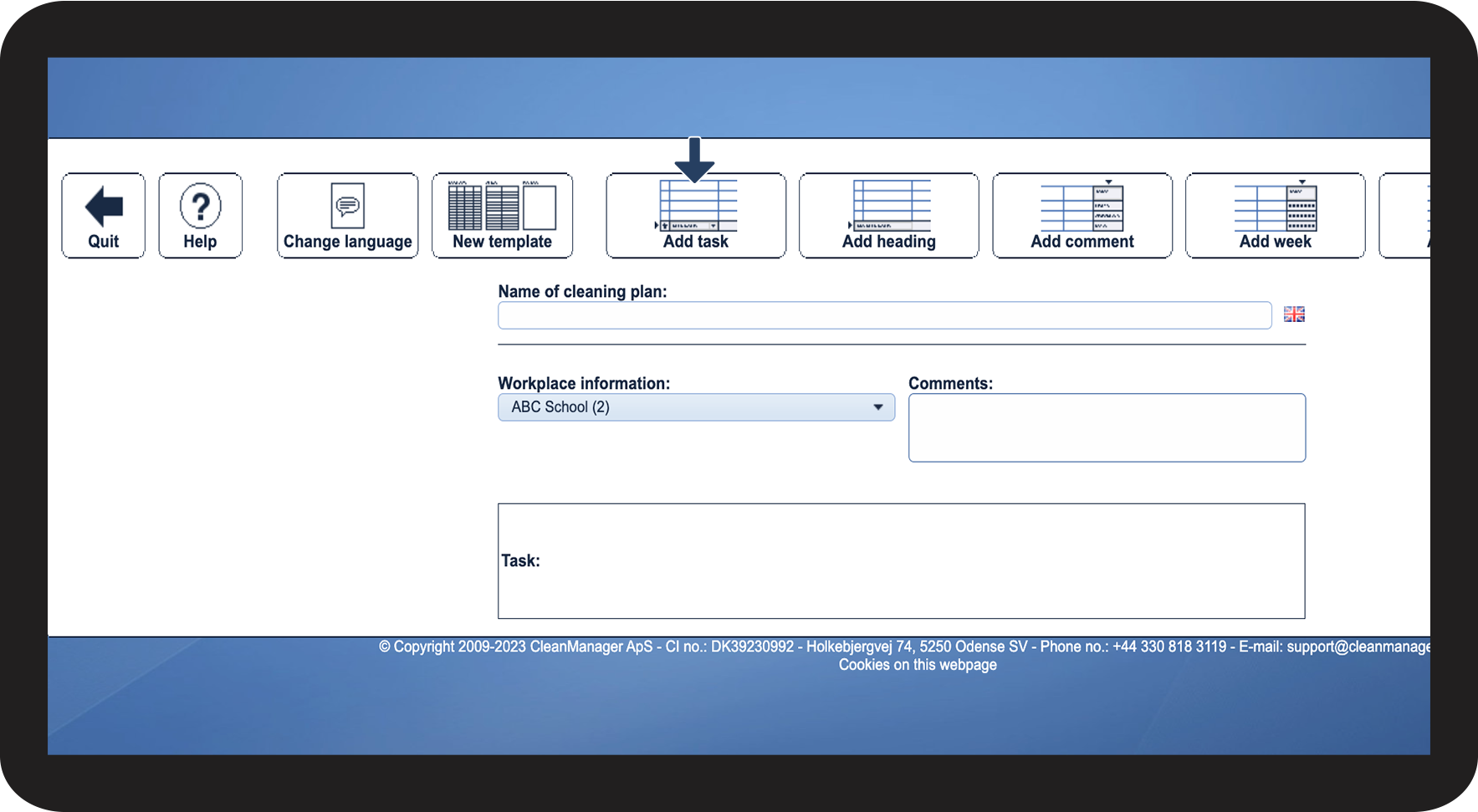
As an alternative, you can translate the cleaning plans yourself, by following this guide.
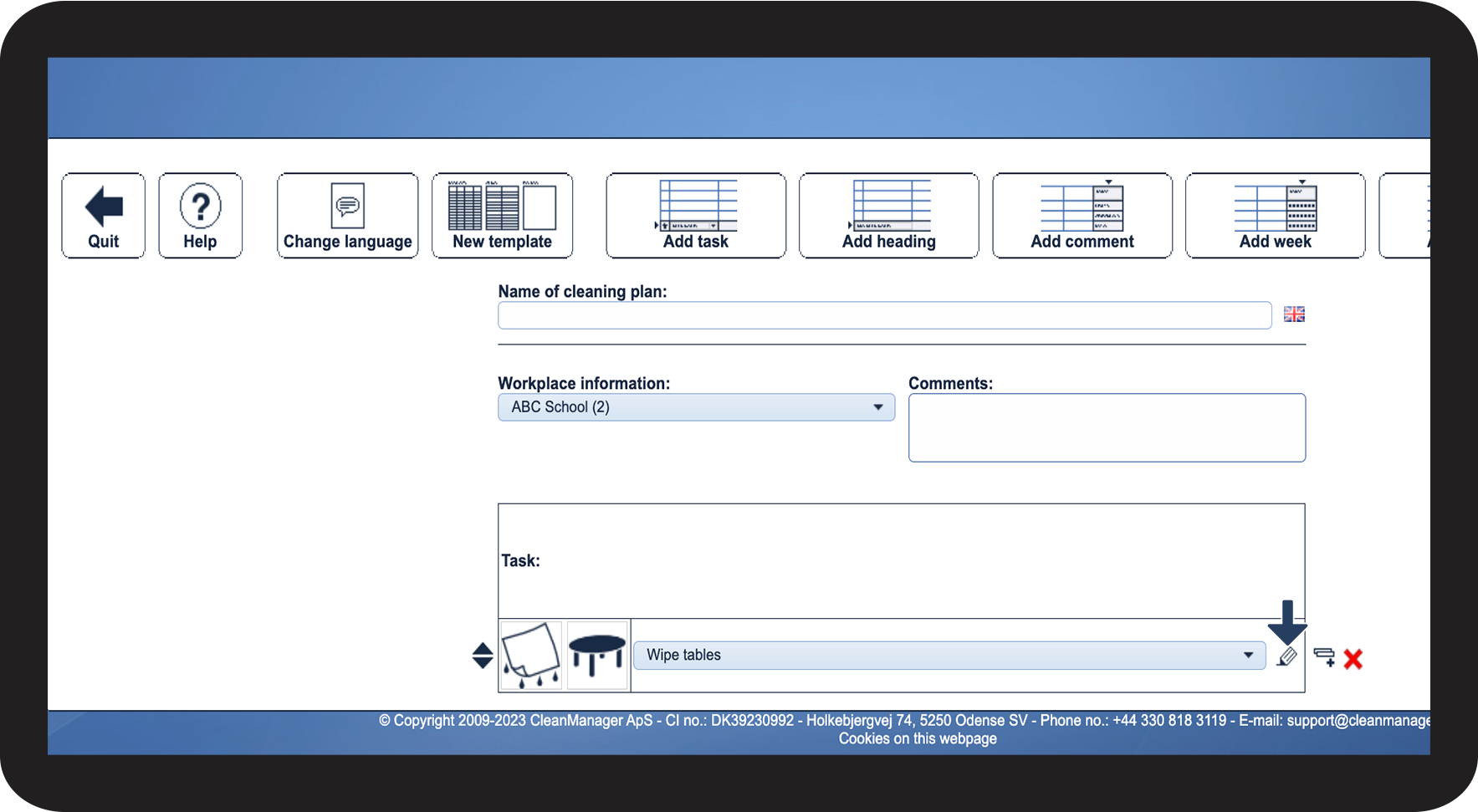
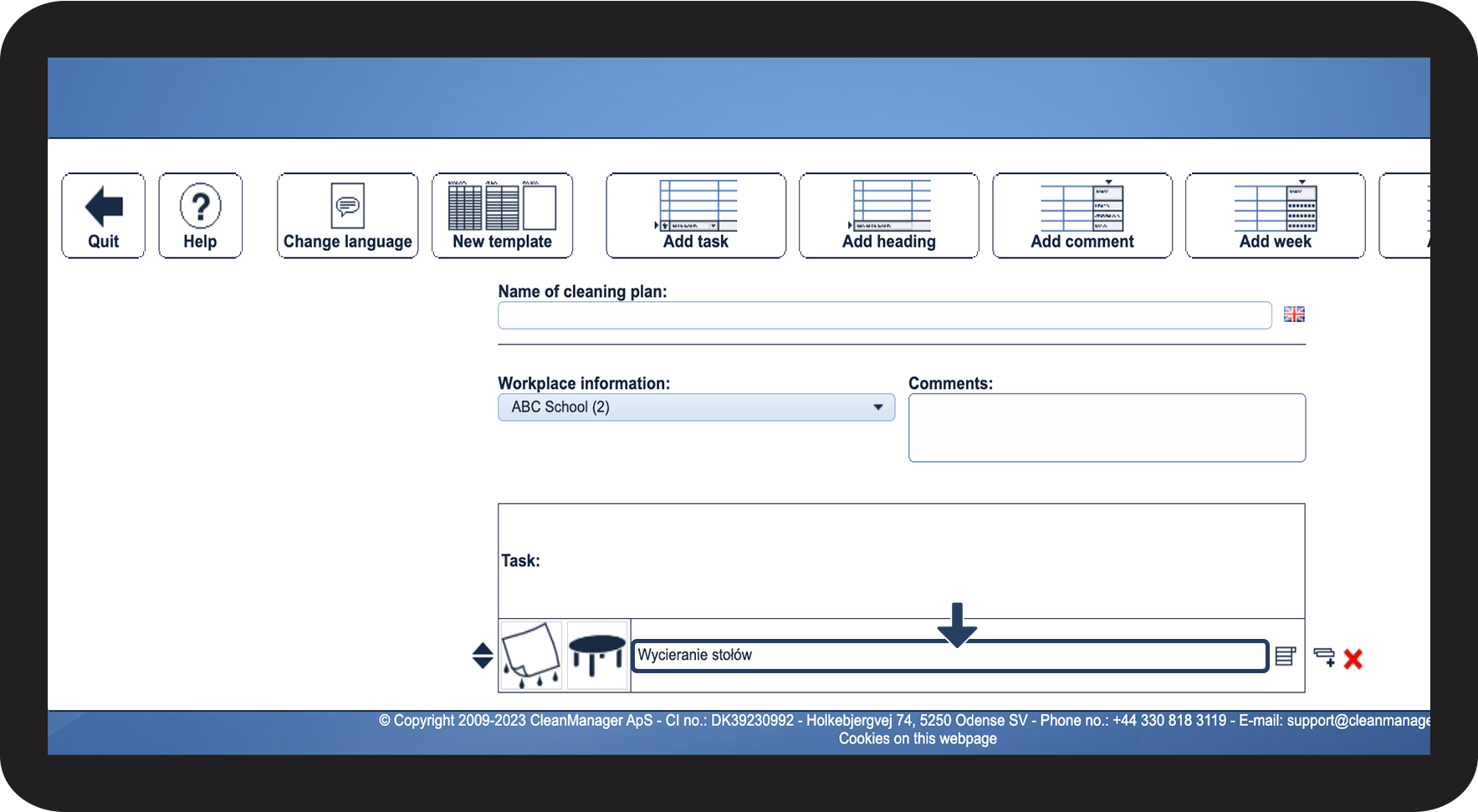
NOTE:
After writing the text in the language you want to use, it is important that you do not click on the button Select from list  because this will reset your text.
INFO:
Do you want to avoid, having to translate the same tasks over and over again, every time you need a new cleaning plan? In this case, make a copy of your cleaning plan, so you only need to add or remove a couple of tasks.
Read more about how you can copy cleaning plans in the article: Features for moving and copying elements in cleaning plans
For information on how to copy tasks, read the article: Features for moving and copying elements in cleaning plans
Comments
Employees have access to comments connected to customers. Either through a task or through a comment directly connected to the customer. This means that you can write the comments in your native language as well.
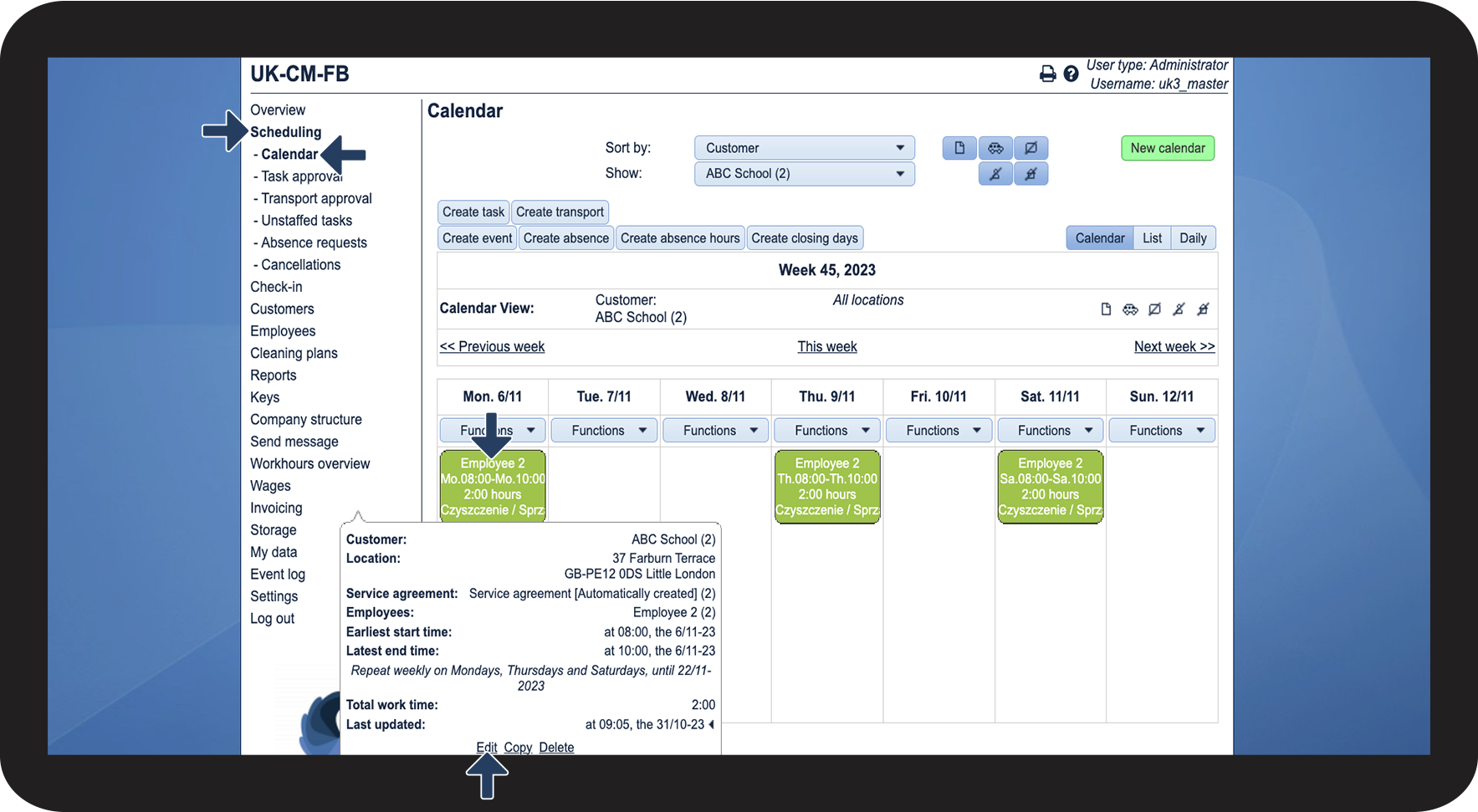
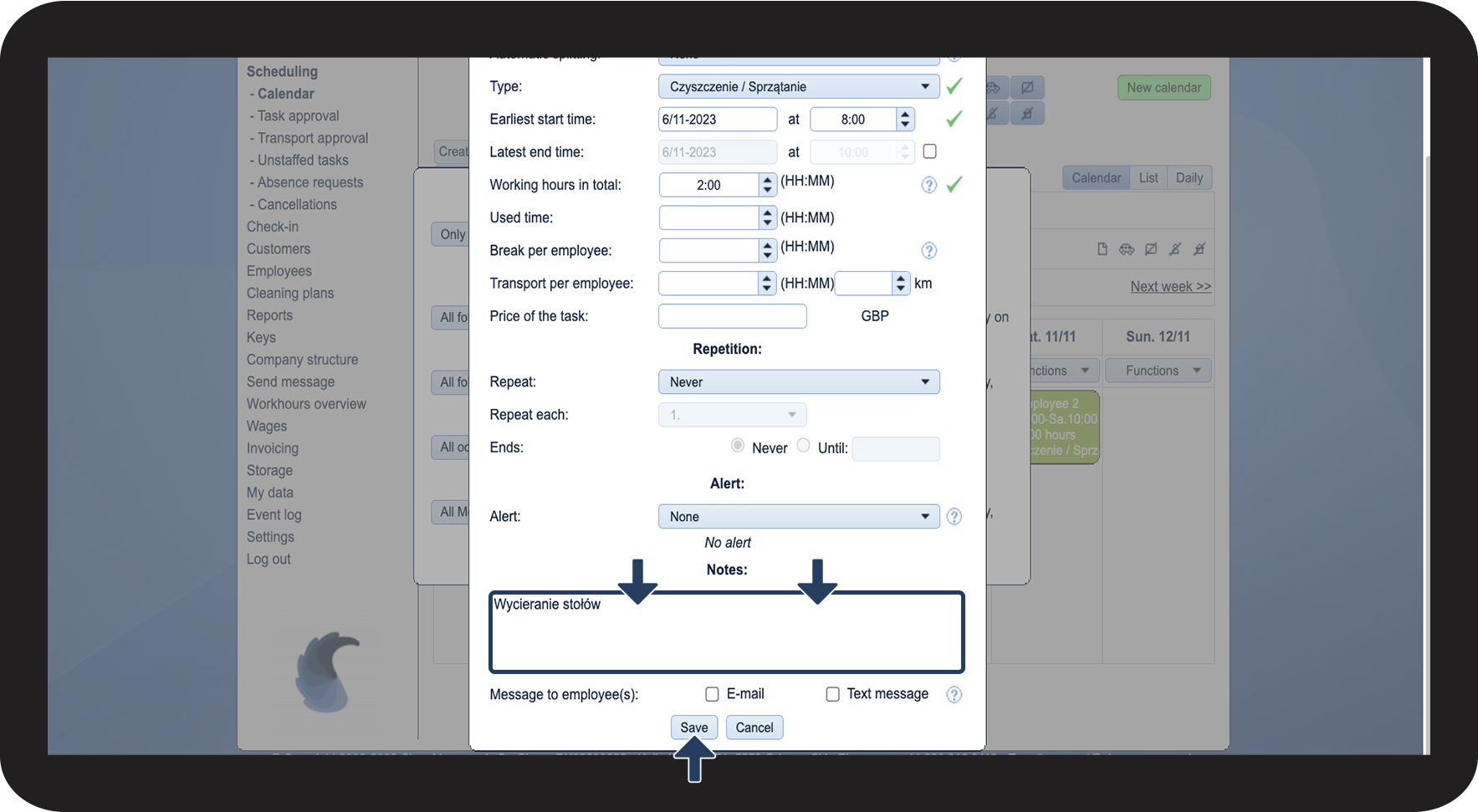
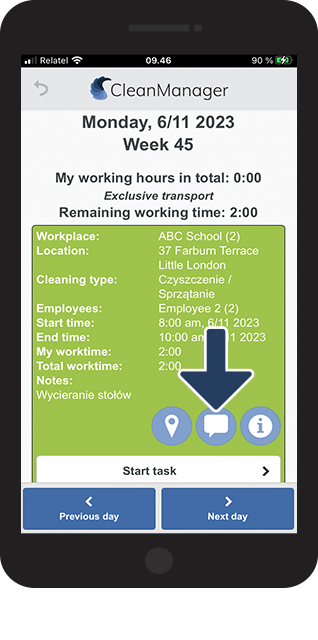
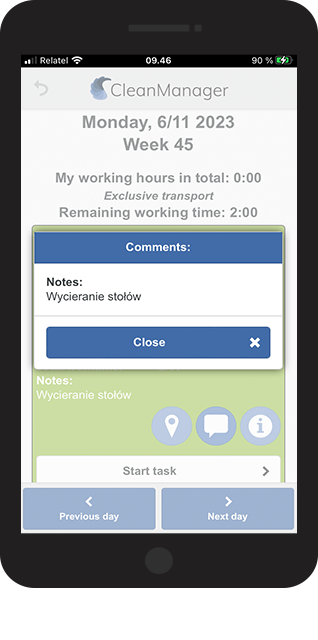
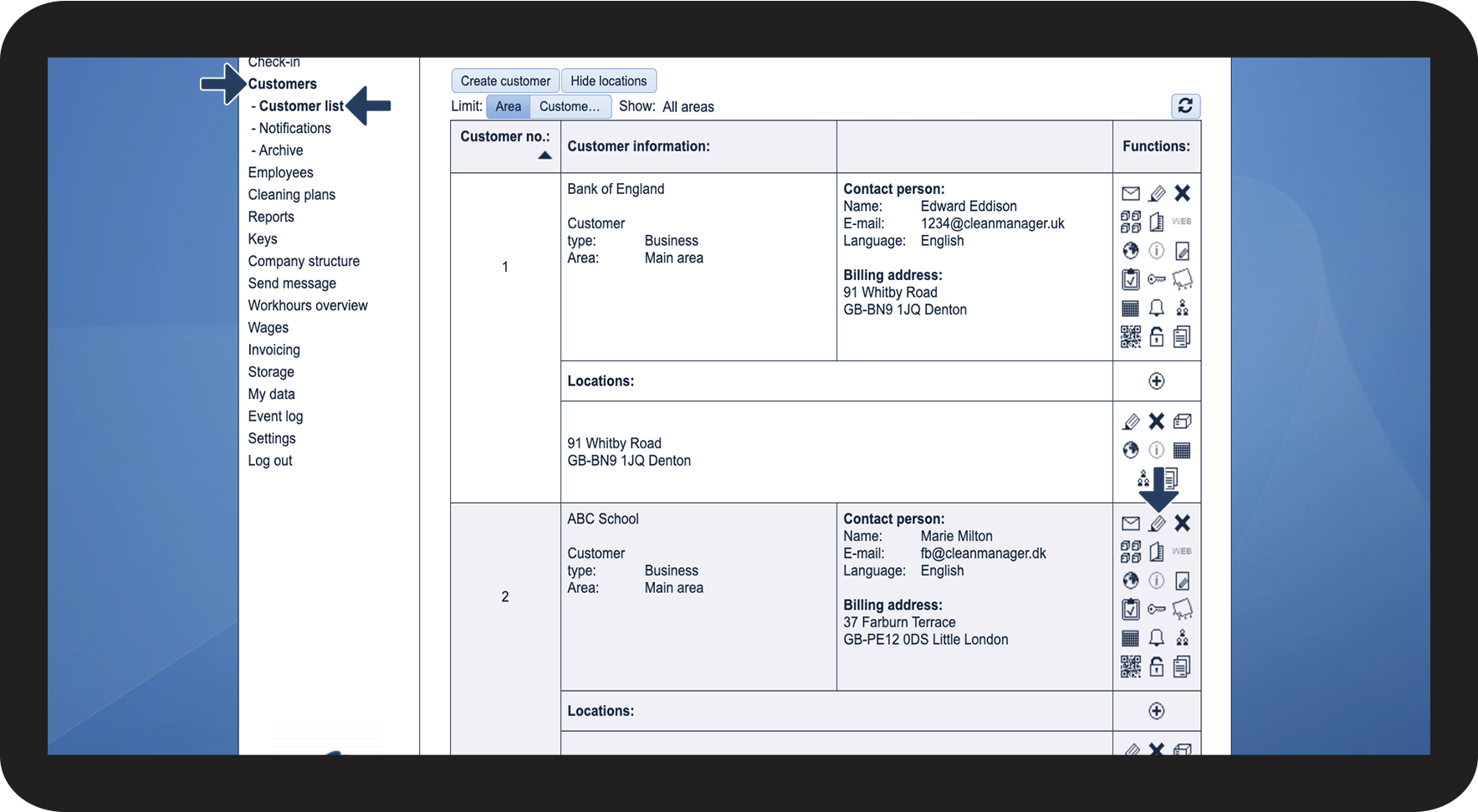
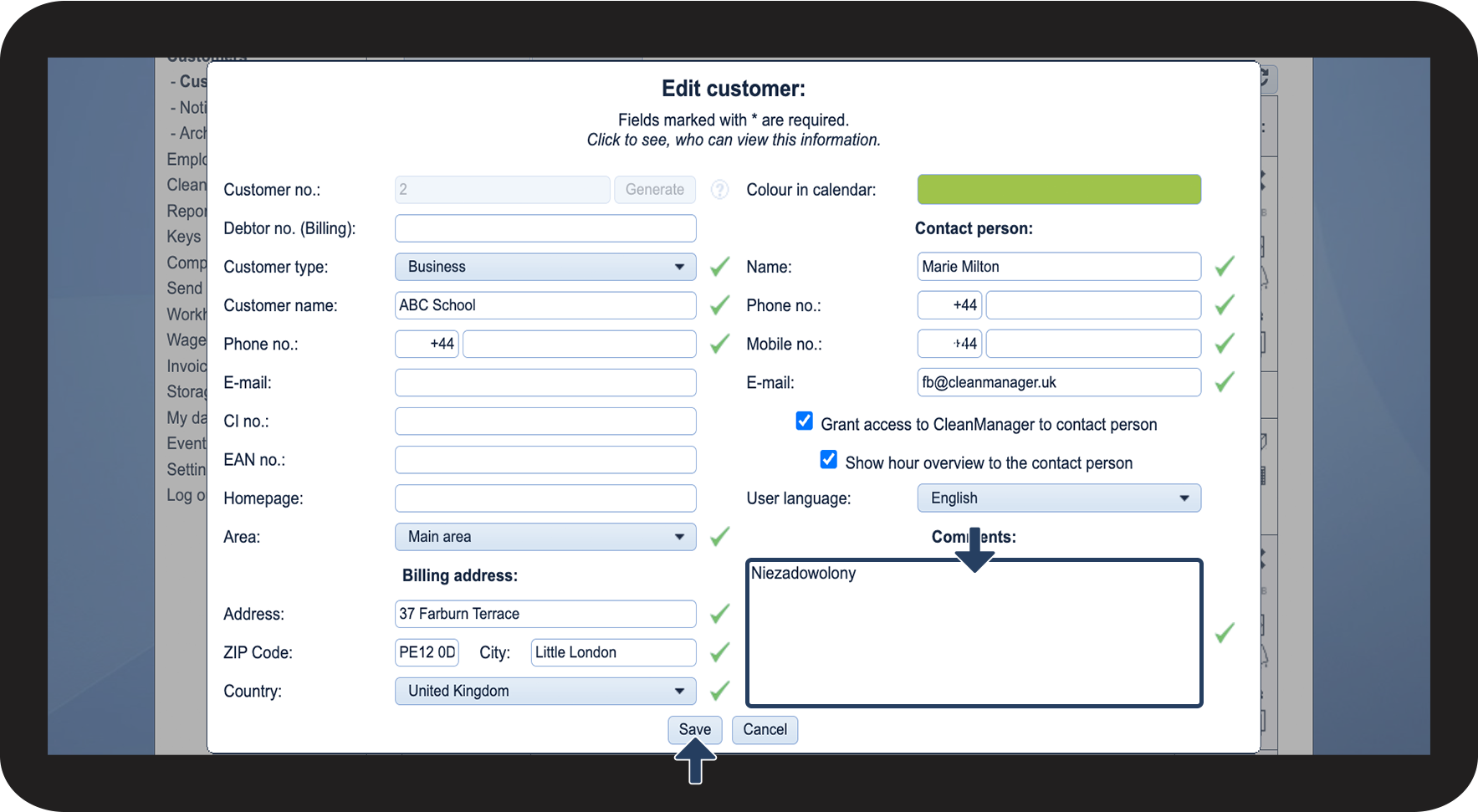

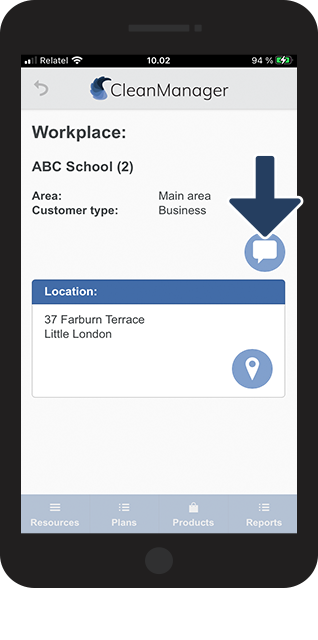
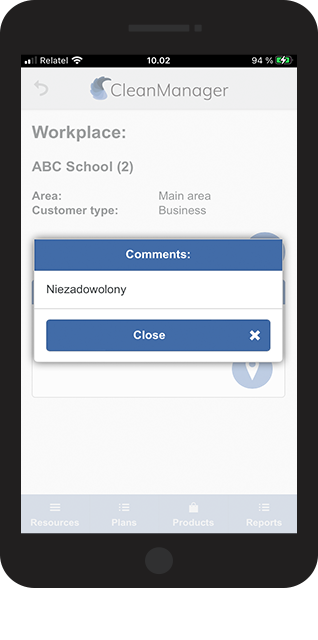 _..
_..
Reports
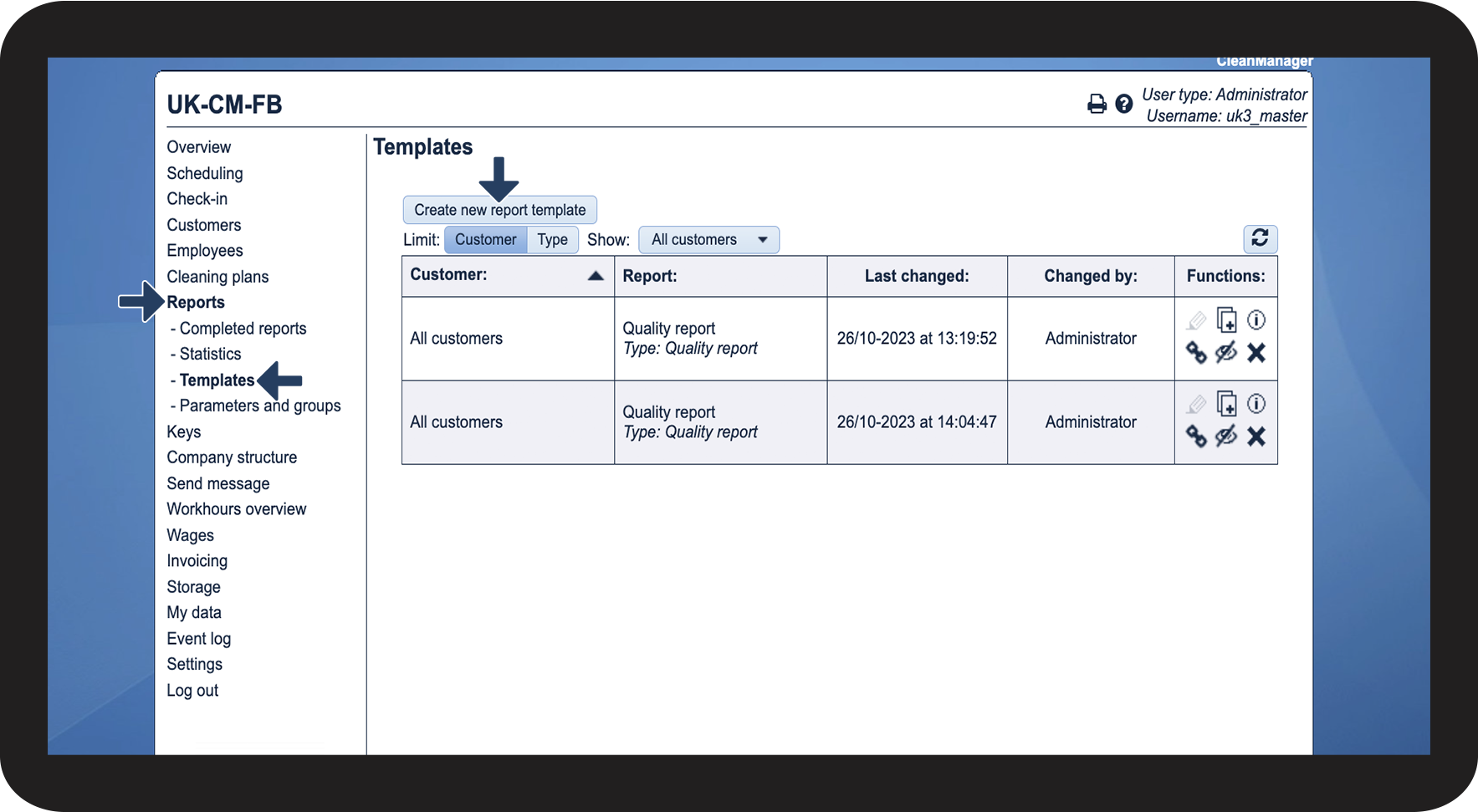
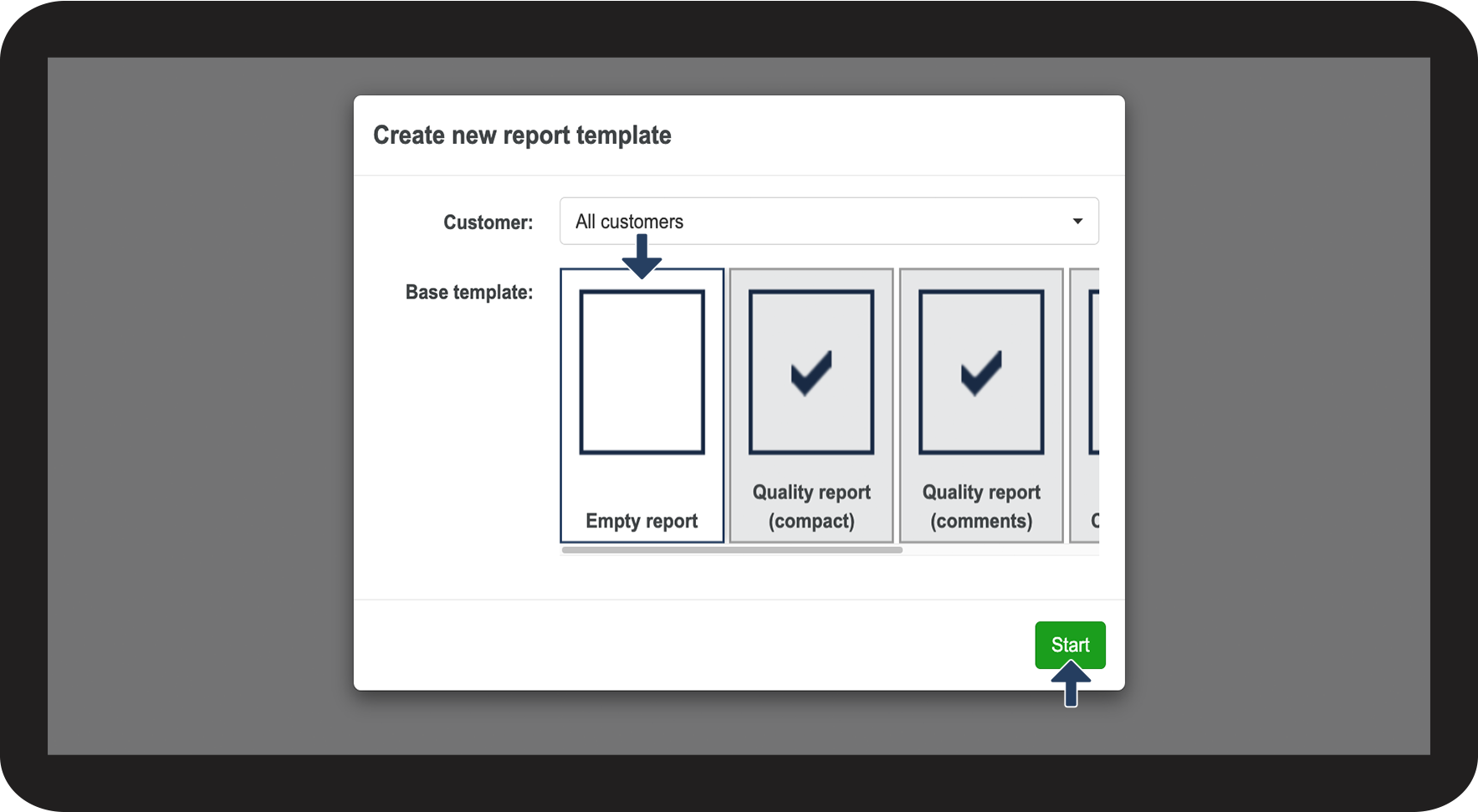
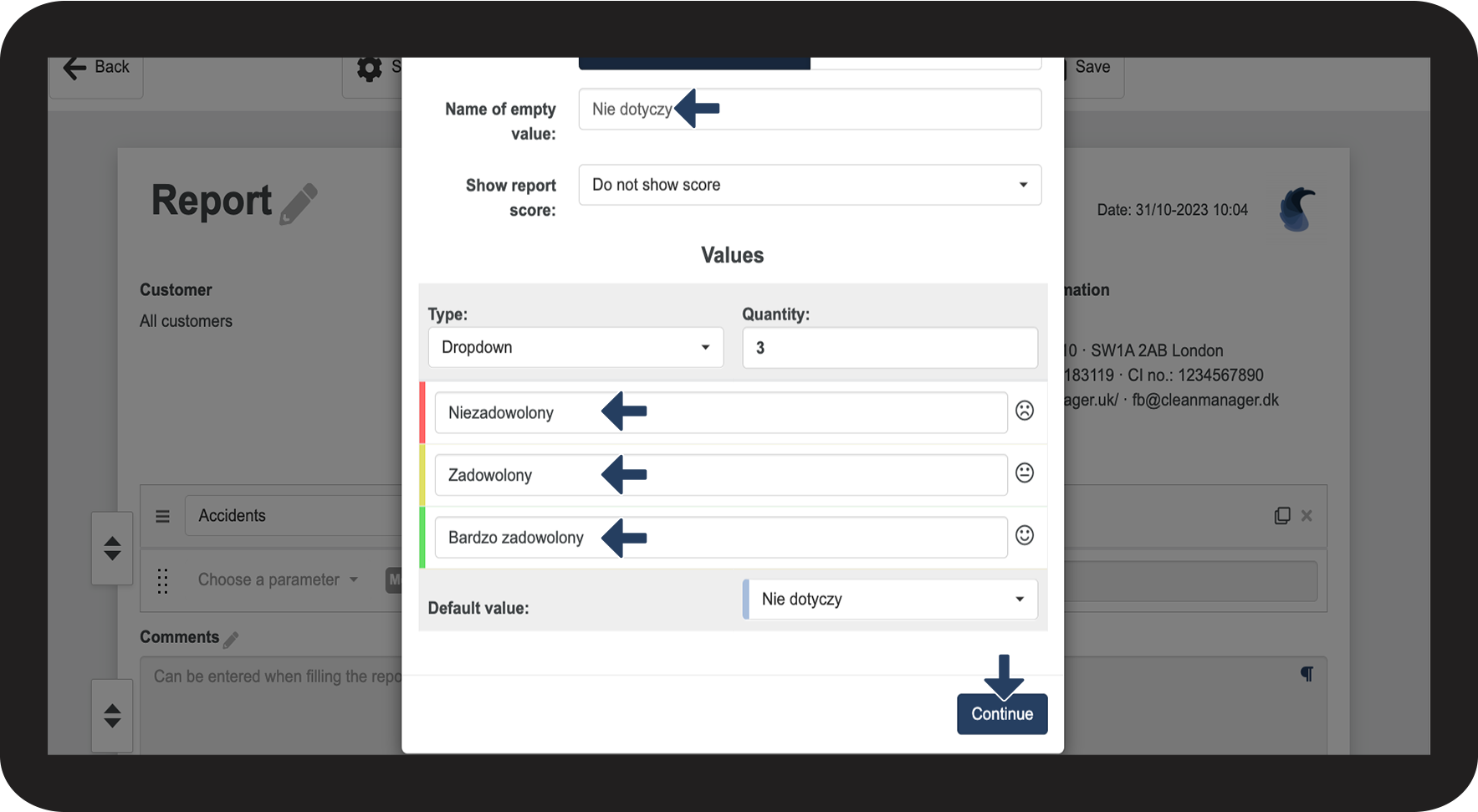
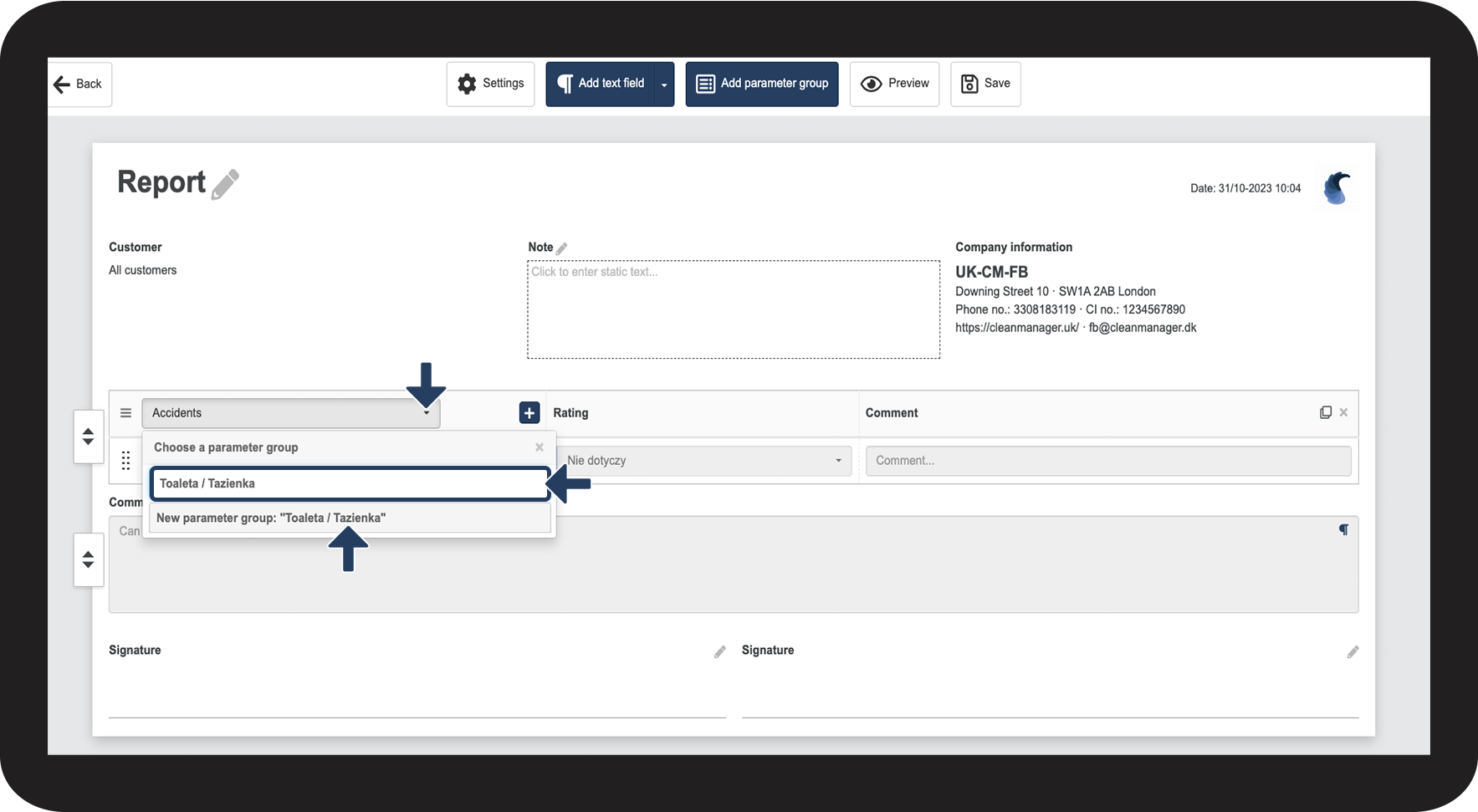
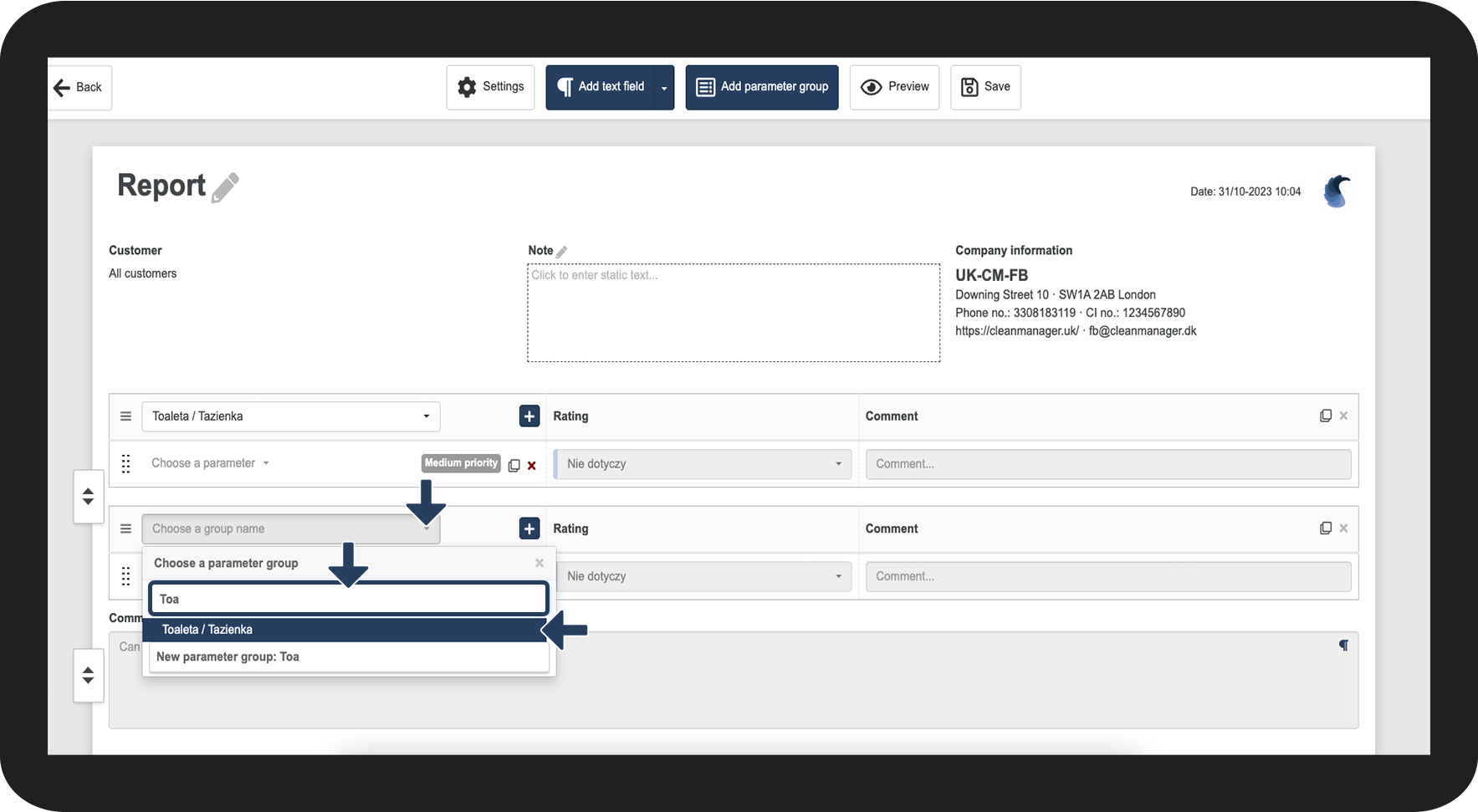
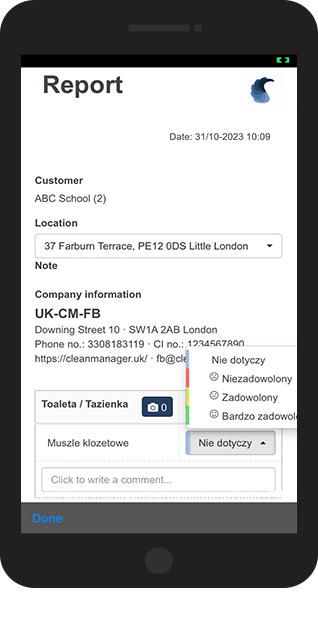
You have the option to change the language of your reports, by writing all the parameter groups and parameters yourself. Apart from that, you can rename the signature fields, the general comments on the template, as well as the parameter comments. For more information regarding this, read the following article: Get started using reports
NOTE:
To be able to use the report module, you need to have the module activated on your account. For more information on how to activate add-on modules, go to the article: Add-on modules
Storage
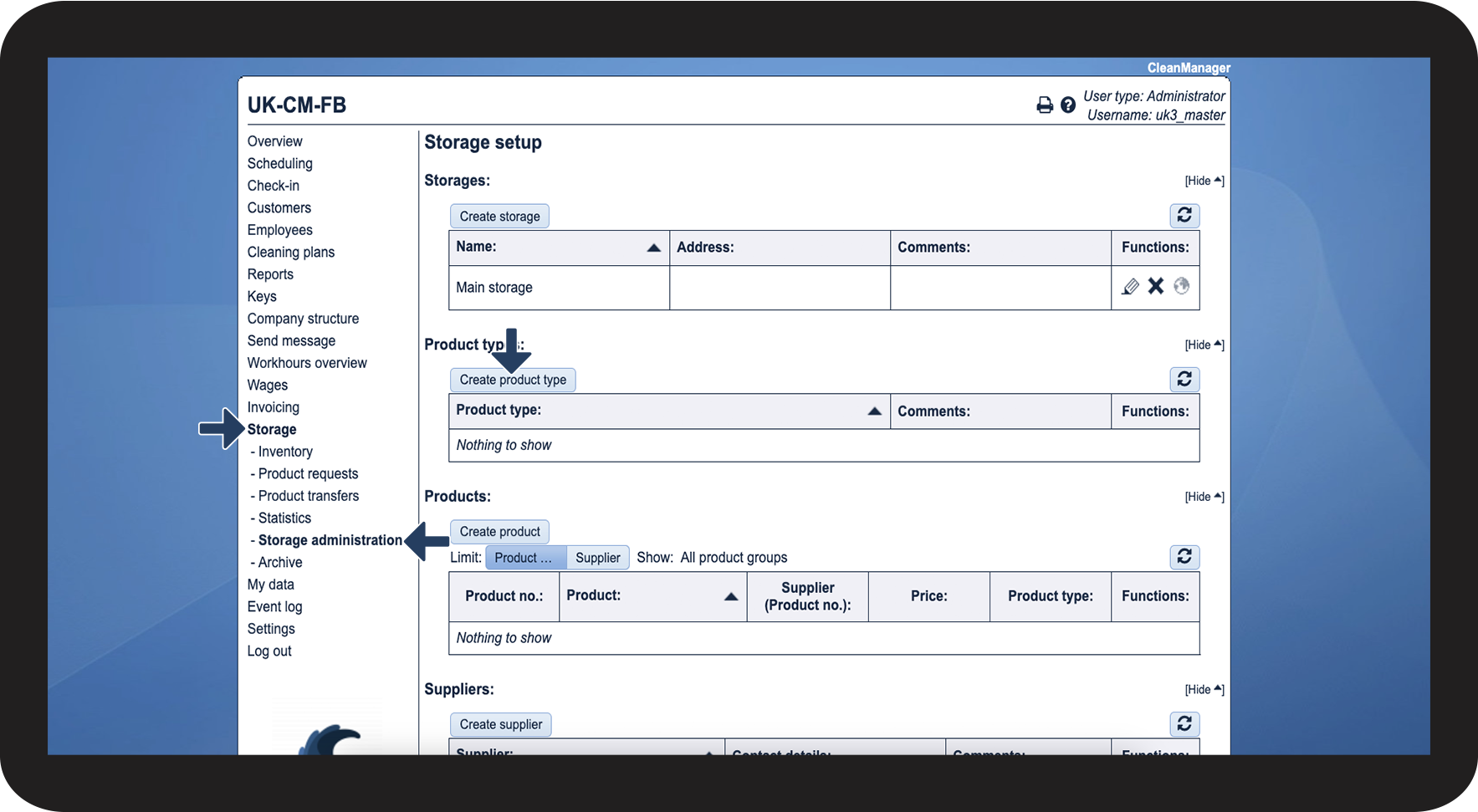
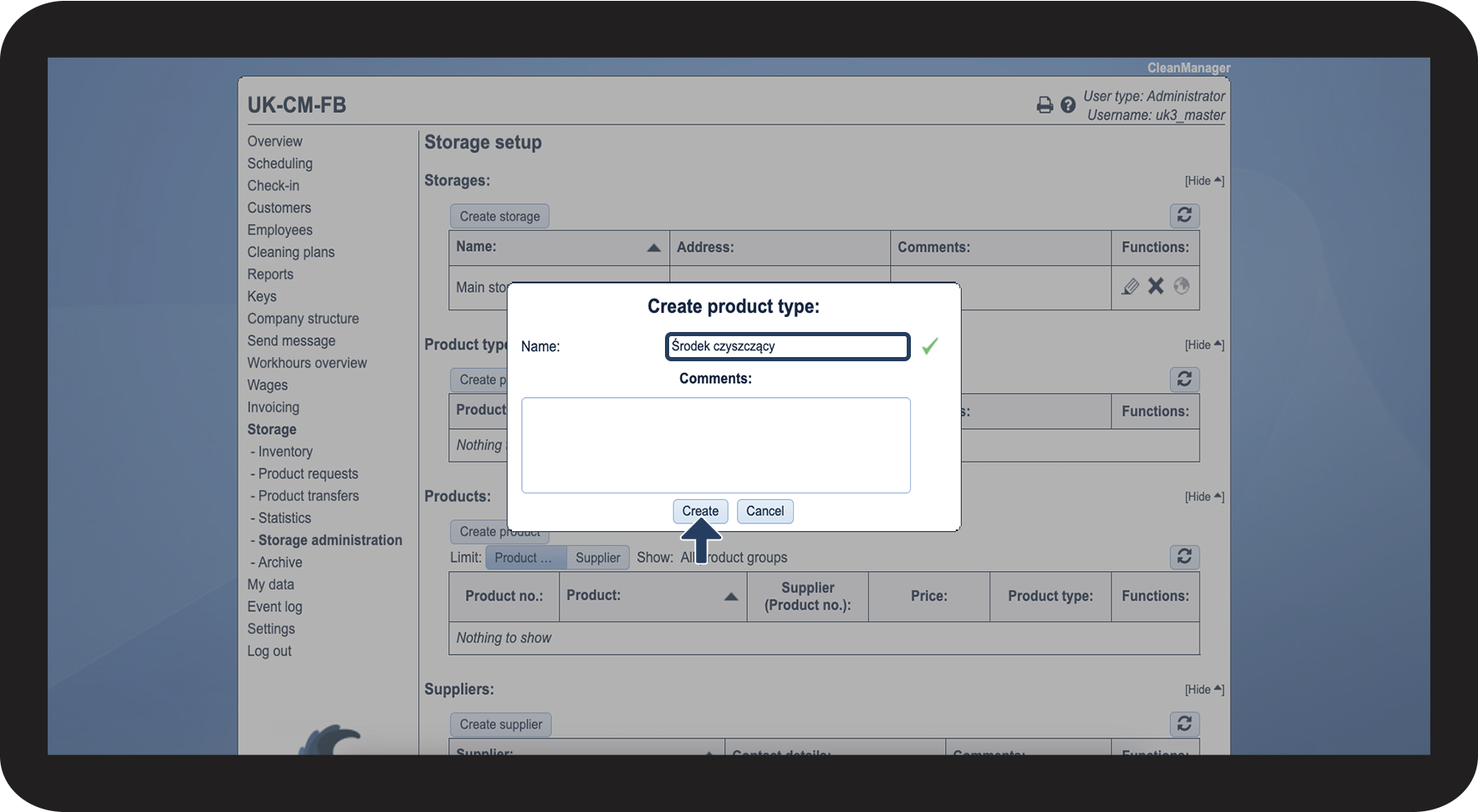
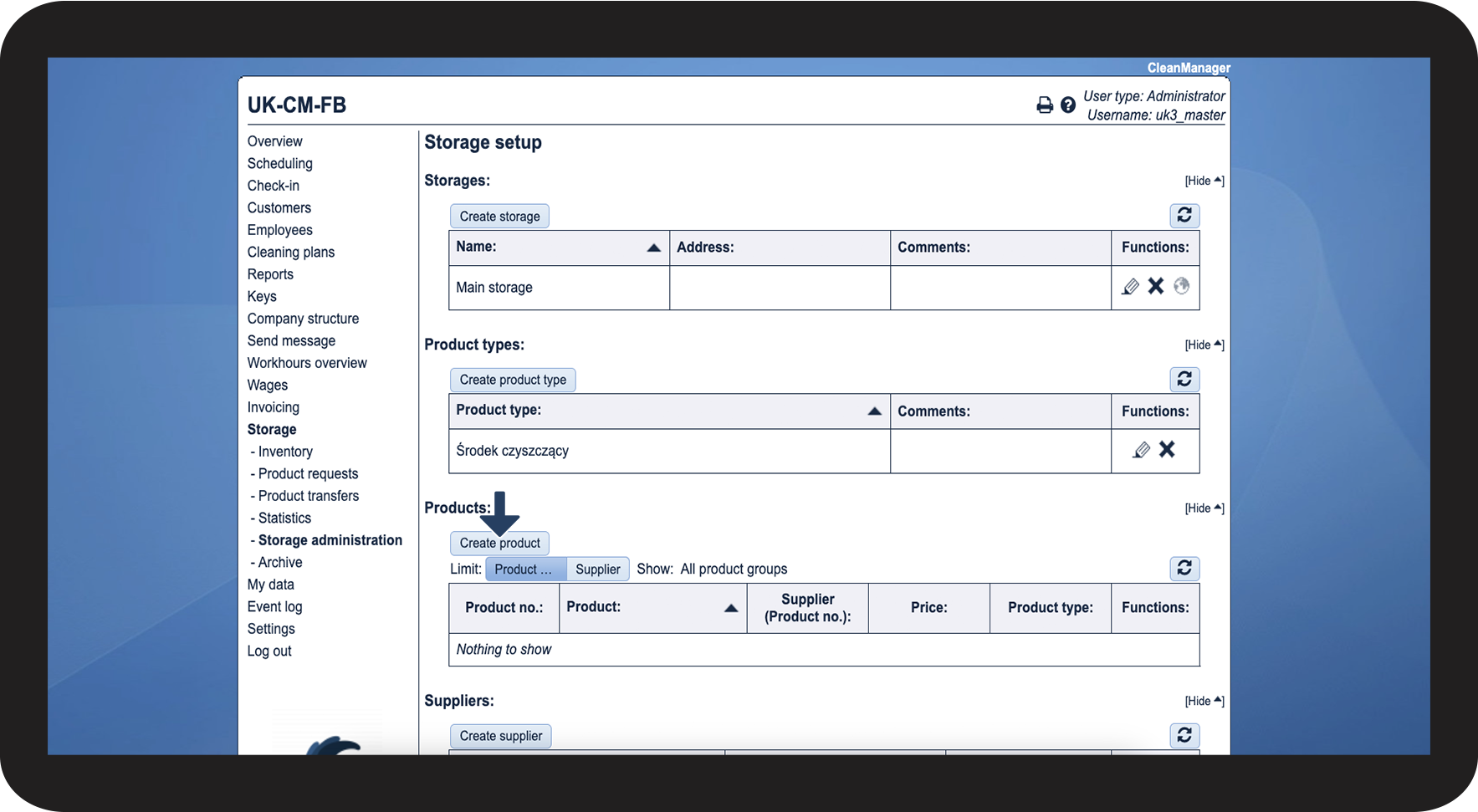
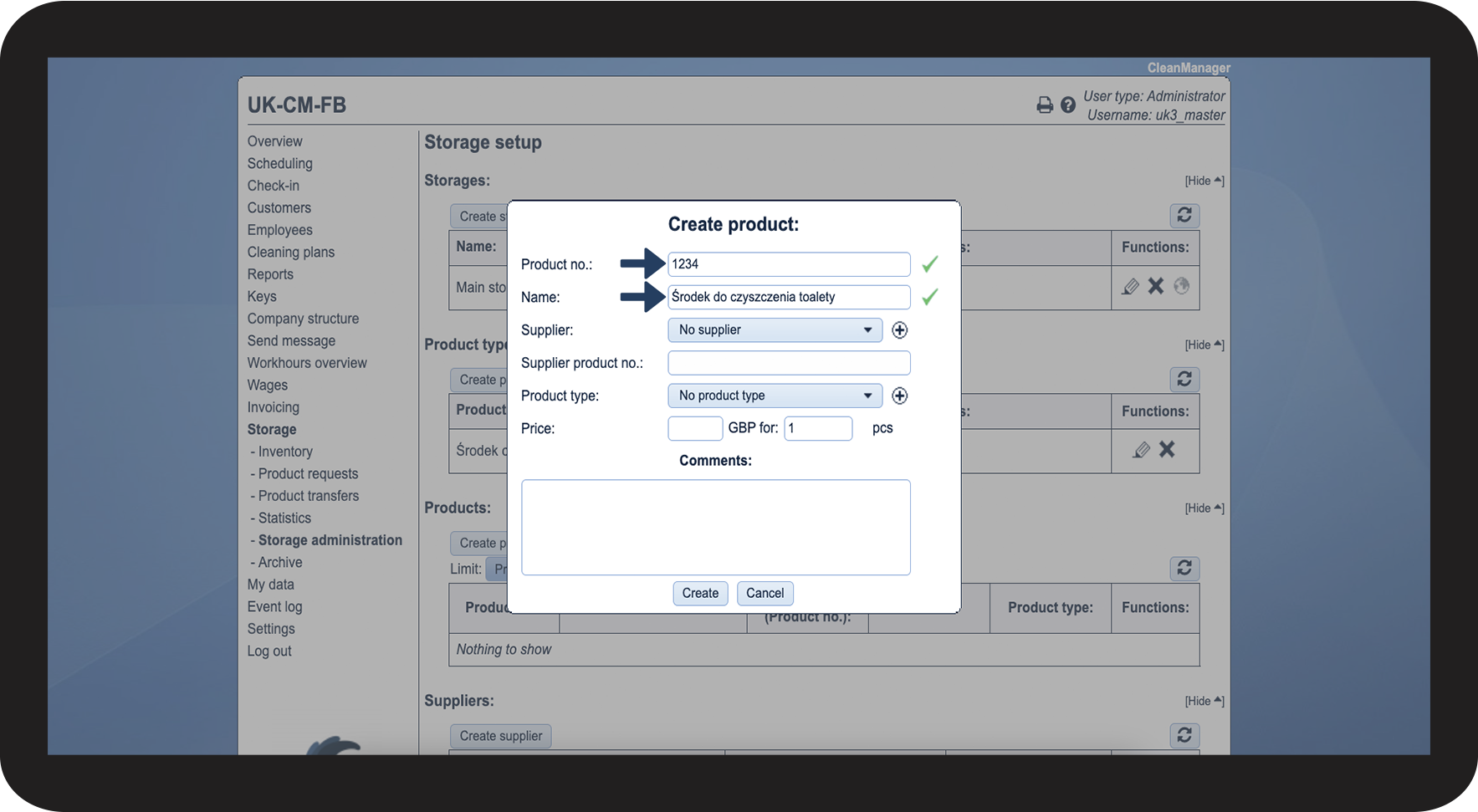
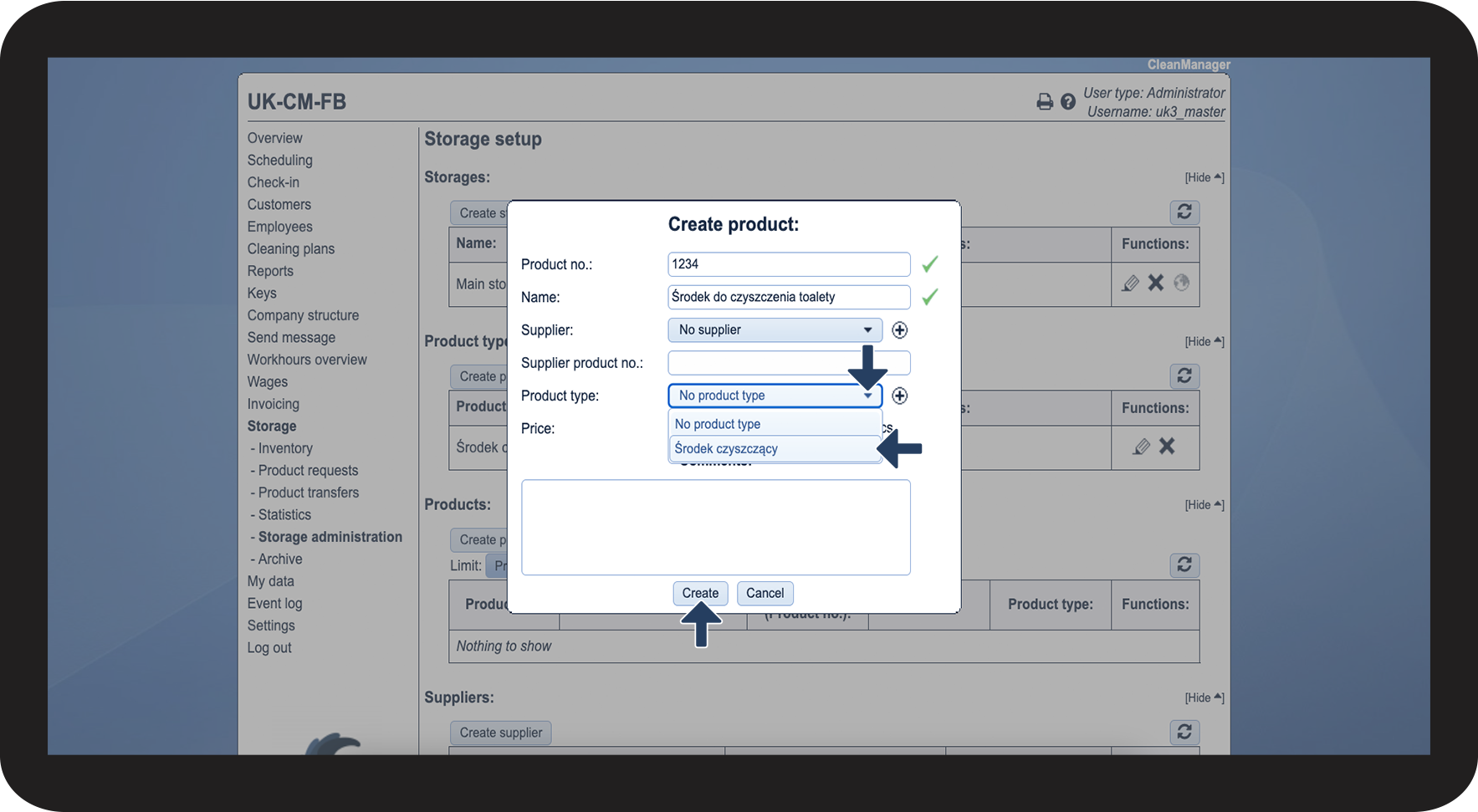
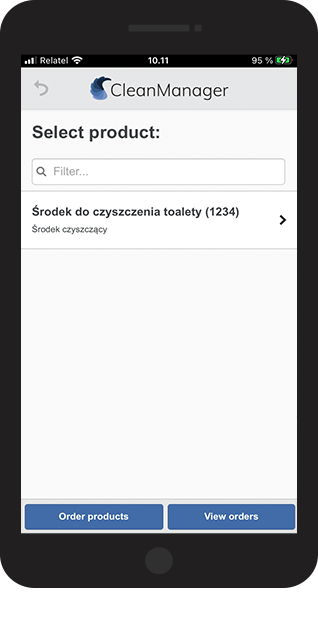
In the storage menu, you have the option to create different storages, as well as products and product types. These can be created in another language, to make it easier for the employees to order them.
Invoice Intervals
The intervals you use for your service agreements can also be written in another language. Read more about it in the following article: Introduction to invoice intervals
Absence types and absence hour types
The absence types, with which you register your employees' absences in the system, can be written in another language as well. Read more about it in the following article: Introduction to absence types and absence hour types
Keys
All the information, which can be added to a key ring, can be written in another language. Read more about it in the following article: Get started using keys