
How do I adjust the type of my report template?
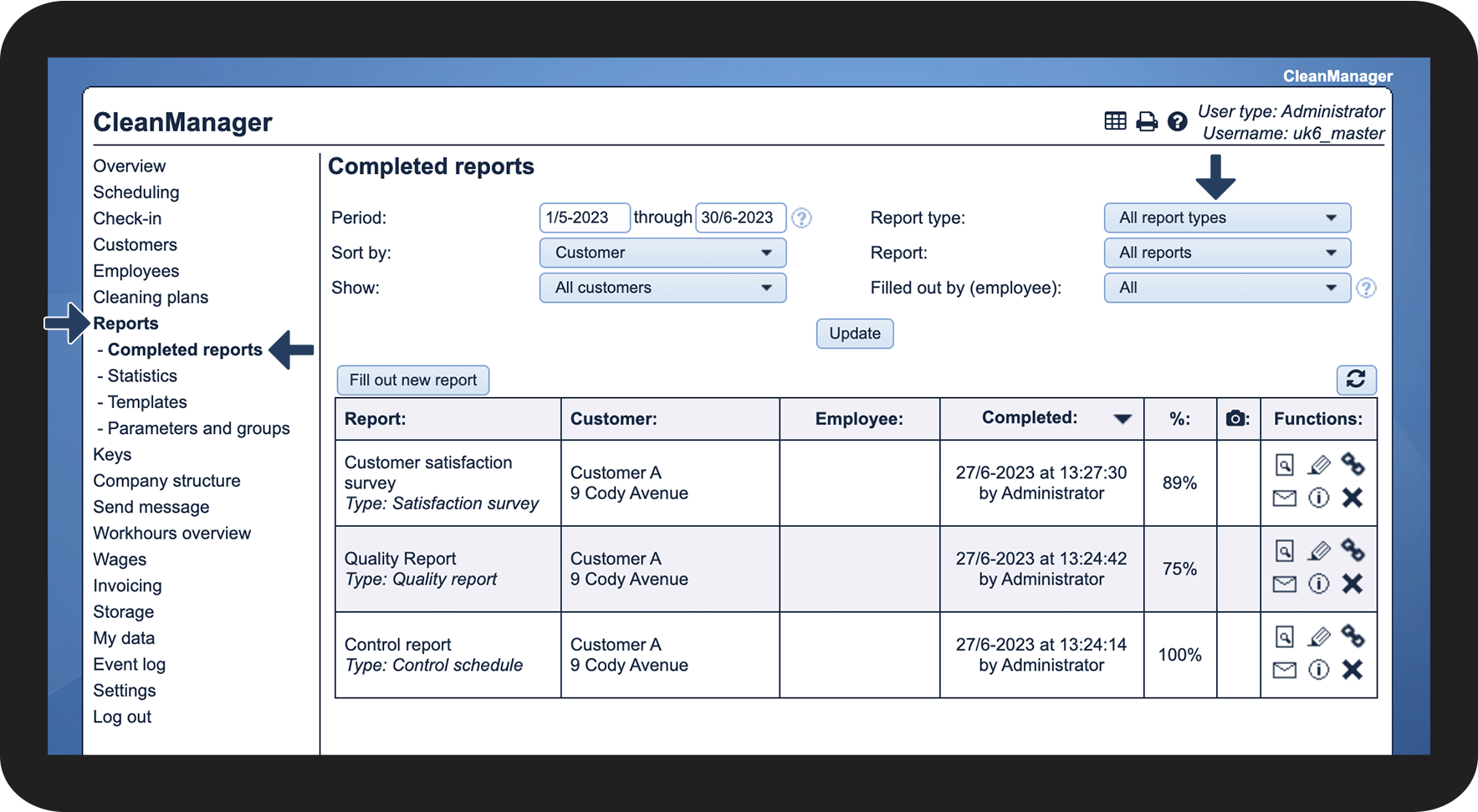
By choosing a report type for your templates, you get the option to sort and analyze completed reports by type when you go to Reports > Completed reports.
Most often, the type of the report is predetermined by the type of template.
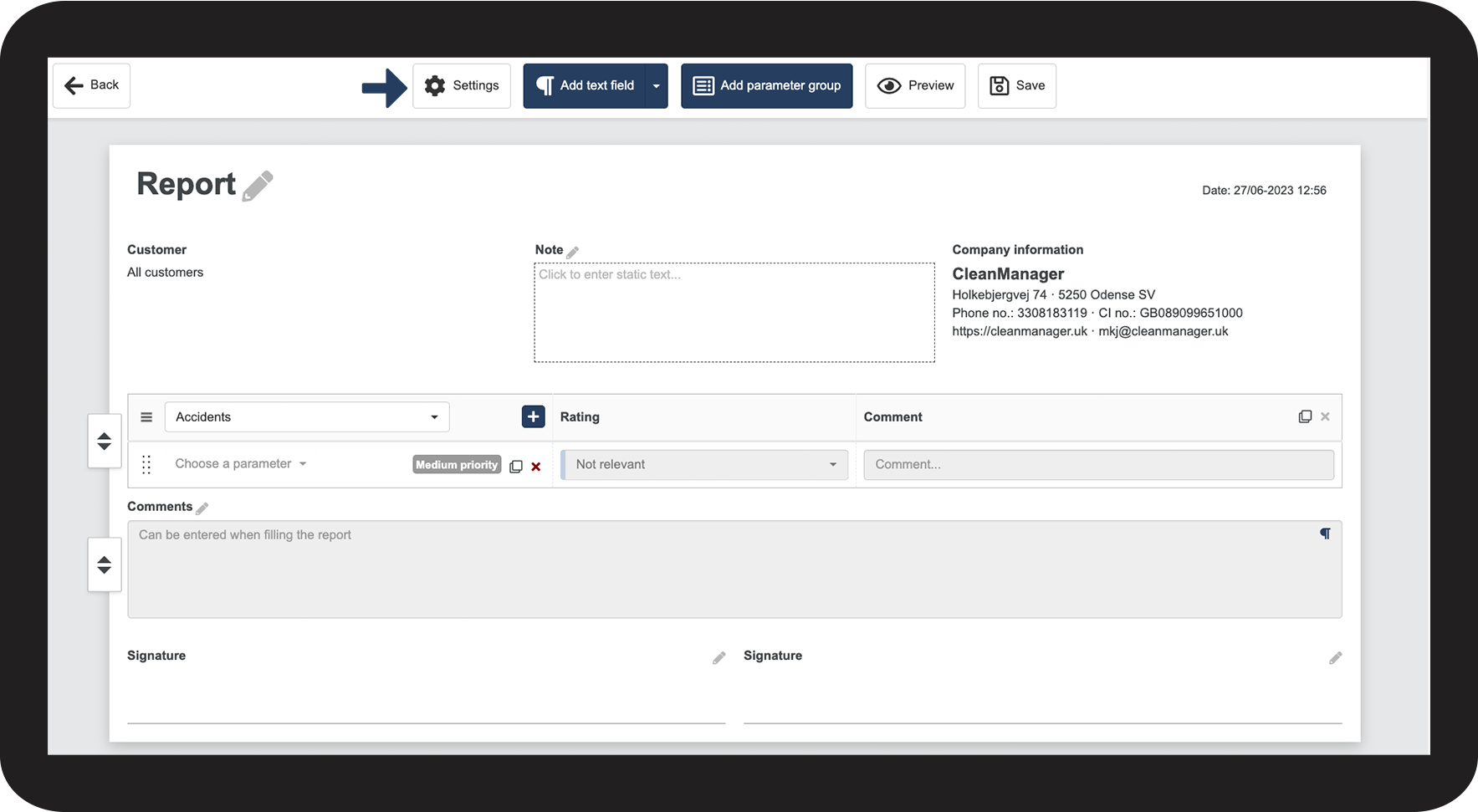
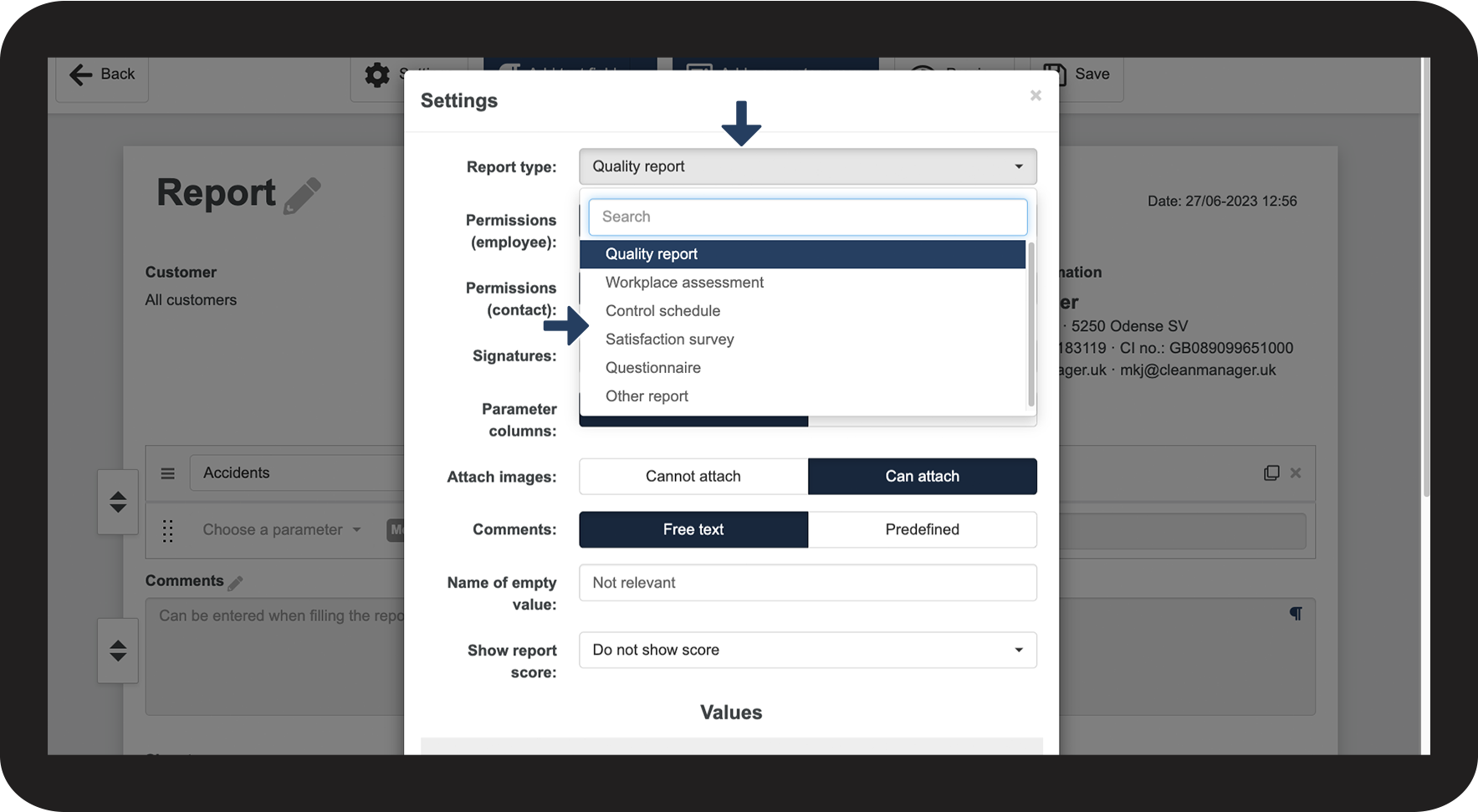
If you want to edit the report type, you can do this in the template settings.
NOTE:
Once you start using a template to fill out reports, you can no longer edit the template. Instead, you can create a new report template or copy an existing one and edit the copy.
Make your adjustments and start using the new template. You can hide the old template, so it can no longer be used.
In this article, you will learn how to:
Adjusting the report type of your template
When you are in the process of creating or editing a template, you have the option to change the settings.


INFO:
You can choose one of the following types for your report:
- Quality report
- Workplace assessment
- Control schedule
- Satisfaction survey
- Questionnaire
- Other report
Sorting completed reports by type
It is possible to sort and pull data on reports by type once they have been filled out.

Continue to the article: Adjusting permissions to view and fill out reports
Learn more about changing permissions in the settings of a template (who can see and/or fill out the report).