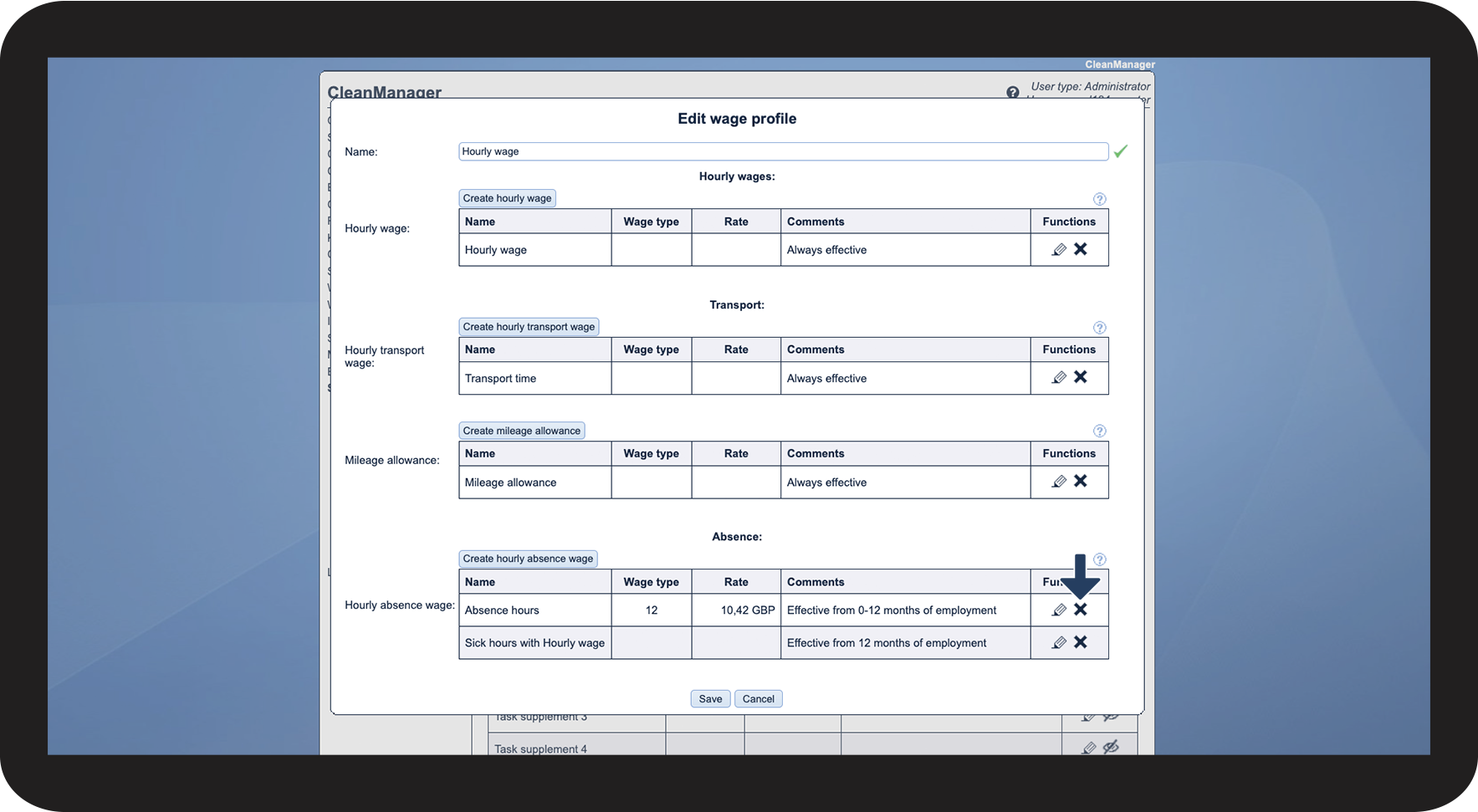
How do I add rates for absence hours to my wage profiles?
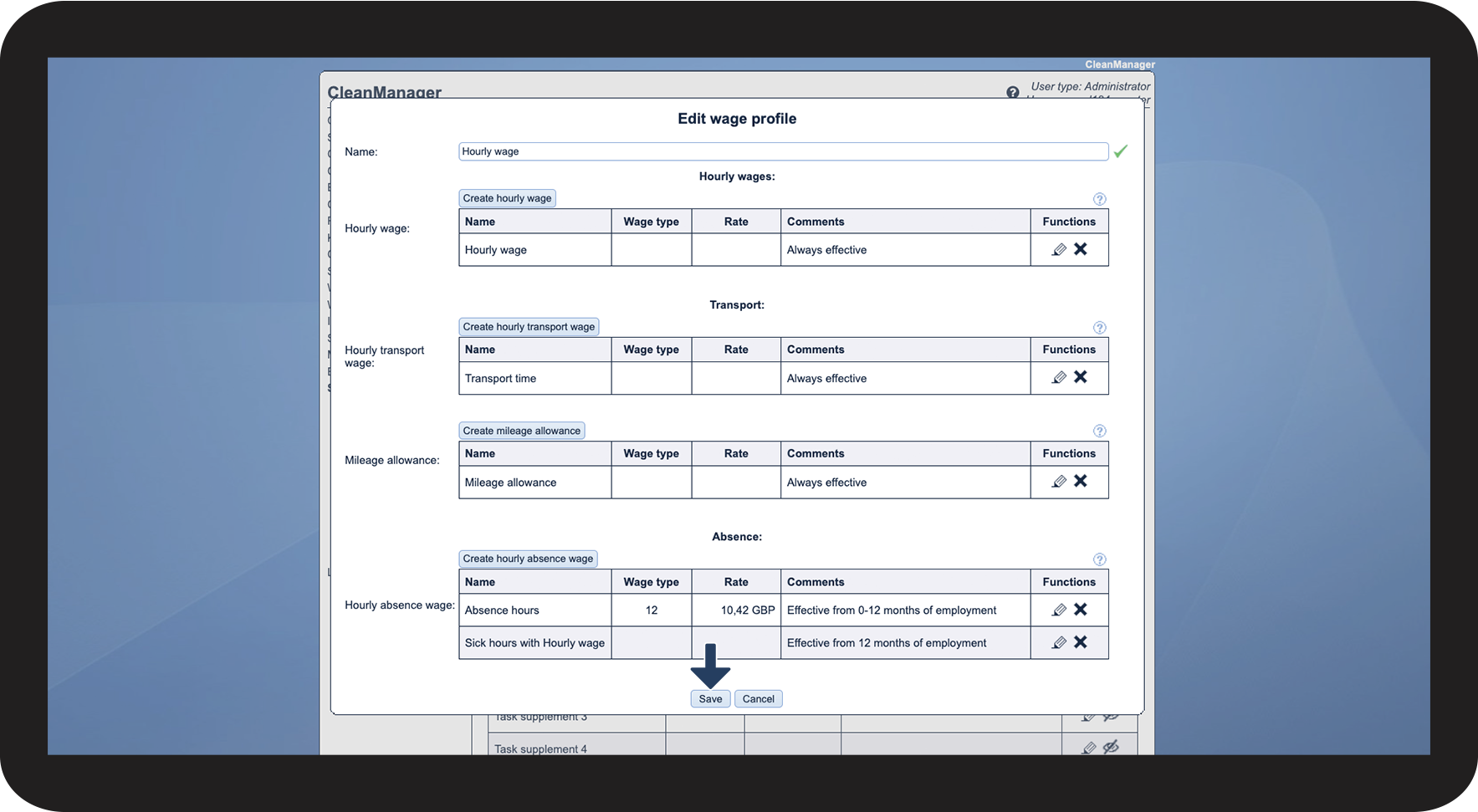
Wage profiles determine the hourly rates for various aspects of work, including regular working hours, transport time, distance travelled, and absence hours. If you add a rate for an absence hour to your wage profile, this rate will apply to all absence hours an employee may have in a payroll period — unless a rate has been added specifically to the absence hour type.
Example:
An employee has five hours of sick leave in a payroll period, which is registered in the calendar with the absence hour type Sick Hours. Additionally, the employee has five hours of training in the period, which is registered in the calendar with the absence hour type Training Hours. The employee's wage profile has an absence hour rate of 10.5 GBP. This means the employee will be paid 105 GBP for all absence hours in the period (5 x 10.5 + 5 x 10.5 = 105 GBP).
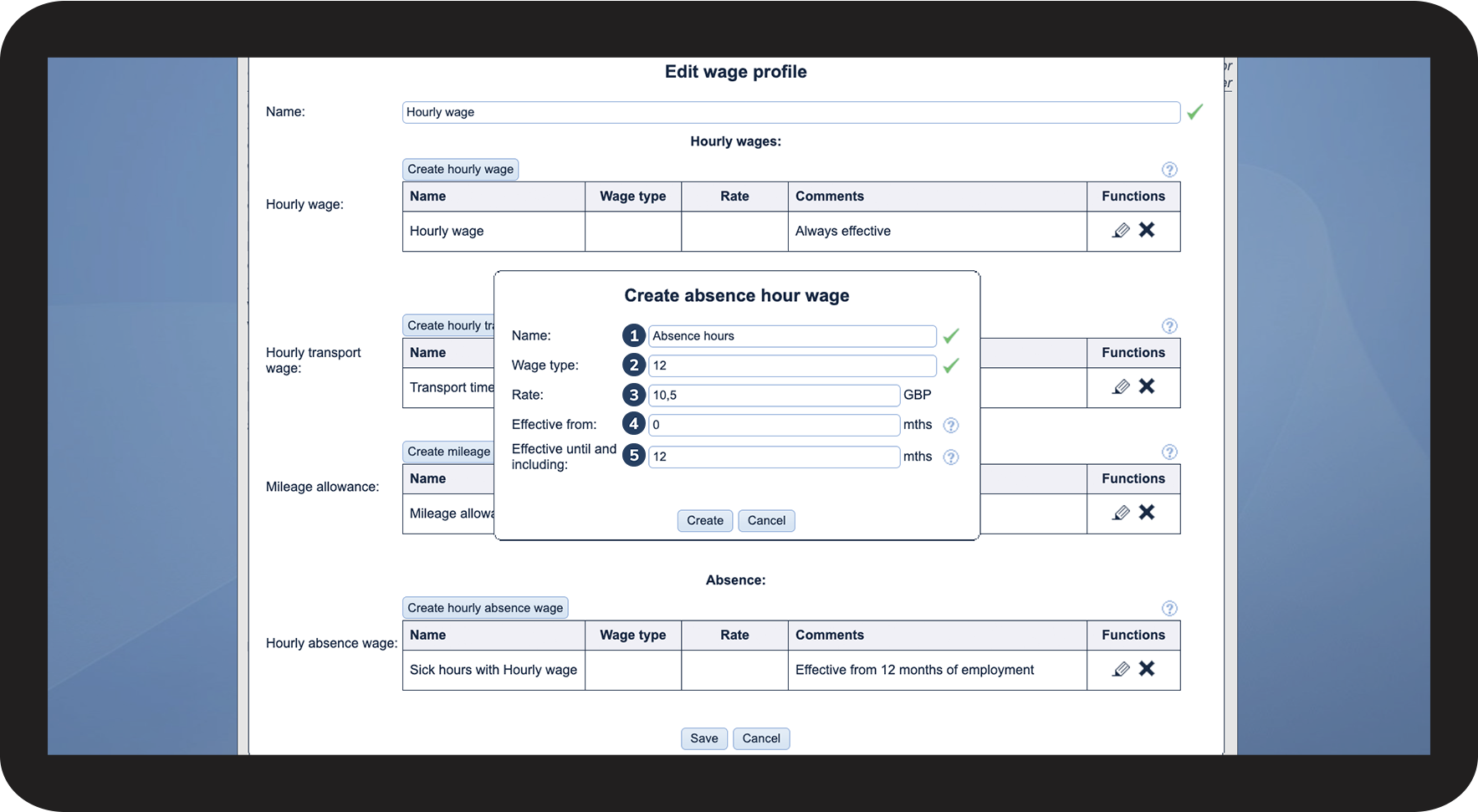
You can also adjust the hourly rate for absence to automatically change after a certain amount of time has passed since the employee's employment date.
In this article, you will learn how to add a rate for absence hours in your wage profiles:
- How do I add a rate for absence hours to my wage profile?
- How do I edit a rate for absence hours in my wage profile?
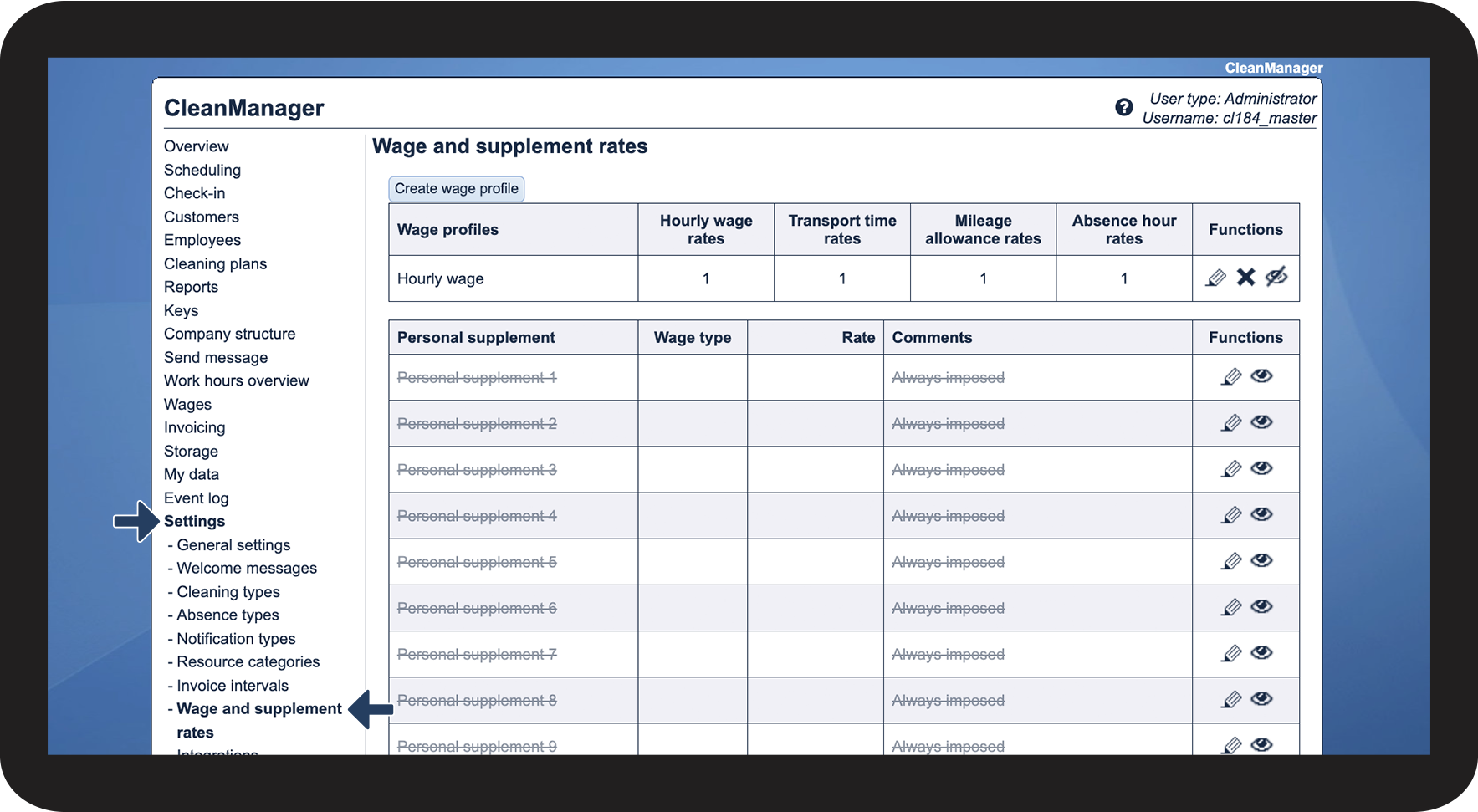
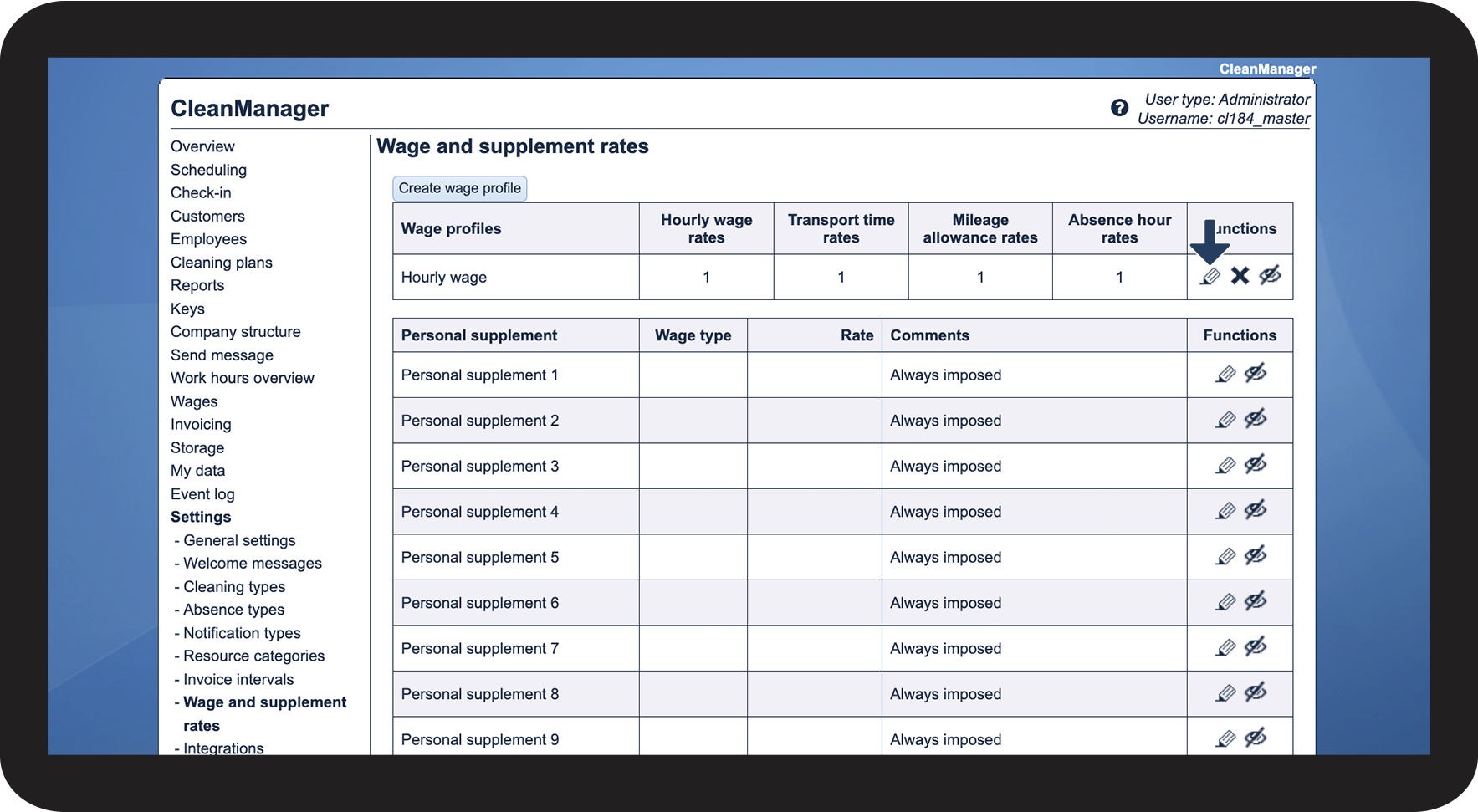
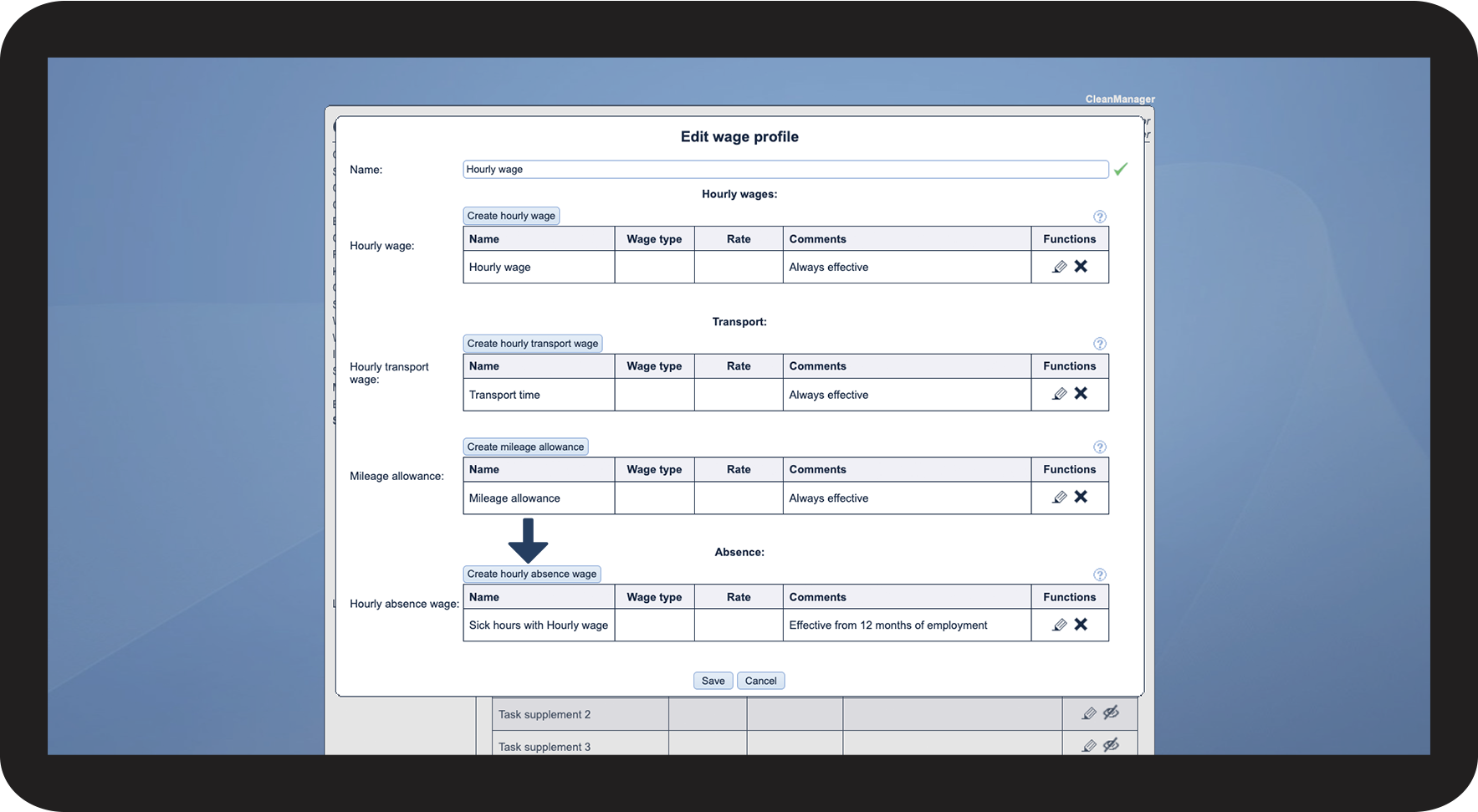
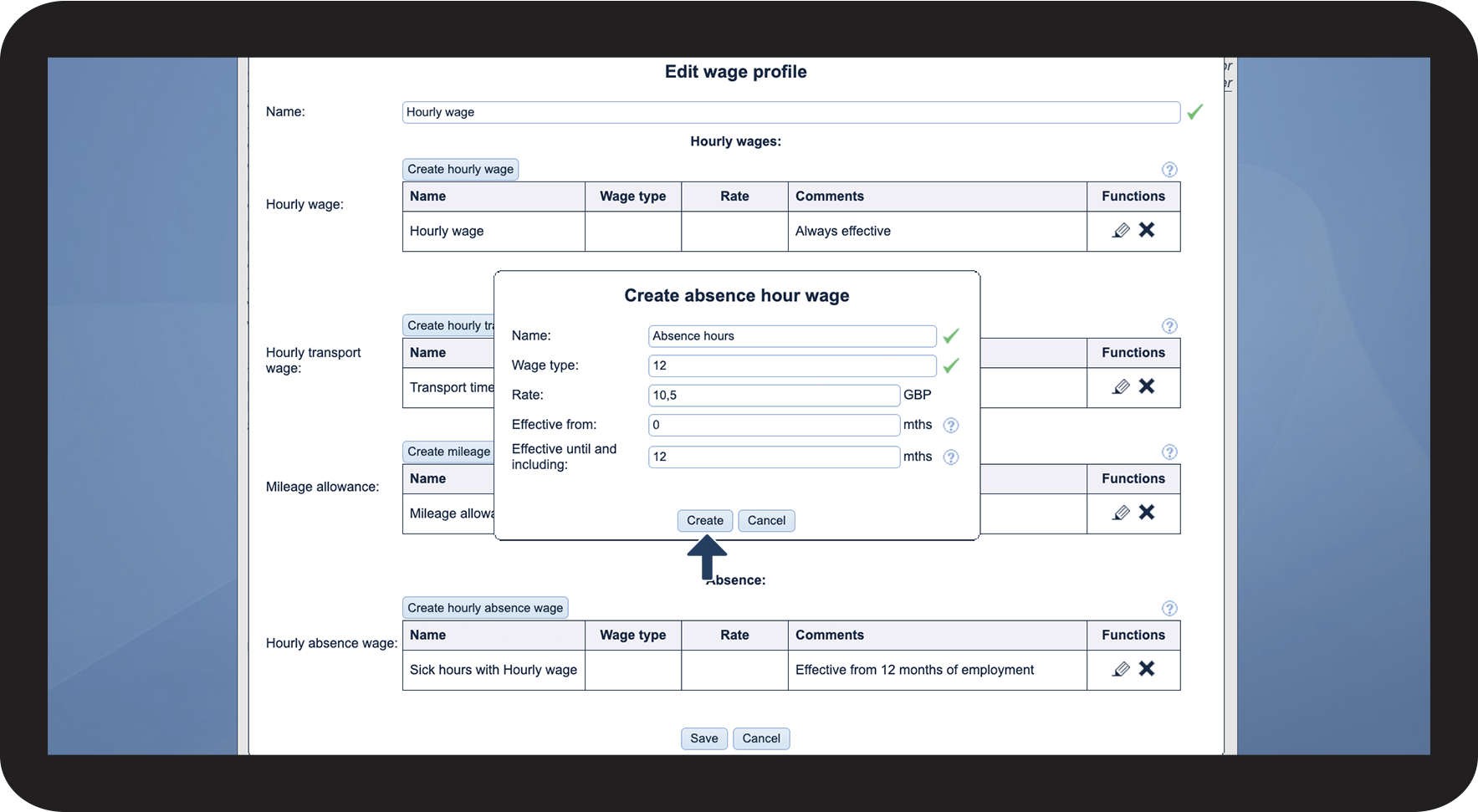
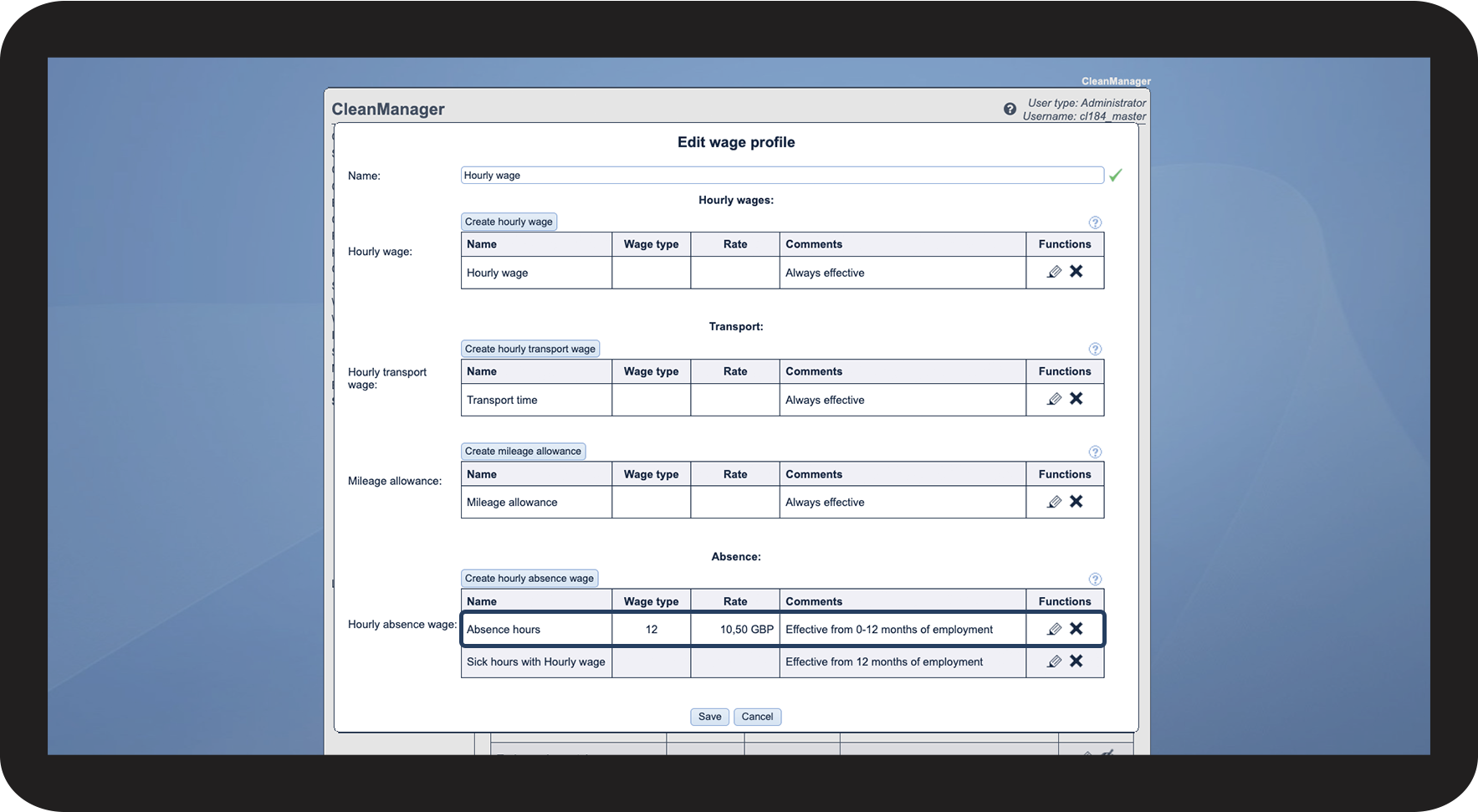
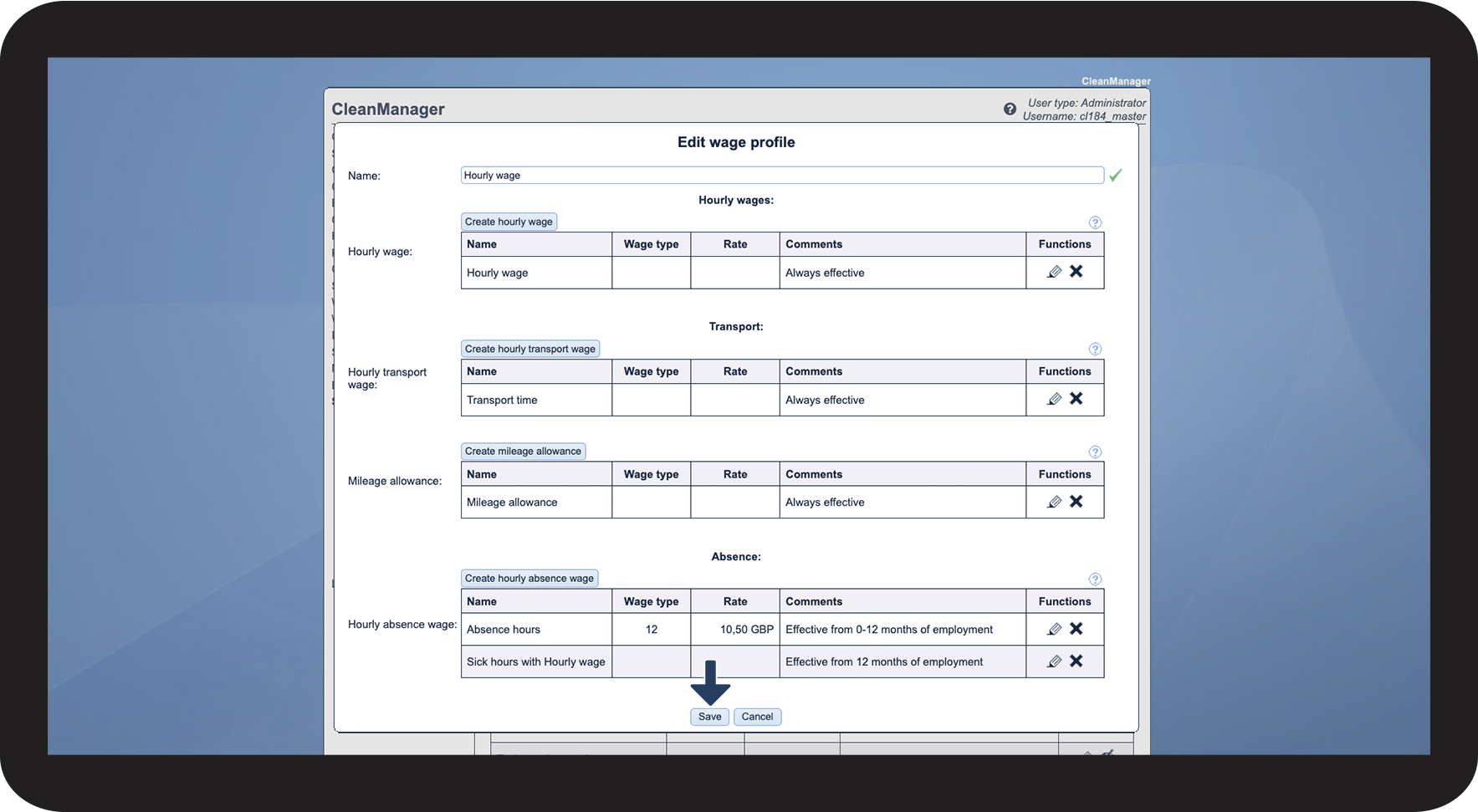
This is how you add a rate for absence hours to your wage profile
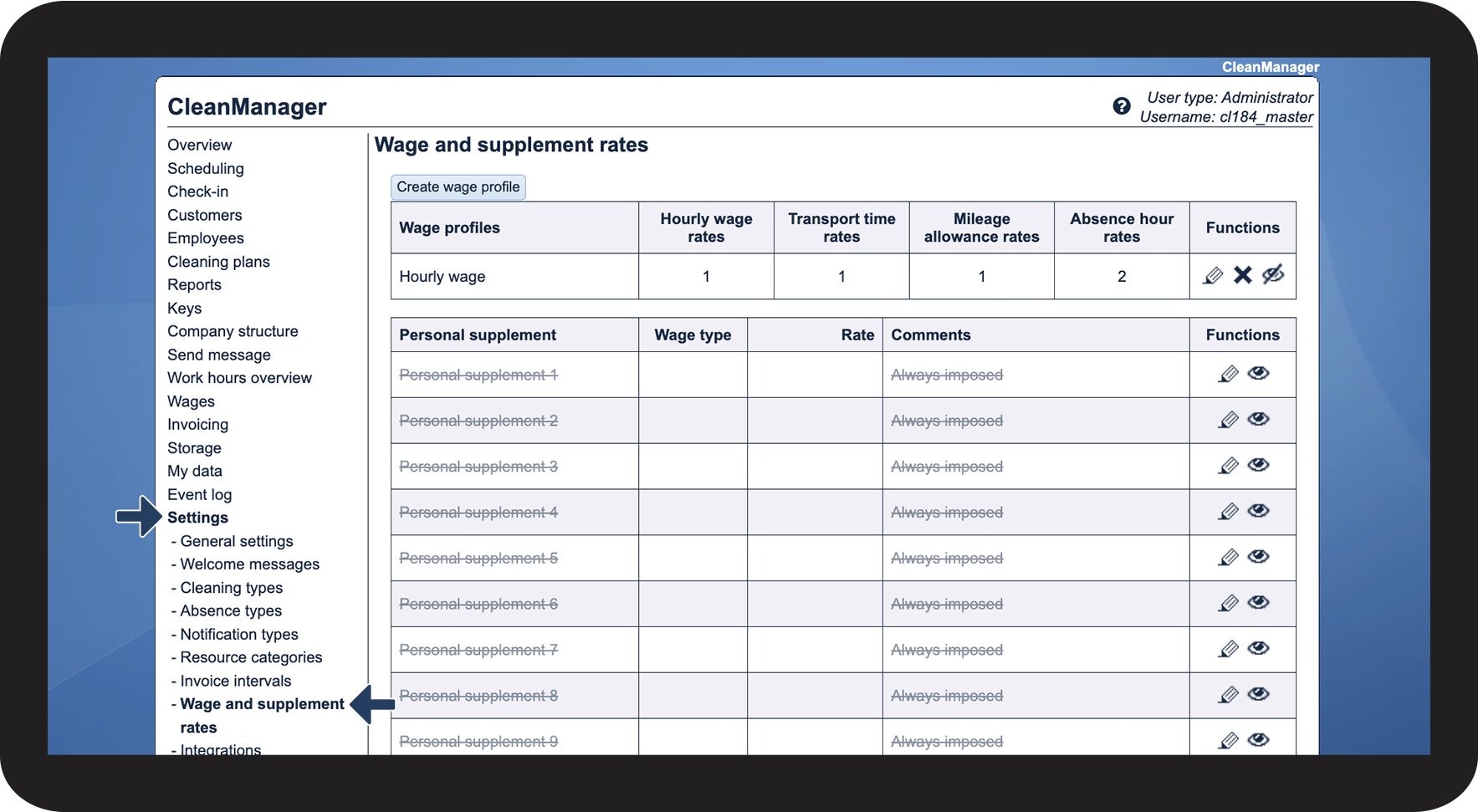
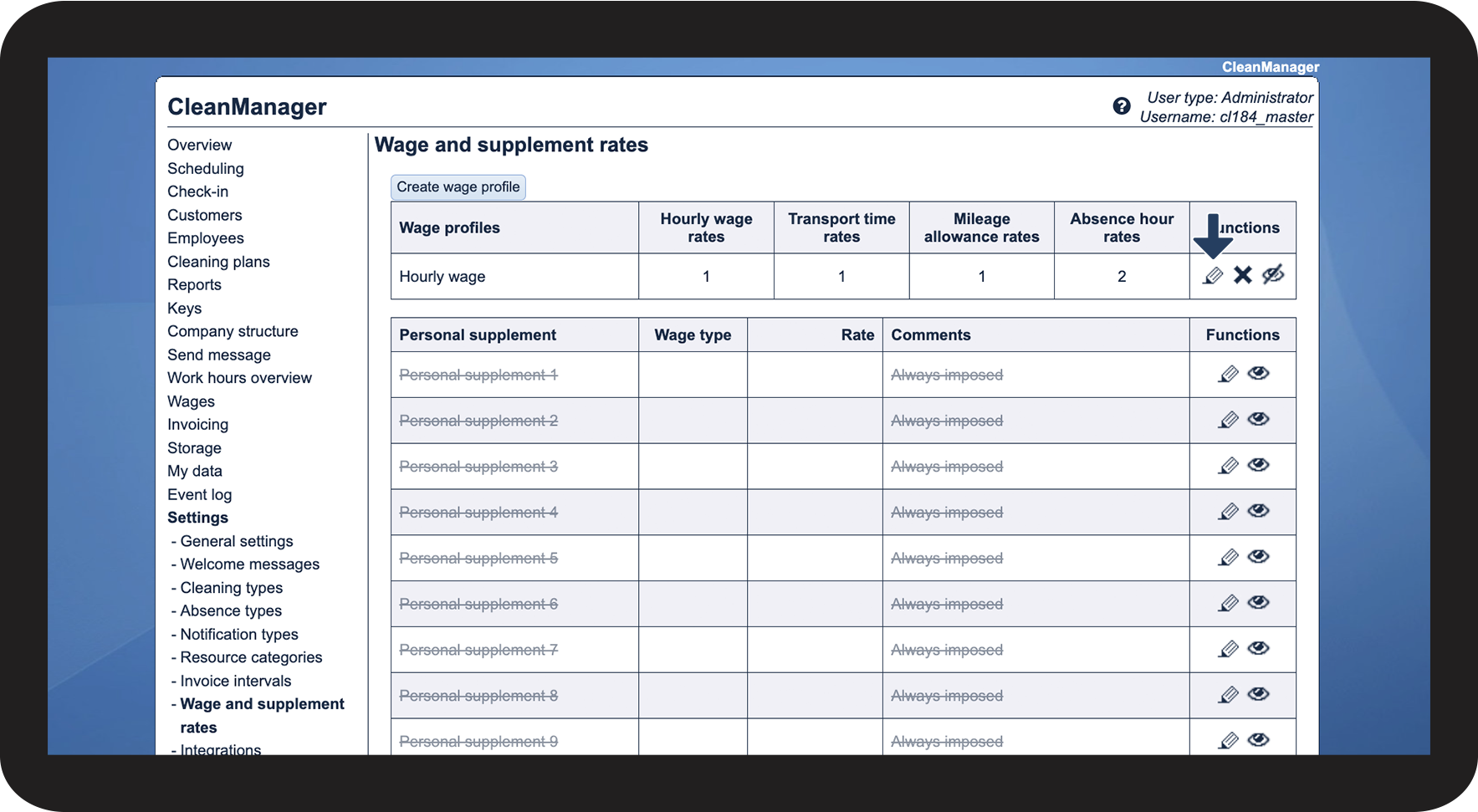
When you create an account in CleanManager, a default wage profile named Hourly wage will automatically be generated for you.
In older subscriptions, the three hourly rates have been converted into three separate wage profiles.




Note:
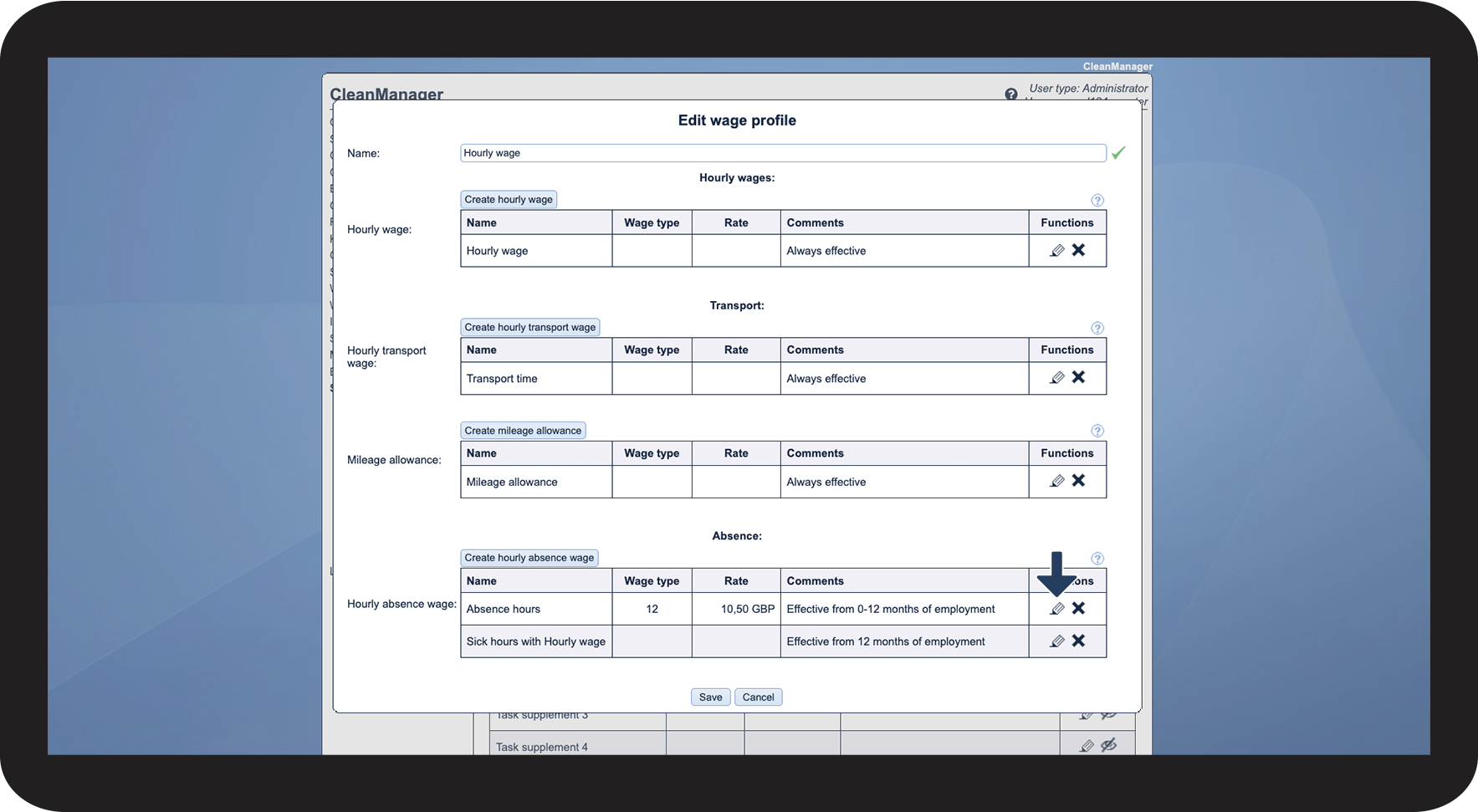
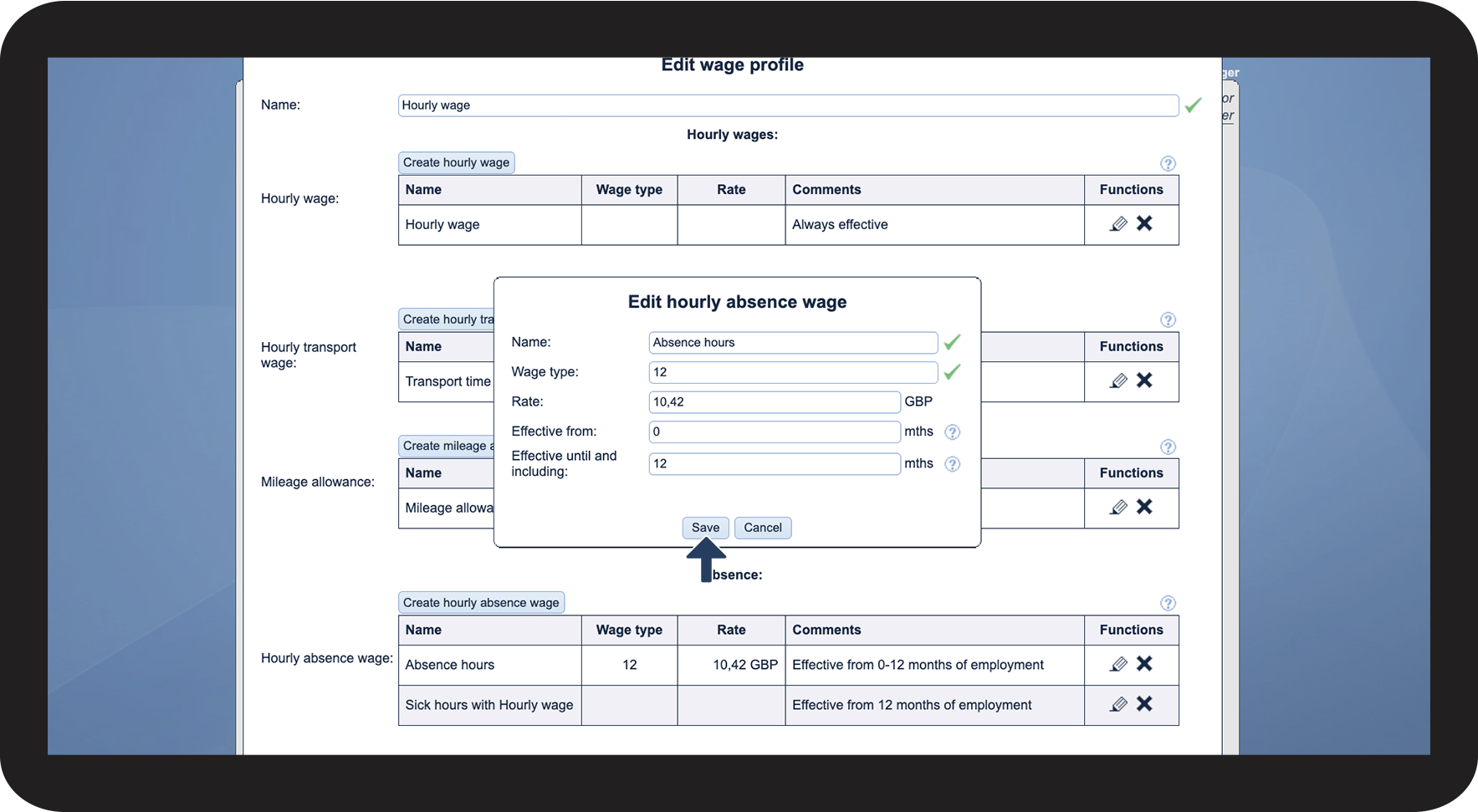
You cannot create multiple absence hour rates in one wage profile, where the time periods overlap.



INFO:
Would you rather determine the rate for absence hours on the absence hour types? You can learn more about adding rates to your absence hour types in the following article: Editing absence hour types
Would you like to add new absence hour types to your system? You can learn more about how to create them here: Creating absence hour types
This is how you edit a rate for absence hours in your wage profile


 next to the rate, you would wish to remove, then confirm the action by clicking Accept.