Skip to content
English
  • There are no suggestions because the search field is empty.

Adding a code

How do I add one or more codes to my key ring?

Once a key ring has been added to a location, codes can be assigned to the particular key ring.

It is possible to add several codes to a key ring – if, for example, it is now required that there is both a key tag that must be handed out and a master code, which is associated with it.

Administrators and Supervisors can create codes in the key rings they manage.

Administrators can create key rings and add codes to all customers.

Supervisors can only create key rings and add codes to the customers to whom they have access.


In this article, you will learn how to add and set up one or more codes for a location:


How to set up a code

number_1_copy.png
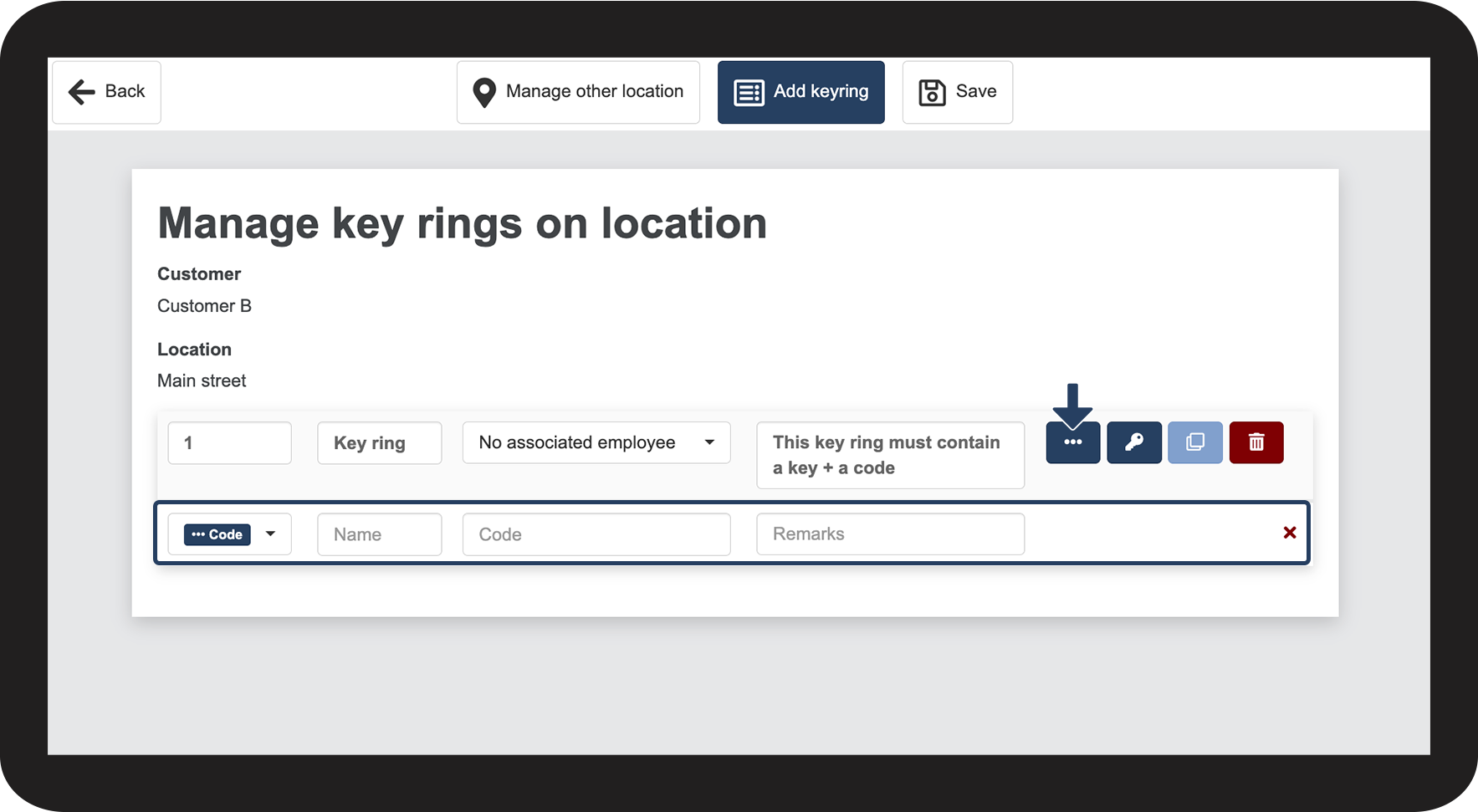
Click on Add code Screenshot_2022-10-28_at_08.24.01.png to begin setting up a code

1.png

number_2_copy.png
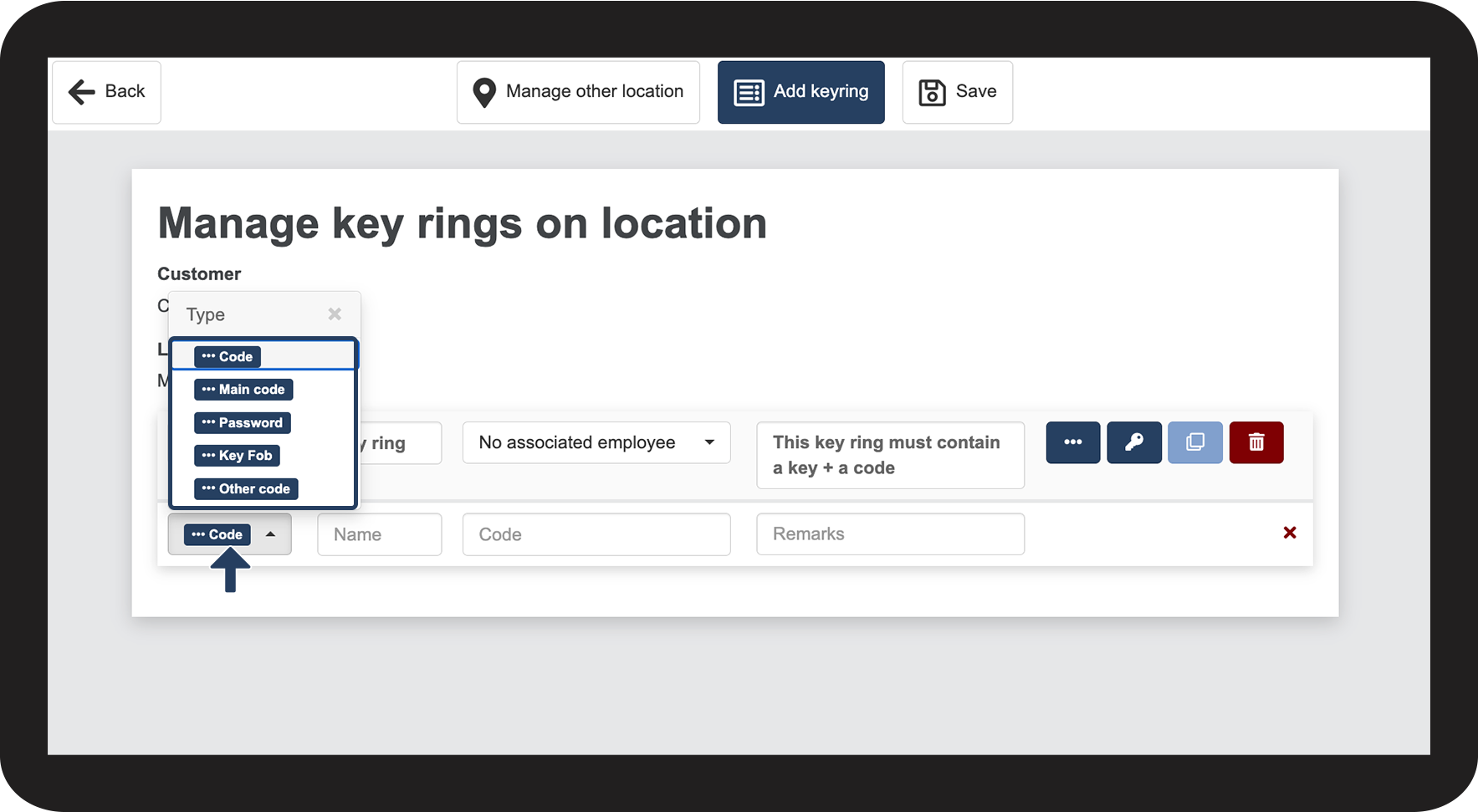
Click on the dropdown menu, select the type of Code you want to add
 

You have the option to choose which type of code is being used. If there are multiple codes associated with a key ring, this can be used to distinguish them.

These are the available code types:

  • Code
  • Main code
  • Password
  • Key Fob
  • Other code

2.png

number_3_copy.png
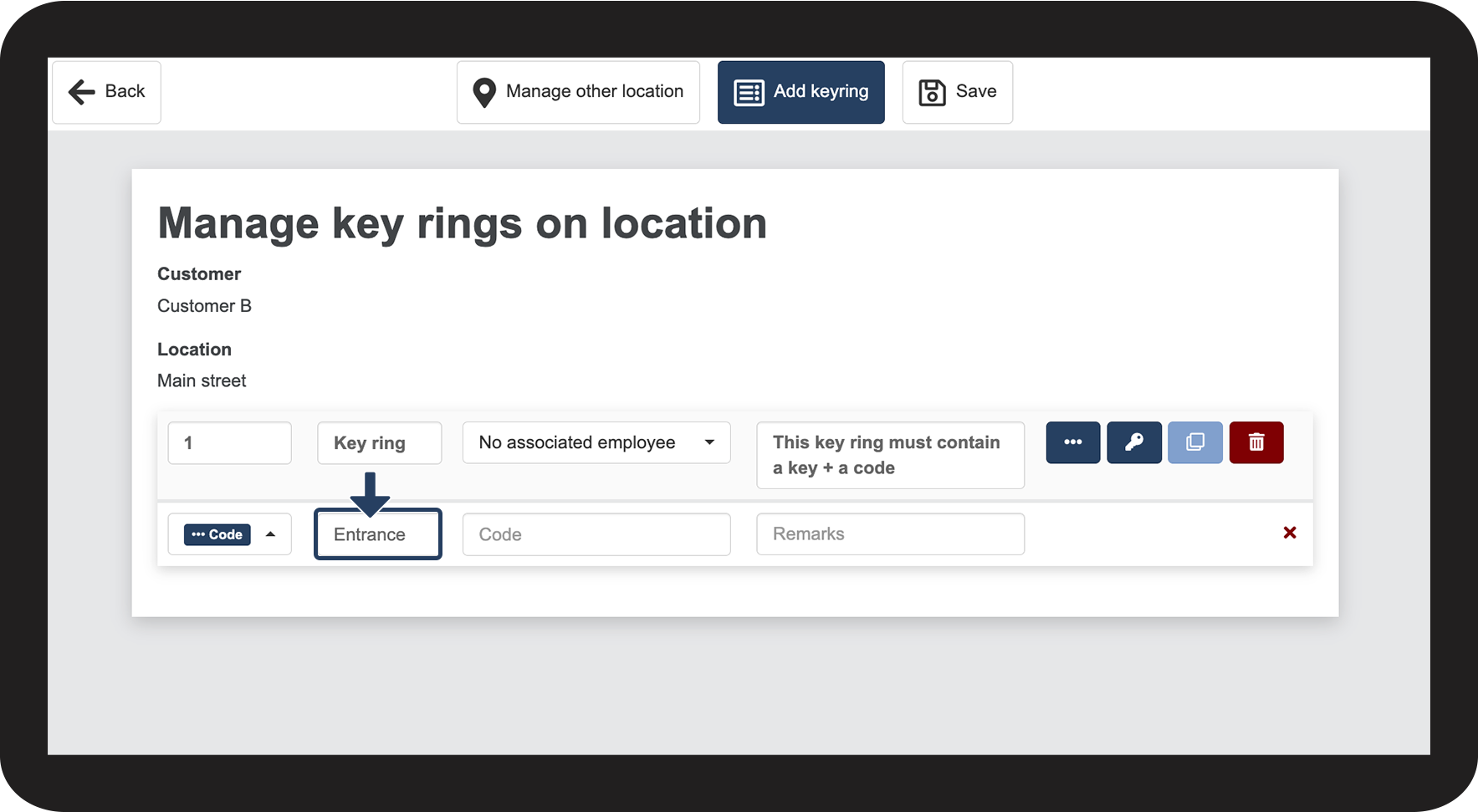
Add a Name to the code

3.png

number_4_copy.png
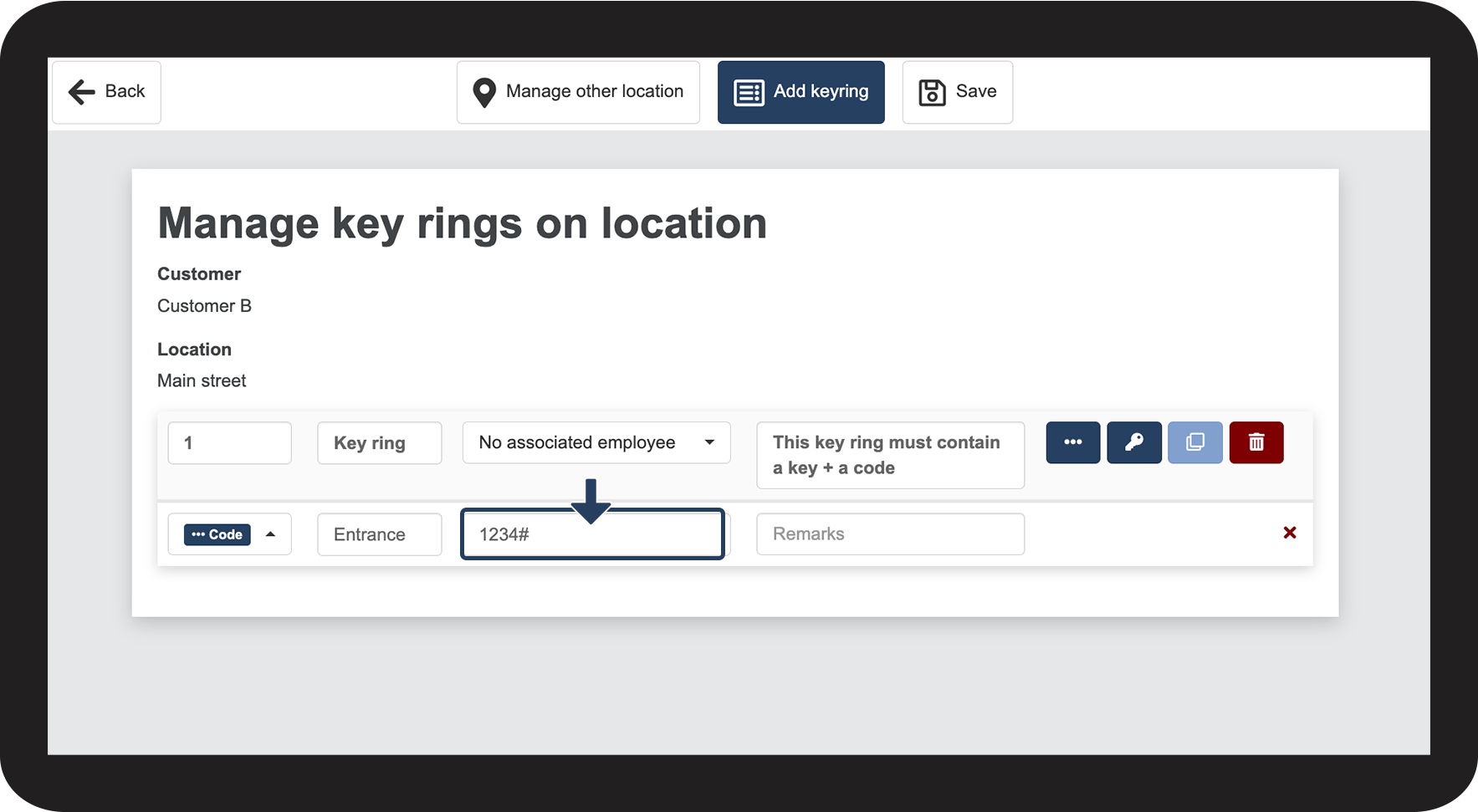
Add the password to the Code 
 
It is possible to add a password, which can be filled in with numbers and letters.

4.png

number_5_copy.png

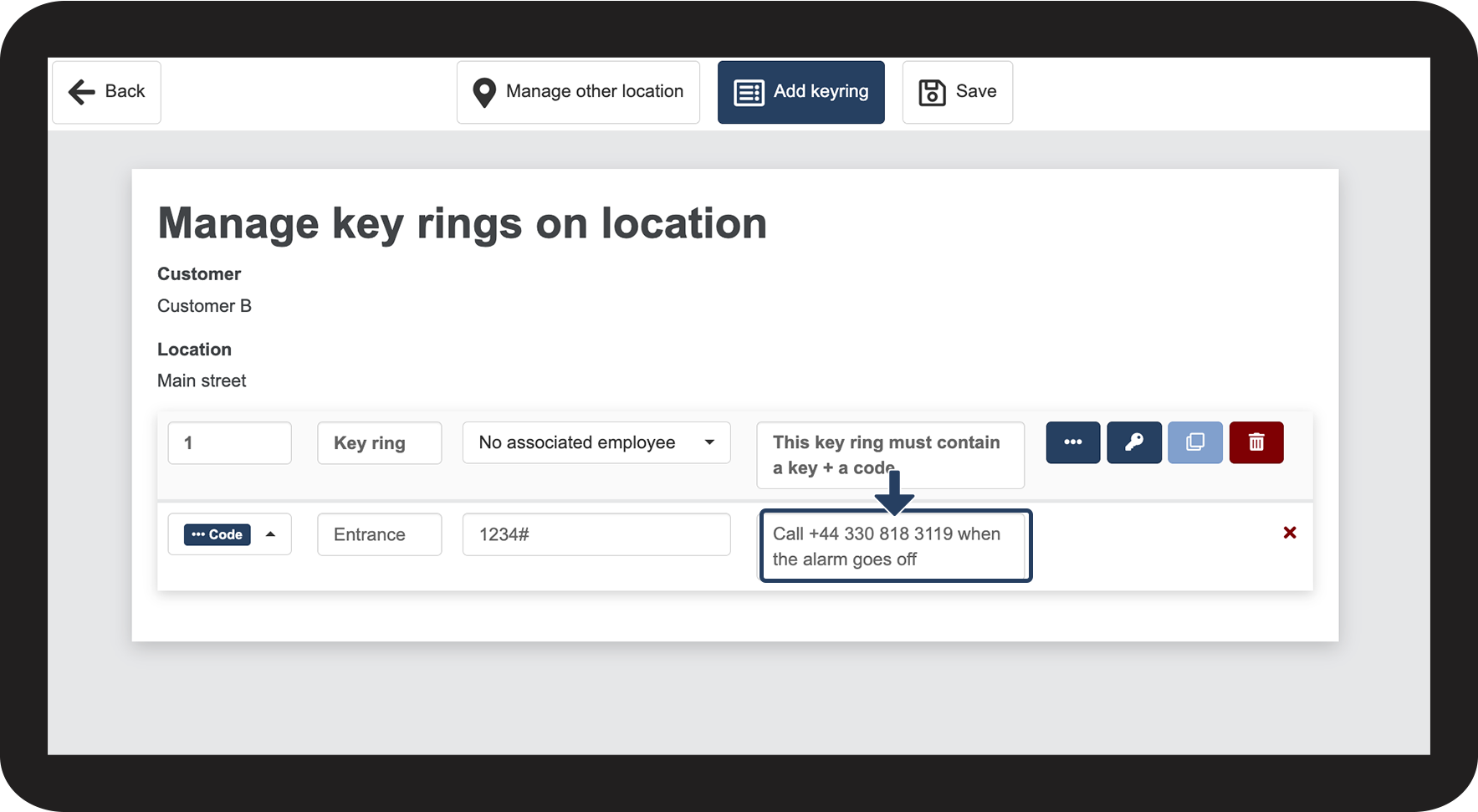
 Add a Remark


It is possible to add a remark to the code if necessary.

5.png


How to add more than one code
number_1_copy.png
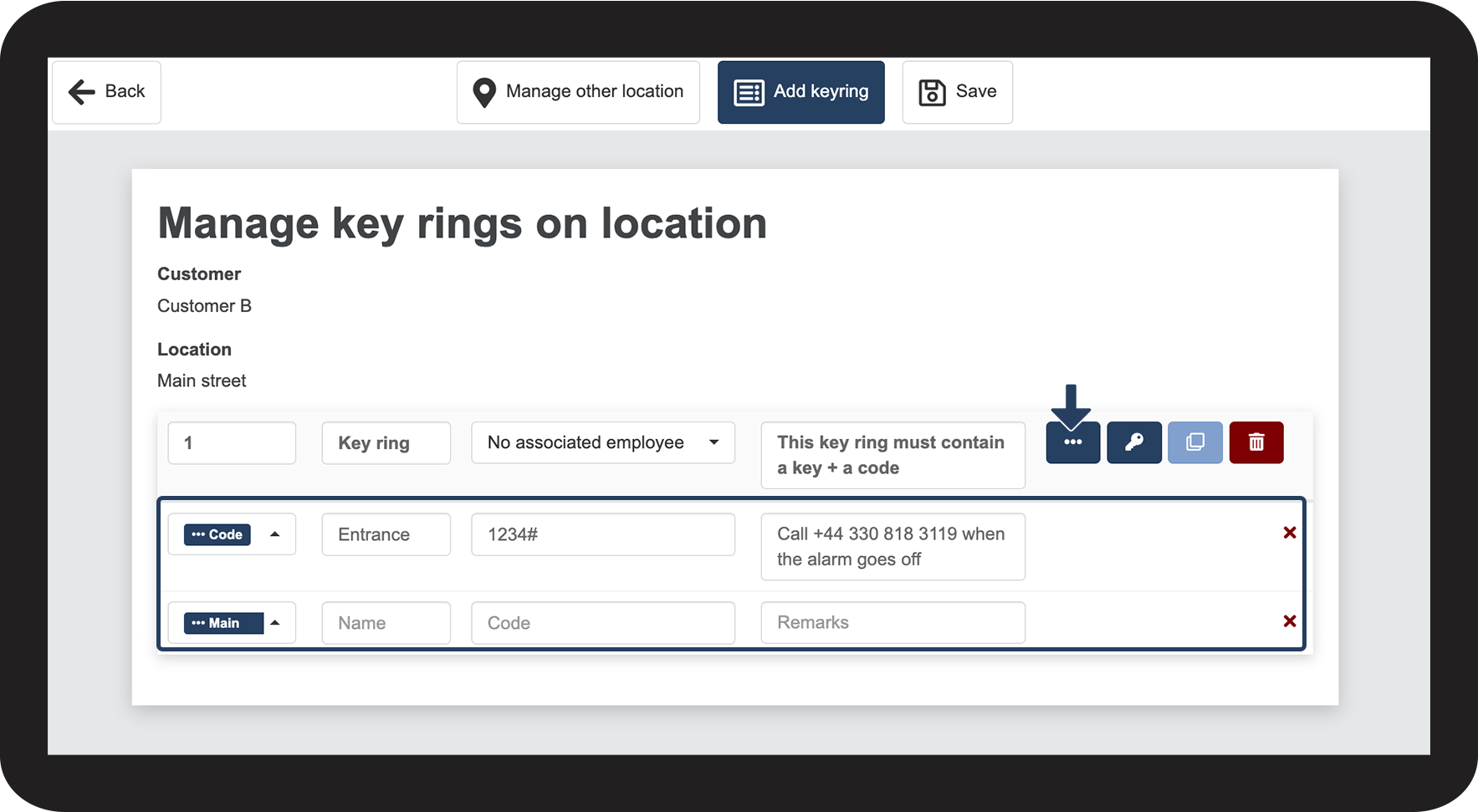
Click on Add code Screenshot_2022-10-28_at_08.24.01.png to set up another code
 
It is possible to add several codes to the same key ring – if several codes are to be used at a location.

6.png


How to delete a code

number_1_copy.png
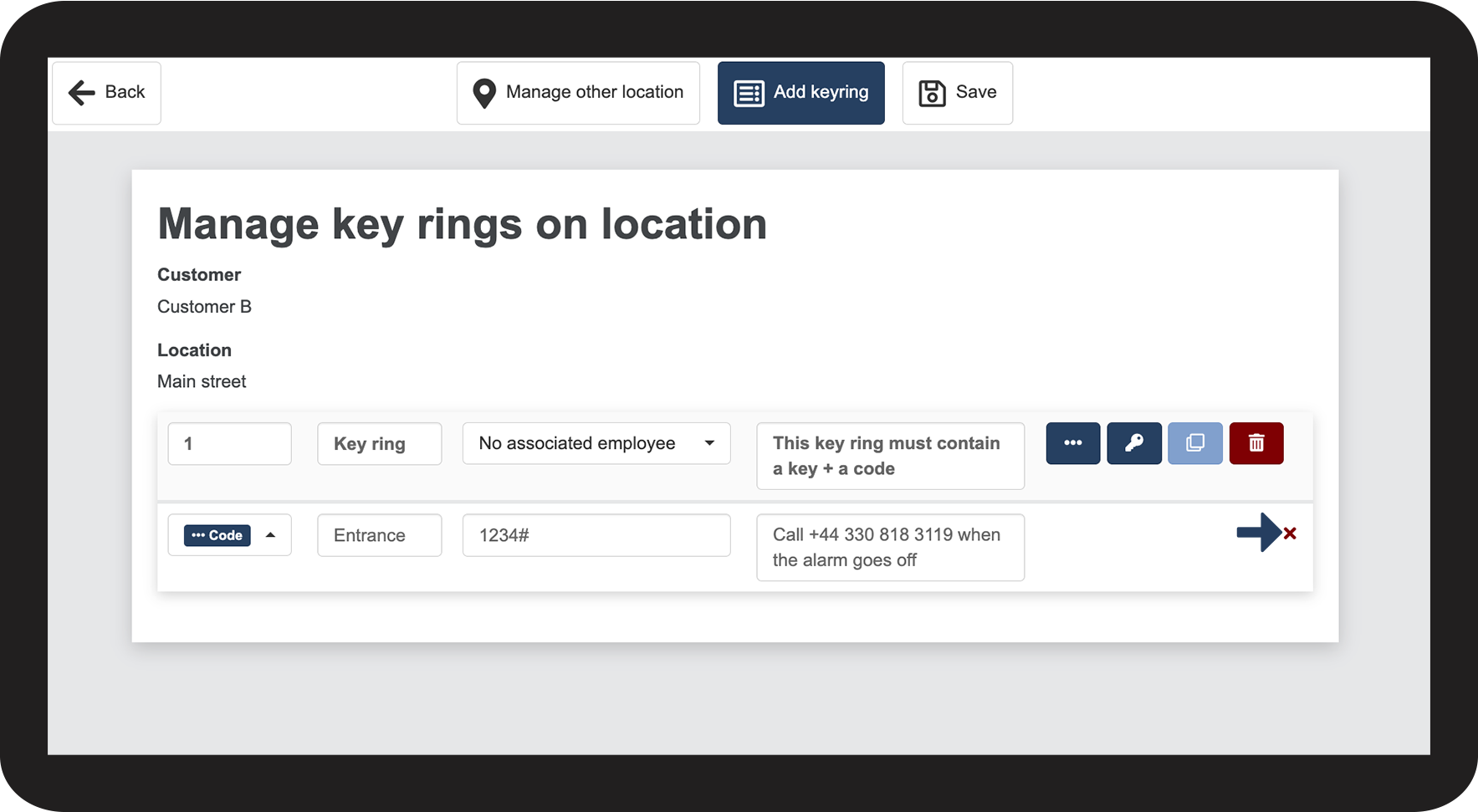
Click on Delete code Screenshot_2022-10-31_at_08.07.06.png to delete a code

7.png


Continue to the article Adding a key

Here you can continue setting up a key